GWS Application and Configuration
Process
- Apply for a GWS trial account
- Configure GWS account
- Set up DKIM verification
- Set up SPF verification
Test Environment
- GWS Starter
- Domain registered with Google Domains
- DNS Server using GCP Cloud DNS
Steps
Apply for GWS Trial Account
Apply at the following website, where you can try three versions
Apply for Google Workspace - Google Workspace Admin Help
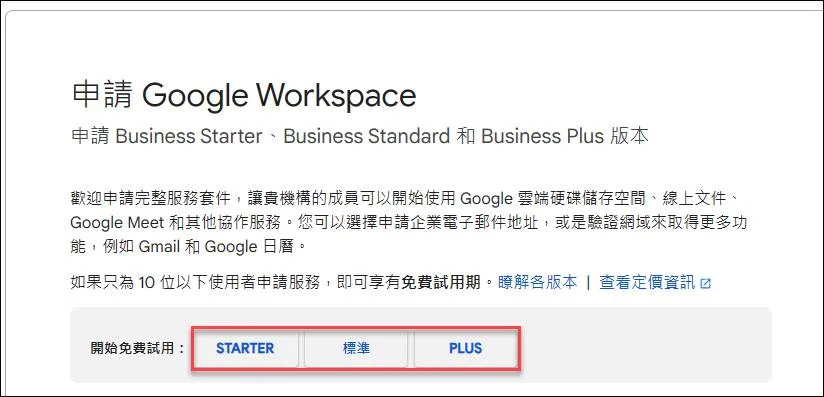
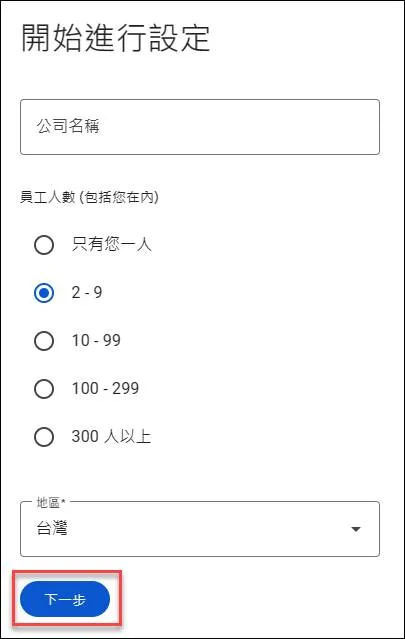
Click Next
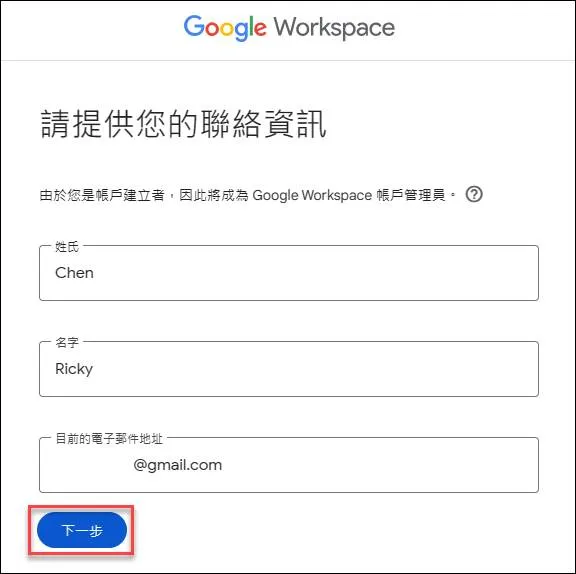
Enter your name and email, then click Next
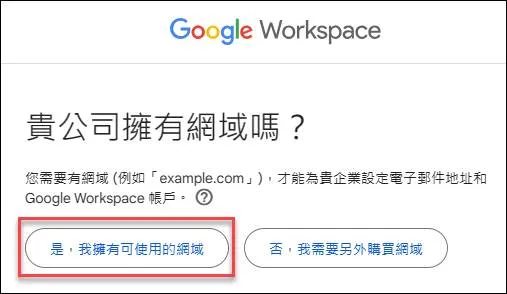
If you already have a domain, click on the left
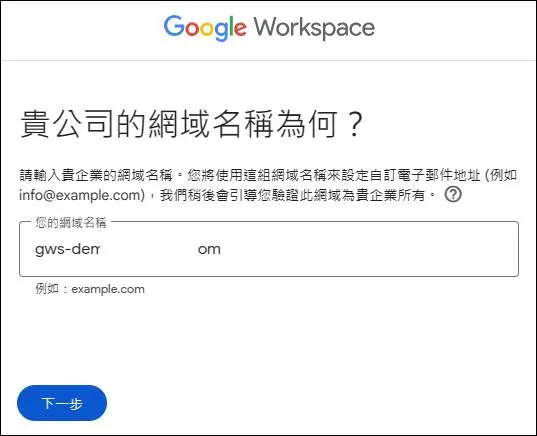
Enter the domain name and click Next
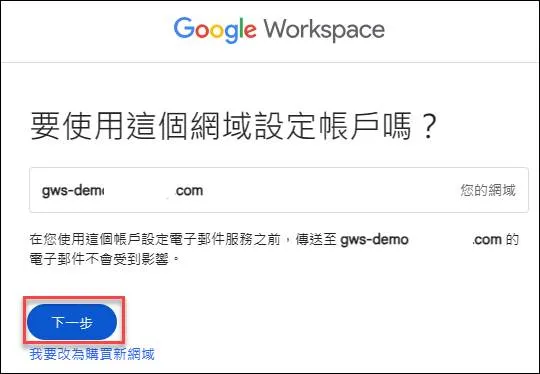
Confirm the domain usage and click Next
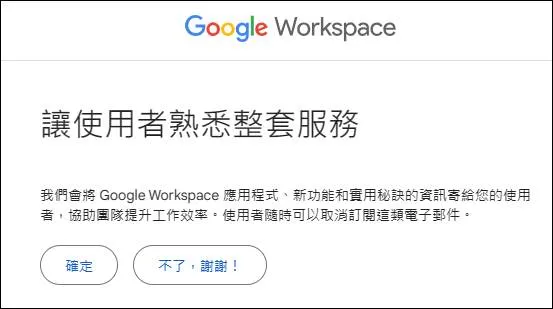
You can click OK or skip
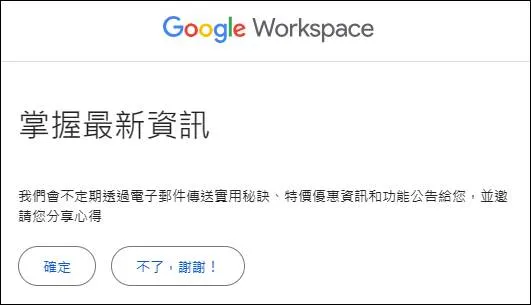
You can click OK or skip
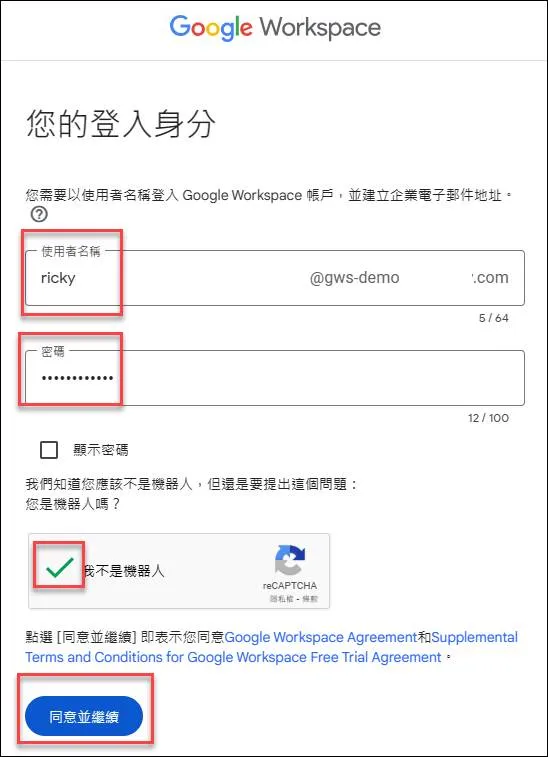
Enter the admin account username and password, complete the CAPTCHA, and finally agree and continue
Set up GWS Billing
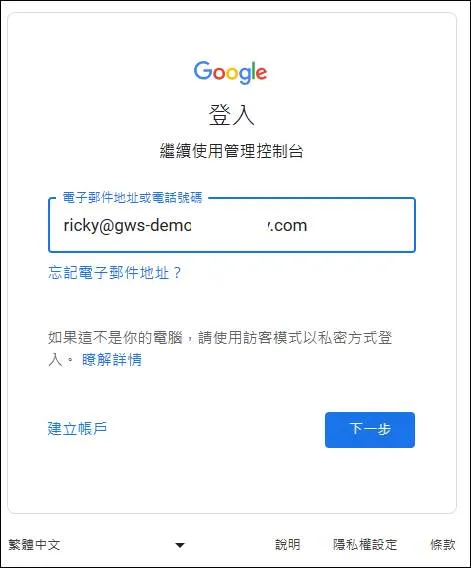
Log in to GWS
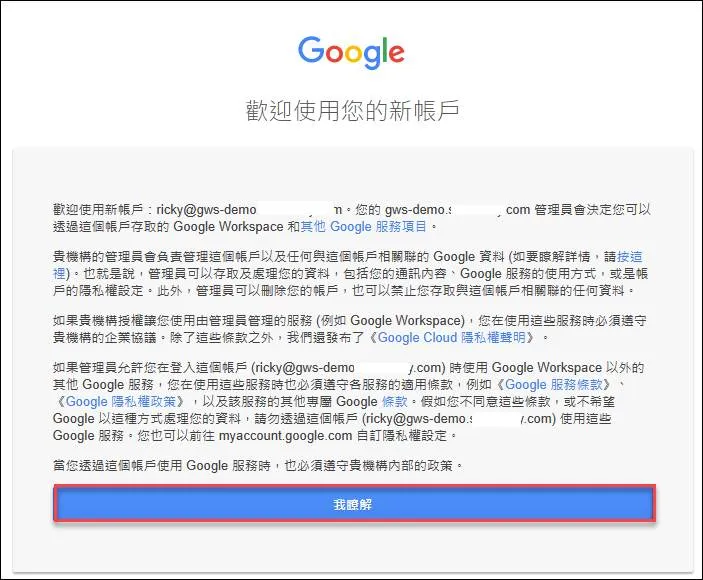
Agree to the terms
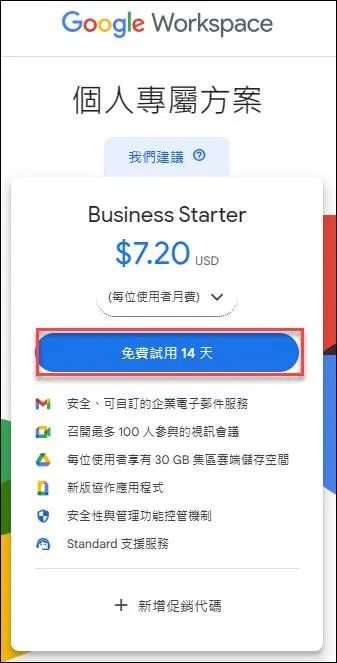
Click on 14-day free trial
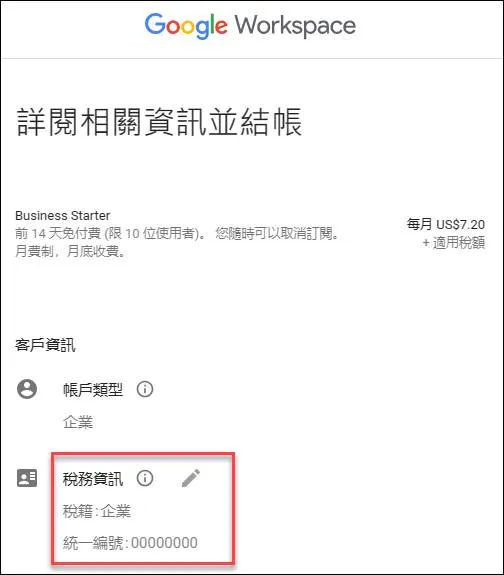
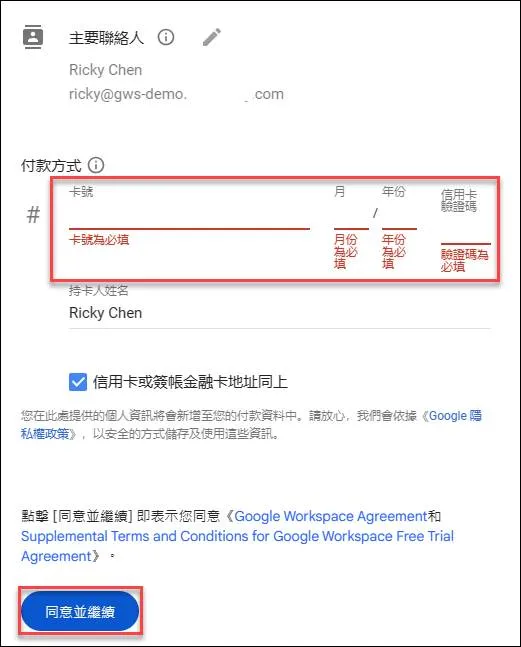
Trial accounts still require a credit card
After filling in, agree and continue
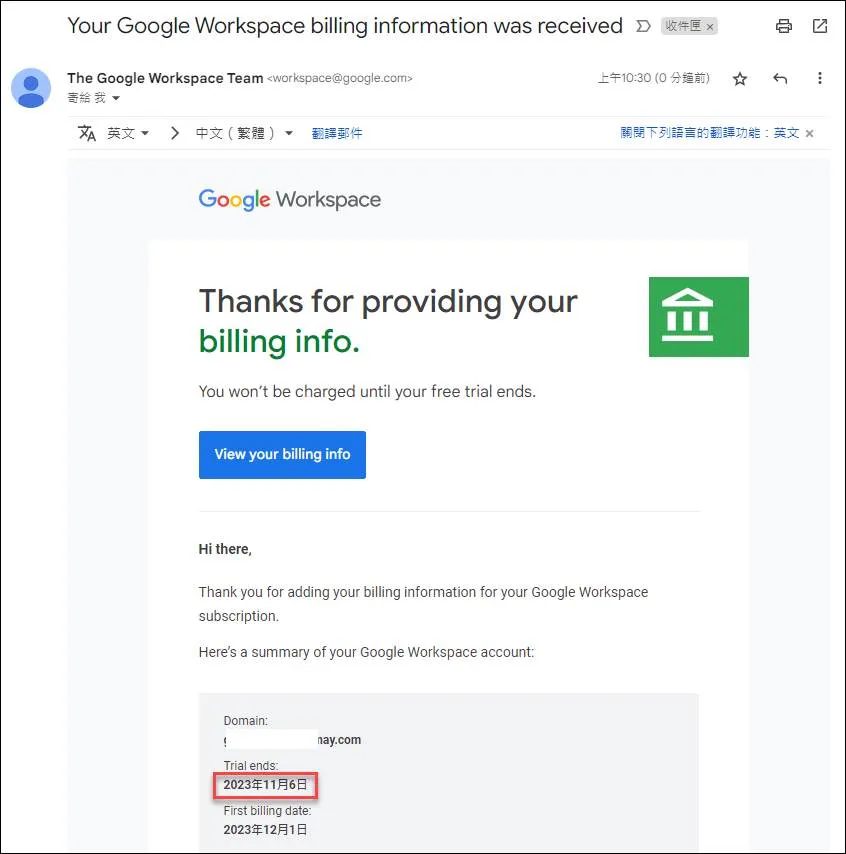
You will receive an email informing you of the trial end date
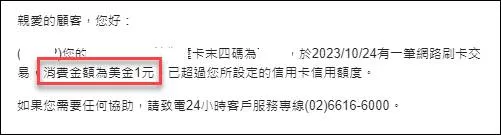
Your credit card will be charged one dollar
You will then enter the admin console

Verify Domain
You need to verify the domain first, click on Verify
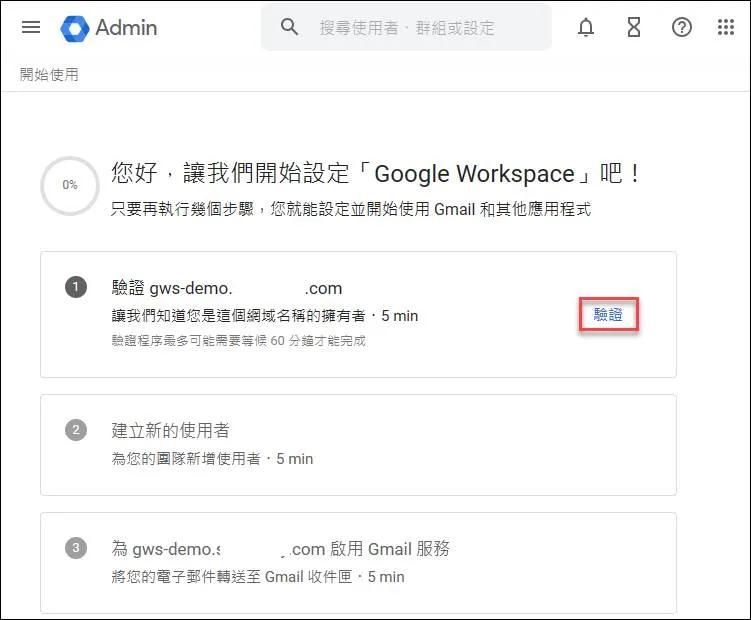
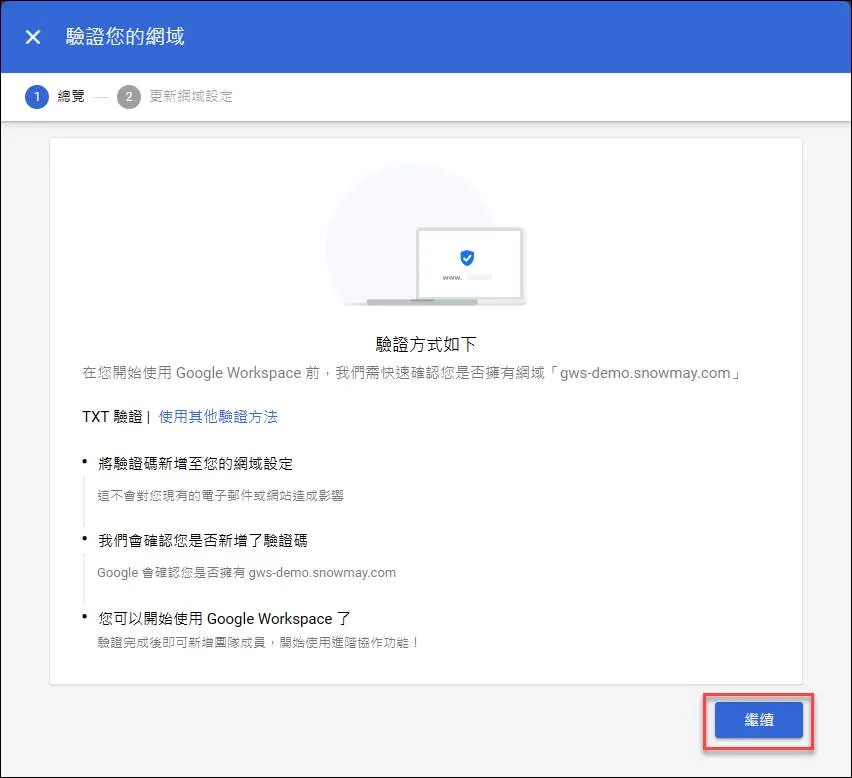
Click Continue
Copy the TXT record
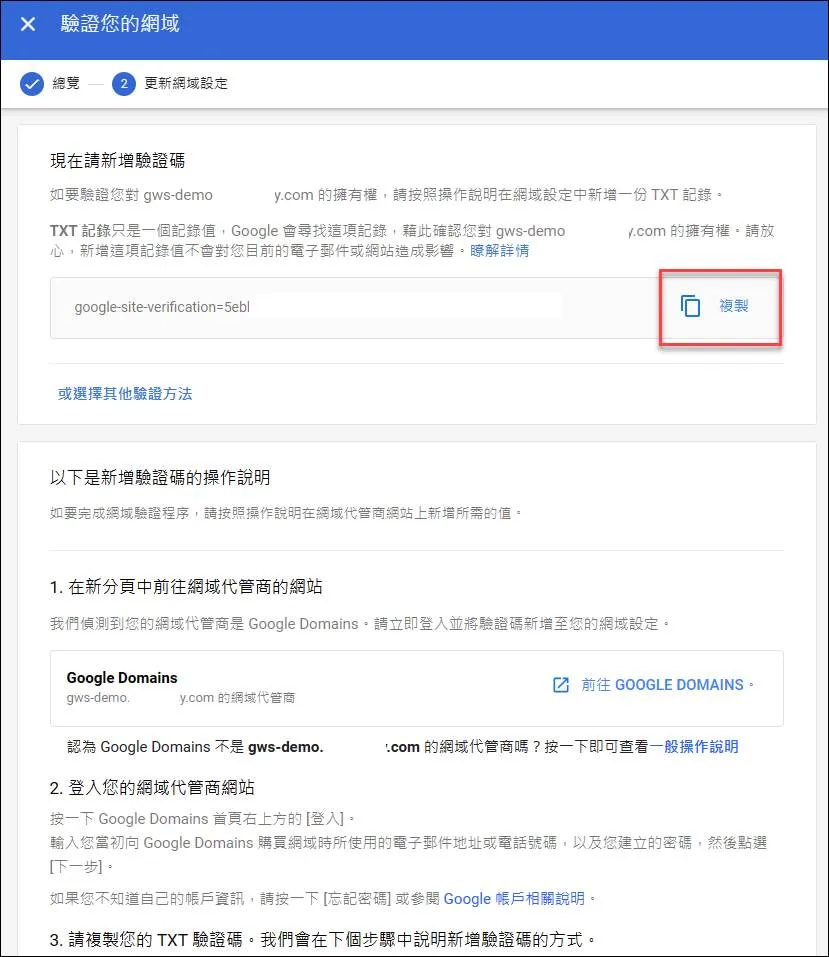
Go to GCP CloudDNS to set up the TXT record
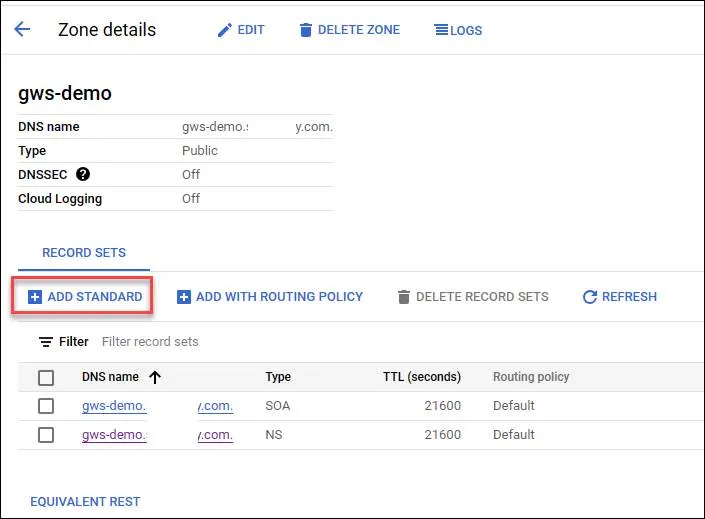
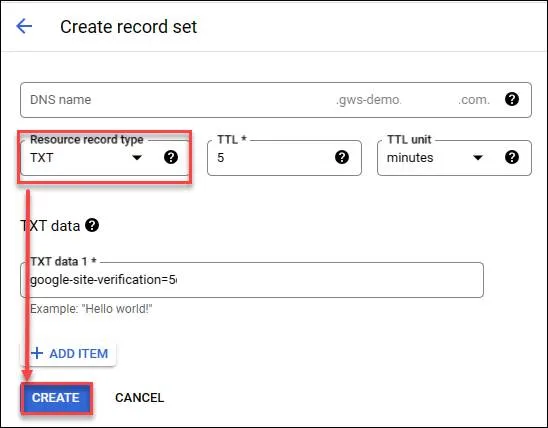
Create the record
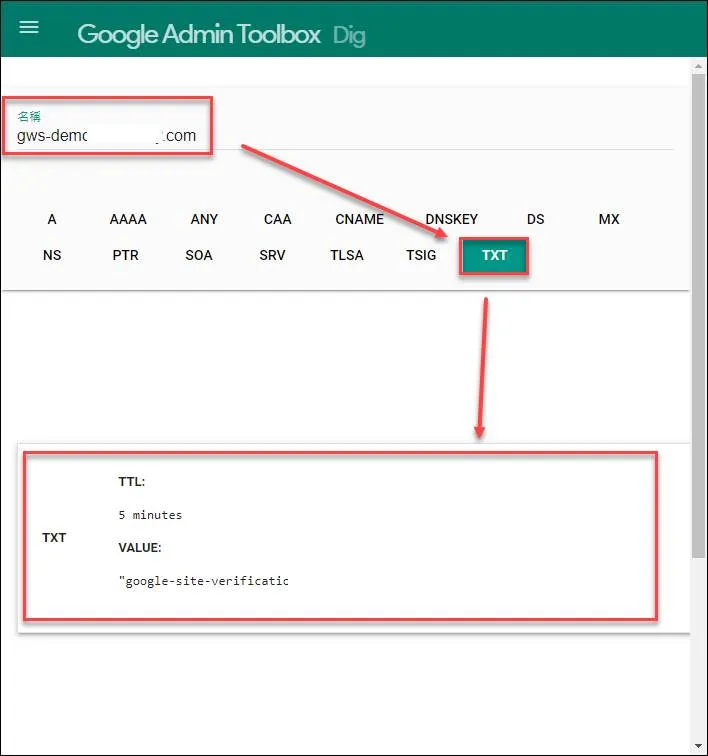
You can check if it’s effective at Google Dig tool
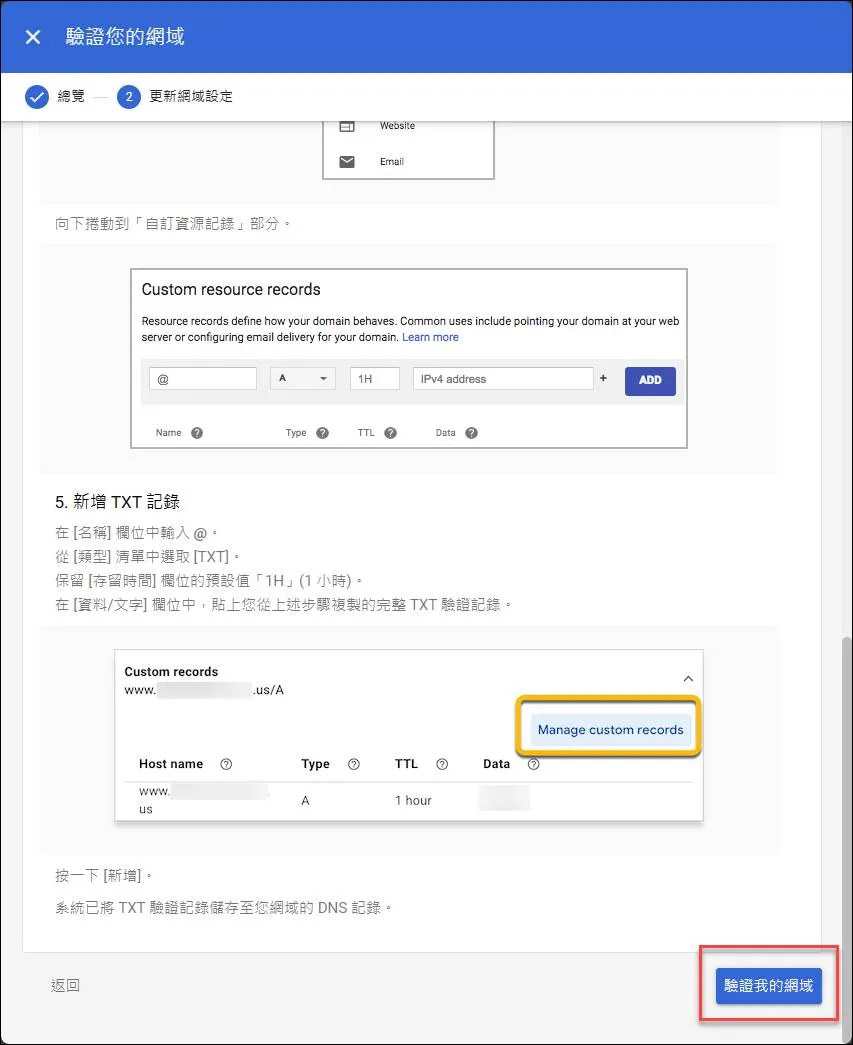
Start verification
Create Users
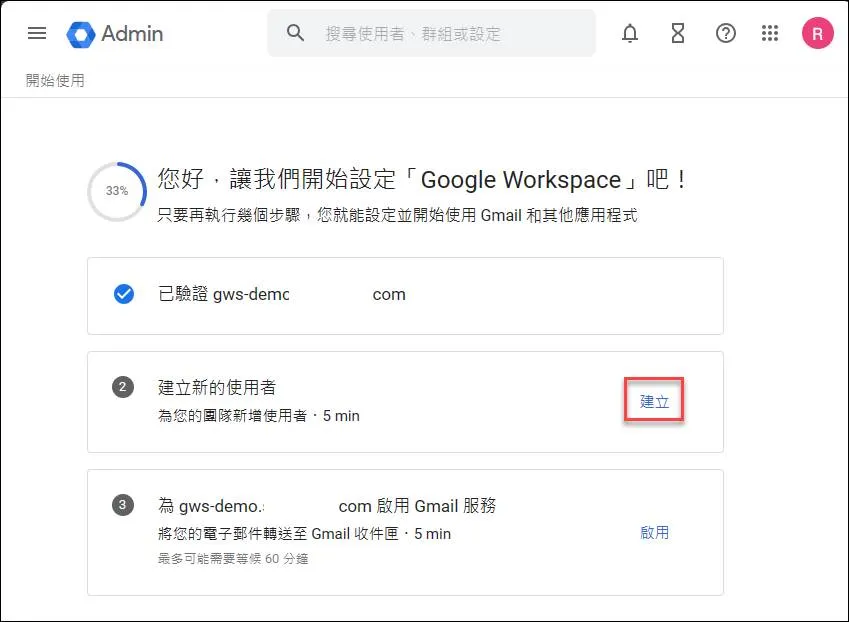
Click Create
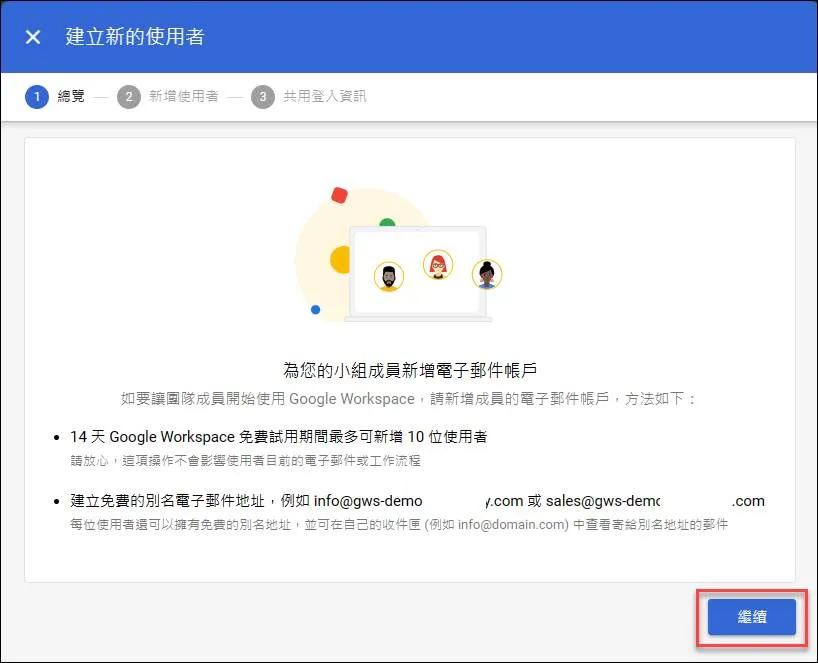
Click Continue
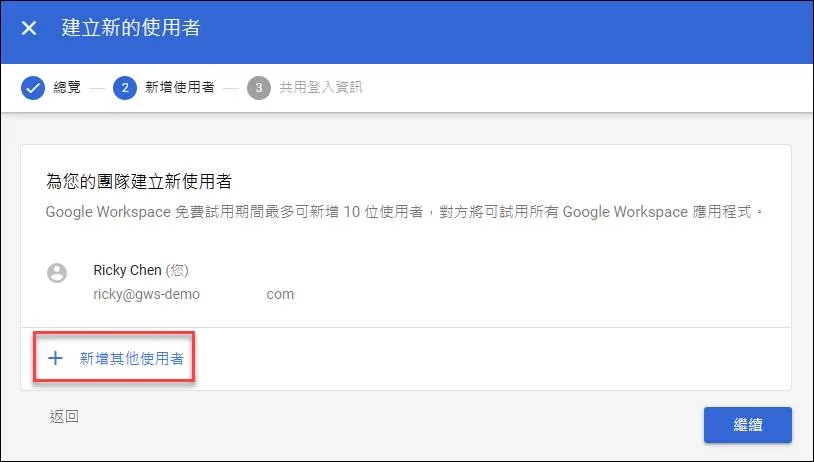
Click Add more users
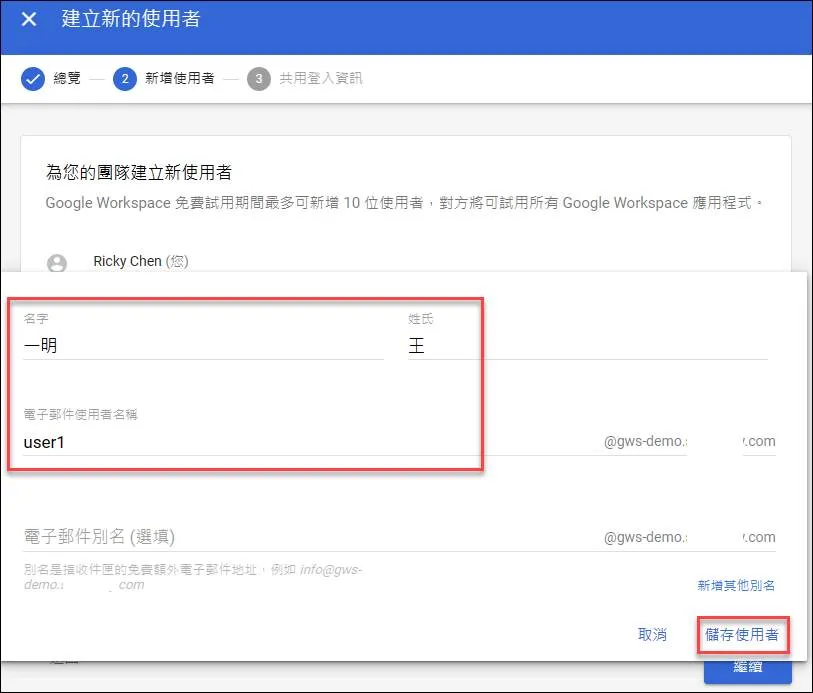
Enter name and account
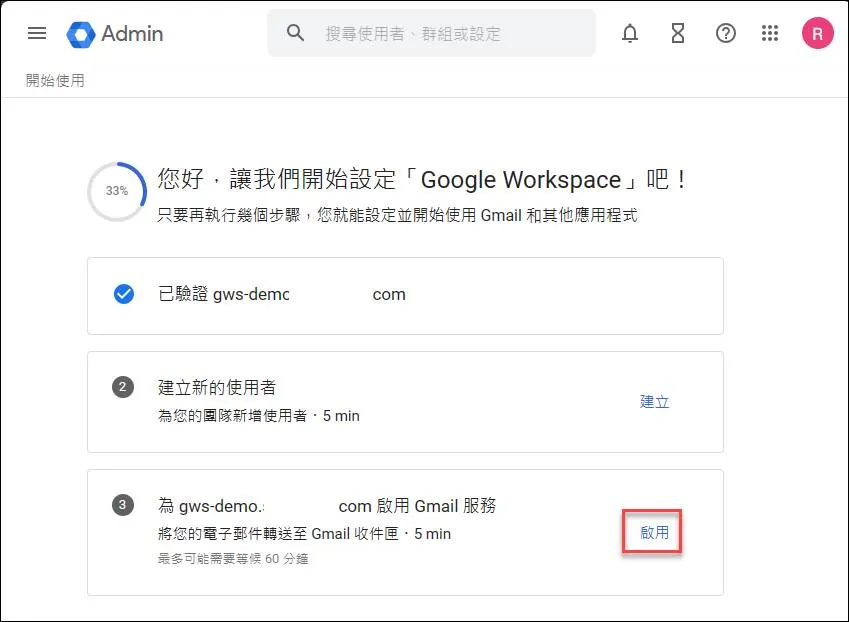
Enable Gmail Service
Click Enable
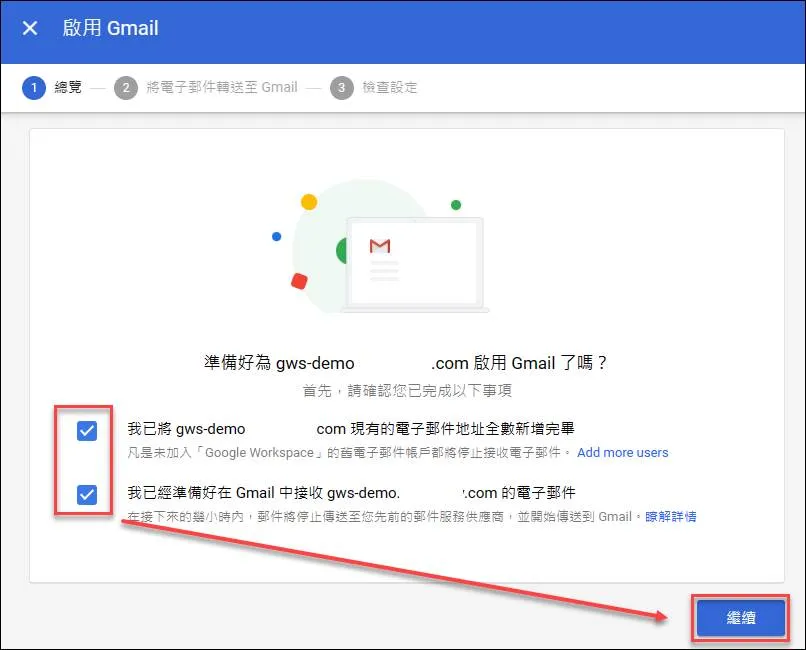
Check and click Continue
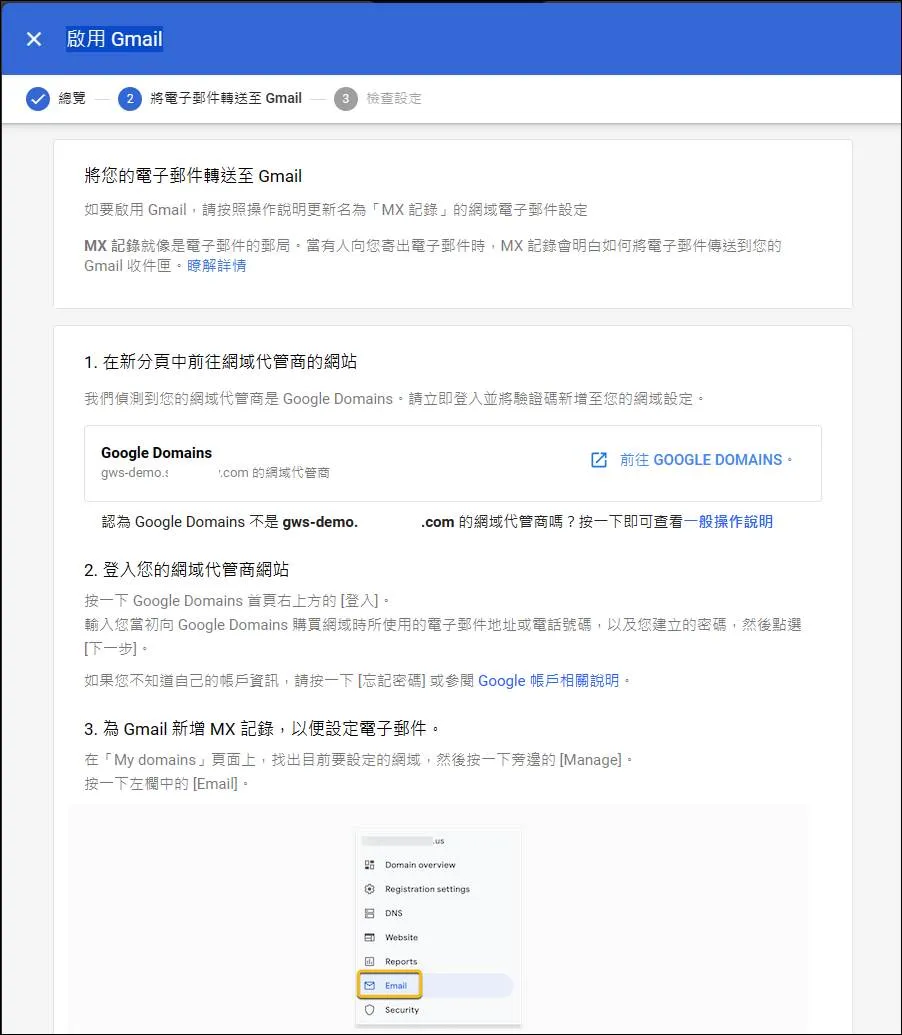
Set up MX Records
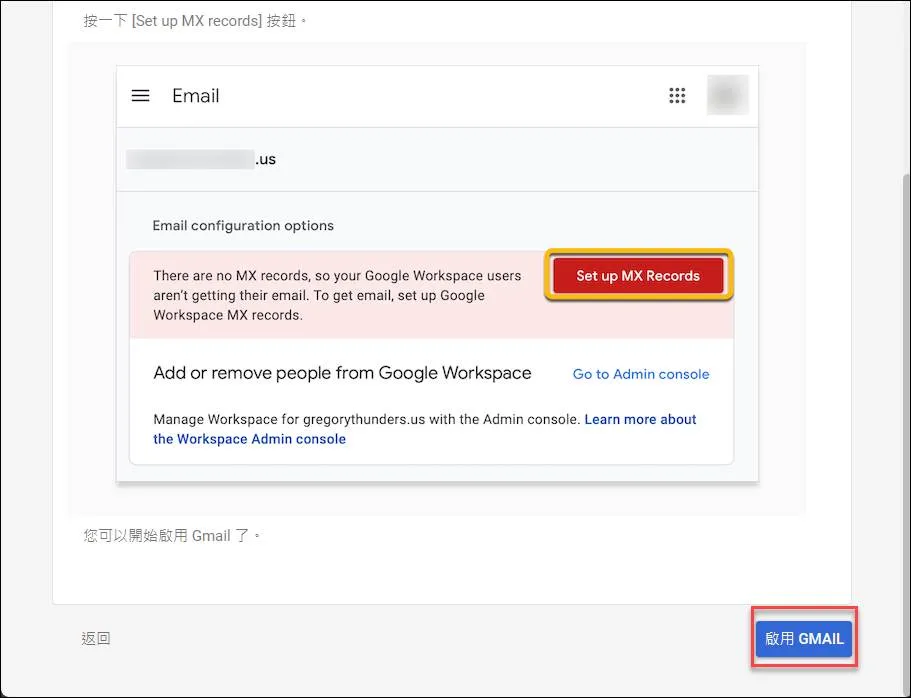
Scroll to the bottom and click Enable Gmail
MX record settings appear
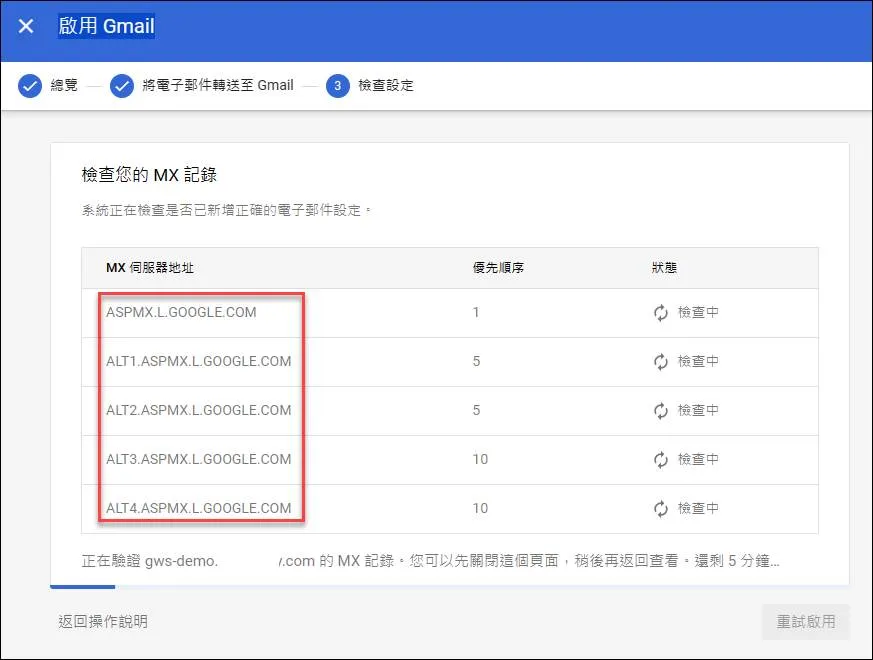
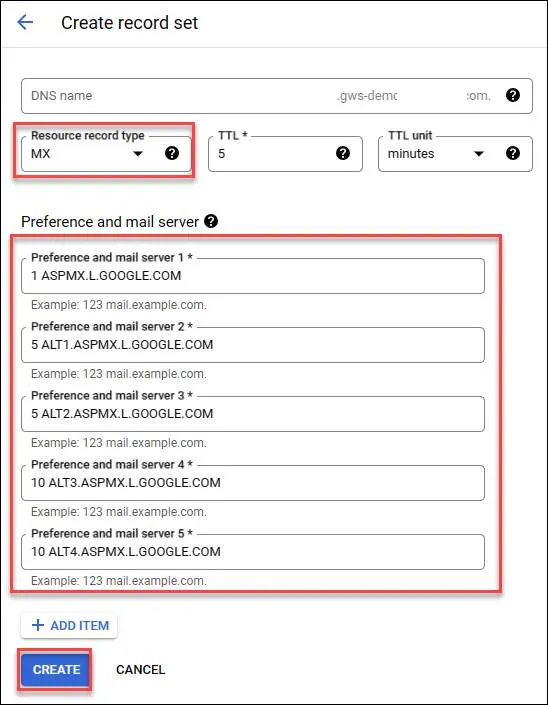
Go to GCP CloudDNS to set up, but add numbers before MX records, these numbers are priority
After completion, you’ll reach this page

DKIM Verification
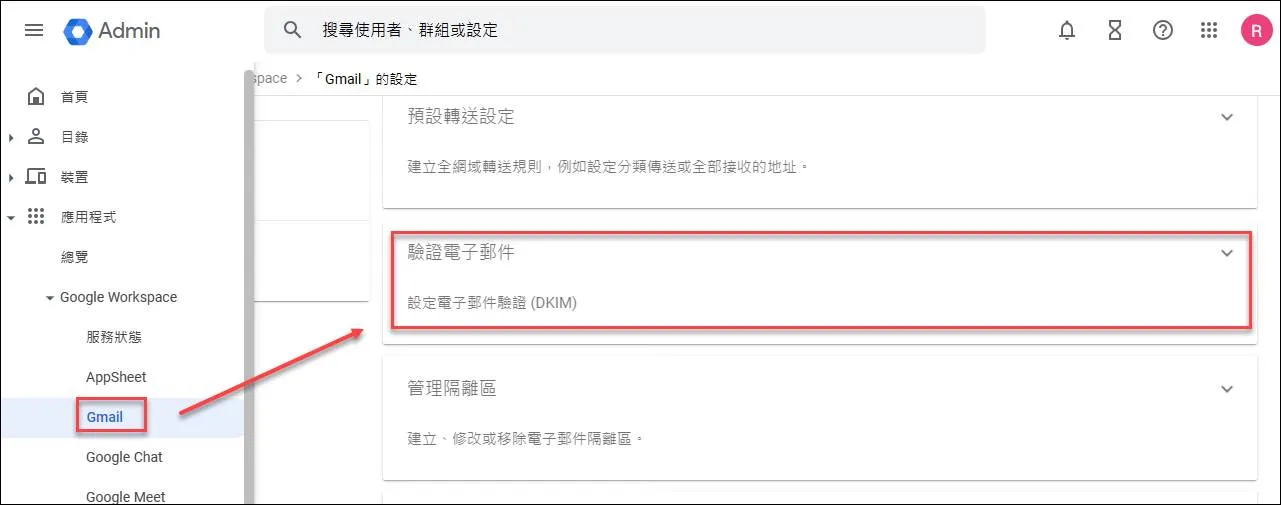
Enter
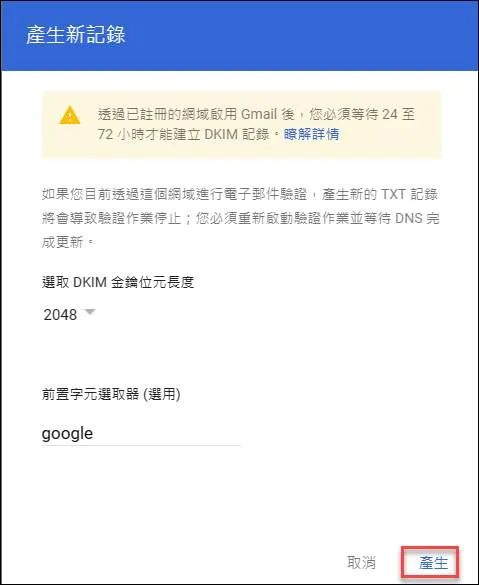
Click Generate new record
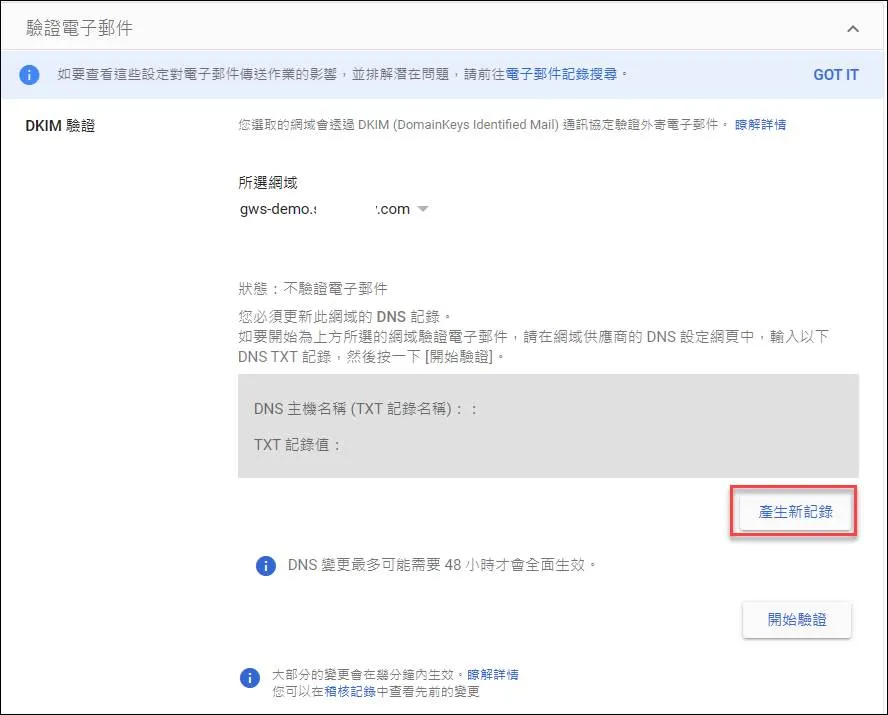
Click Generate
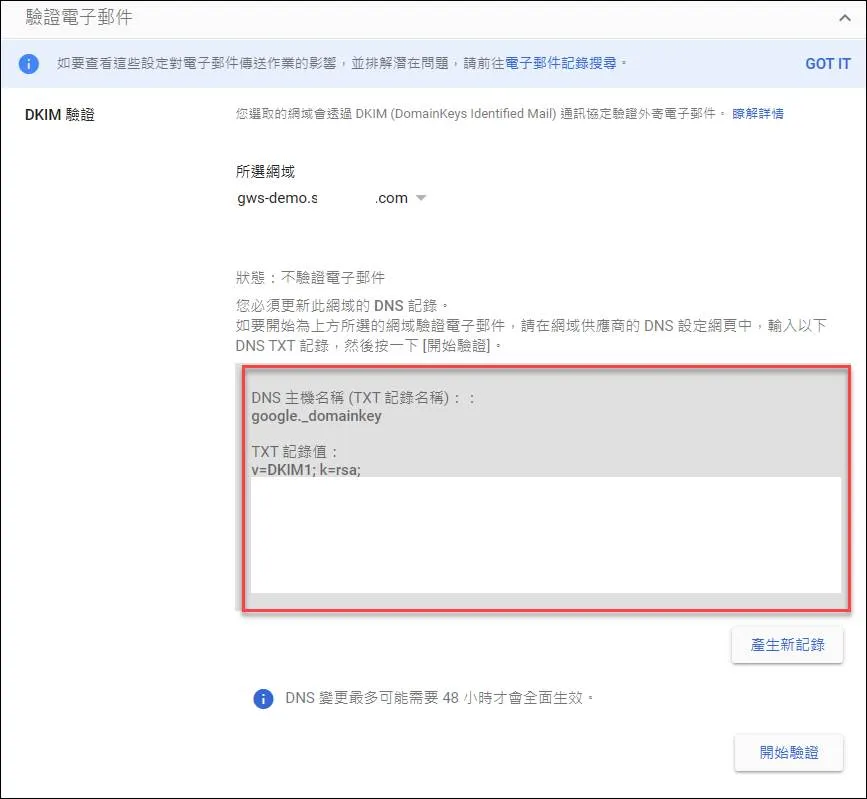
Copy the record
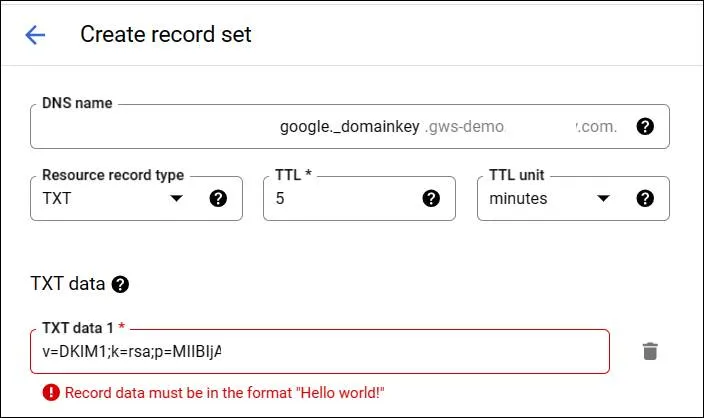
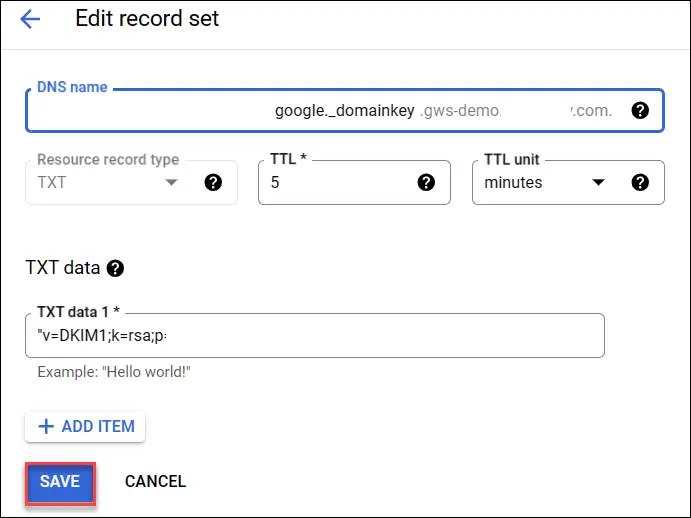
Paste into GCP CloudDNS, you’ll find it can’t pass verification
Paste the TXT content into DNS record splitter - Mailhardener tools, check “Use quoted format for Google Cloud DNS” and copy
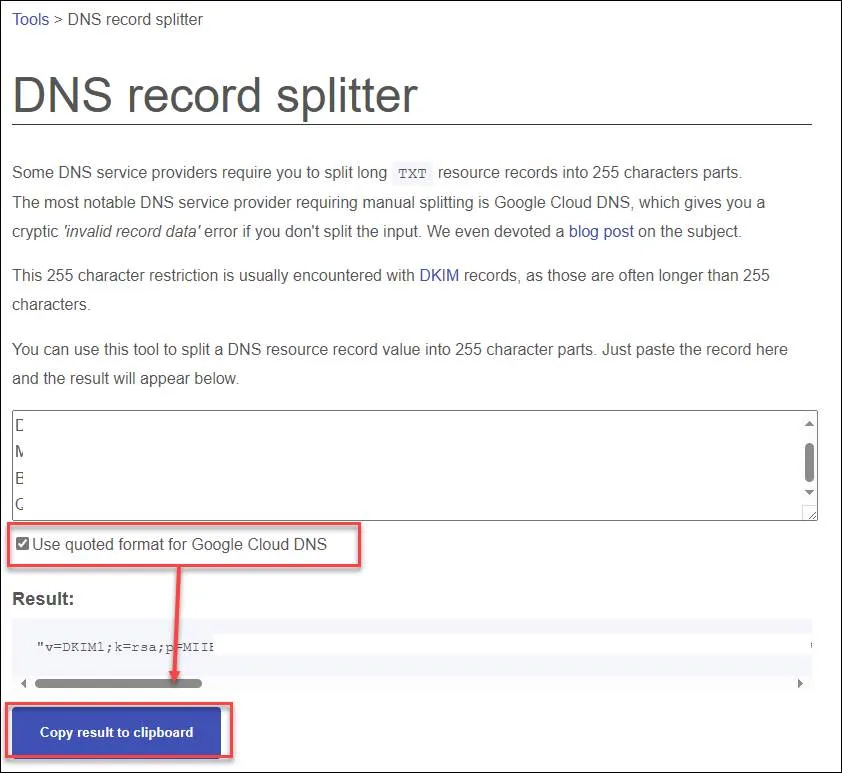
Paste into the interface to create and save
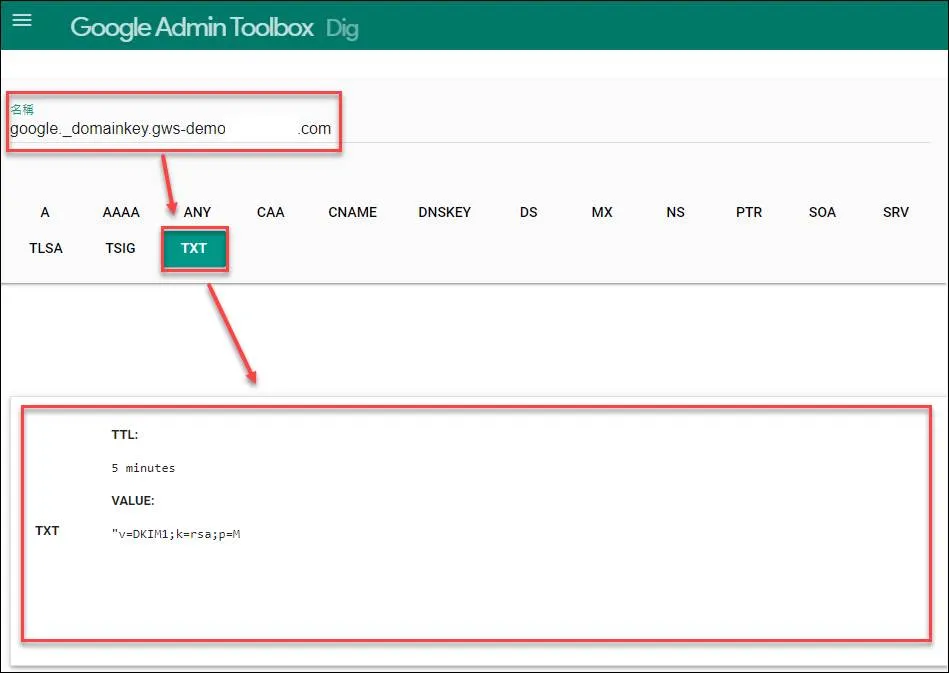
Check Google Dig tool to confirm if it’s working properly
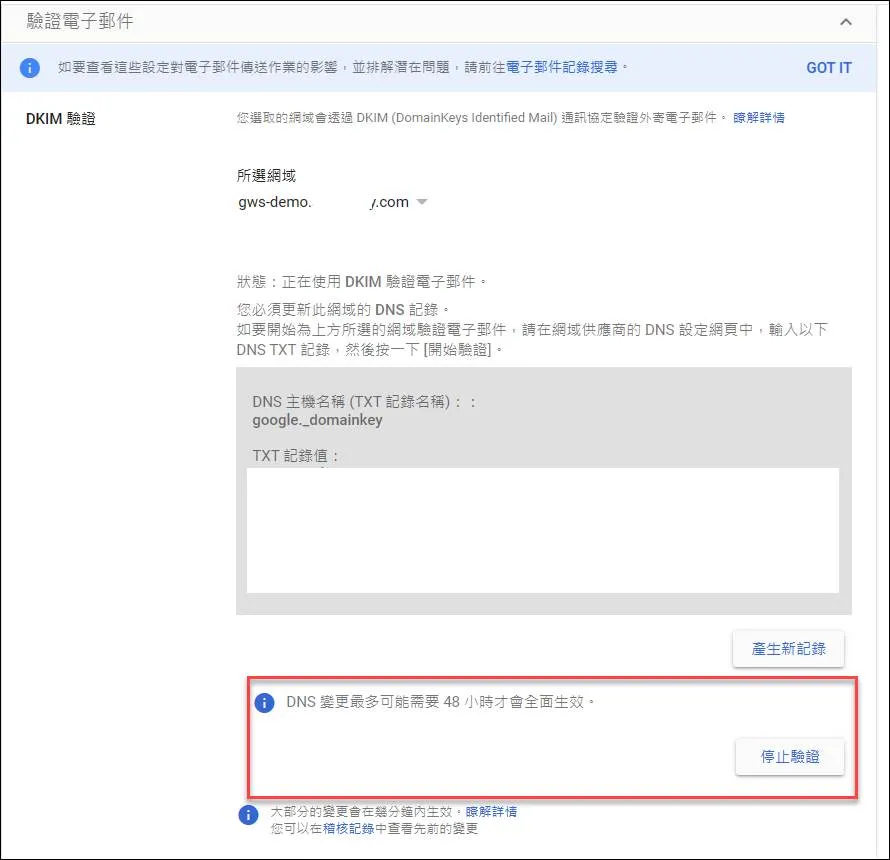
Wait for it to take effect after completion
SPF Verification
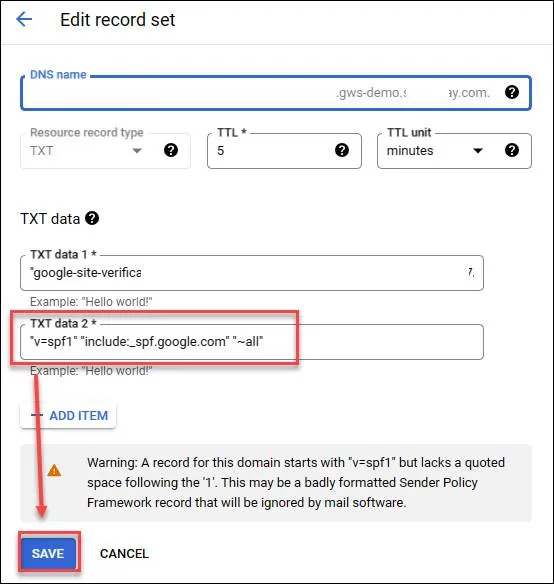
Paste the TXT record "v=spf1" "include:_spf.google.com" "~all" into DNS