Cloud Identity and GCP Org Creation
Scenario
To create a GCP organization using the free version of Cloud Identity, you must have a personal domain.
Process and Description
- Create Cloud Identity
- Create GCP Organization
- By default, it will provide a best practice approach for creation
Execution Steps
Apply for Cloud Identity
Go to the following URL and follow the instructions to apply and register
https://support.google.com/cloudidentity/answer/7389973?hl=zh-Hant
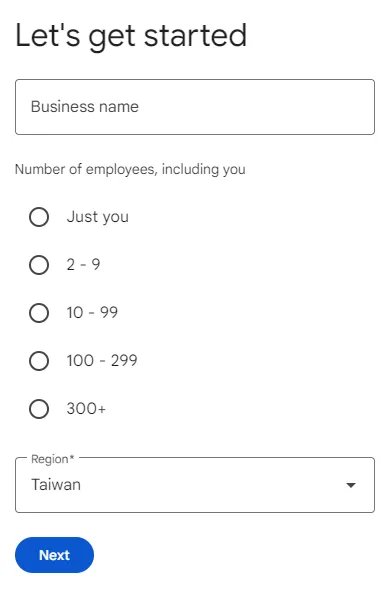
After registration, follow the instructions to set up Cloud Identity
Here you need to protect DNS
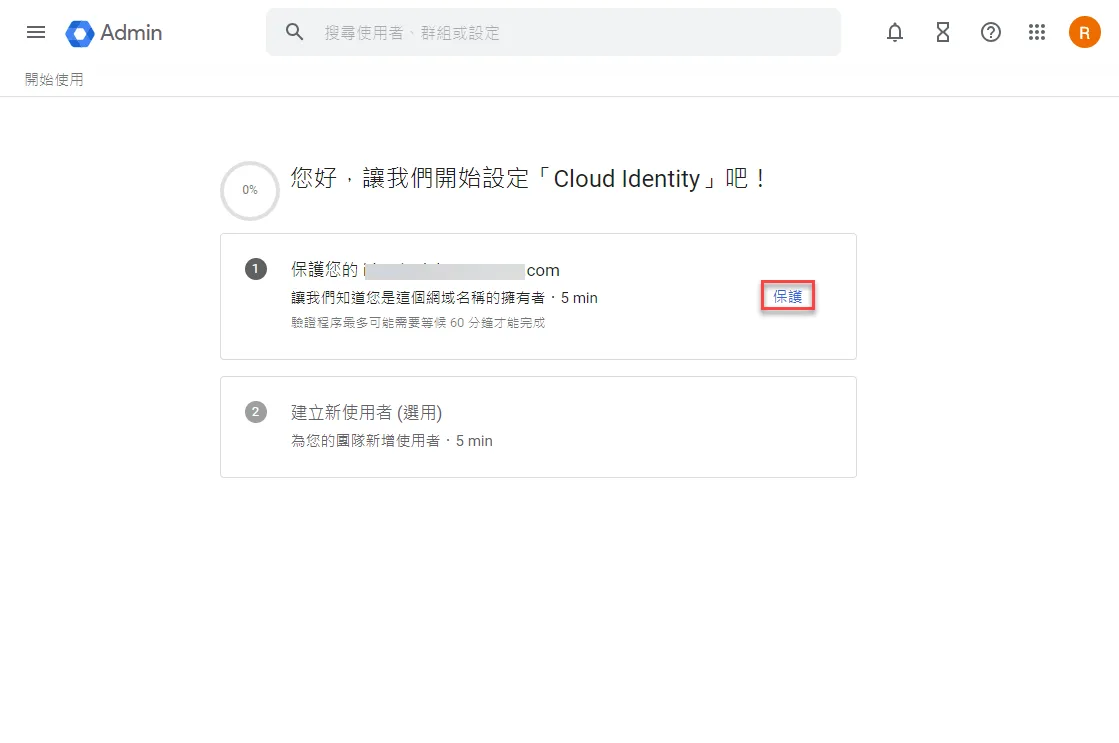
Set up DNS
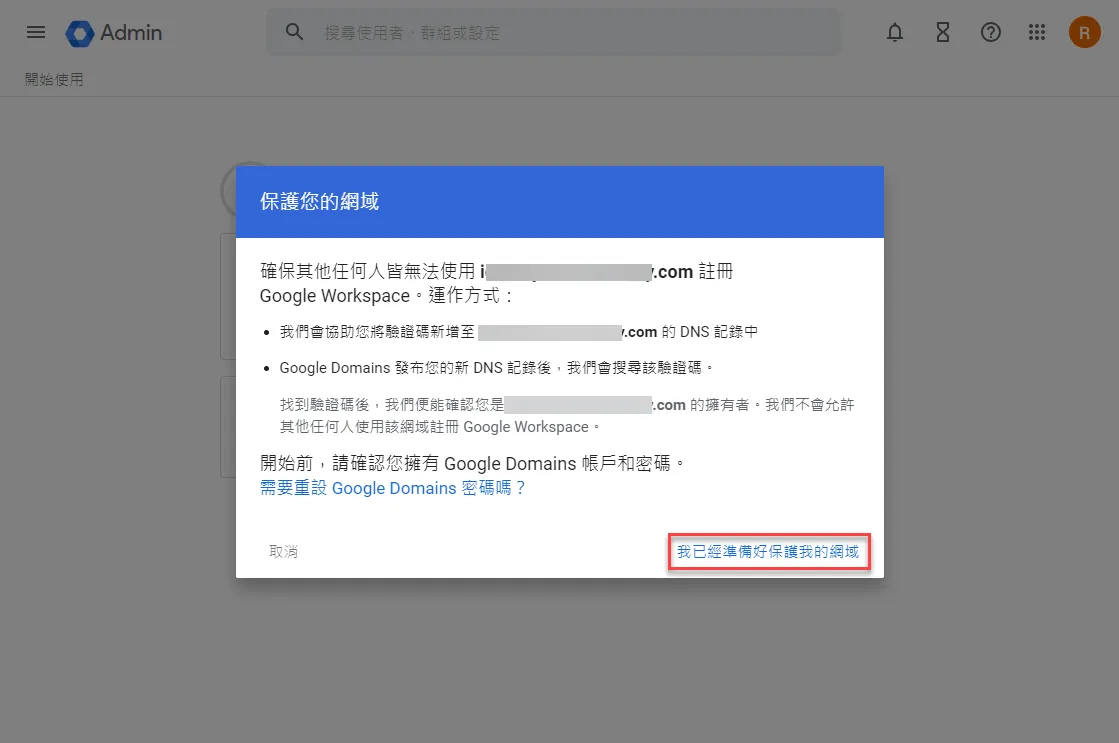
Notification that DNS configuration is required
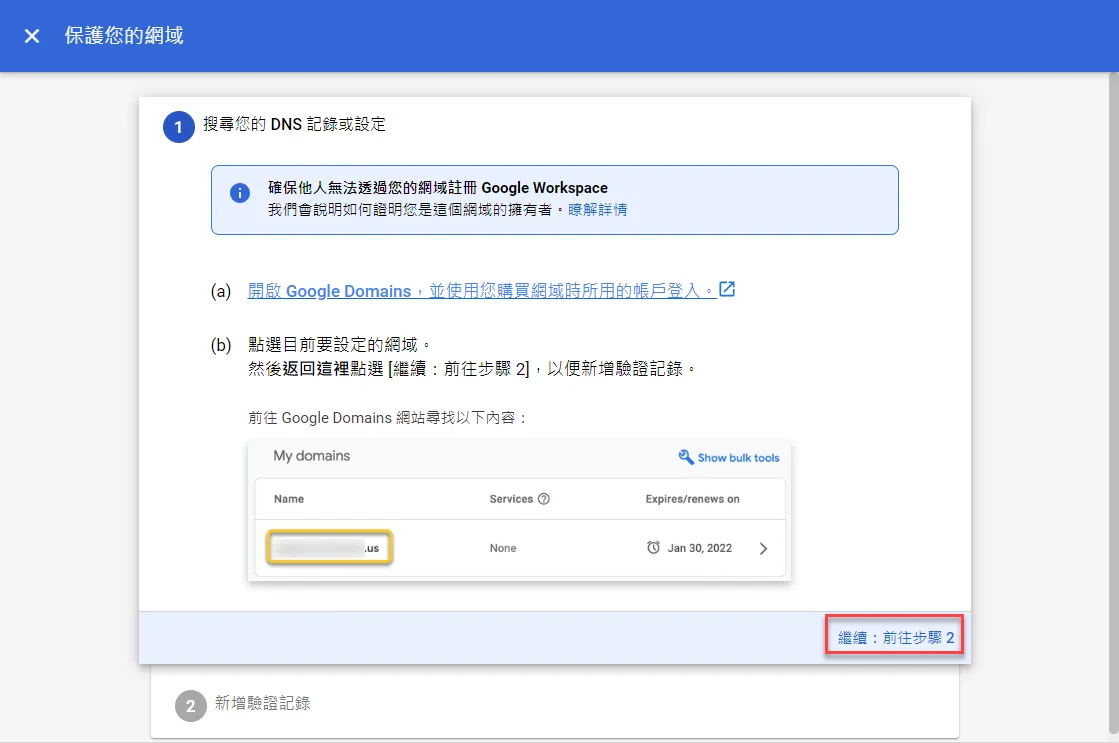
Follow the instructions to copy the TXT record to the DNS host configuration
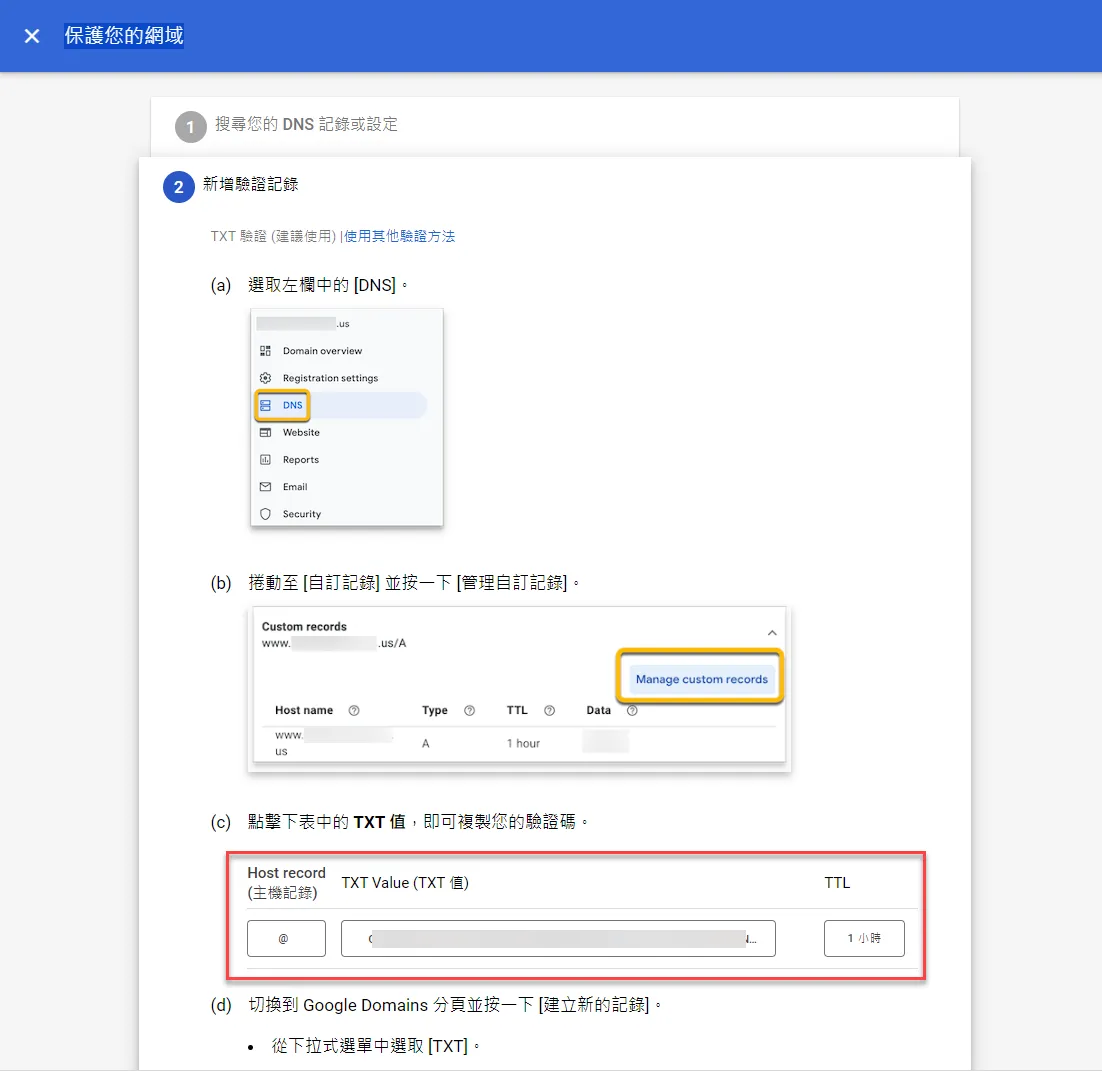
After completion, click to protect the domain
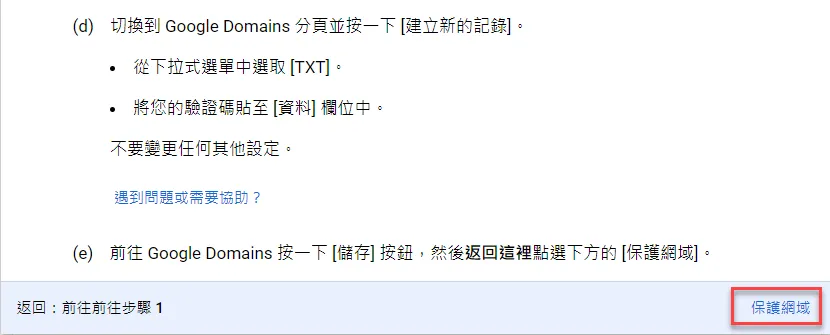
After successful verification, a protection success prompt will appear
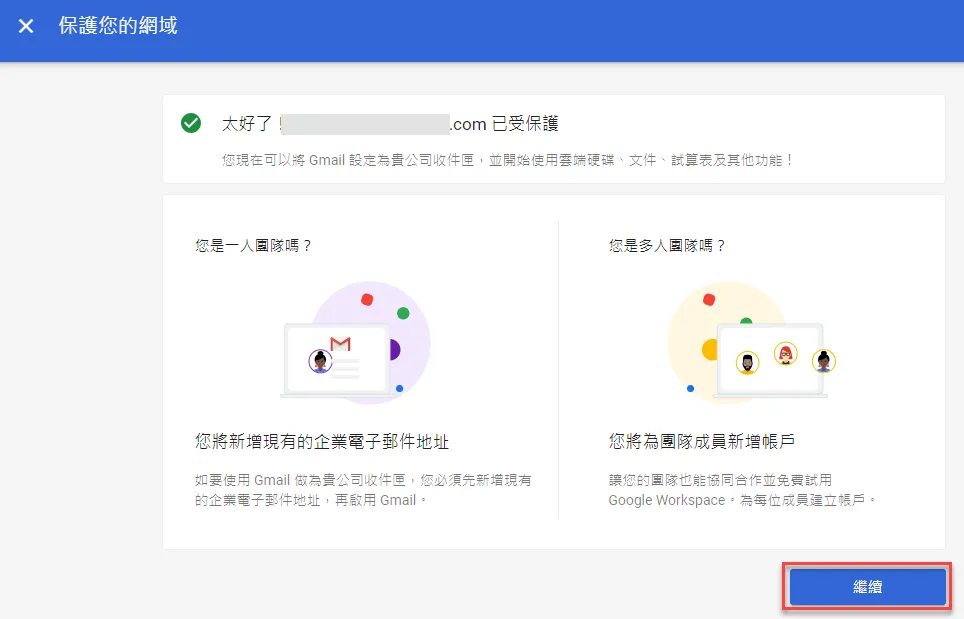
Create Users
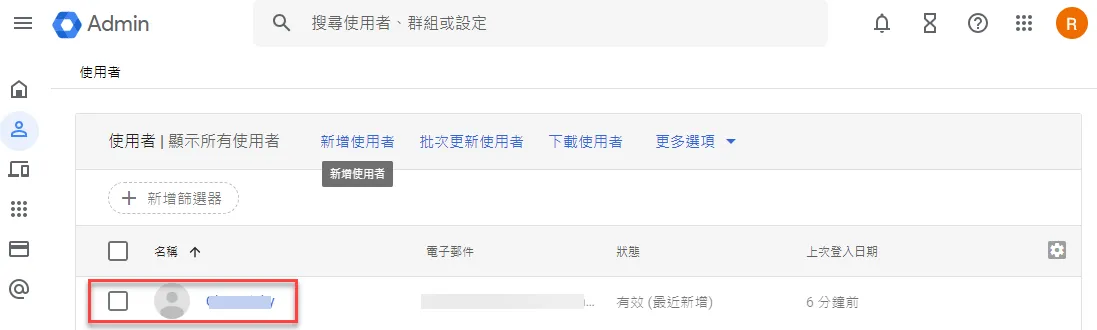
Create a Cloud Identity user, who is also the first administrator
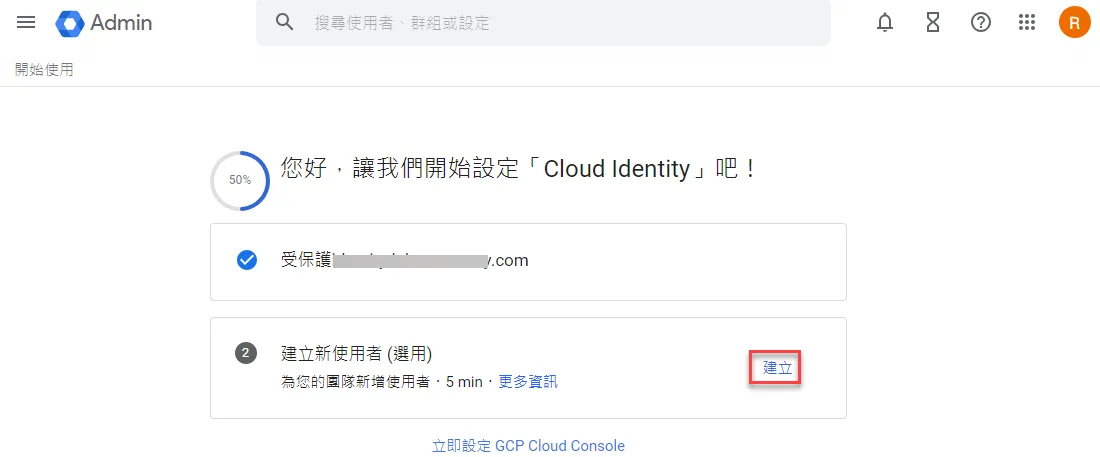
After creation, it will appear in the user panel
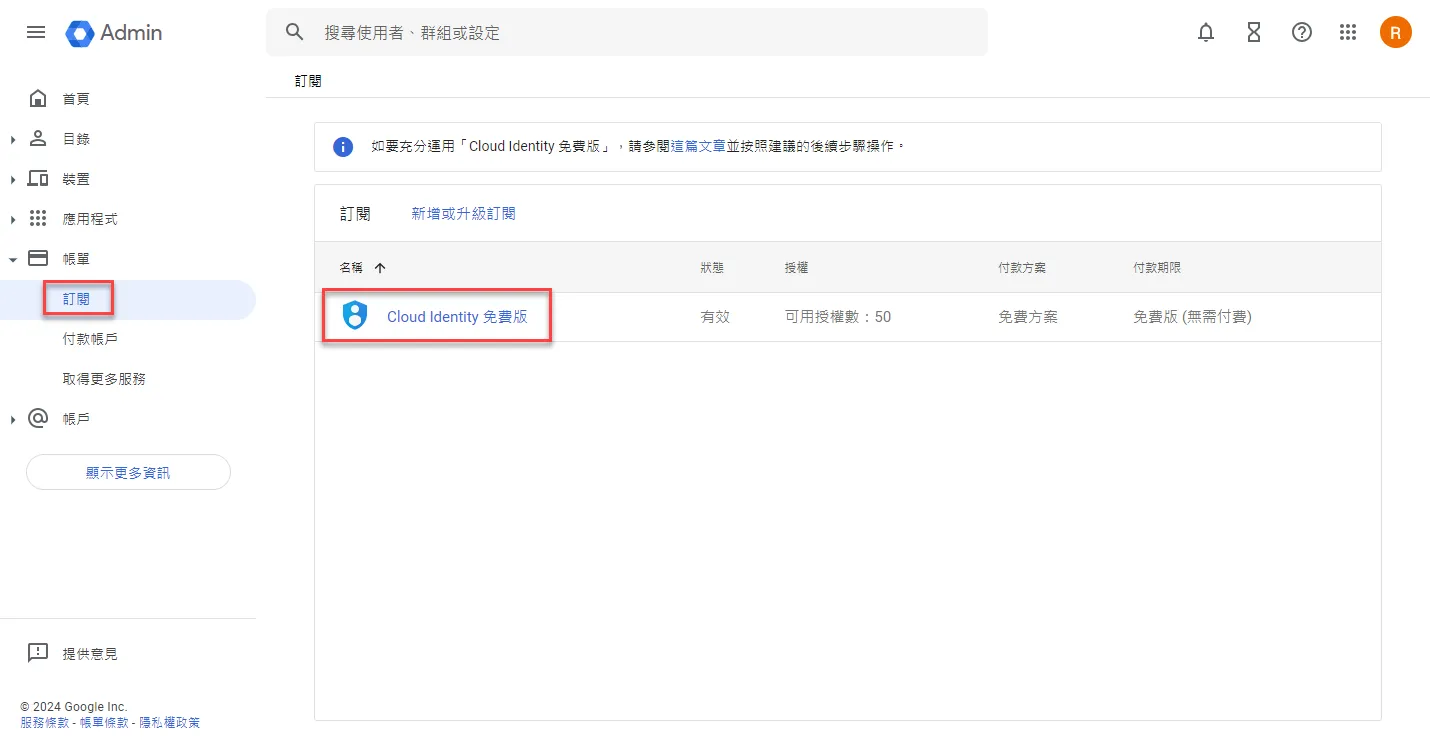
View the subscription, you can see that the free version only has a quota of 50 people, meaning 50 people can manage and control GCP, and there are no other Google Workspace office features
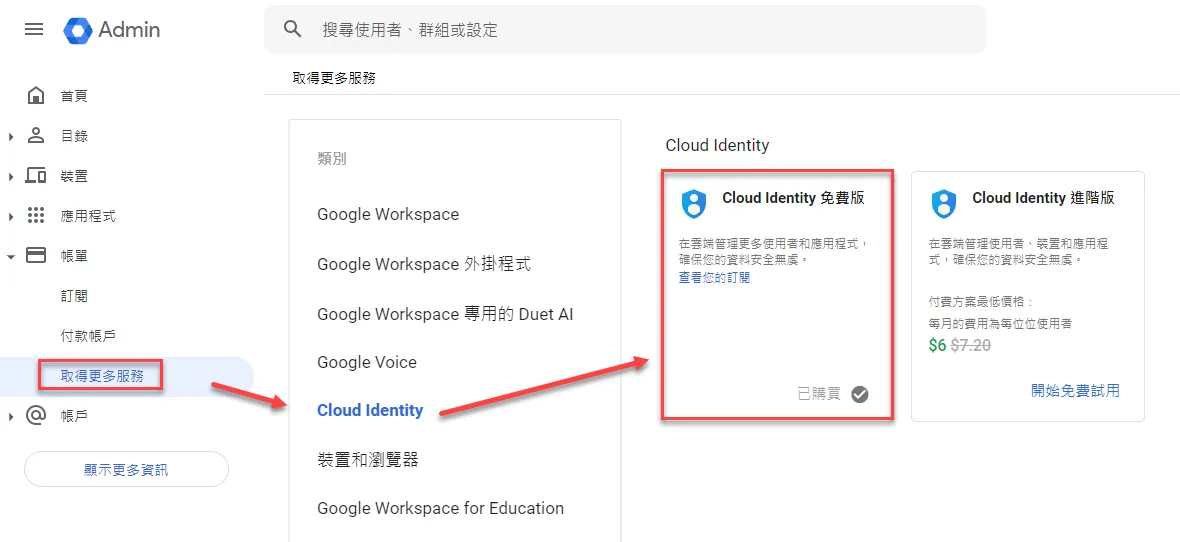
Additional confirmation can be performed
Create GCP ORG
Confirm Organization Creation
Create an organization in GCP
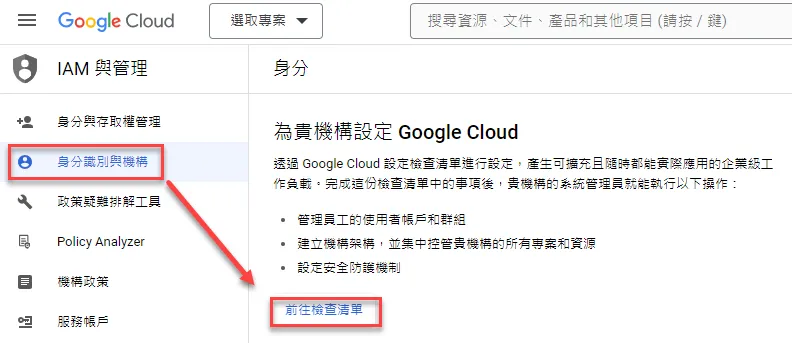
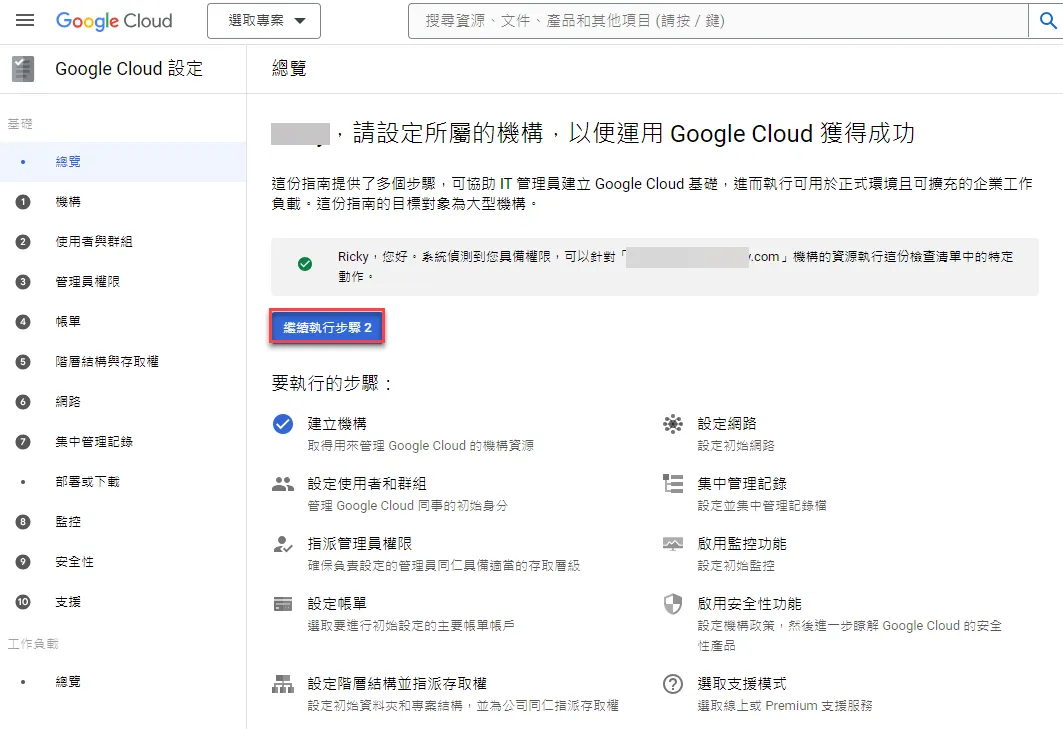
Once Cloud Identity is created, it means the organization is automatically created. Click to proceed to step 2
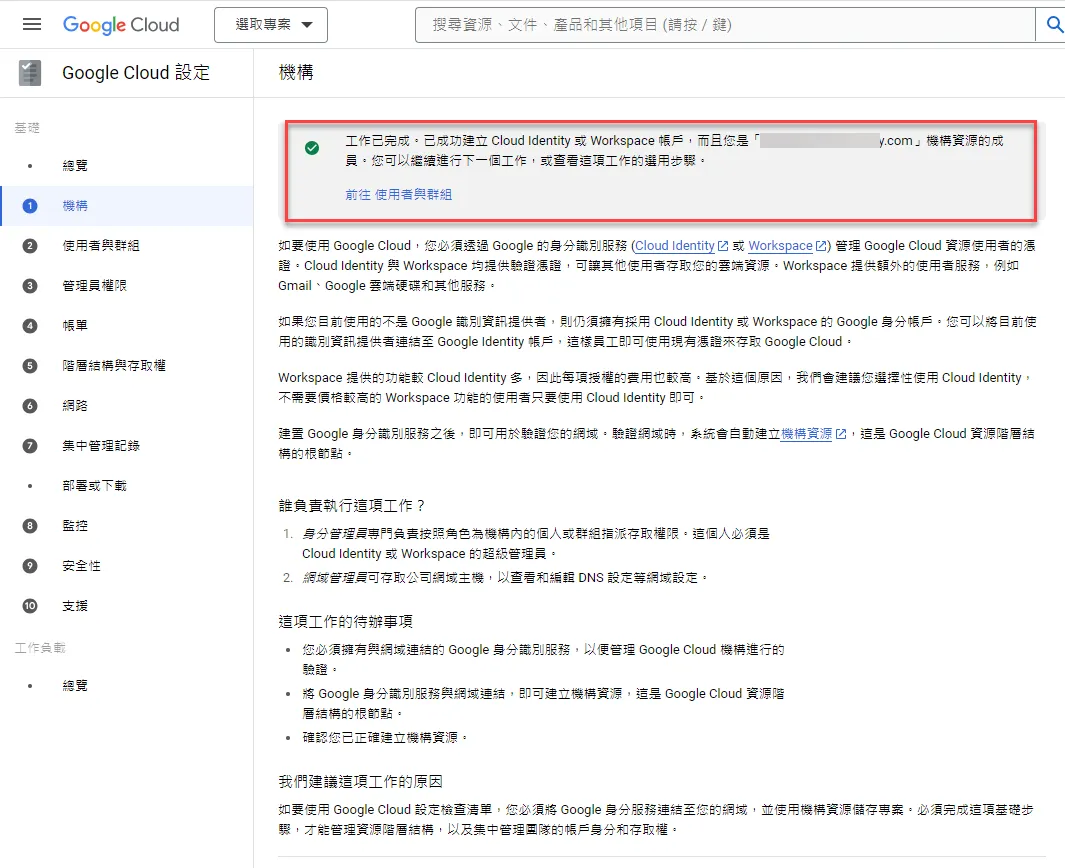
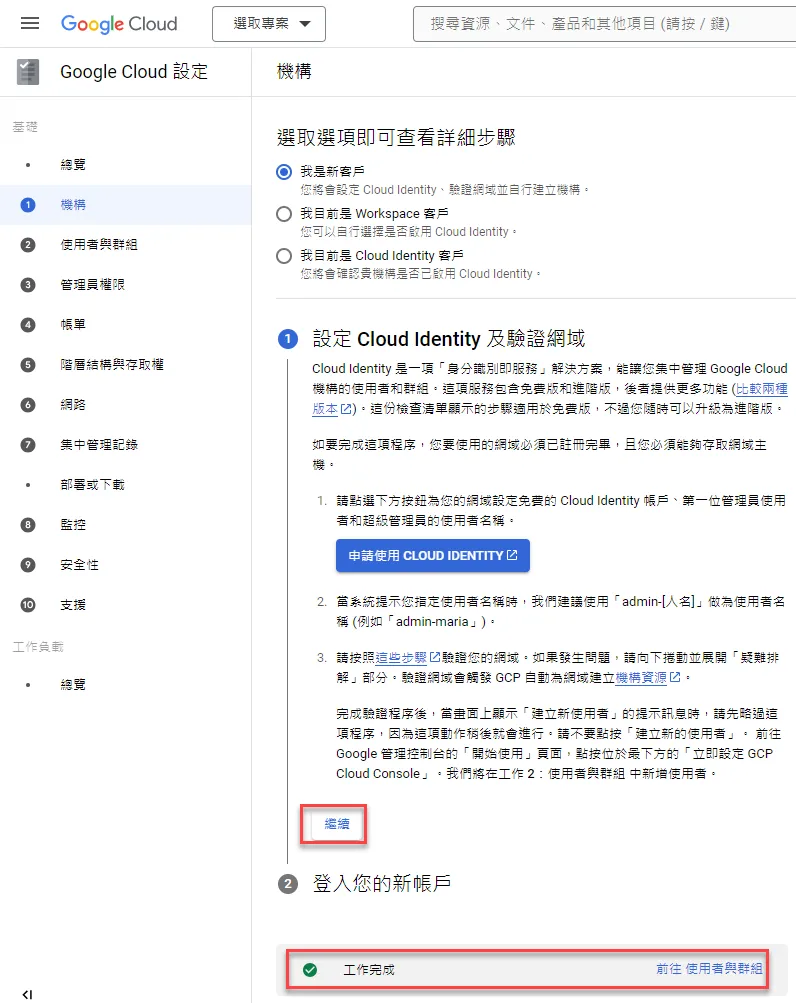
As long as the verification is successful, a green checkmark will appear at the bottom
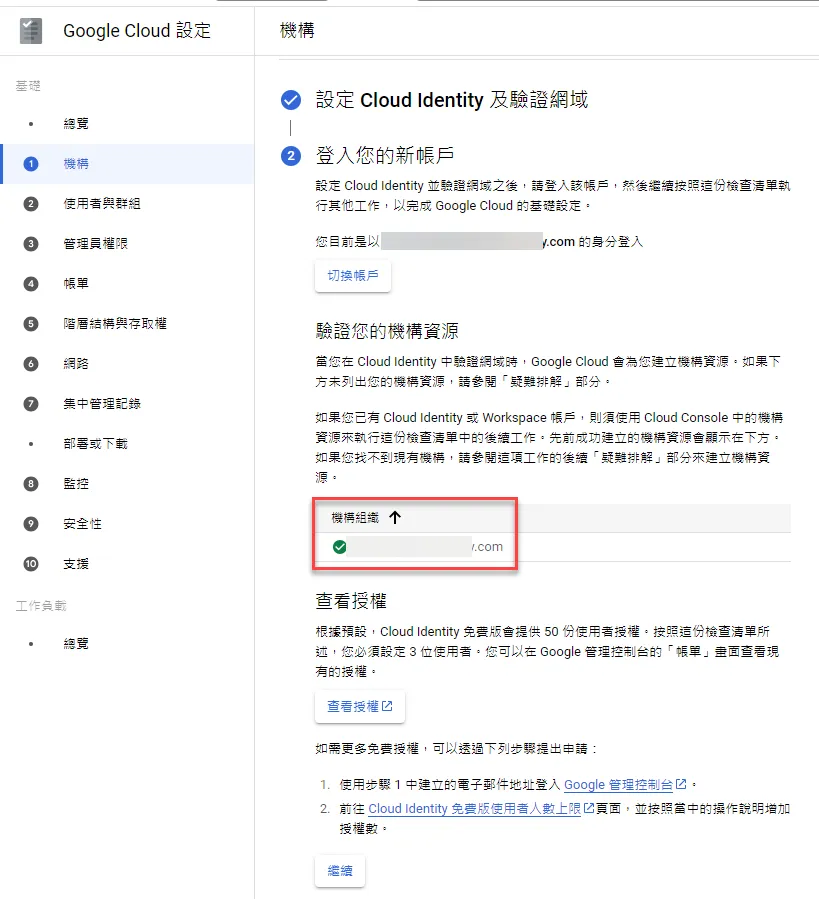
This will also prompt what domain and identity are being used to enter
Create Groups
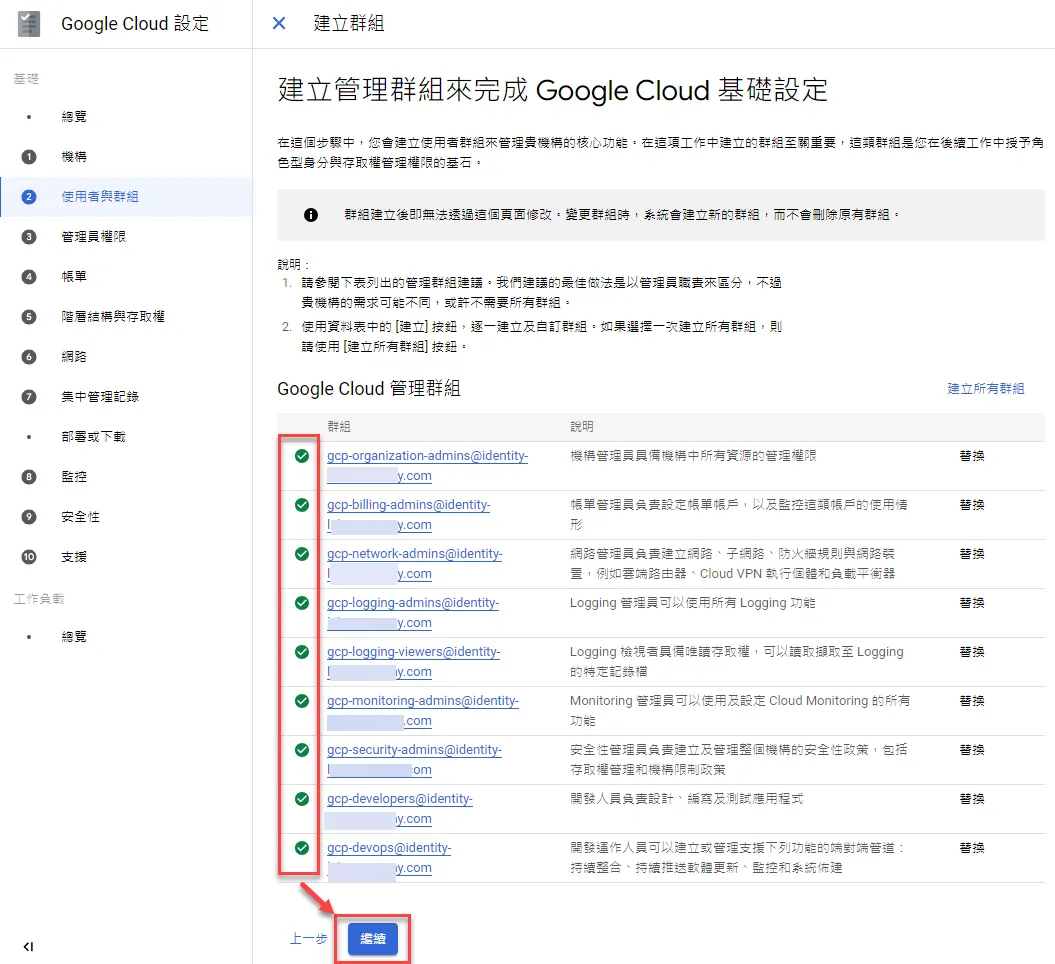
If using the GCP ORG feature for the first time, there is now a wizard to assist in automatically creating related groups
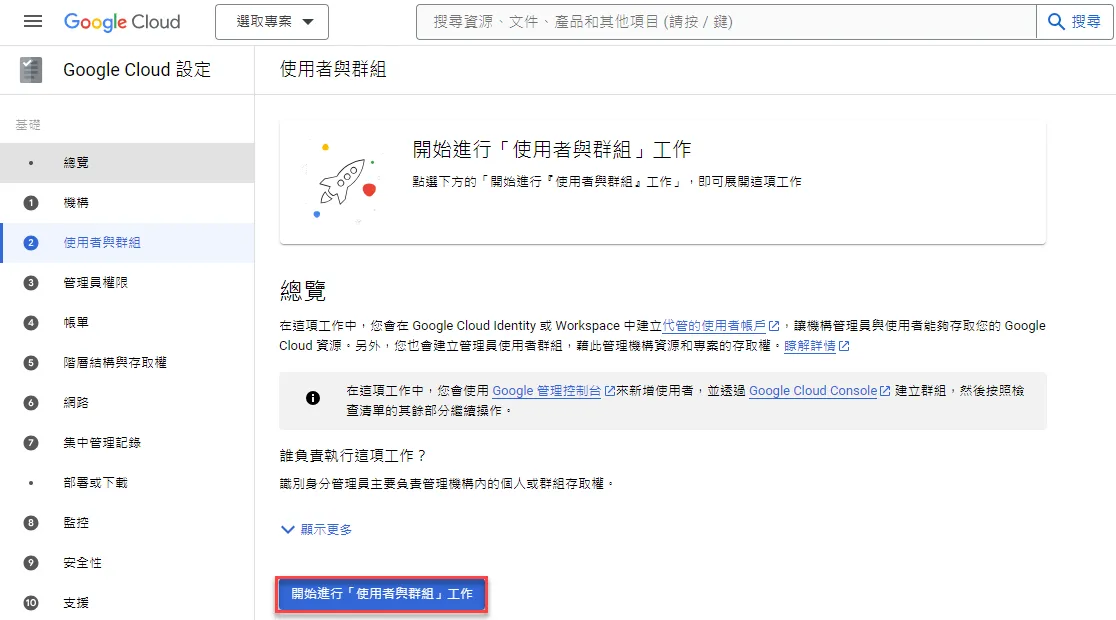
If you have no other ideas, you can create groups according to the official recommendations. These groups will be created in both Cloud Identity and GCP, and given appropriate GCP permissions
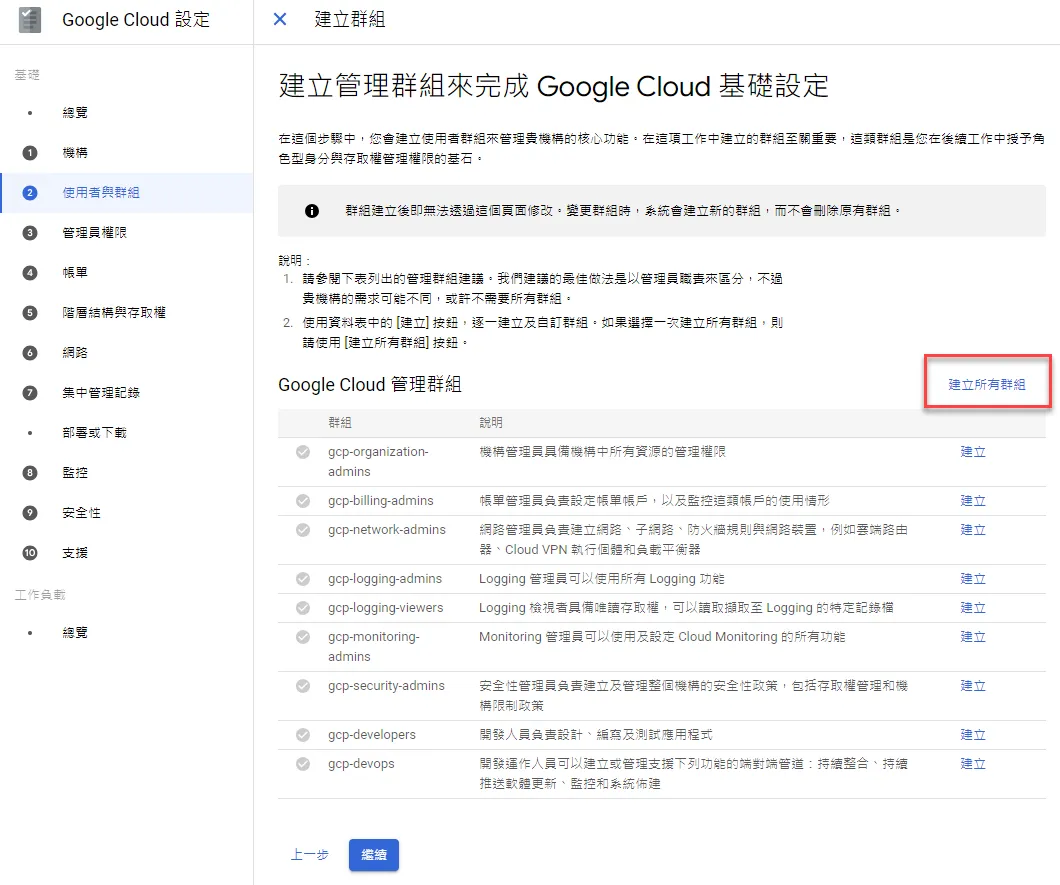
You can click to view which groups will be created and their descriptions
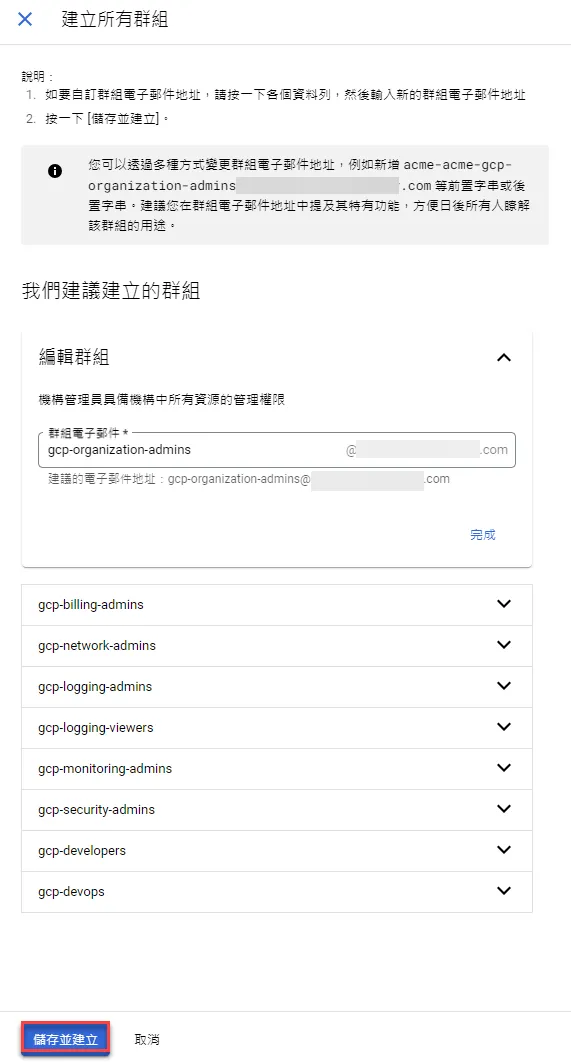
After clicking create, Cloud Identity will also synchronize the creation
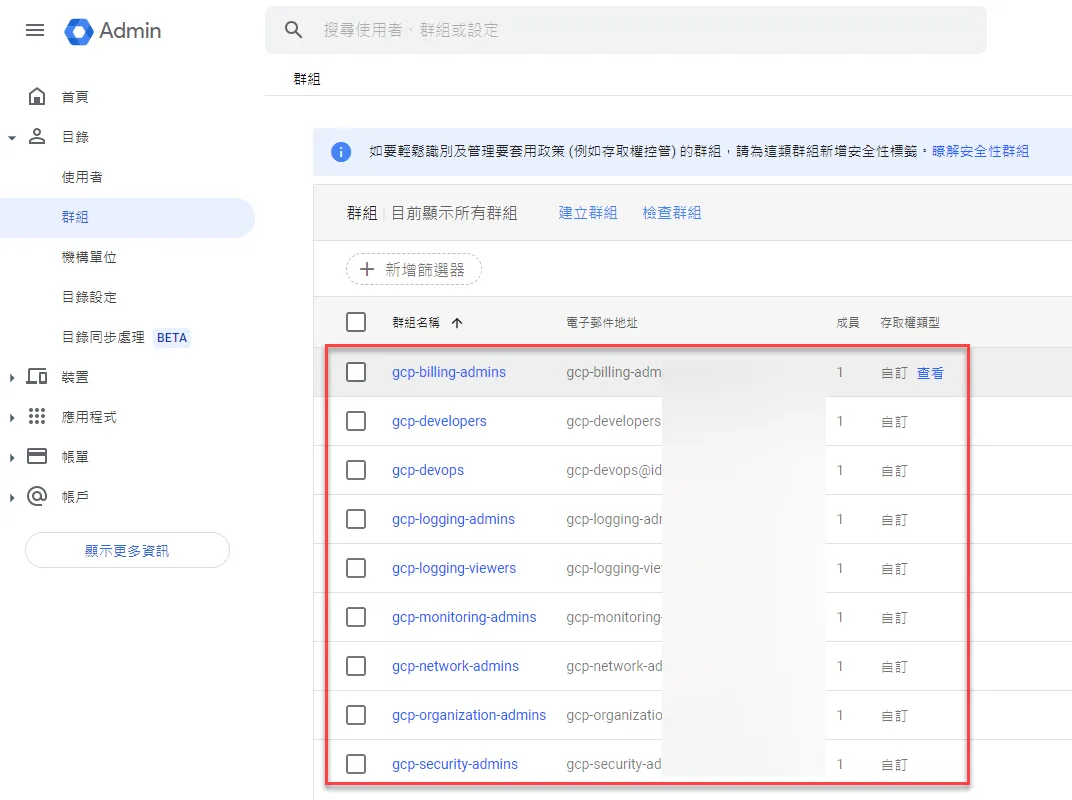
After creation is complete, click continue
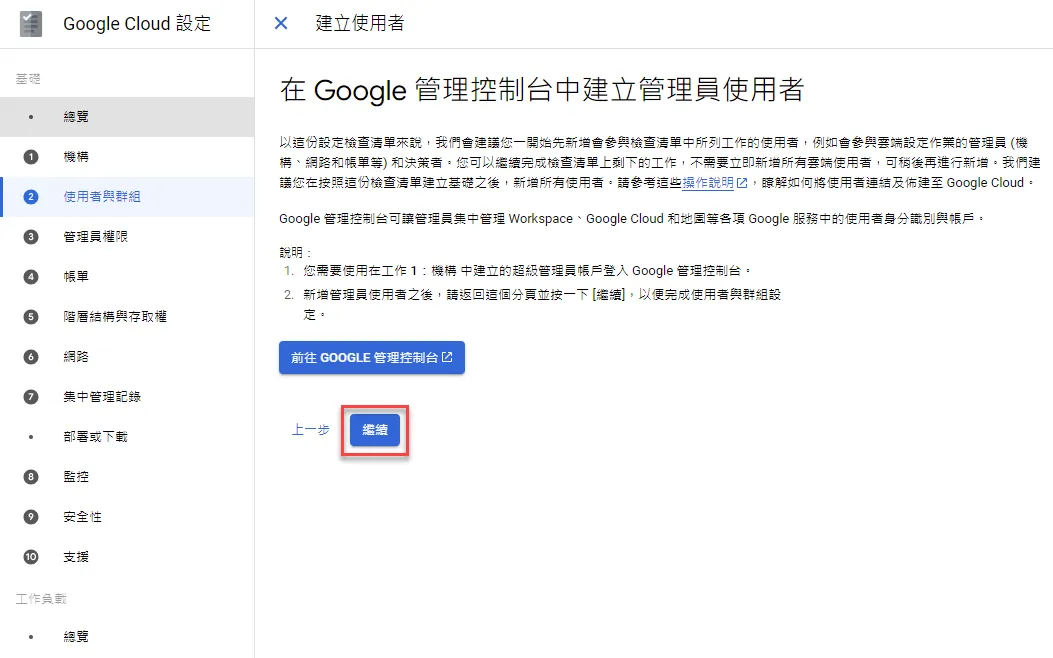
Create administrator users, click continue
You can add members to groups according to your needs, or add them later
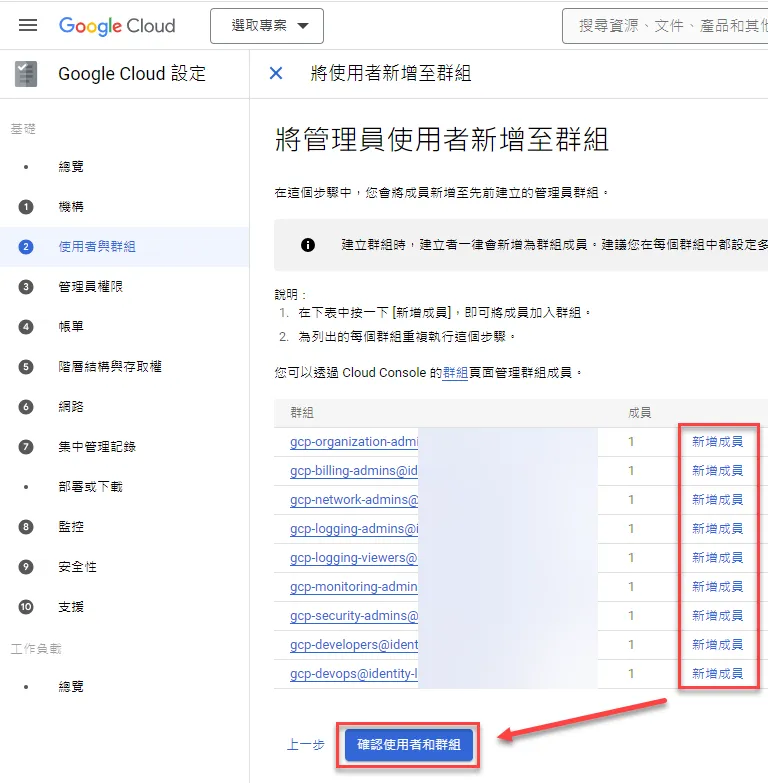
If there is only one person in the group, it will also remind you

After confirming that everything is fine, click continue to the next step
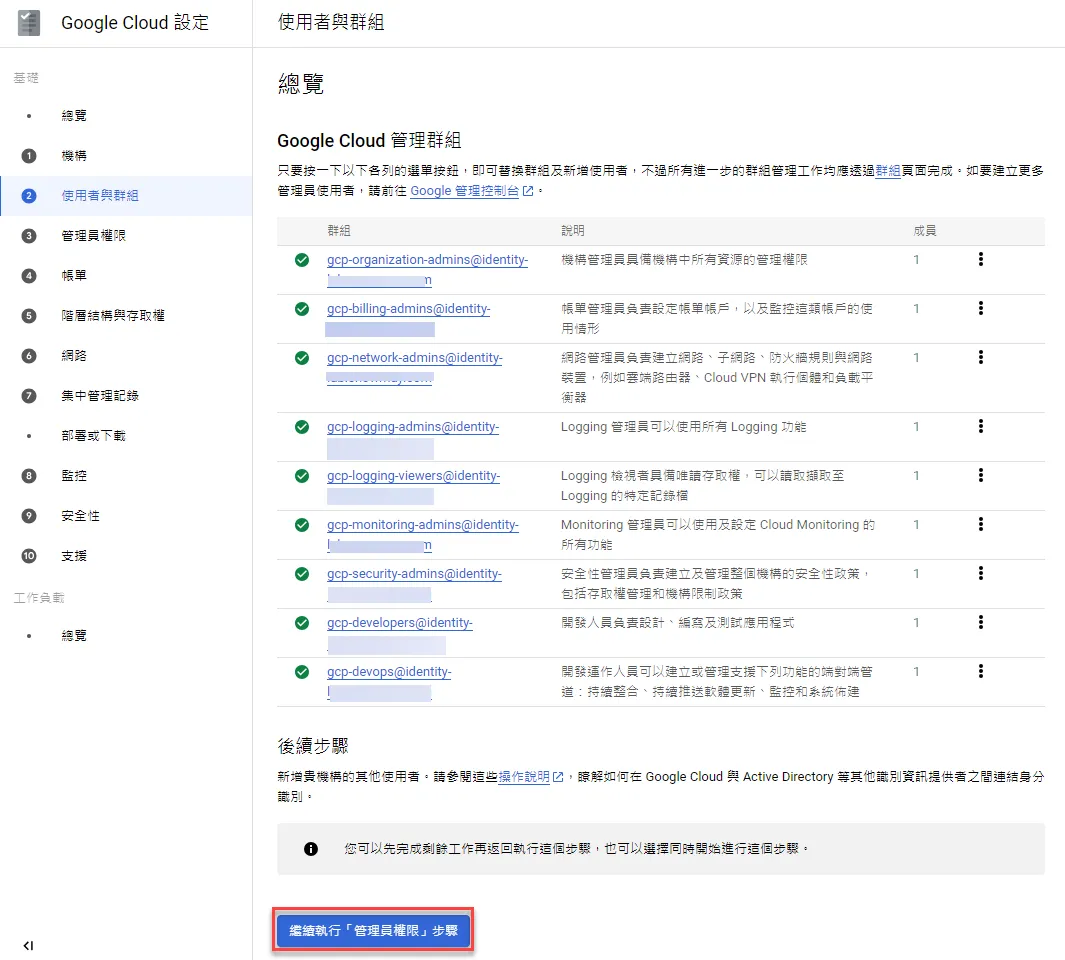
Grant Administrator Permissions
Next, click continue to the next step to start granting related permissions to groups
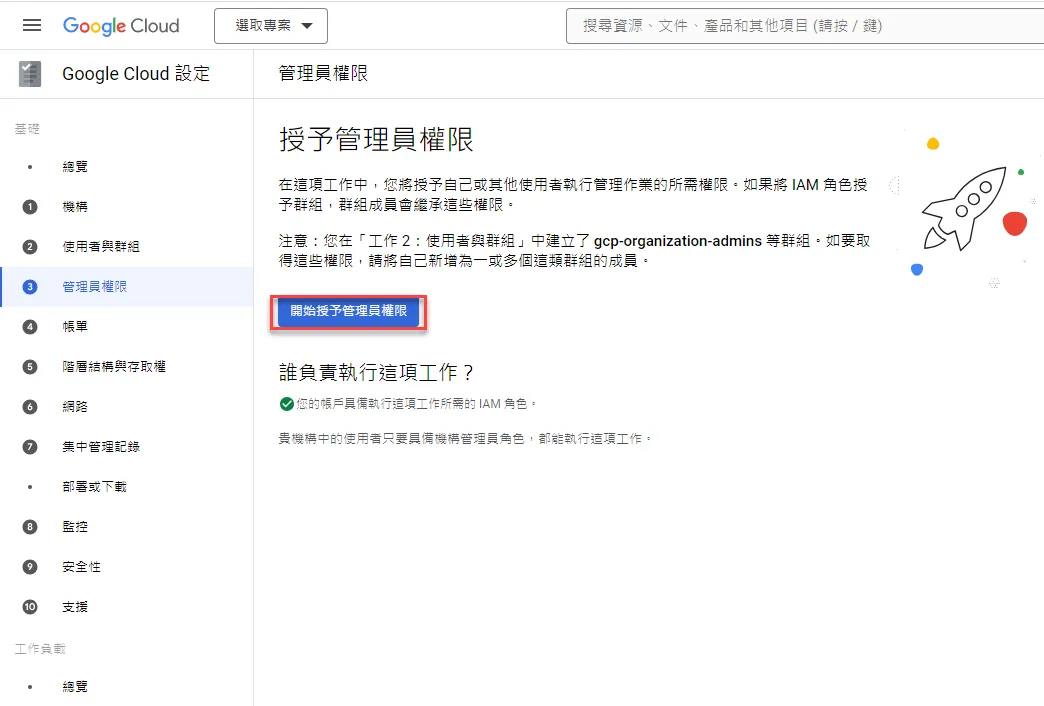
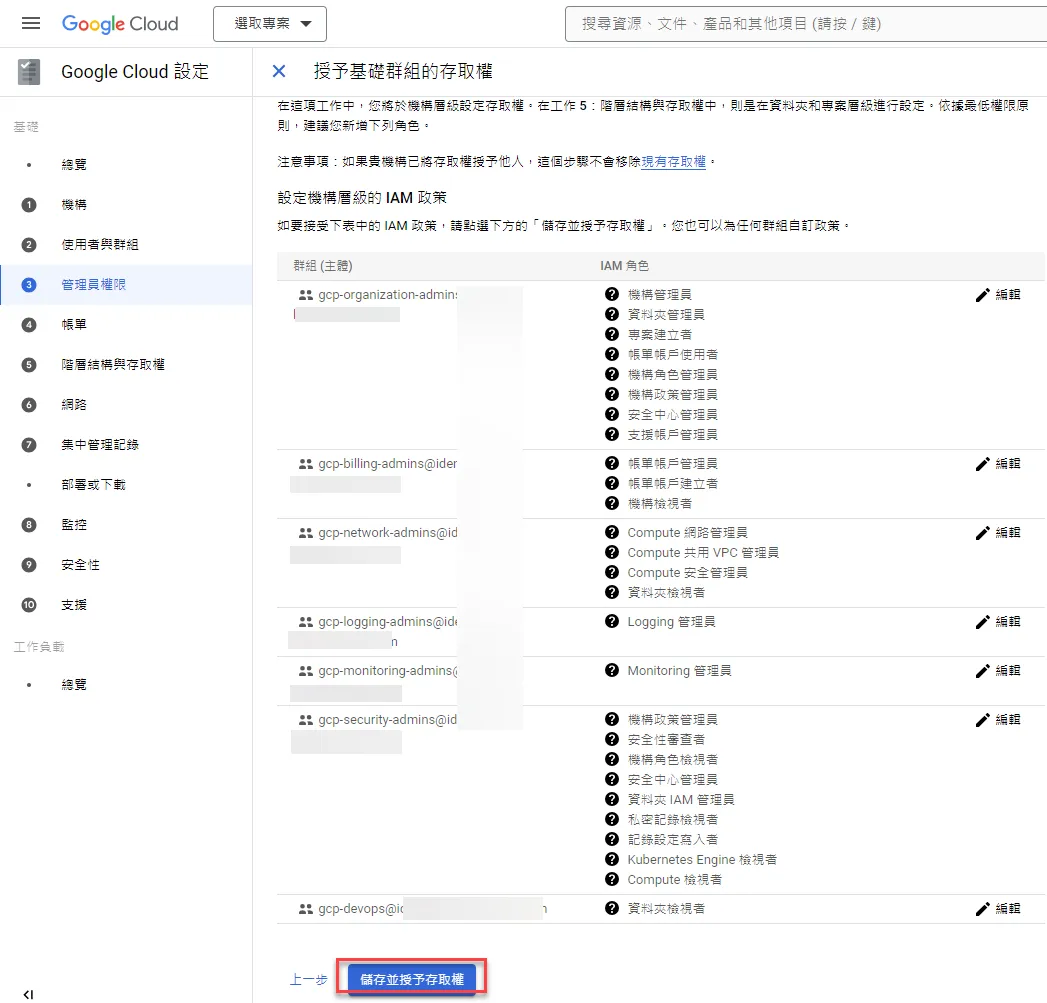
By default, corresponding permissions will be given to each group, you can use the default for now
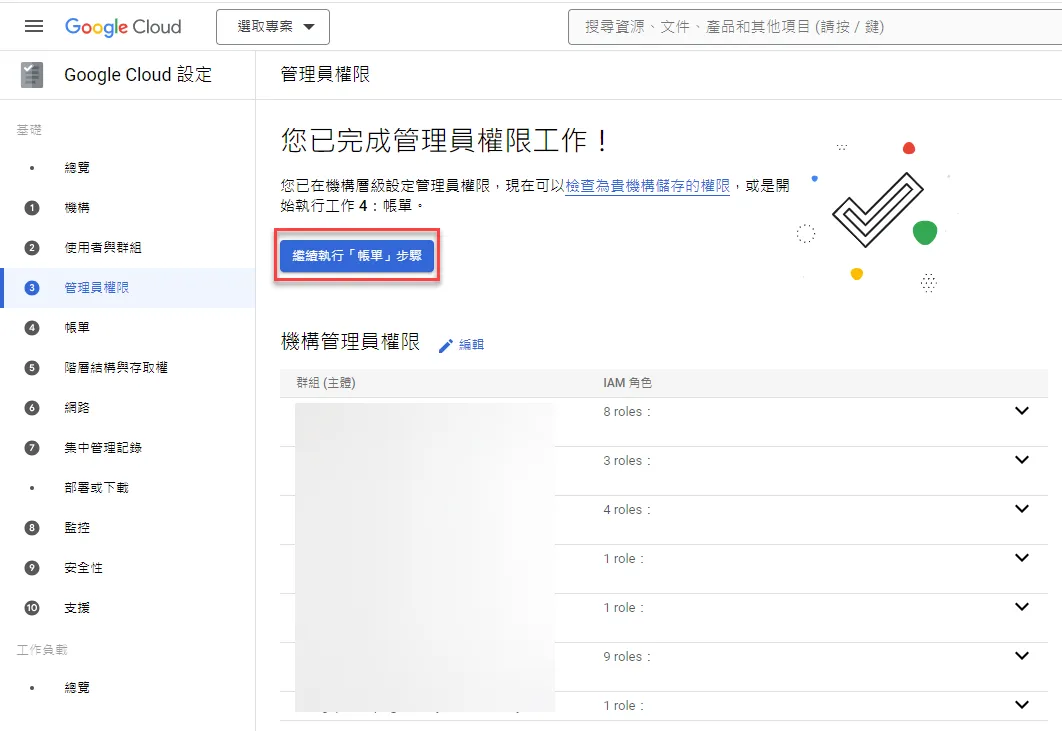
Billing Setup
After completion, start setting up billing
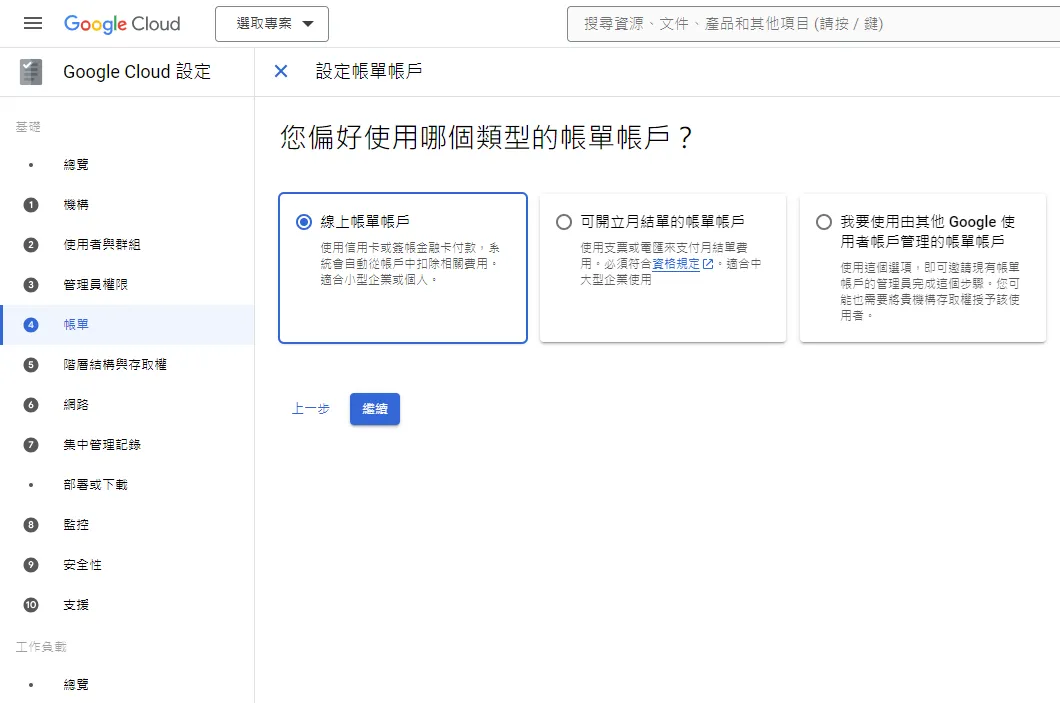
Click to start setting up billing functionality
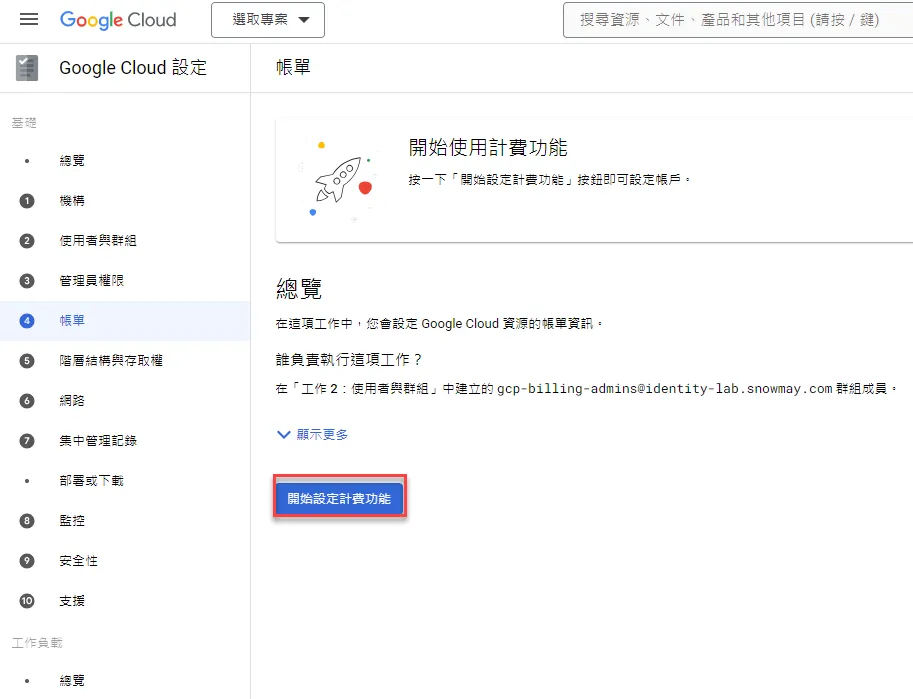
Choose billing according to your actual situation
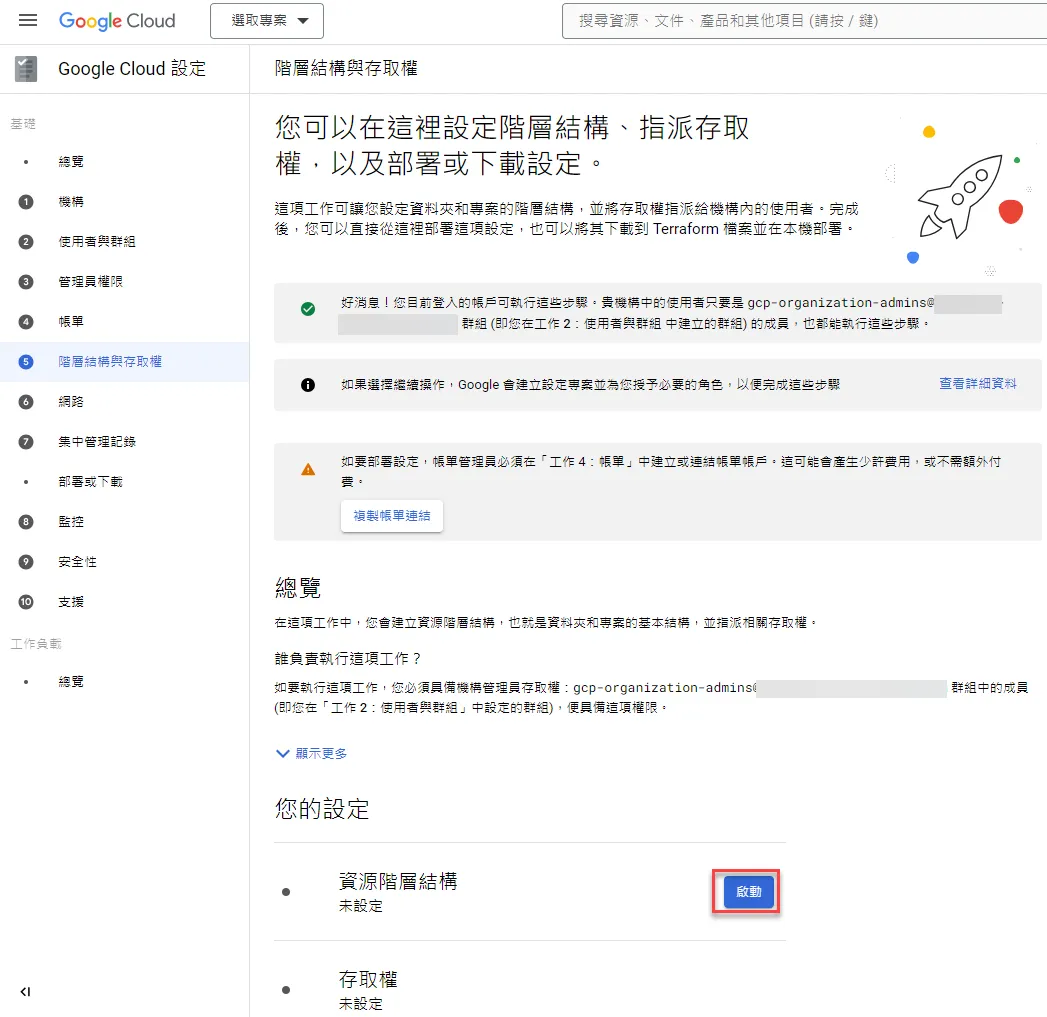
Organization Structure Setup
You can set up the hierarchical structure of the organization, and official templates are also provided. This step can be skipped and manually created later if needed
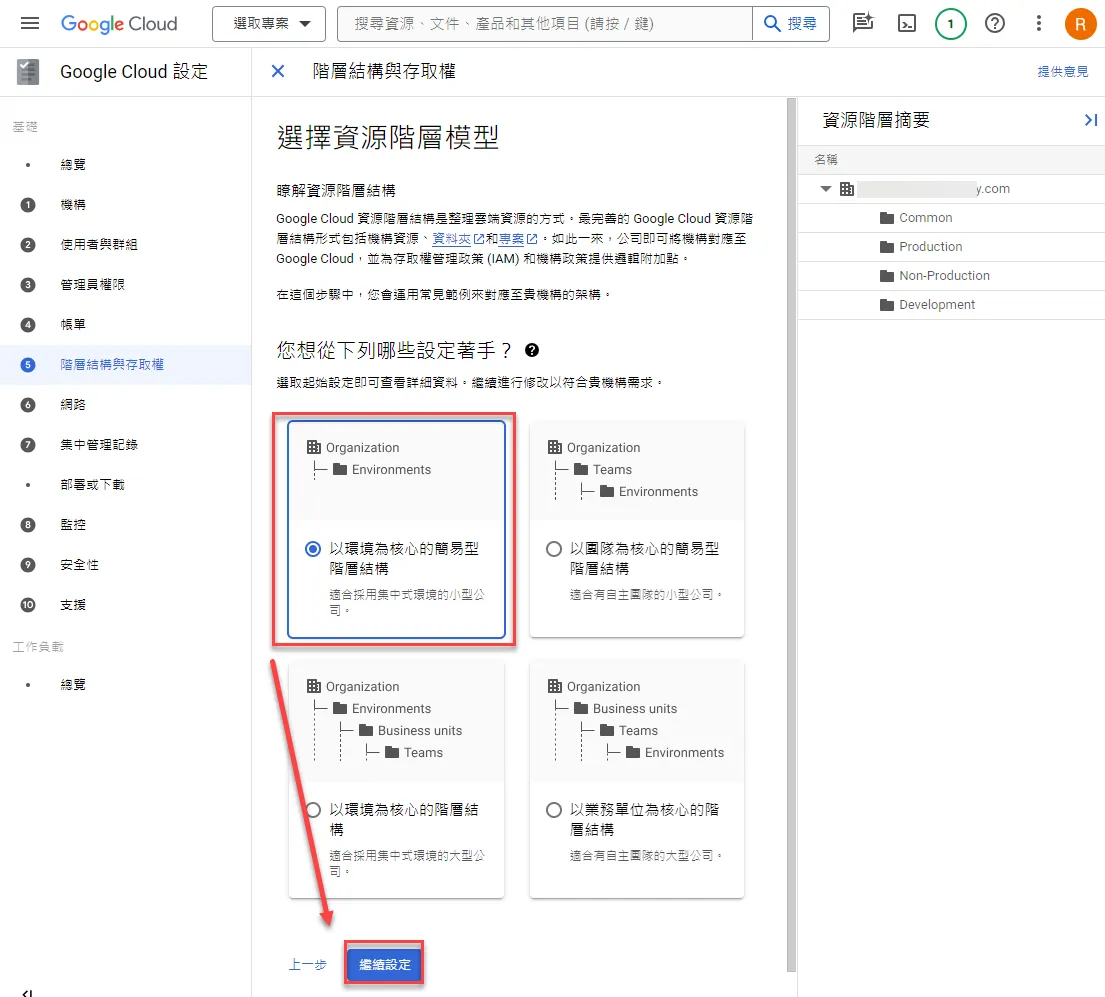
You can choose from these four types according to your needs
After selection, you can modify the folder name
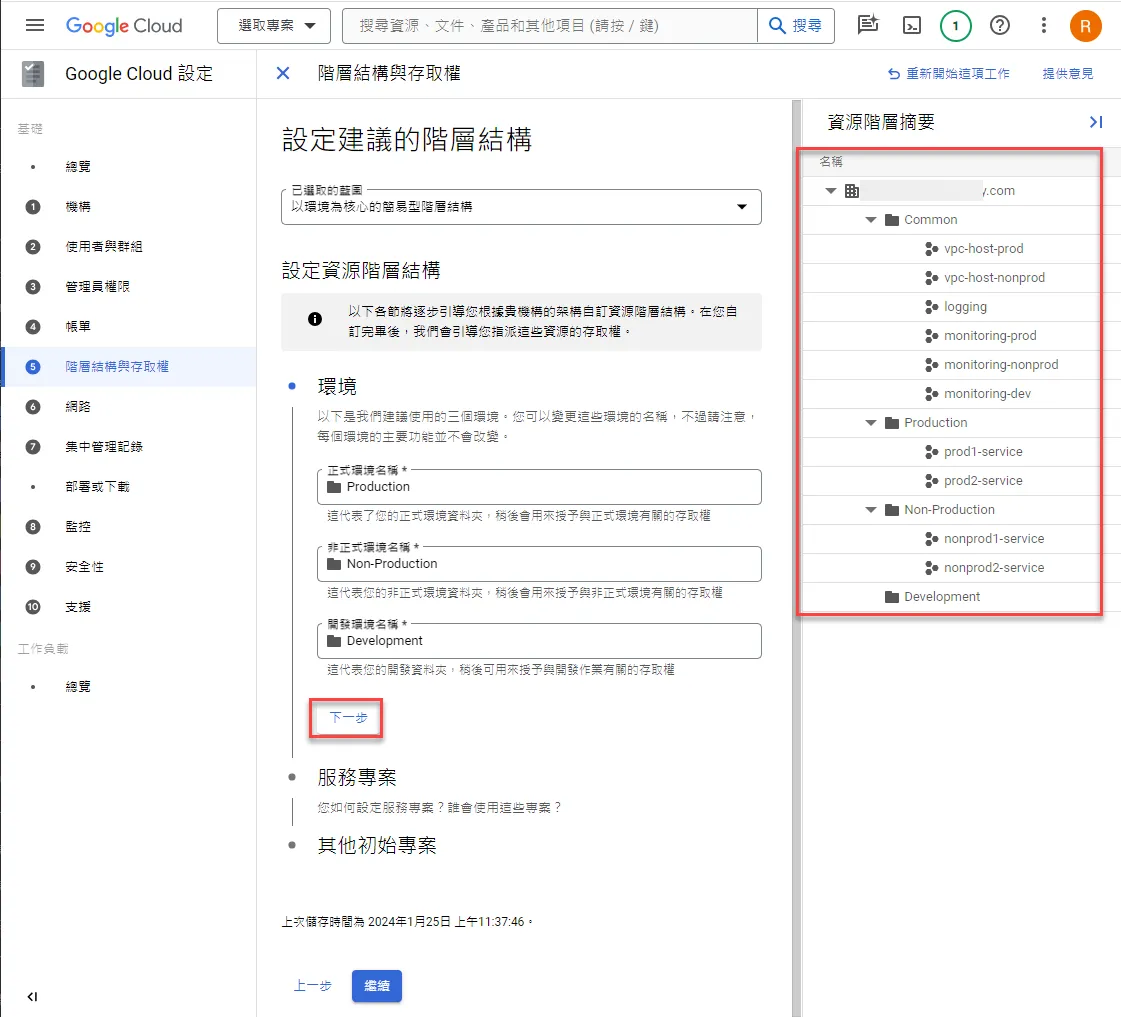
You can also adjust project names and configure user groups
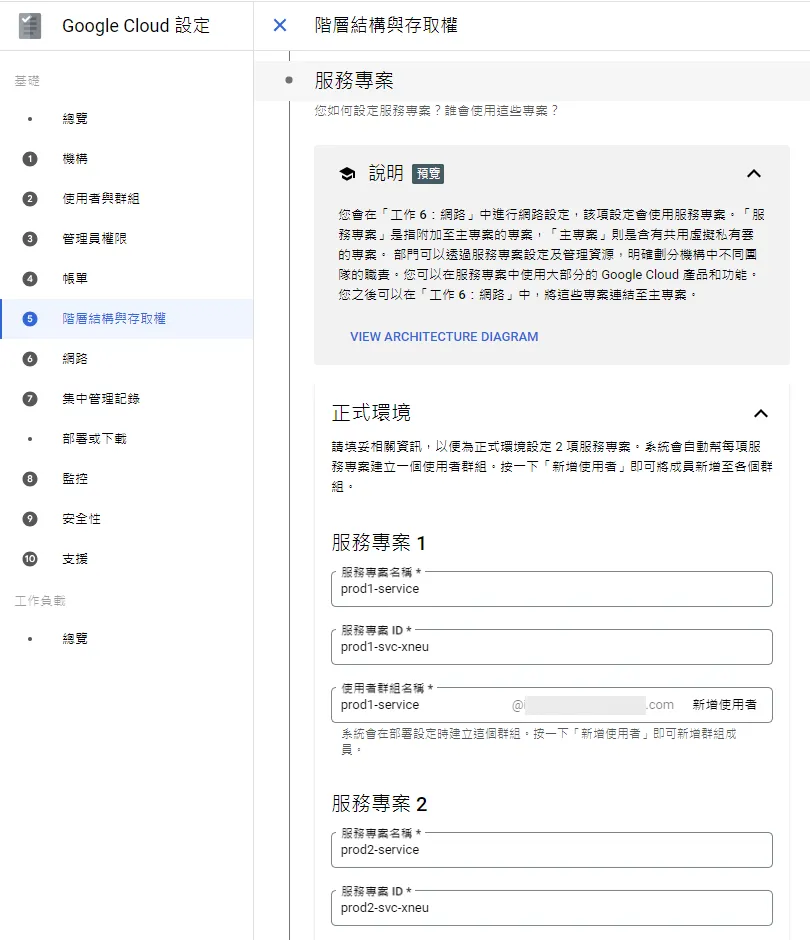
After completion, click next
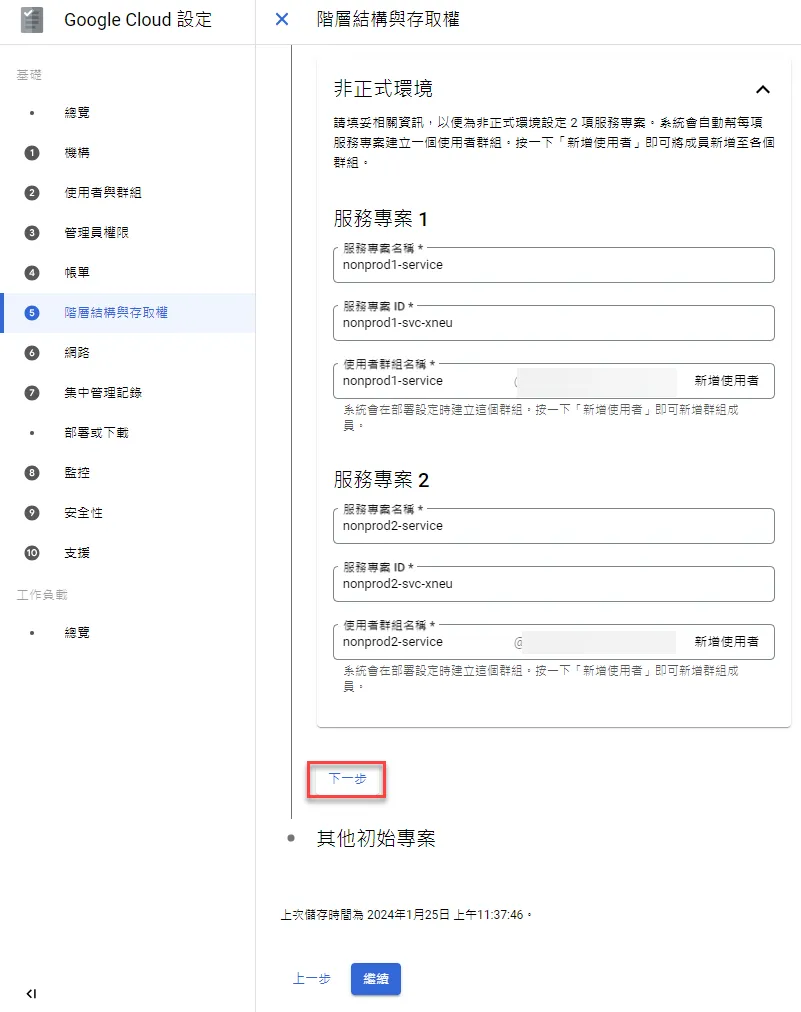
Some other initial projects will also be configured, click continue if everything is fine
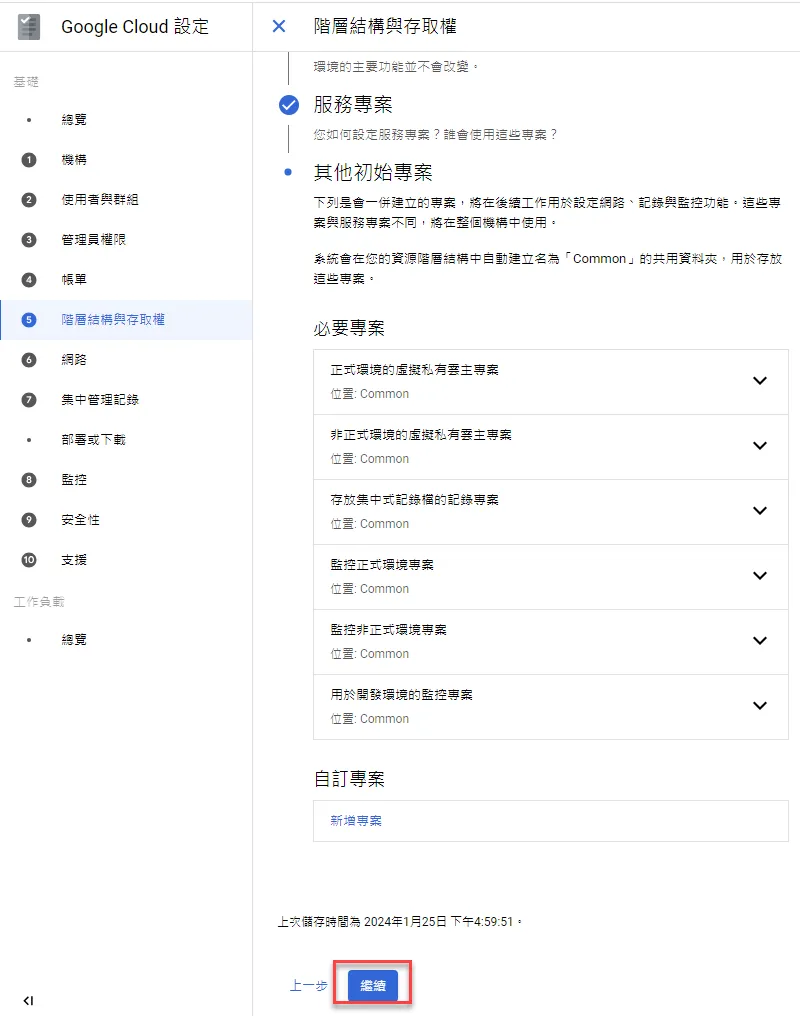
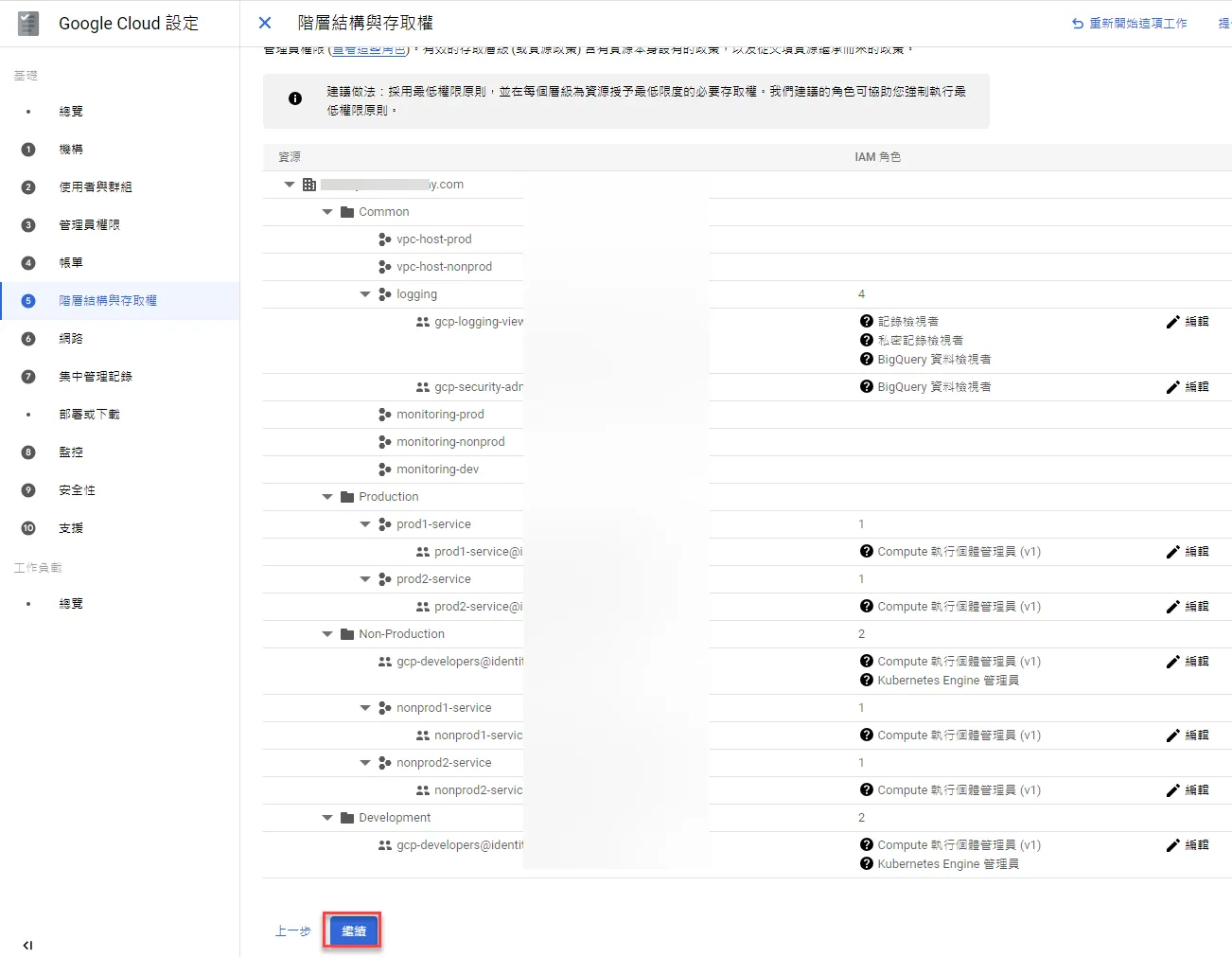
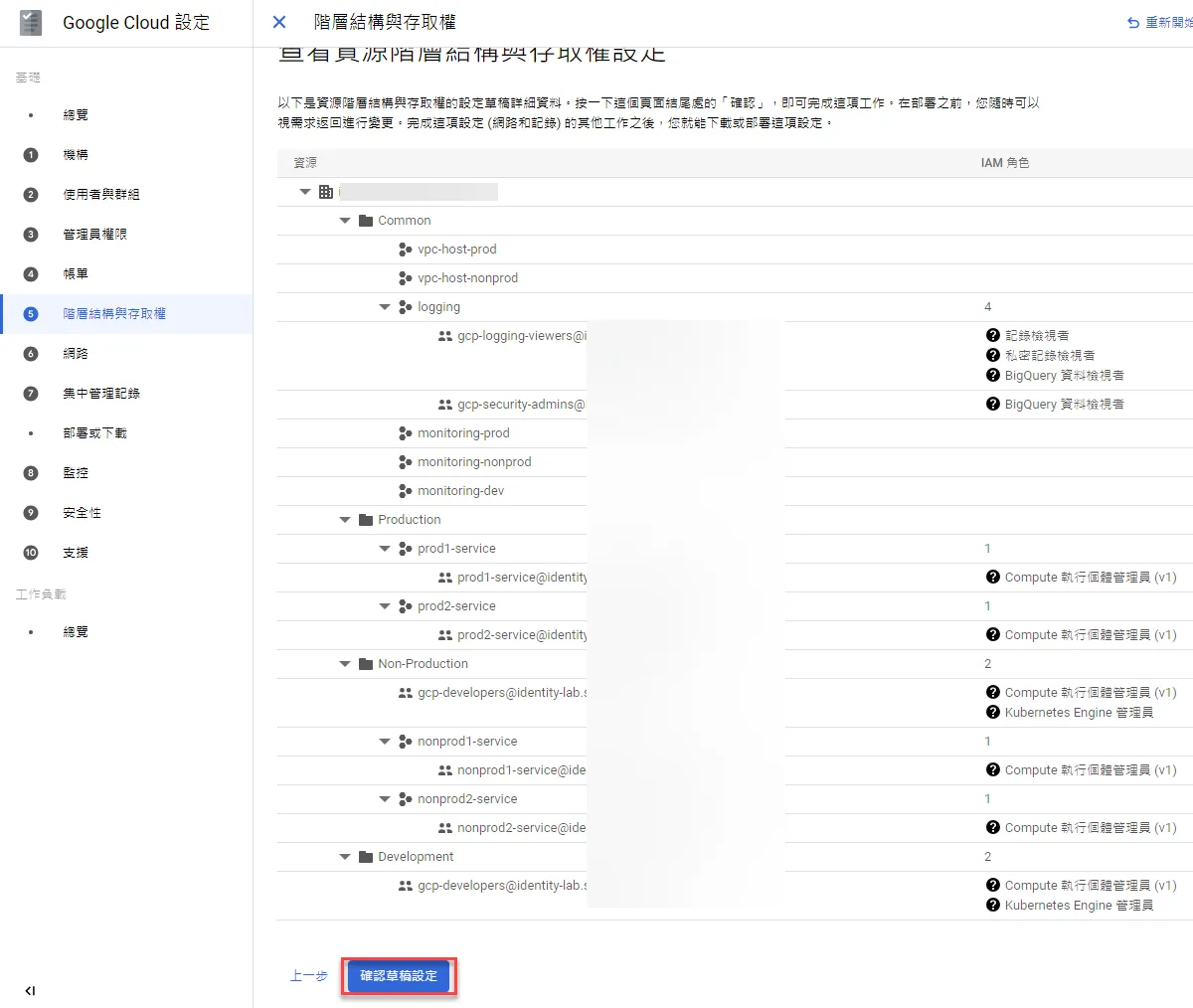
Confirm the complete resource structure, click continue if there are no issues
Click confirm draft if everything is fine
Network Configuration
Next, proceed with network configuration
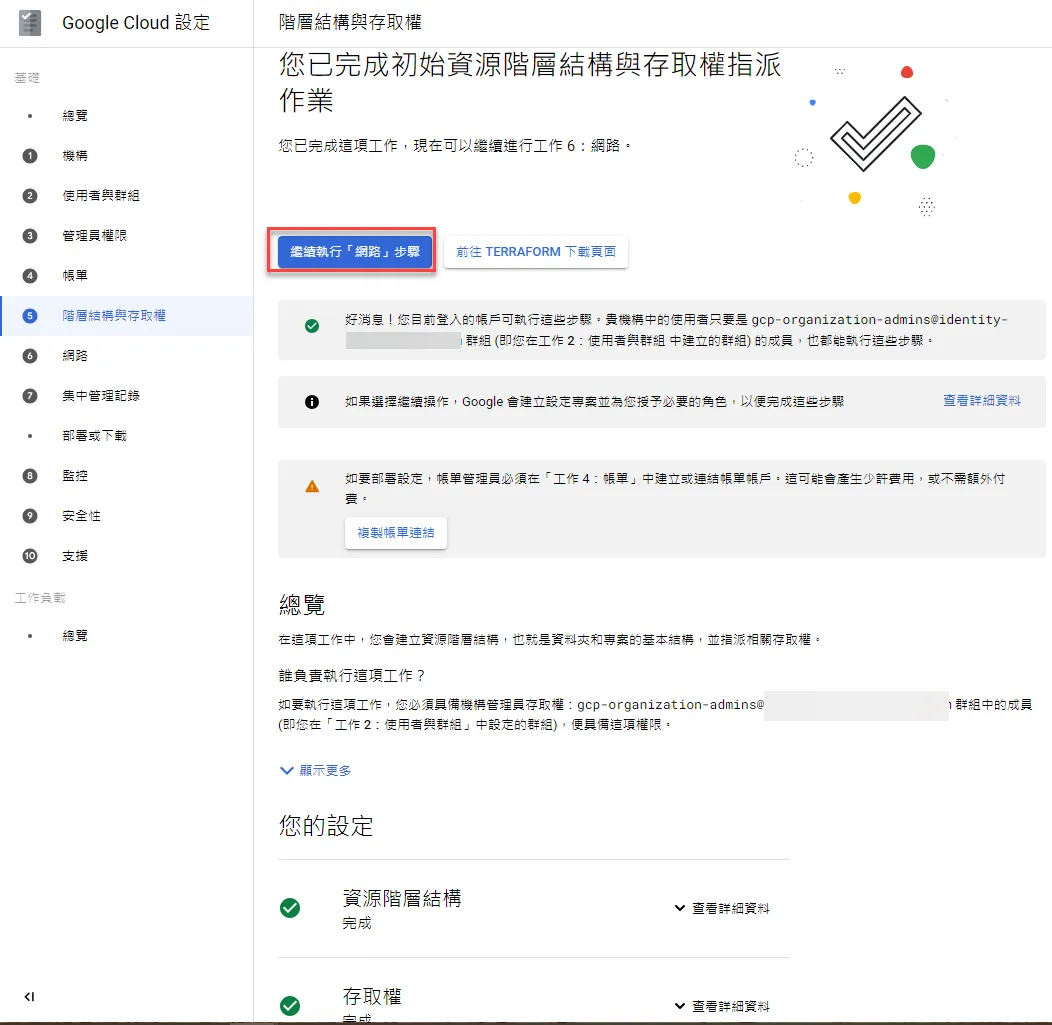
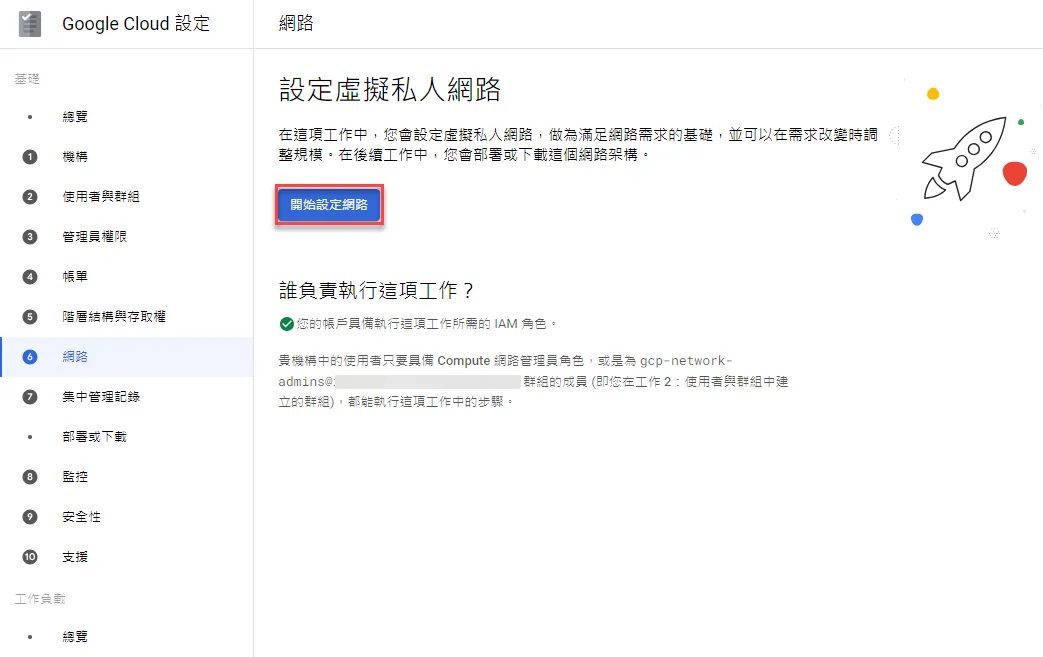
Click to start setting up the network
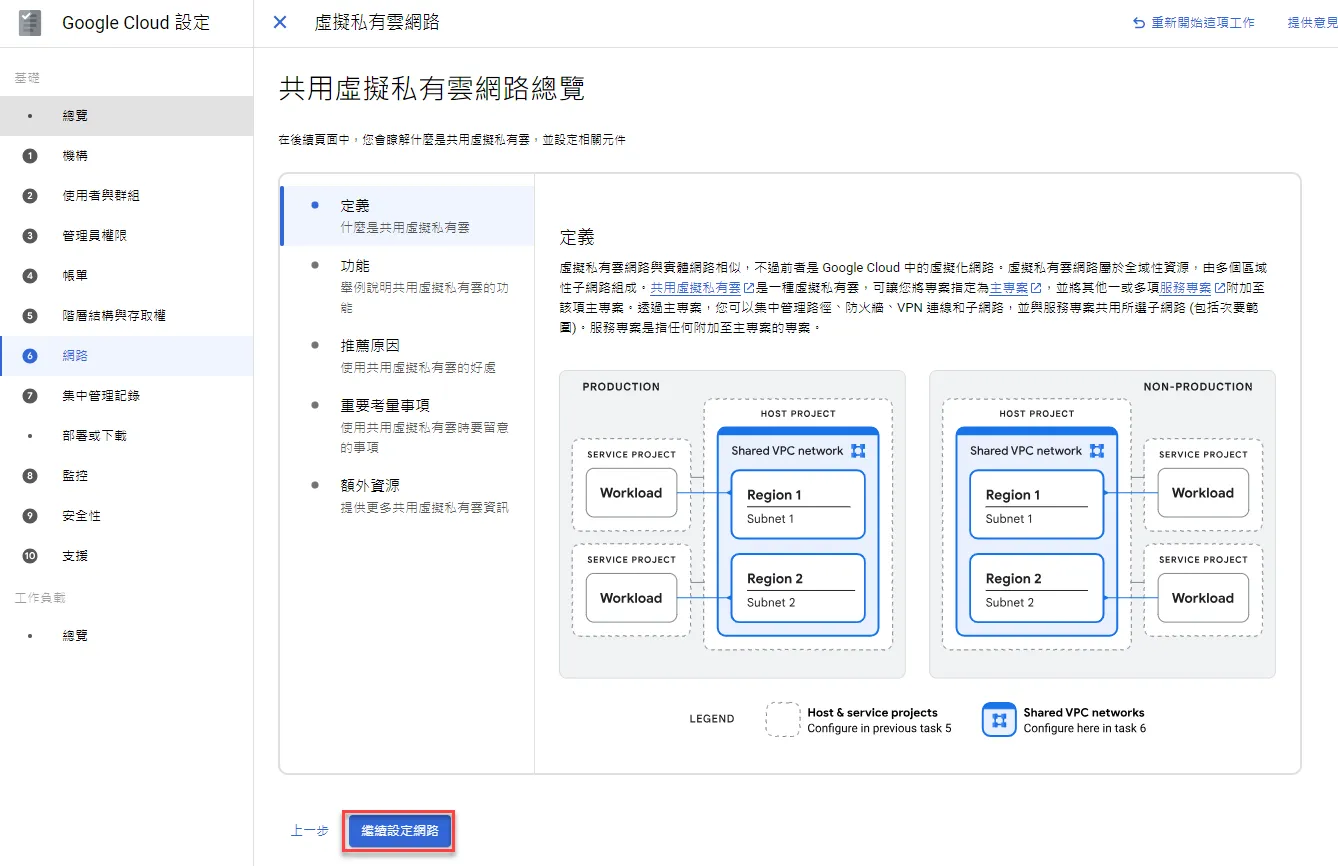
A reference description page appears, click continue
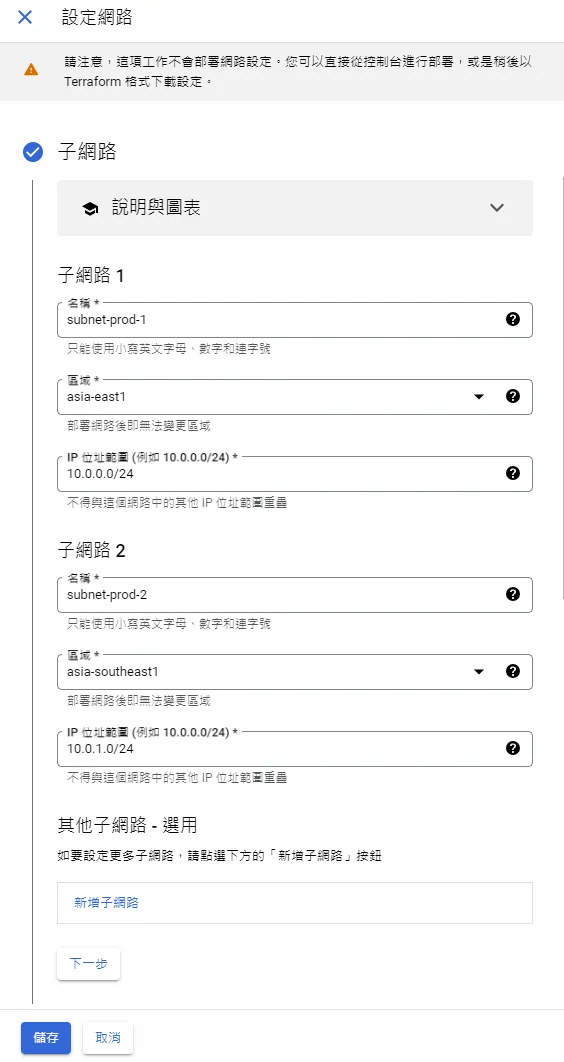
Click to configure
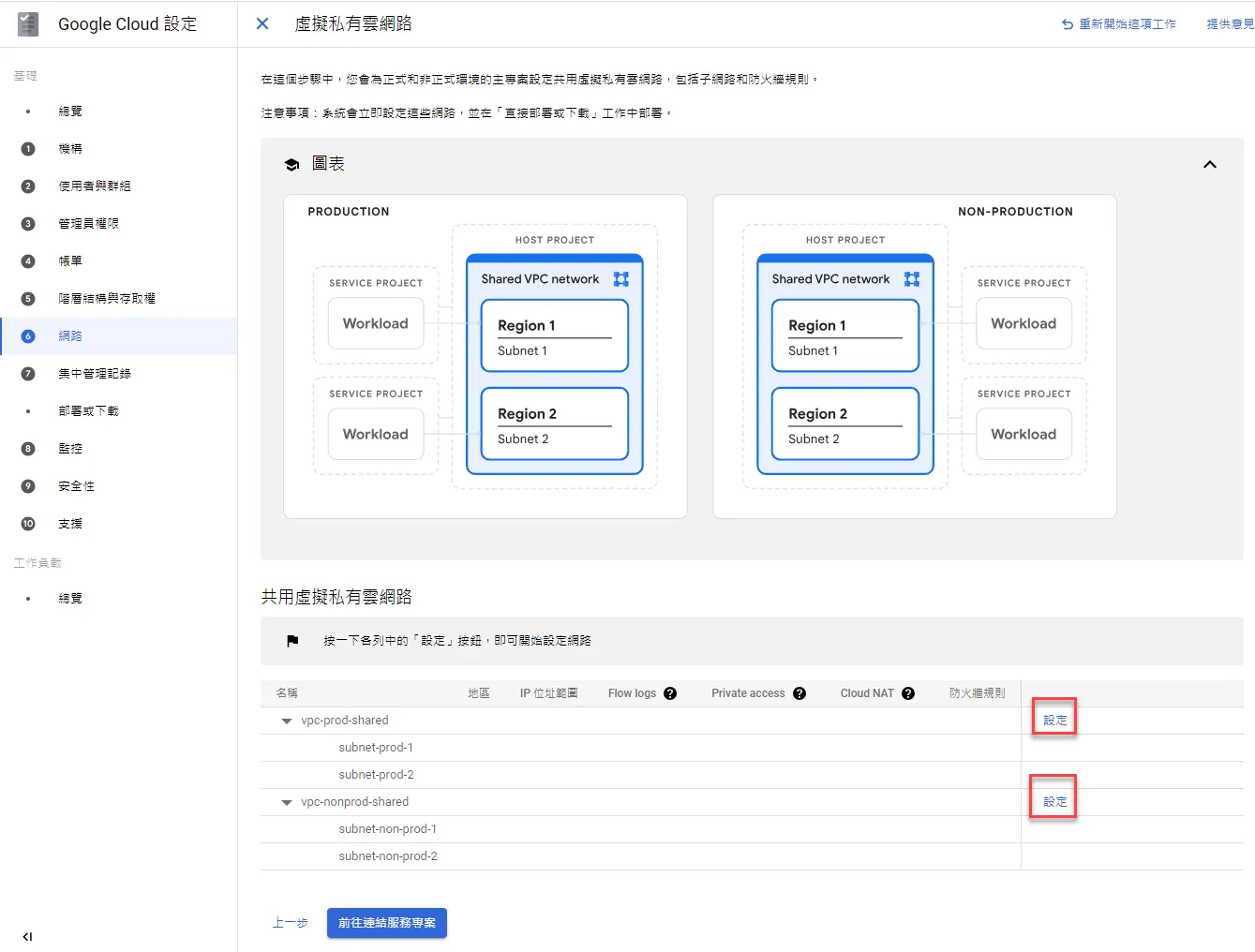
Configure according to requirements
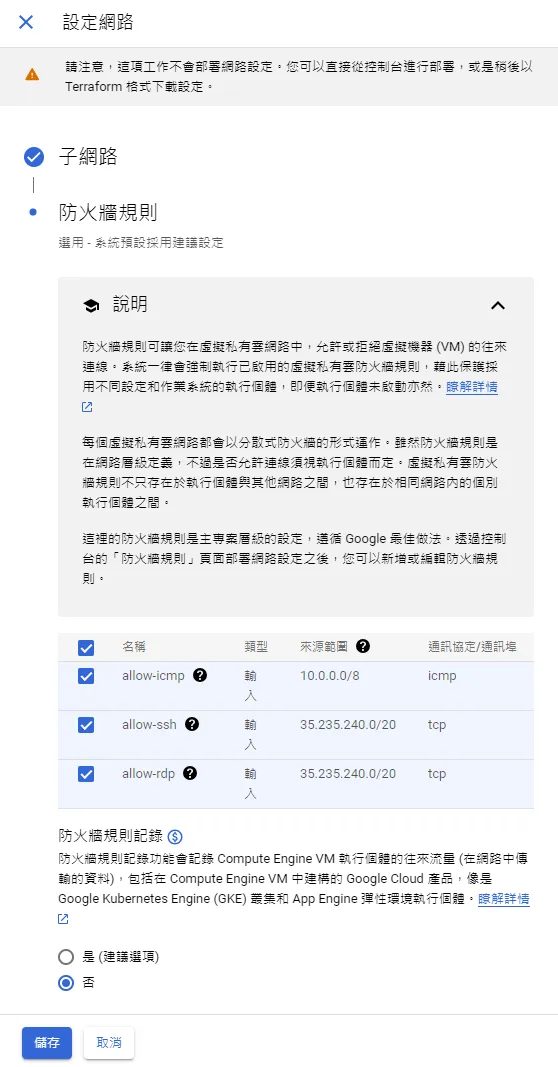
Set up firewall rules
Ensure IP is normal and all other functional requirements are configured
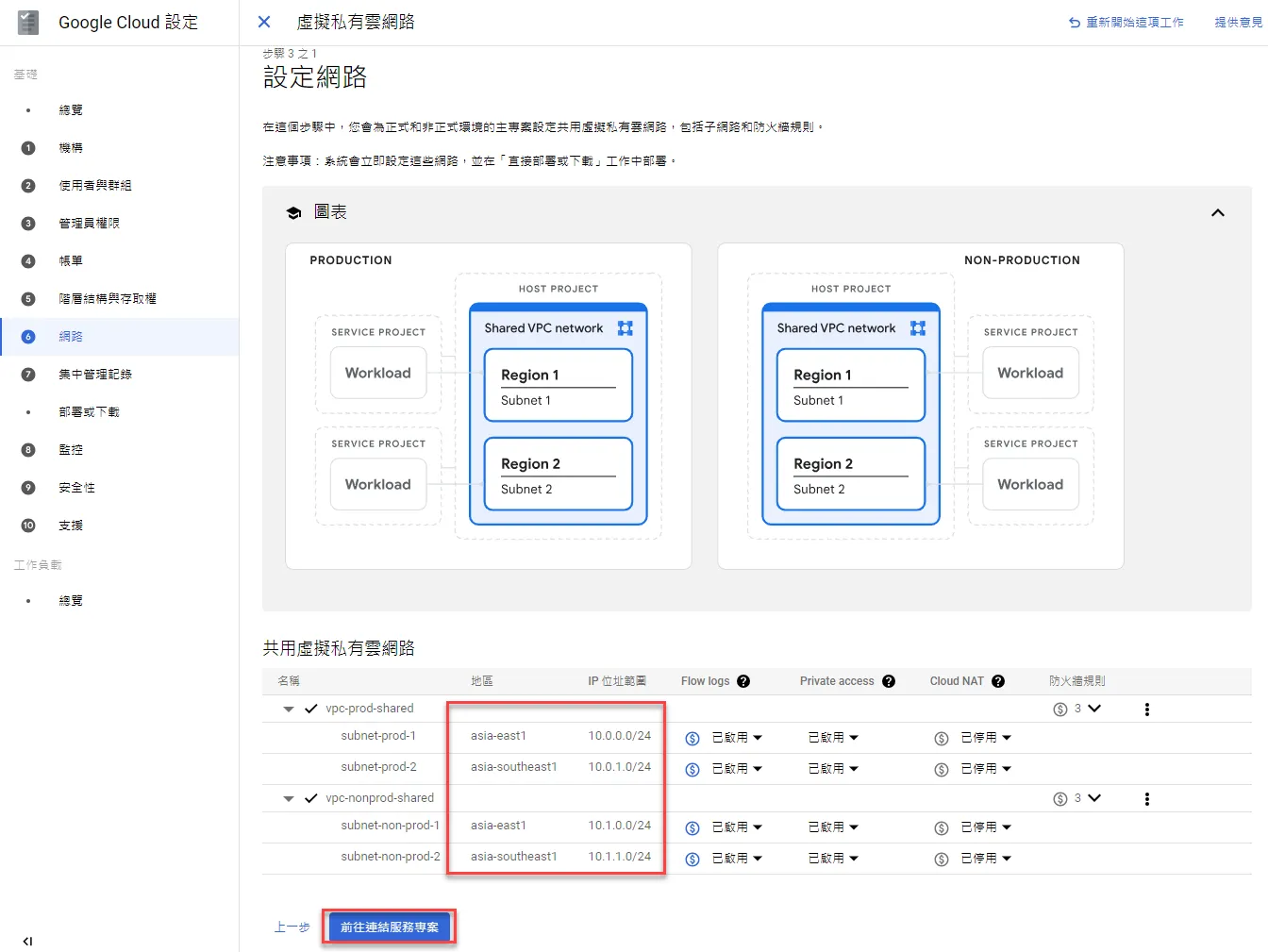
Set up corresponding projects
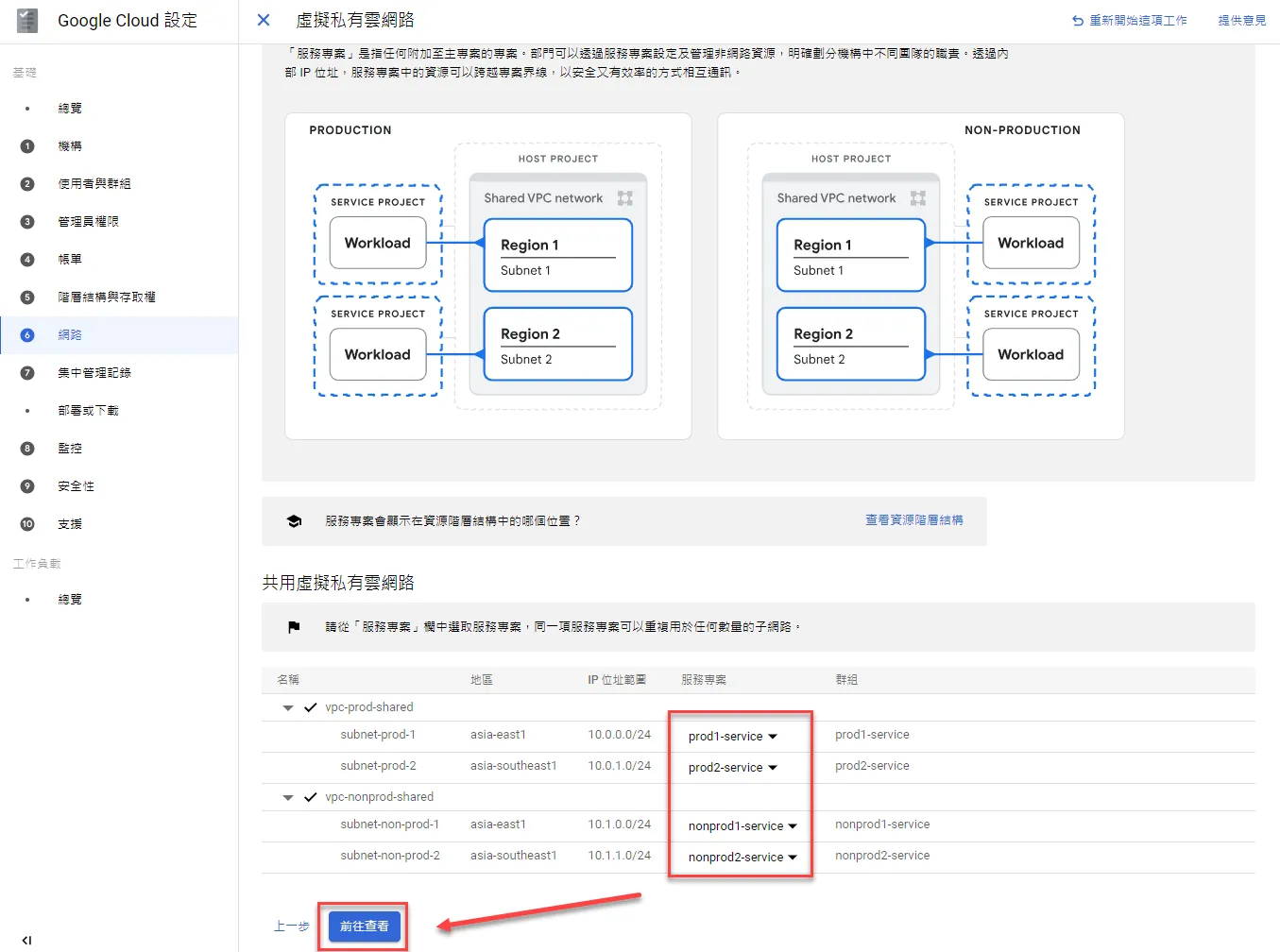
After configuration is complete, click confirm
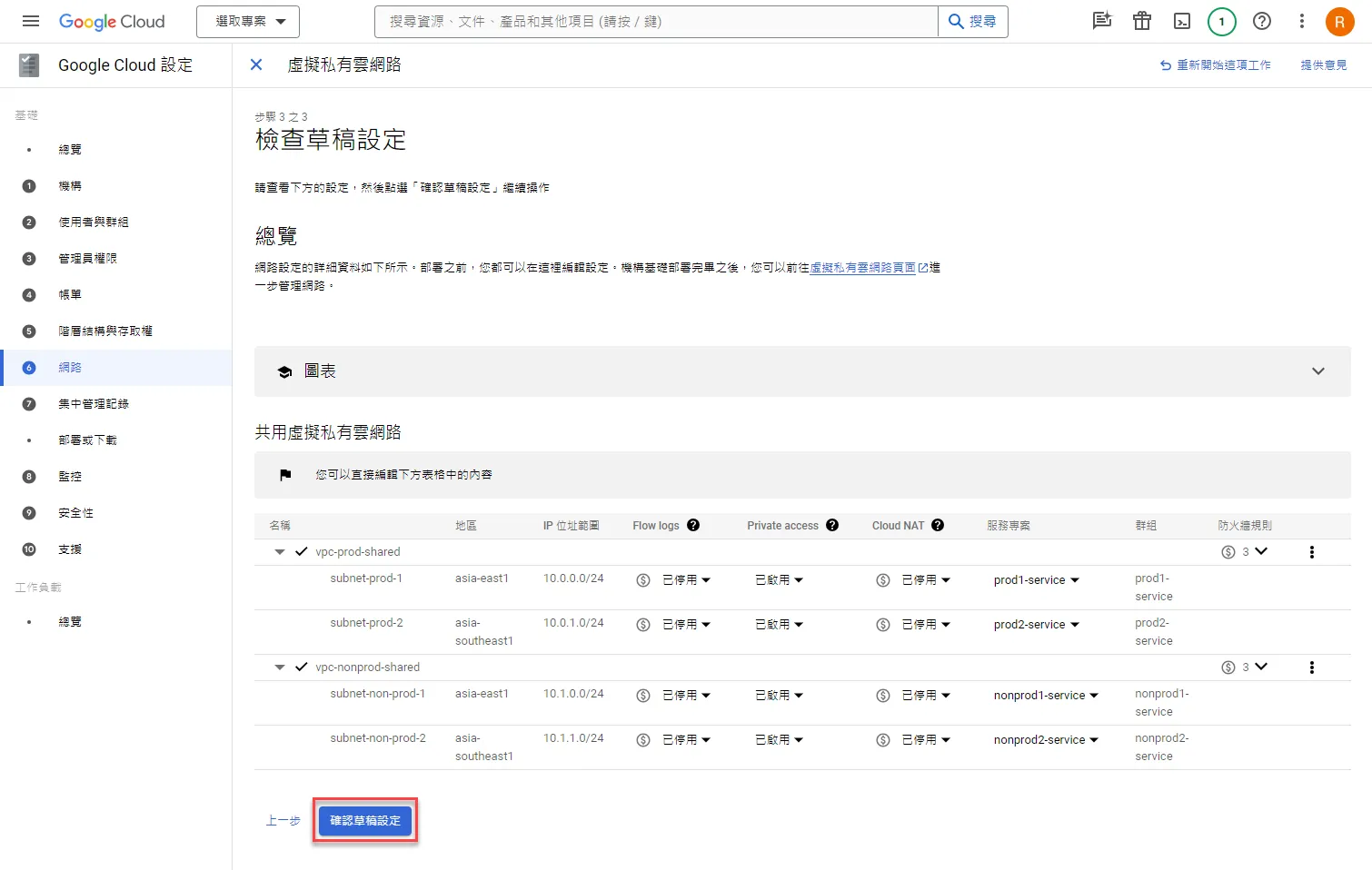
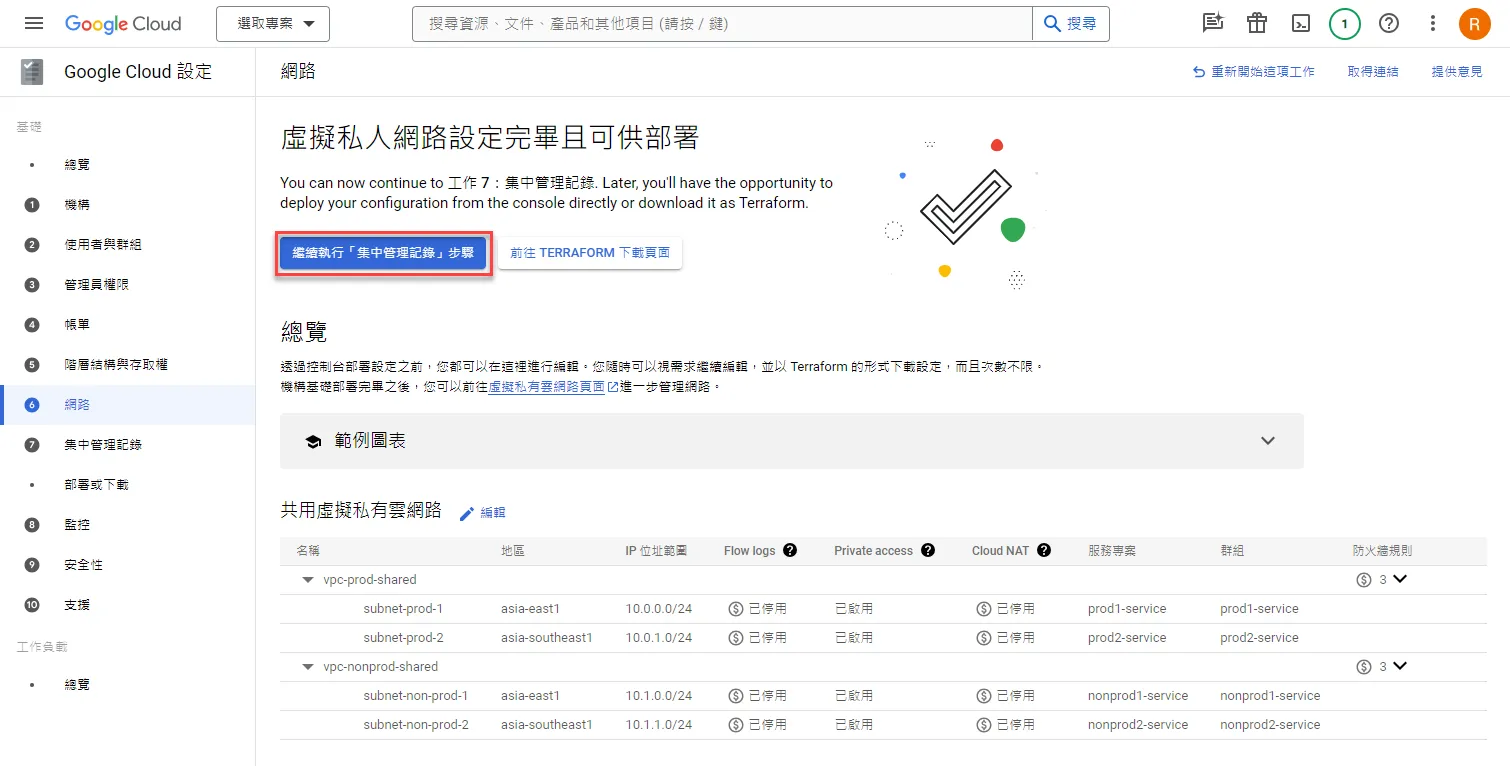
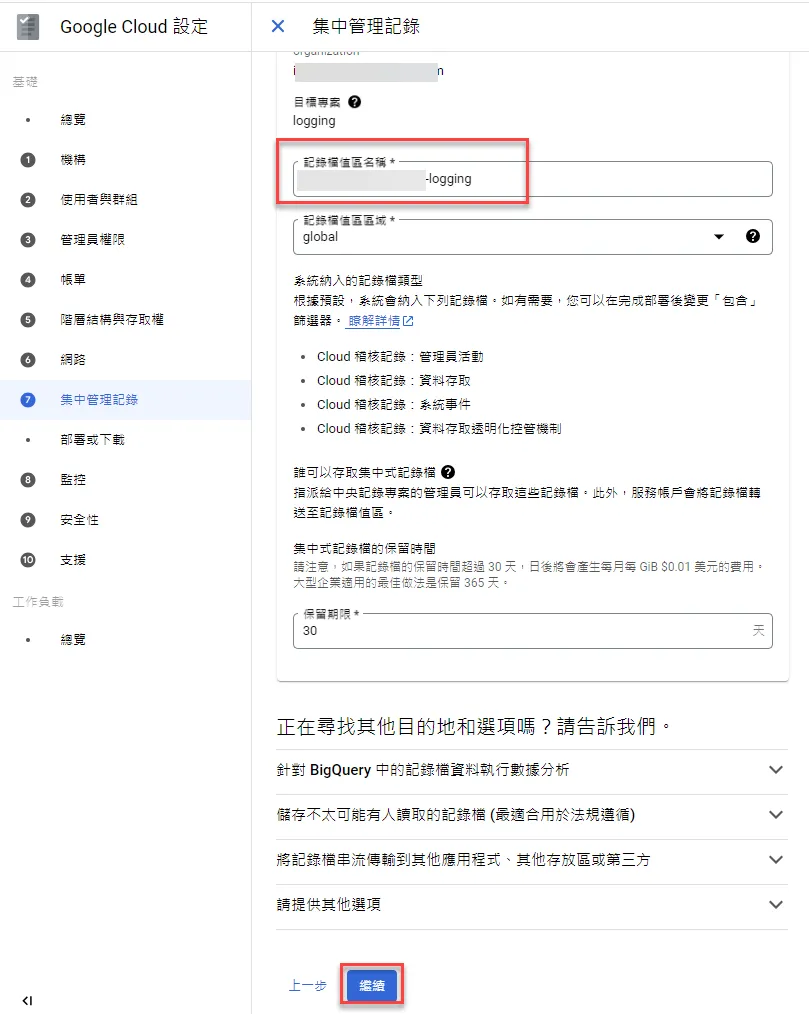
Set Up Centralized Logging
Click continue
Click to start configuration
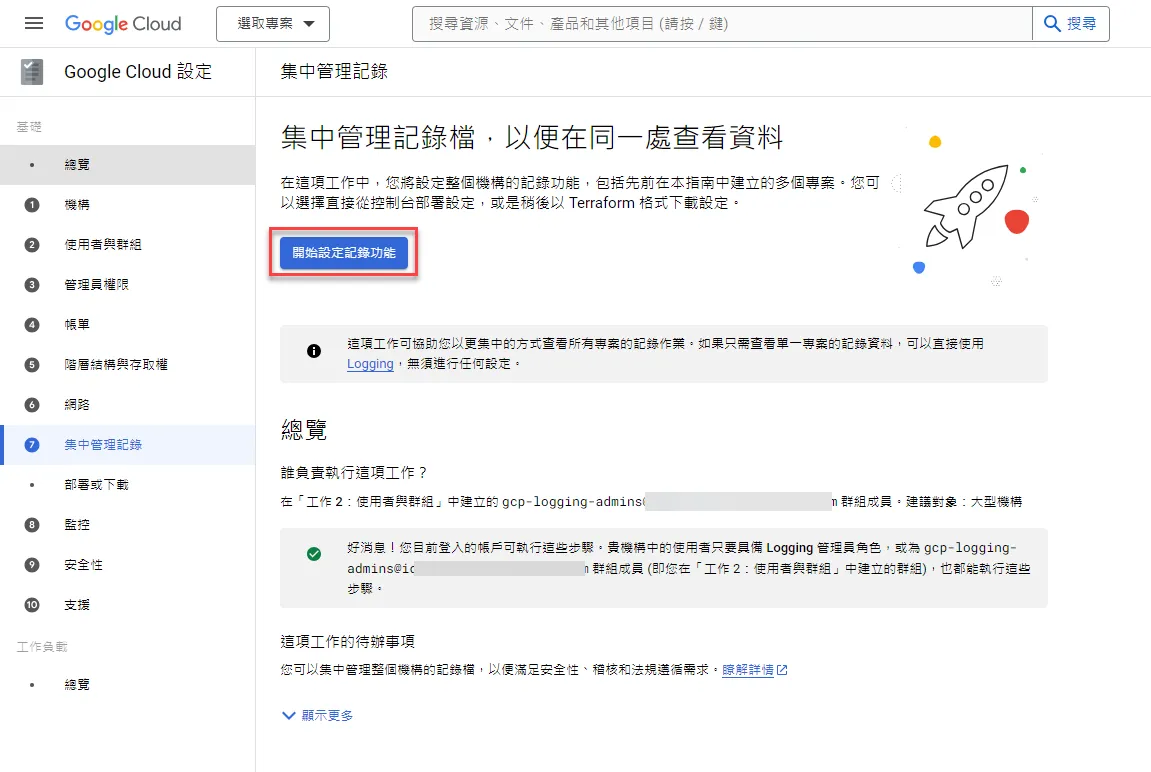
Set up the name
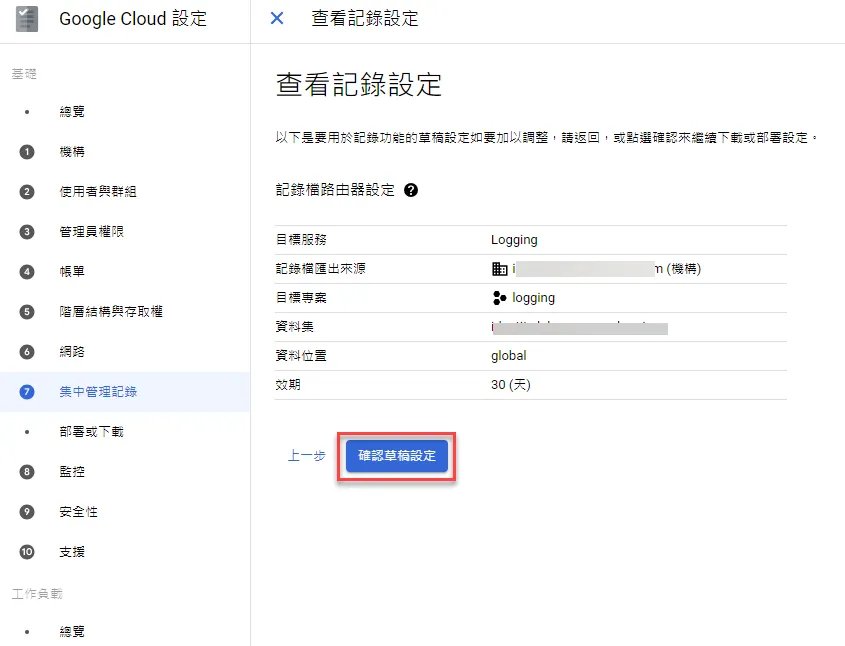
Confirm the draft
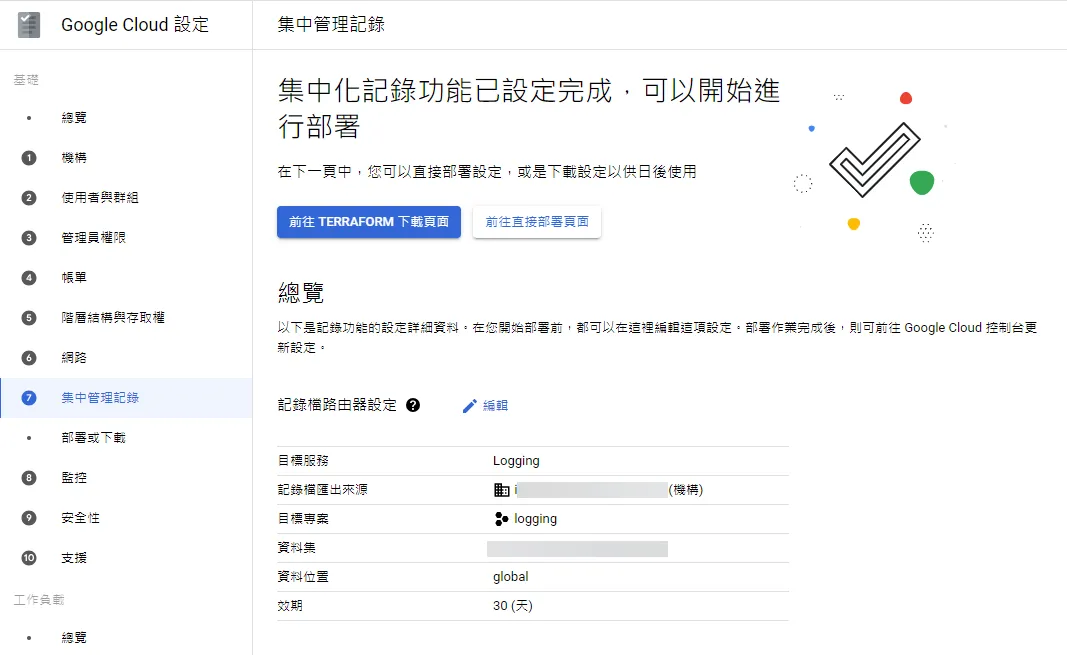
Download Deployment Script
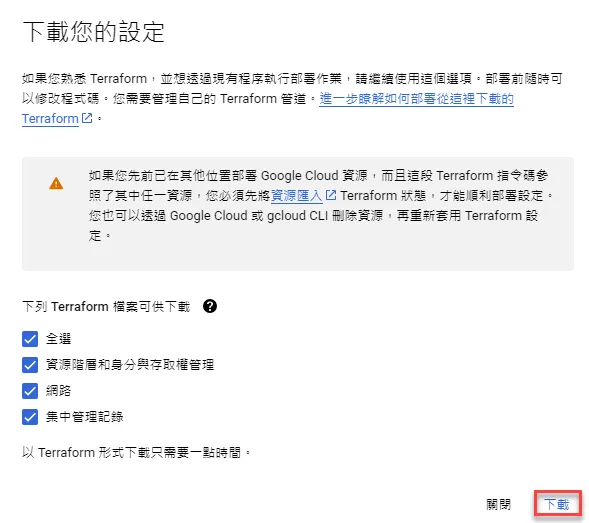
You can download Terraform
Click to download in Terraform format
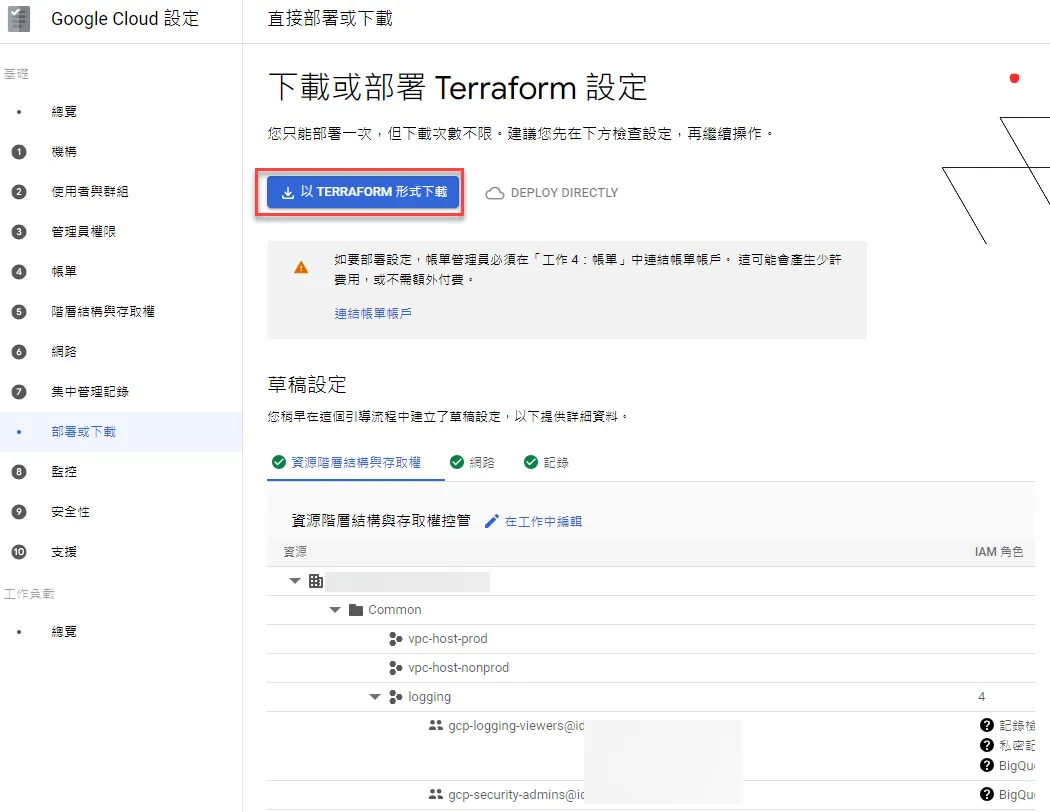
You can download Terraform configurations according to your needs
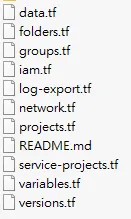
After downloading, you can see various configuration files
Other Settings
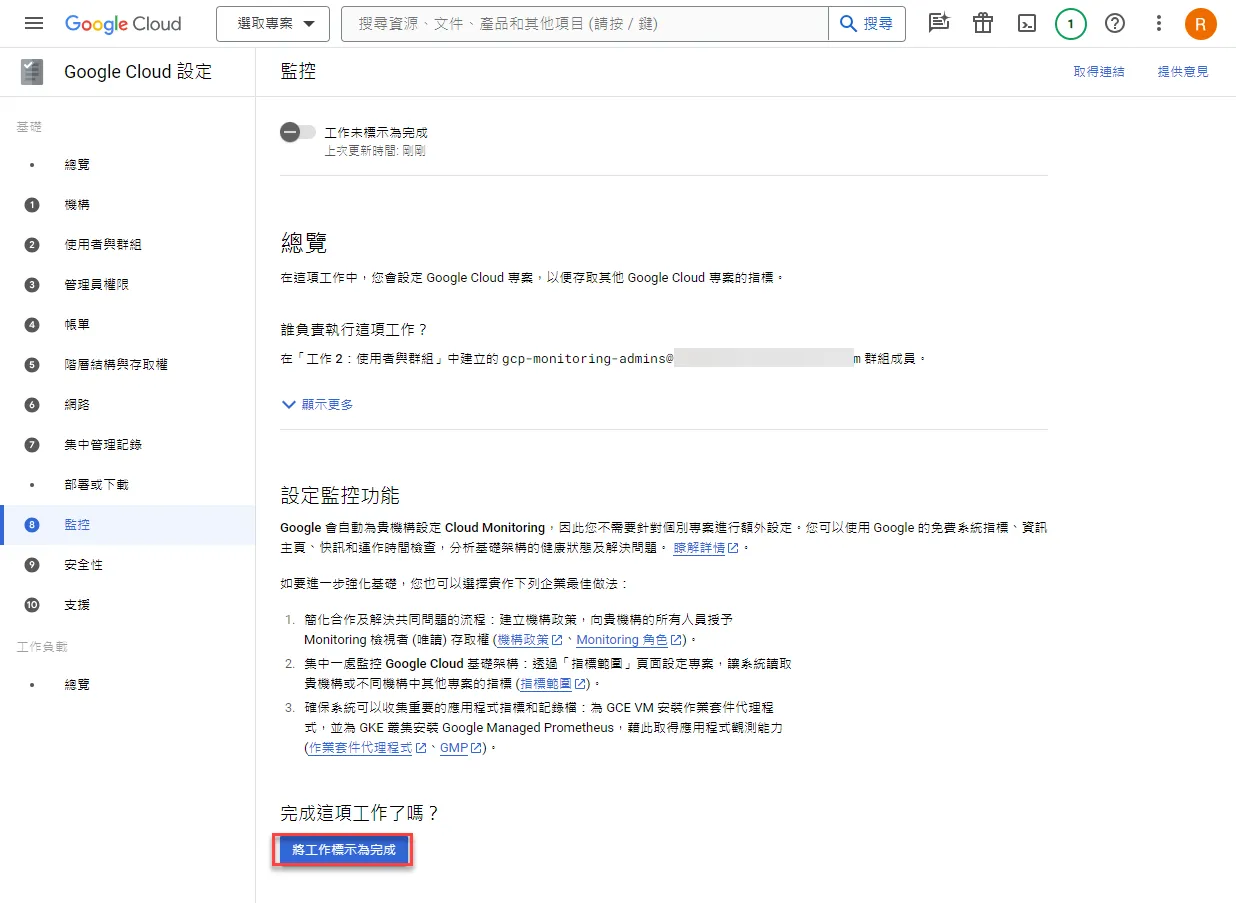
You can set up monitoring according to your needs
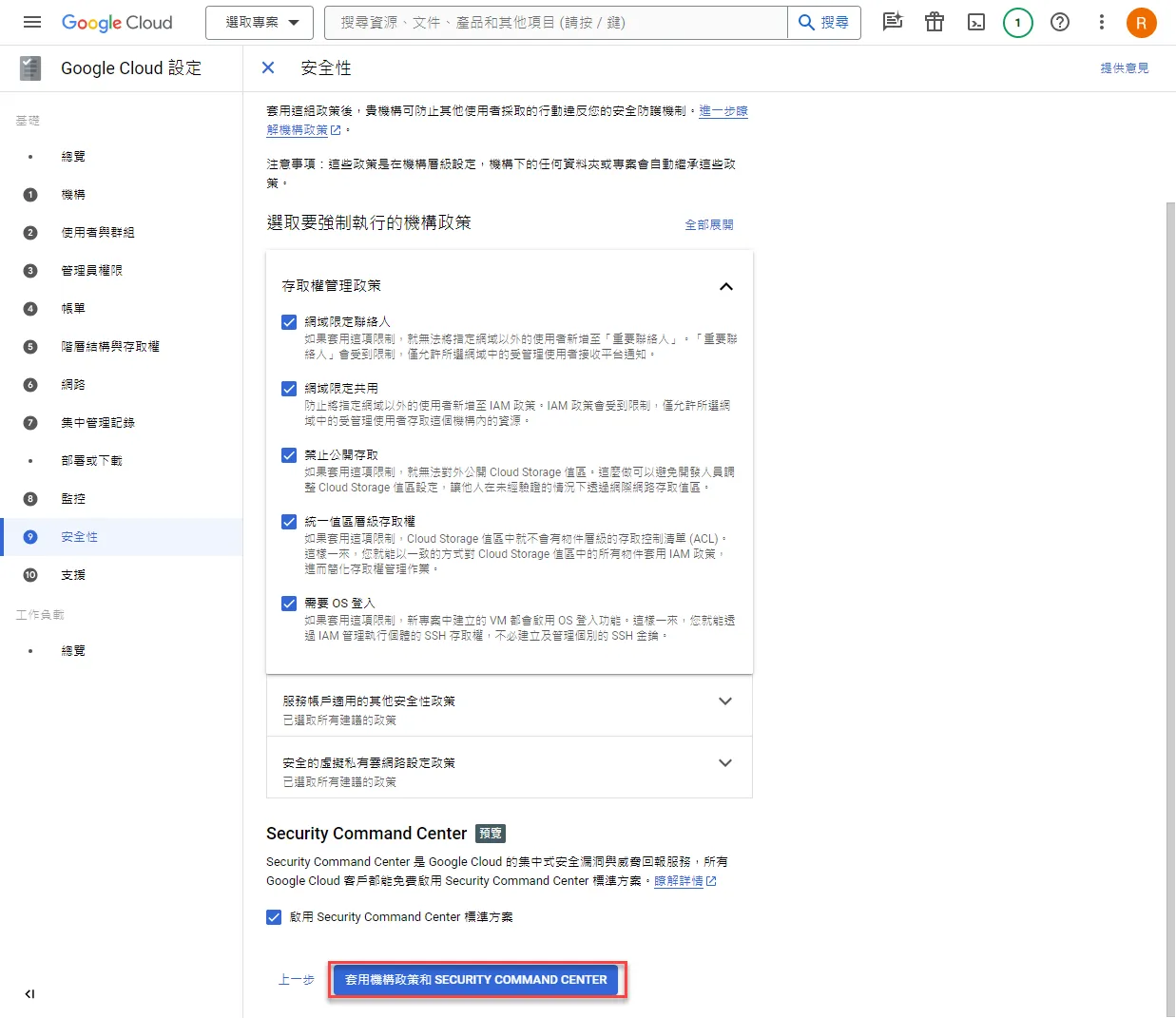
You can set up SCC according to your needs
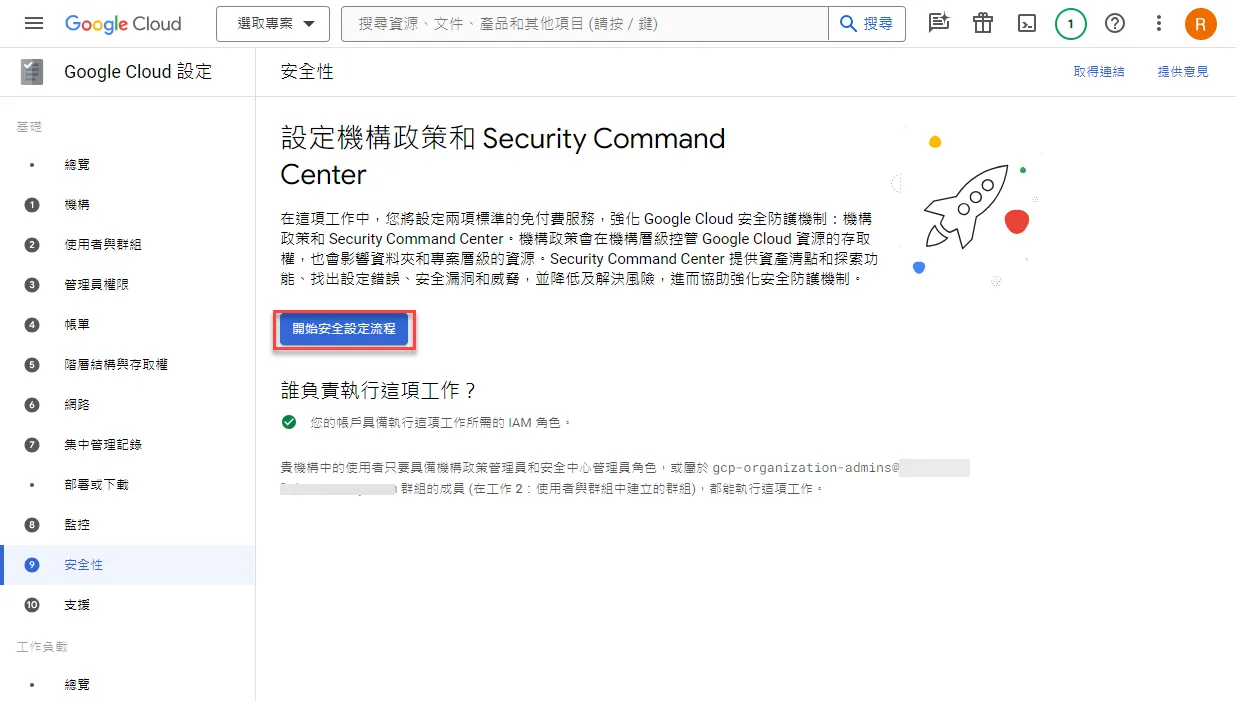
You can select and apply according to your needs
Support plans can be purchased according to your needs
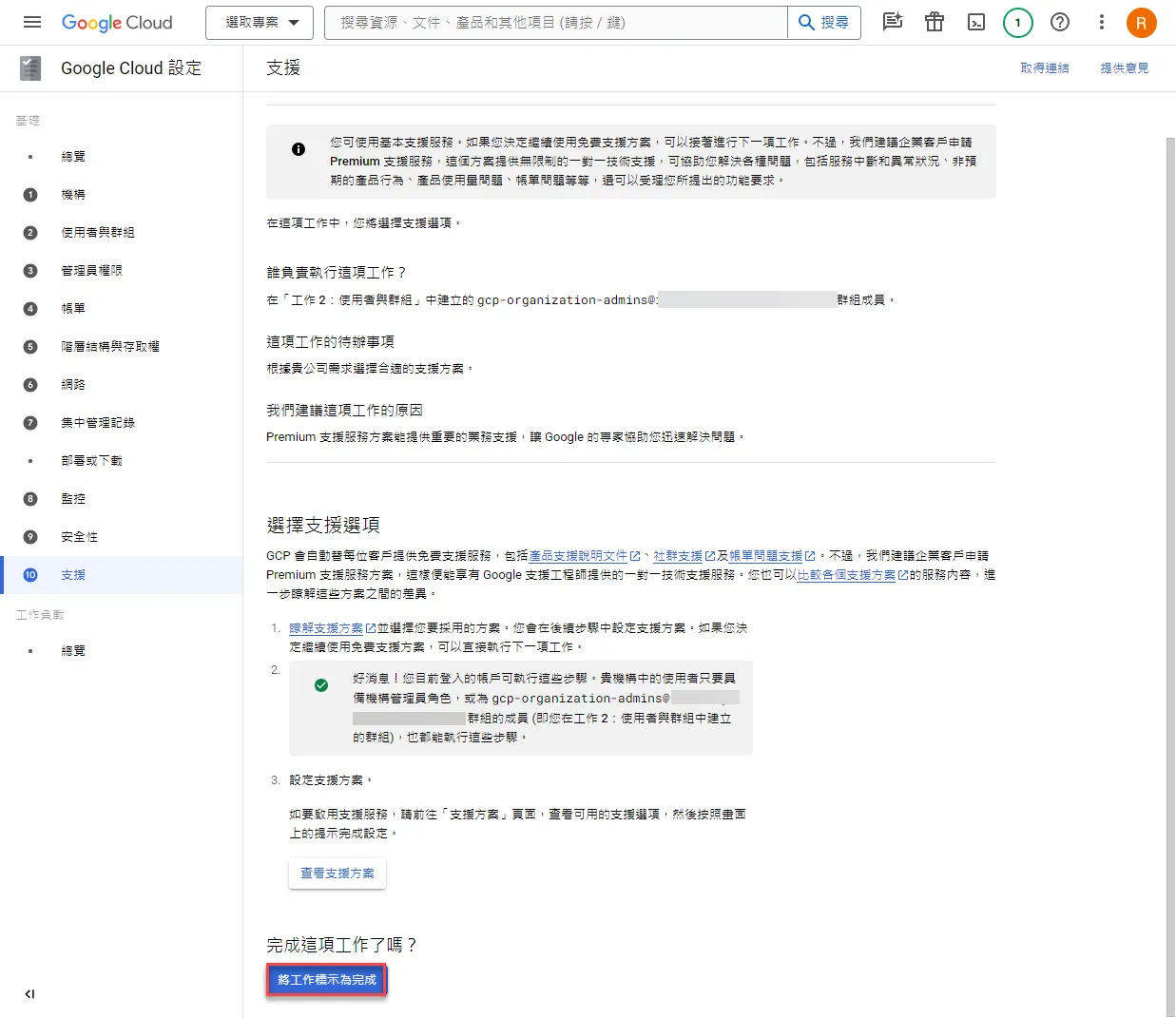
This completes the process of creating a GCP Organization from scratch