Stop RDS more than 7 days
Scenario
If RDS needs to be shut down for an extended period without use, it will automatically start up every 7 days, after which it needs to be manually shut down. Therefore, using Lambda, we can periodically start specific RDS instances with certain tags for 30 minutes every 7 days and then shut them down again, achieving this purpose.
Implementation Method
- Create an IAM Role to provide permissions for starting and stopping RDS
- Set tags for RDS instances that need to be shut down long-term, and adjust all RDS maintenance times to be consistent
- Create a Lambda Function and set up periodic start/stop triggers
- Test whether it can start and stop according to the settings
Execution Steps
Create IAM Role
Create Policy
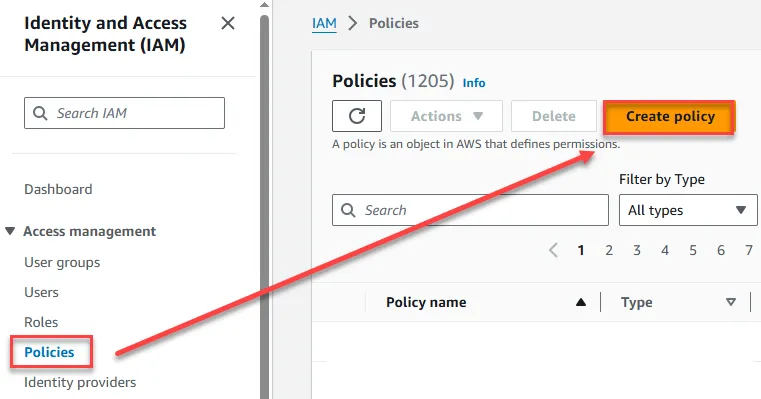
Click here to open the IAM Policy settings screen, then click Create Policy for subsequent Role use
Click on JSON, paste the following Policy, then click Next
1{2 "Version": "2012-10-17",3 "Statement": [4 {5 "Sid": "VisualEditor0",6 "Effect": "Allow",7 "Action": [8 "rds:StartDBCluster",9 "rds:StopDBCluster",10 "rds:ListTagsForResource",11 "rds:DescribeDBInstances",12 "rds:StopDBInstance",13 "rds:DescribeDBClusters",14 "rds:StartDBInstance"15 ],16 "Resource": "*"17 }18 ]19}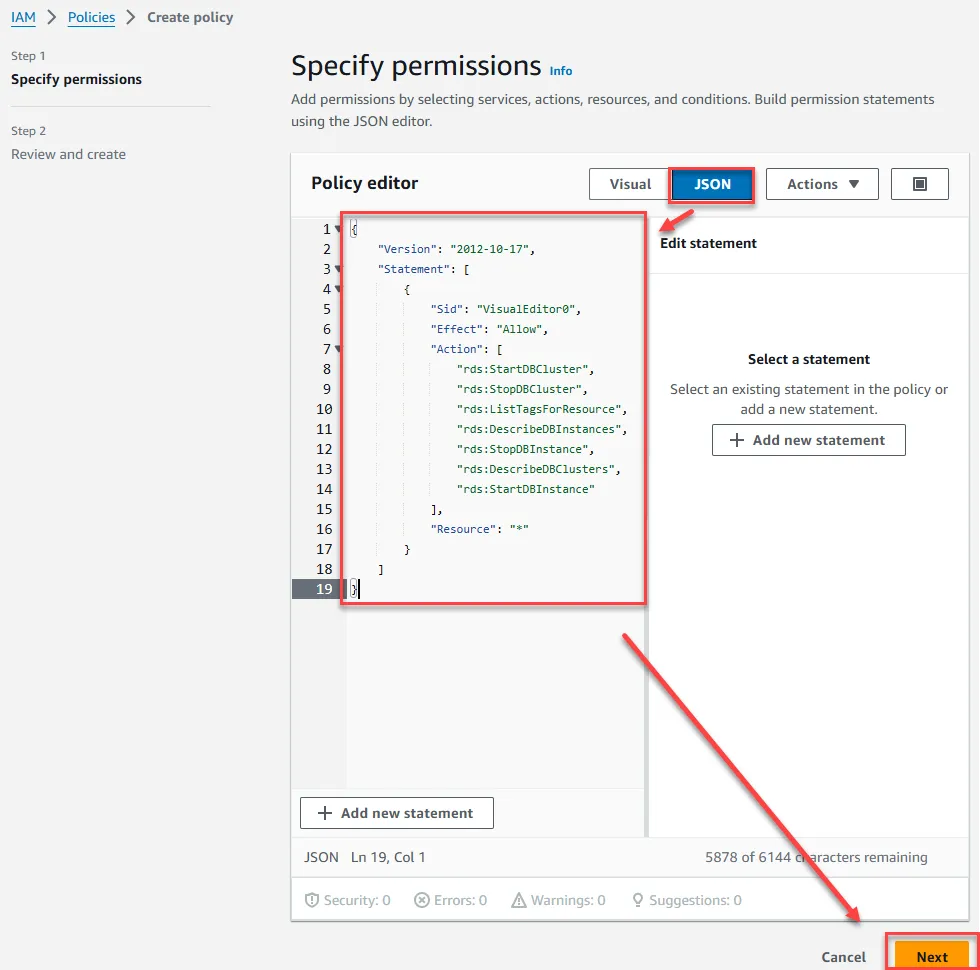
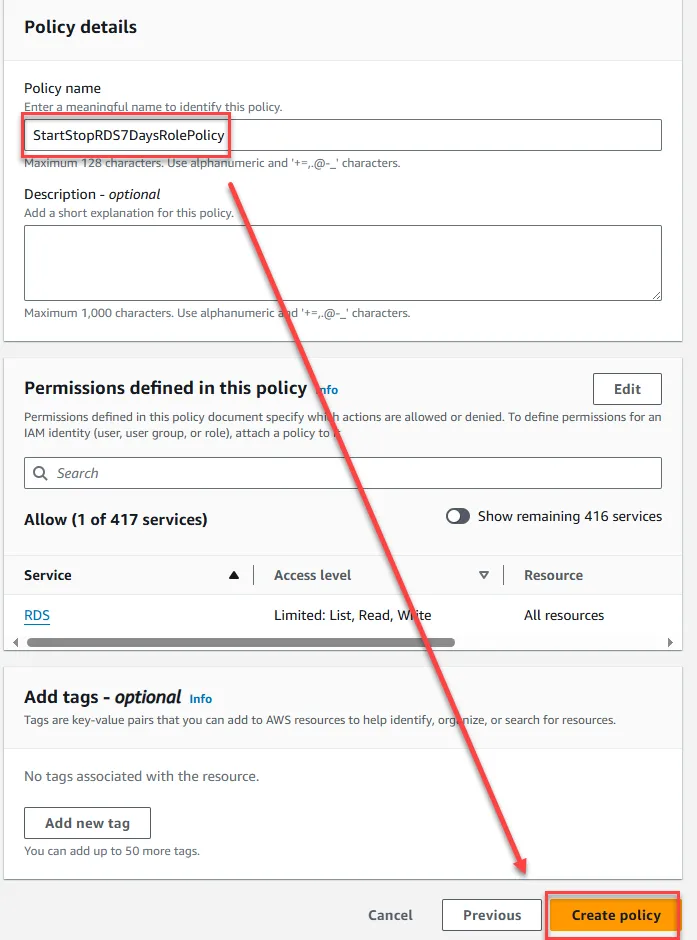
Enter a name and click Next
Create Role
Next, click Create Role
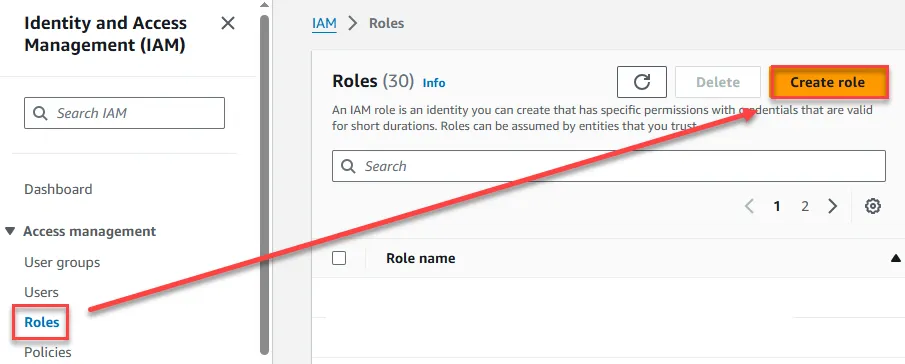
Choose Lambda and click Next
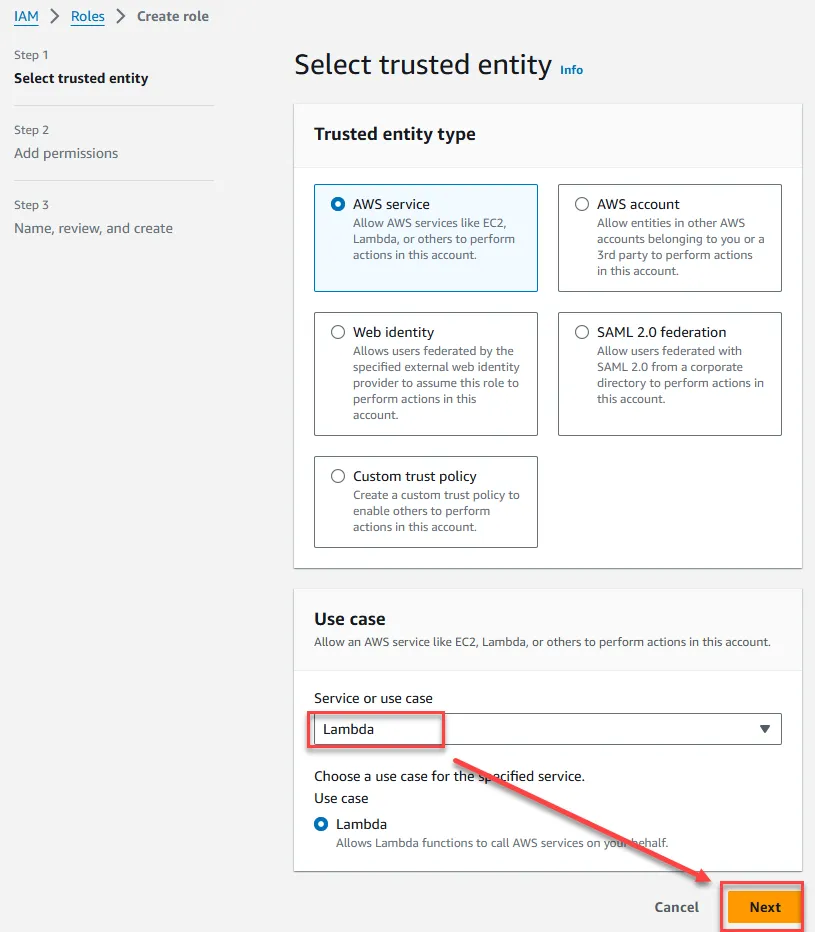
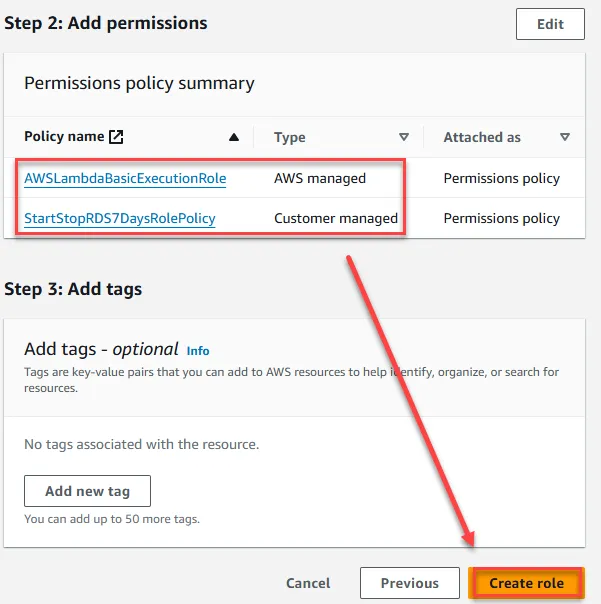
Select the Policy you just created and click AWSLambdaBasicExecutionRole, then click Next
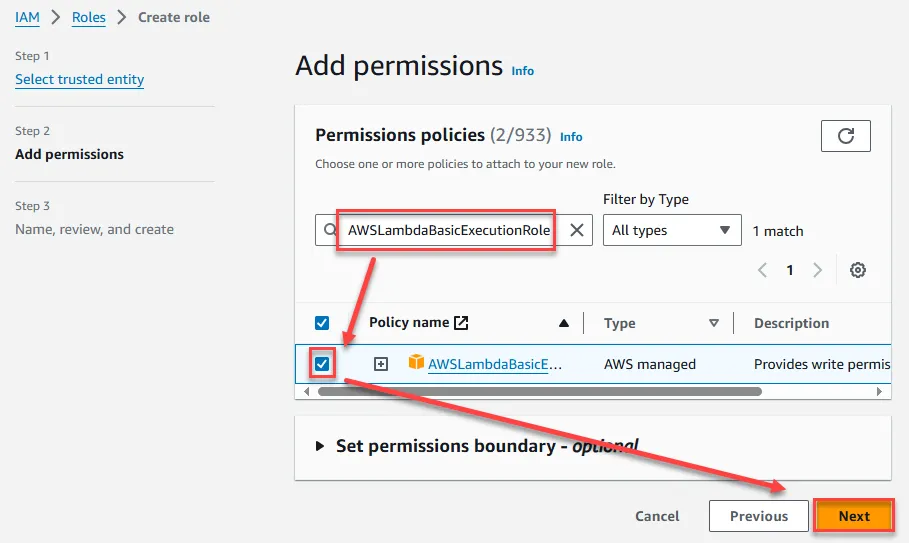
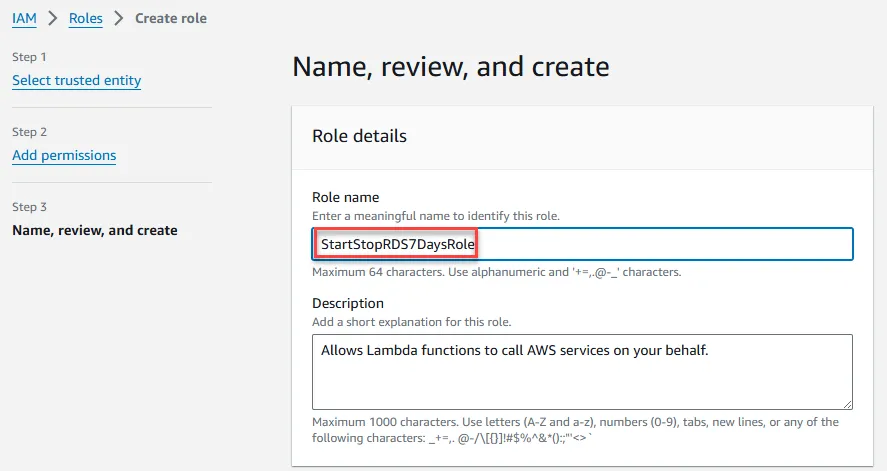
Enter the Role name
Confirm that the selected Policies appear, then click Create
Configure RDS
Set RDS Tags
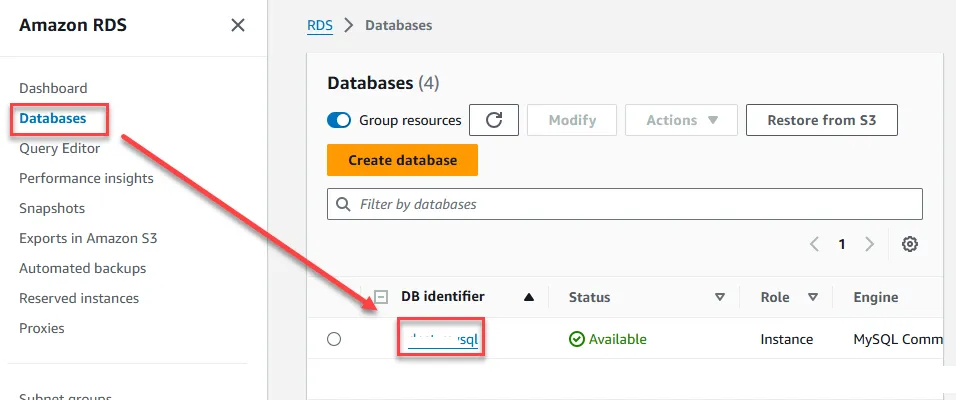
Go to the RDS page and click on the instance you want to shut down long-term
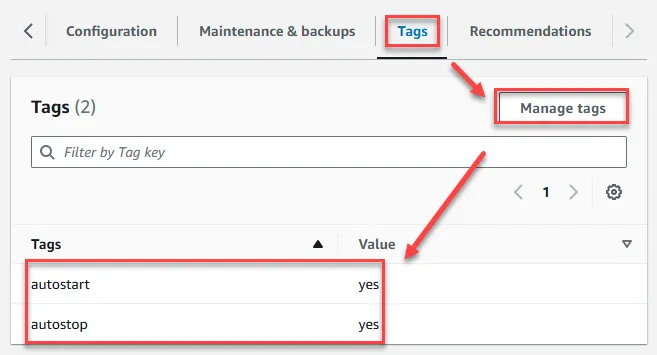
Click on the Tags field, then click Manage tags to add two tags: autostart=yes and autostop=yes
Set RDS Maintenance Time
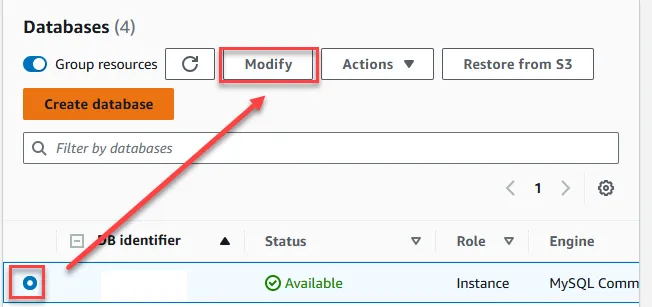
RDS needs to be in a running state to configure settings. Click Modify to configure
Set the maintenance time at the end of the settings. Please note that this is UTC time, not Taiwan time. The duration is 0.5 hours. Apply the same settings to other machines that need to be shut down long-term. After setting, click Continue and choose to apply immediately for the changes to take effect
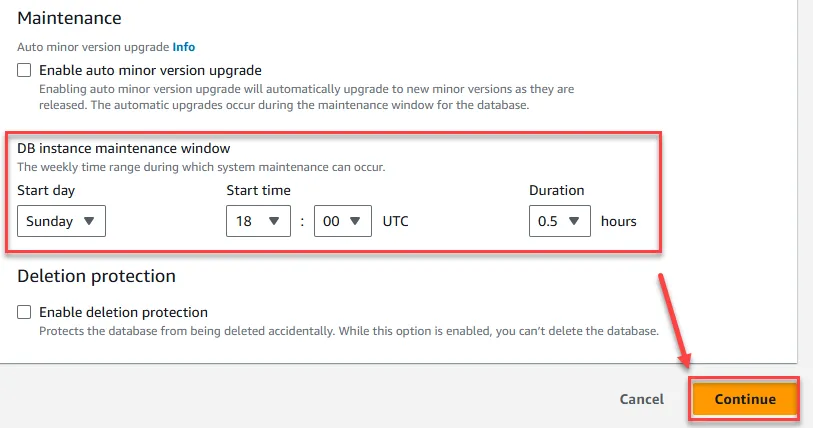
Create Lambda Function
Create Start-up Lambda
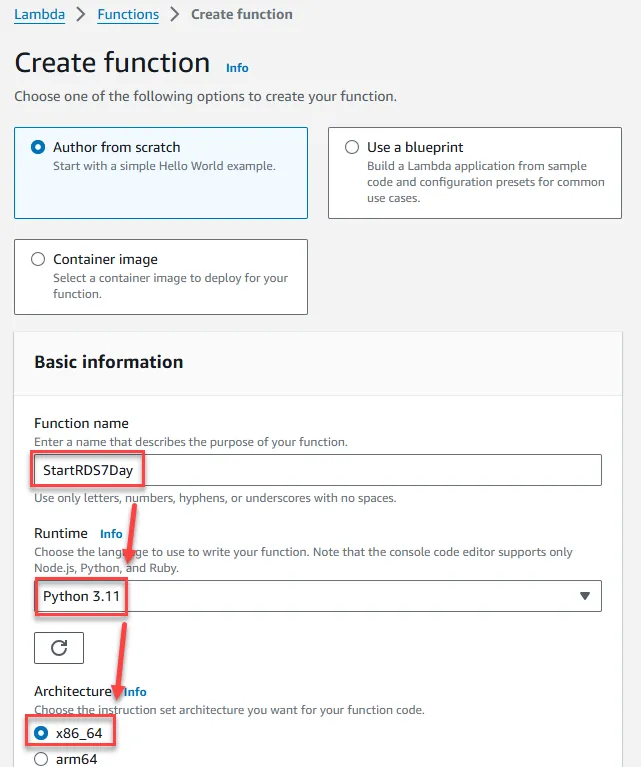
Go to Lambda Function and click Create

Enter a name, choose Python 3.11, and select x86_64 for the architecture
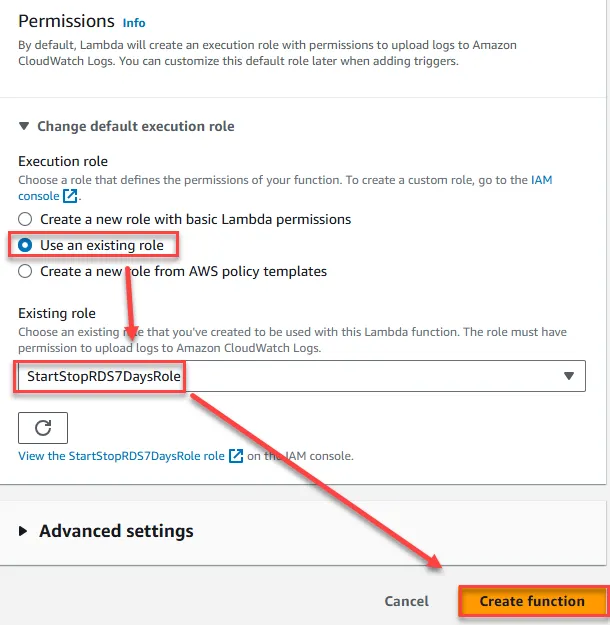
Select the Role you just created and click Create
Paste the following code and click Deploy
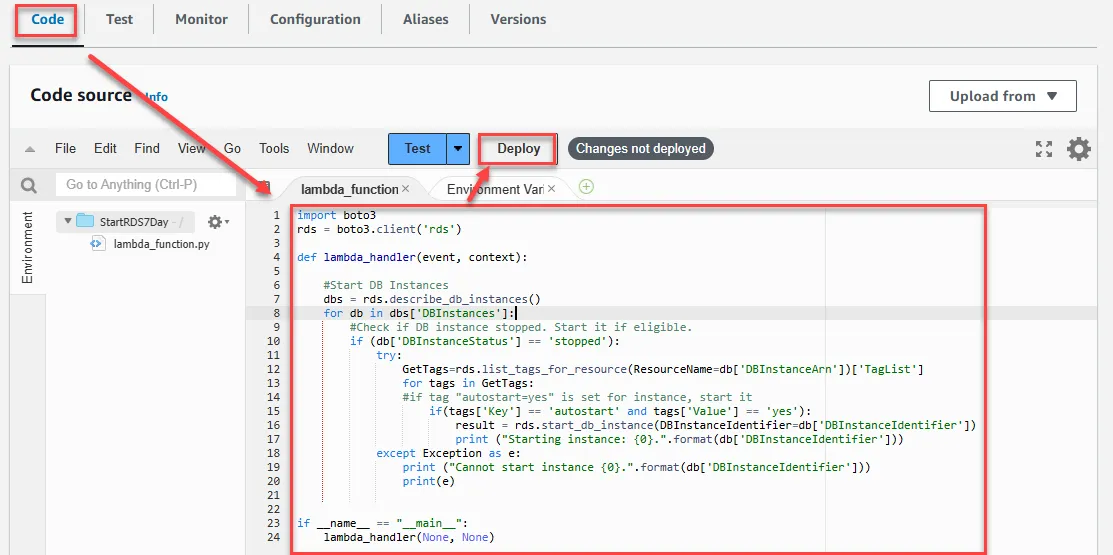
1import boto32rds = boto3.client('rds')3
4def lambda_handler(event, context):5
6    #Start DB Instances7    dbs = rds.describe_db_instances()8    for db in dbs['DBInstances']:9        #Check if DB instance stopped. Start it if eligible.10        if (db['DBInstanceStatus'] == 'stopped'):11            try:12               GetTags=rds.list_tags_for_resource(ResourceName=db['DBInstanceArn'])['TagList']13                for tags in GetTags:14                #if tag "autostart=yes" is set for instance, start it15                    if(tags['Key'] == 'autostart' and tags['Value'] == 'yes'):16                        result = rds.start_db_instance(DBInstanceIdentifier=db['DBInstanceIdentifier'])17                        print ("Starting instance: {0}.".format(db['DBInstanceIdentifier']))18            except Exception as e:19                print ("Cannot start instance {0}.".format(db['DBInstanceIdentifier']))20                print(e)21
22
23if __name__ == "__main__":24    lambda_handler(None, None)
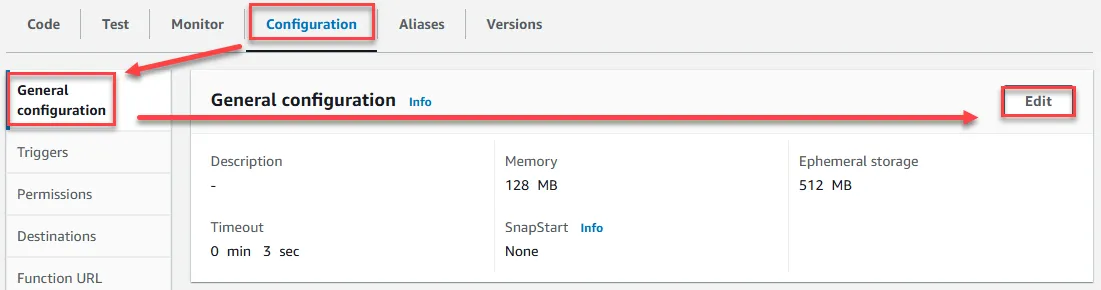
Set the timeout to 10 seconds. Click Configuration -> General configuration -> Edit
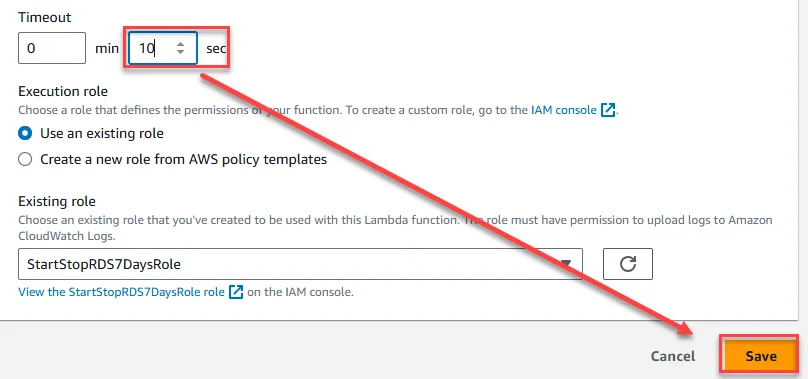
Set to 10 seconds and save
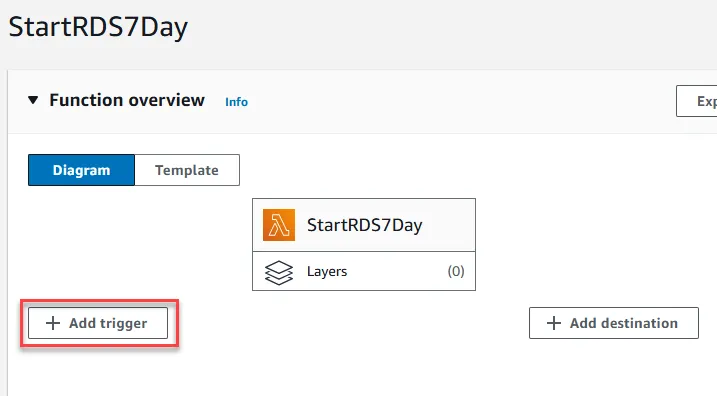
Set the periodic start-up trigger time. Click Add Trigger
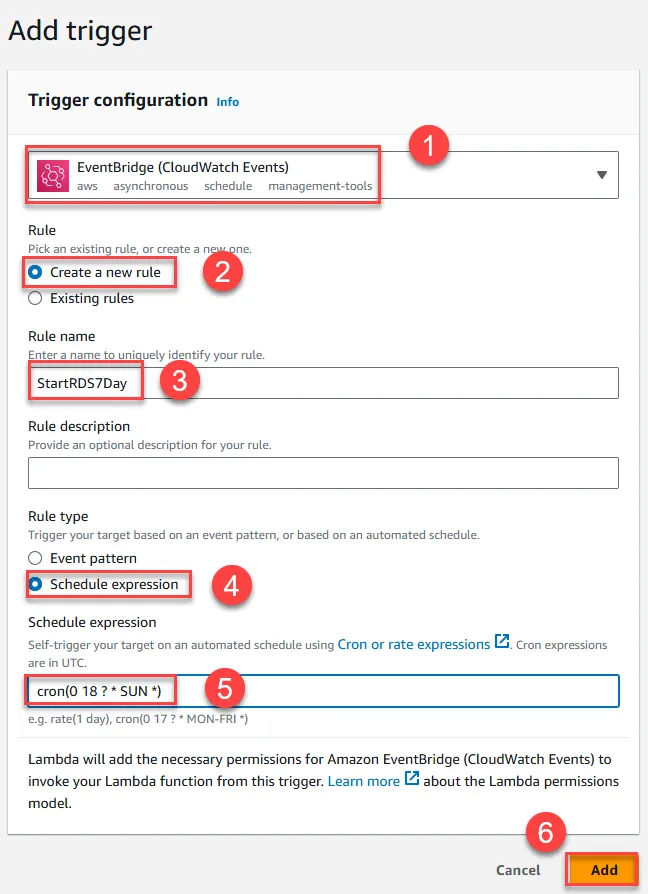
- Choose EventBridge
- Create a new rule
- Enter a rule name
- Choose to use a cron expression
- AWS officially recommends entering 30 minutes before the RDS maintenance time, but this example uses the same time as the RDS maintenance time, entering cron(0 18 ? * SUN *). The time zone is still UTC. You can click here to refer to cron expressions
- Click Add
Create Shutdown Lambda
All operations are the same as the start-up process above. The shutdown script is as follows:
1import boto32rds = boto3.client('rds')3
4def lambda_handler(event, context):5
6    #Stop DB instances7    dbs = rds.describe_db_instances()8    for db in dbs['DBInstances']:9        #Check if DB instance is not already stopped10        if (db['DBInstanceStatus'] == 'available'):11            try:12               GetTags=rds.list_tags_for_resource(ResourceName=db['DBInstanceArn'])['TagList']13                for tags in GetTags:14                #if tag "autostop=yes" is set for instance, stop it15                    if(tags['Key'] == 'autostop' and tags['Value'] == 'yes'):16                        result = rds.stop_db_instance(DBInstanceIdentifier=db['DBInstanceIdentifier'])17                        print ("Stopping instance: {0}.".format(db['DBInstanceIdentifier']))18            except Exception as e:19                print ("Cannot stop instance {0}.".format(db['DBInstanceIdentifier']))20                print(e)21
22if __name__ == "__main__":23    lambda_handler(None, None)
Testing
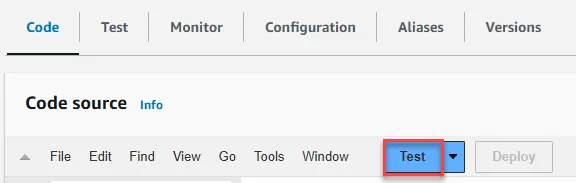
Click Test to perform start-up or shutdown tests