Enhancing Cloud Run Security with Binary Authorization in GCP Single Project
Scenario
- Use the Binary Authorization feature in CloudRun to enhance security control
- Using Binary Authorization policy can check if the revision complies with policy requirements before each CloudRun service deployment
- If you want to force deployment in non-compliant situations, you can bypass it using the breakglass feature
- Policy does not retroactively apply to already deployed and running CloudRun services
Enable API
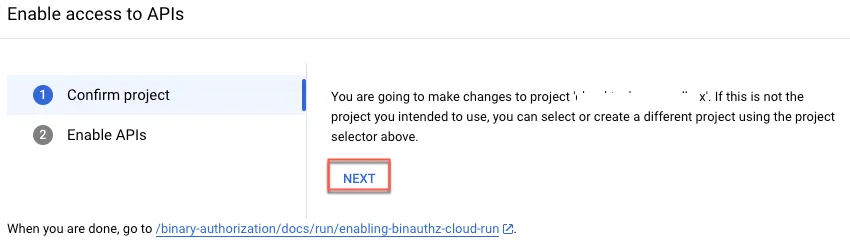
Projects using CloudRun or GKE need to access this, click here to enable Binary Authorization API
Click NEXT
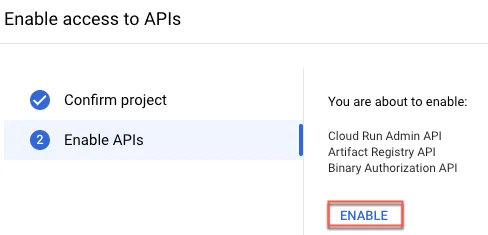
Click Enable
(Optional) Confirm org settings
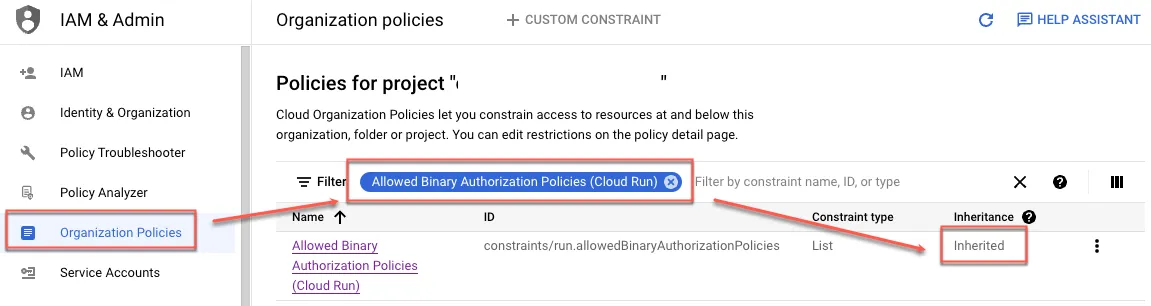
You can click here to check the project or org application status and settings
Enter “Allowed Binary Authorization Policies (Cloud Run)” as the filter condition to view. If adjustments are needed, follow the instructions to configure
As shown in the image below, the project inherits organizational rules
Set Disallow All Images Policy
Click here to set policy
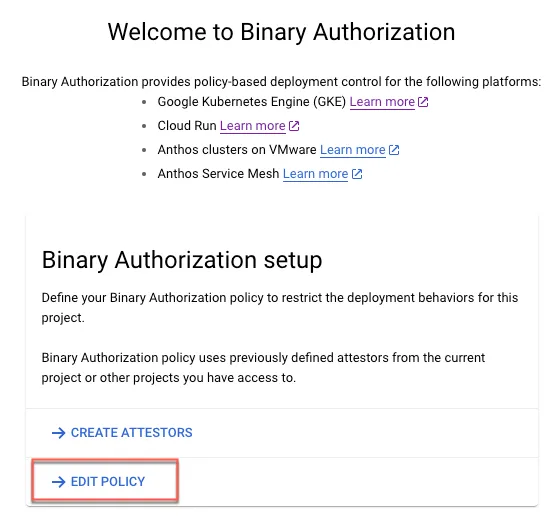
Set default rules
- Use default block all images and exempt image
- If you want to enable Dry-run mode, you can check and enable it here
- For Exempt image settings, refer to this article
- You can specify a single image, such as:
gcr.io/example-project/helloworld- Specify tag:
gcr.io/example-project/helloworld:latest - Specify all versions
gcr.io/example-project/helloworld:*
- Specify tag:
- Specify a project
gcr.io/example-project/*- Including subfolders under the project
gcr.io/example-project/**
- Including subfolders under the project
- You can specify a single image, such as:
- Save after completion
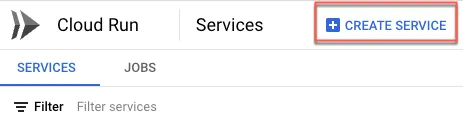
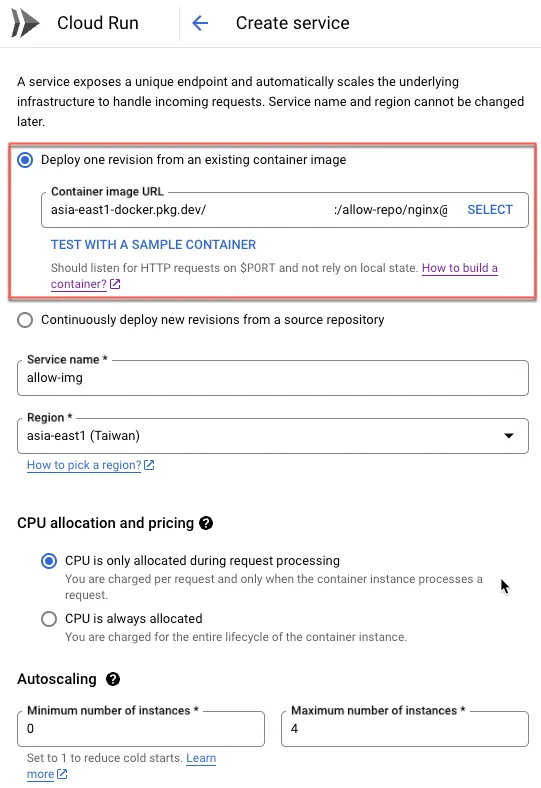
Enable Binary Authorization on new CloudRun service
Use Policy-compliant image
Use exempt image
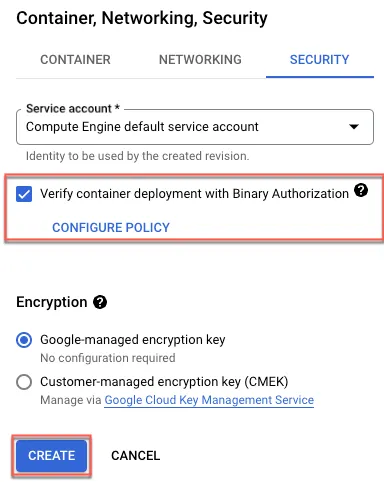
Check to use binary authorization and then create
Service can be created normally
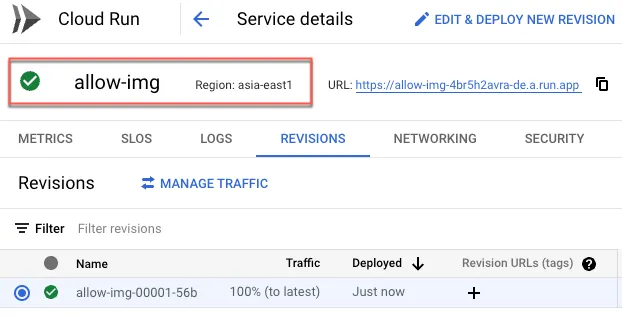
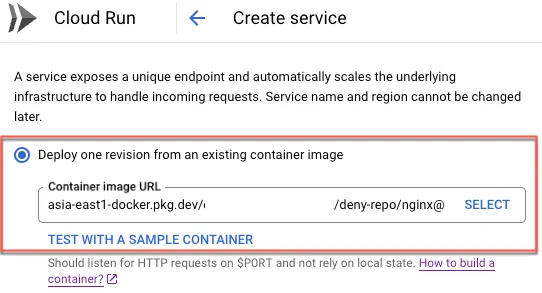
Use non-Policy-compliant image
Same as the previous steps, but choose a different image
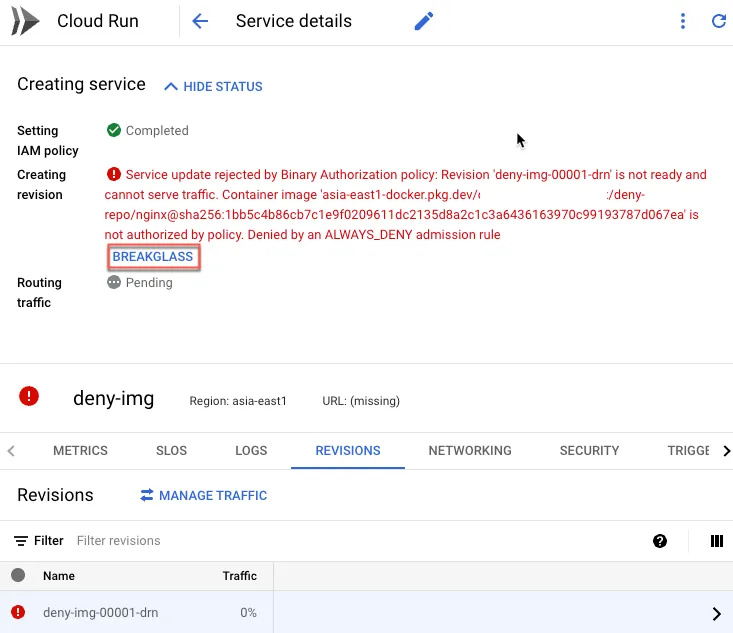
A message appears indicating inability to deploy, you can click BREAKGLASS
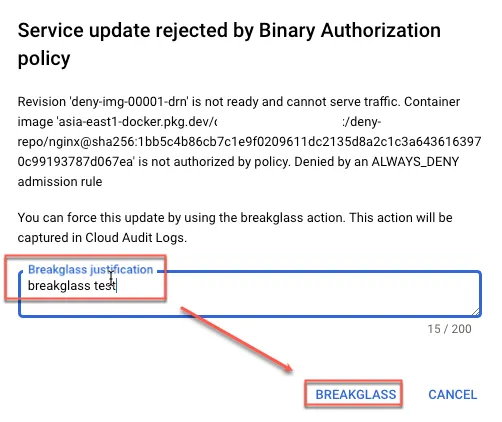
Enter the reason, then click BREAKGLASS again
After BREAKGLASS, it can operate normally
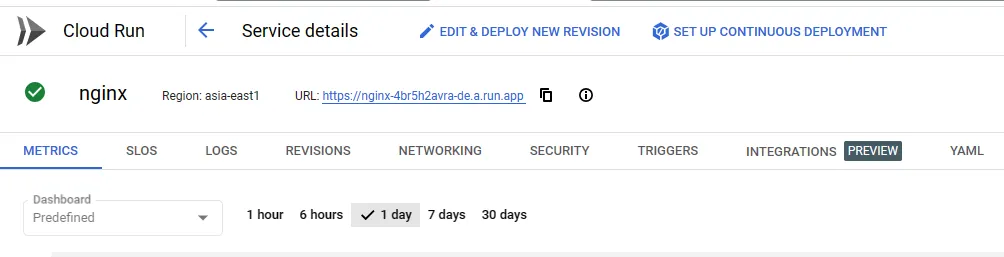
Audit log information
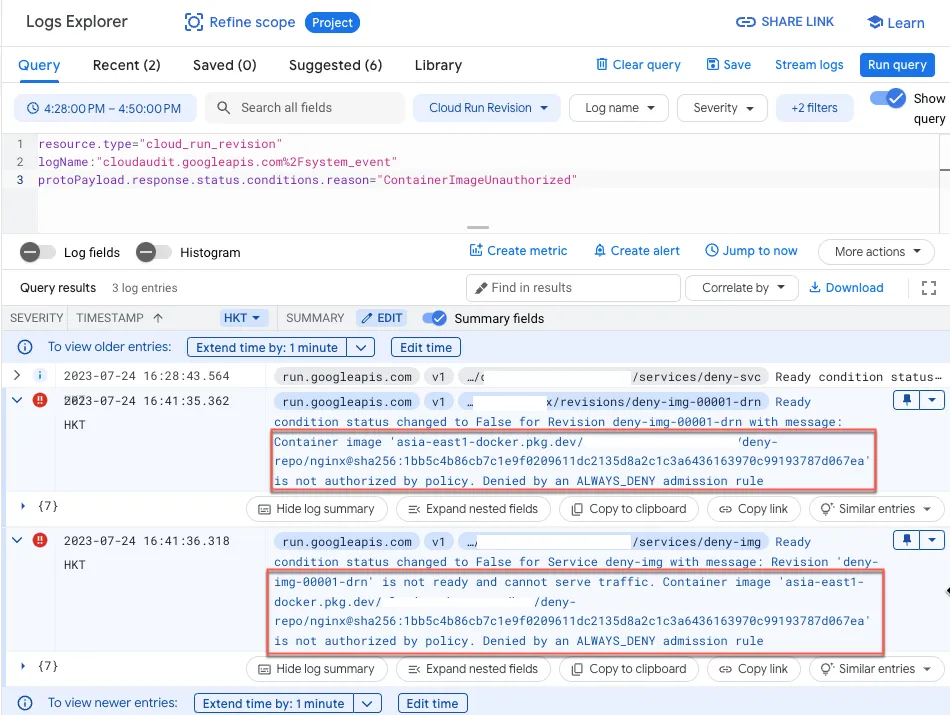
Default disallow using non-allowed image
You can go to Log Explorer to query, enter the following filter conditions to view records
1resource.type="cloud_run_revision"2logName:"cloudaudit.googleapis.com%2Fsystem_event"3protoPayload.response.status.conditions.reason="ContainerImageUnauthorized"The following record will appear
Using Dry run audit log
1resource.type="cloud_run_revision"2logName:"cloudaudit.googleapis.com%2Fsystem_event"3"dry run"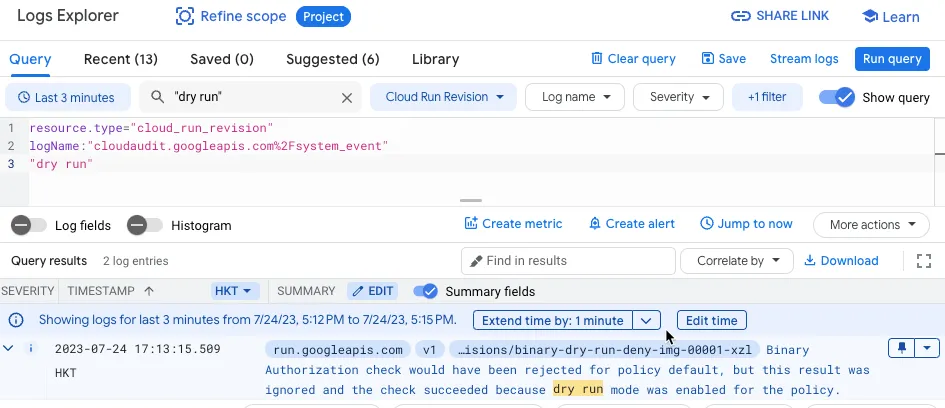
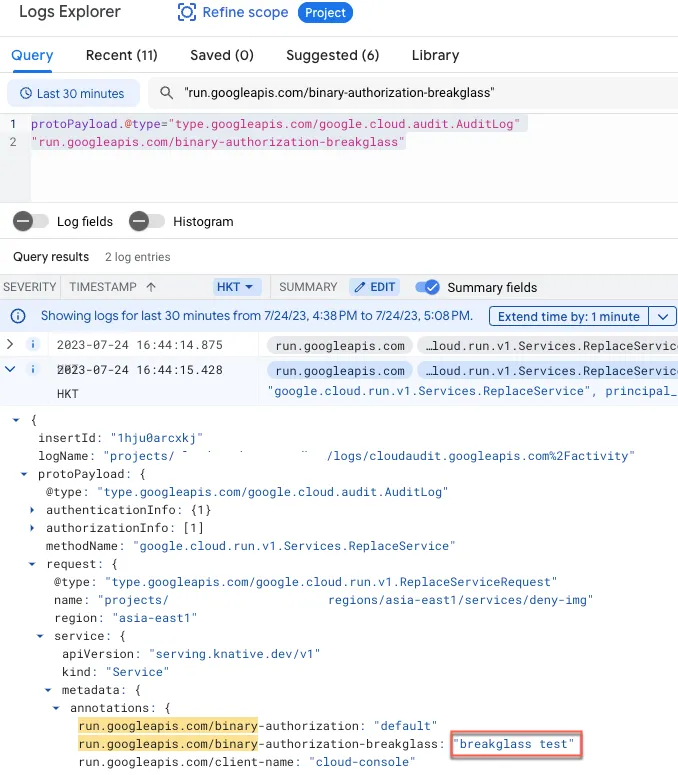
Breakglass audit log
For breakglass records, you can use the following filter conditions to search
1protoPayload.@type="type.googleapis.com/google.cloud.audit.AuditLog"2"run.googleapis.com/binary-authorization-breakglass"The red box shows the reason entered
SCC integration
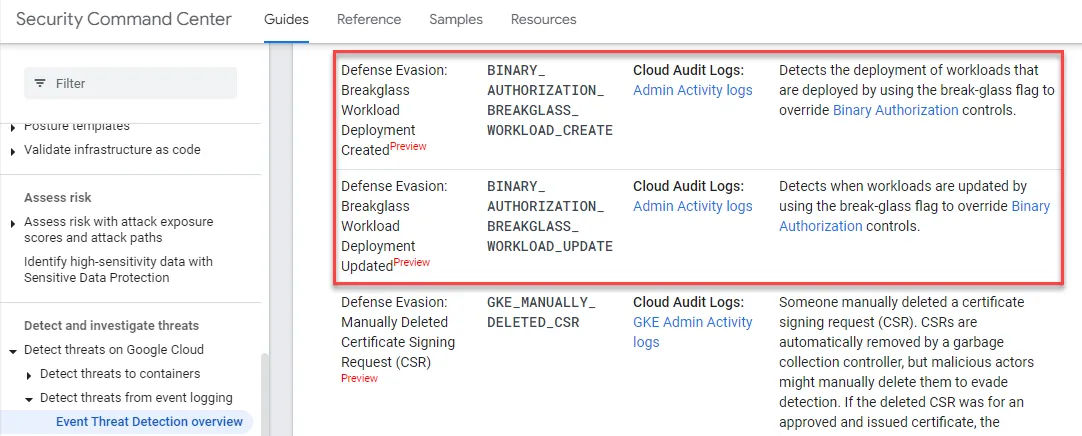
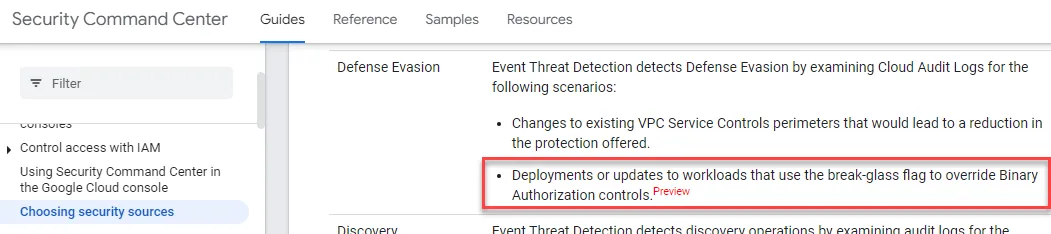
Currently, SCC supports the following events, but it’s still in the Preview stage
Set Attestations Policy
Since using attestations requires preliminary steps to create attestor and PKIX key, this case uses KMS to create PKIX, and finally sign the image with attestations.
The creation process is as follows:
- Create KMS Key in GCP
- Set up attestor
- Set binary authorization policy
- Use attestations
Set up KMS
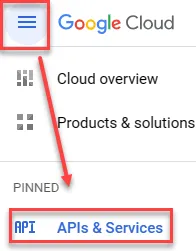
Enable KMS API
First-time use requires enabling the KMS API

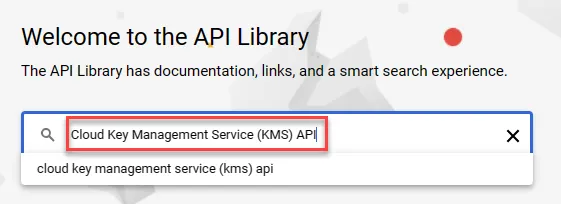
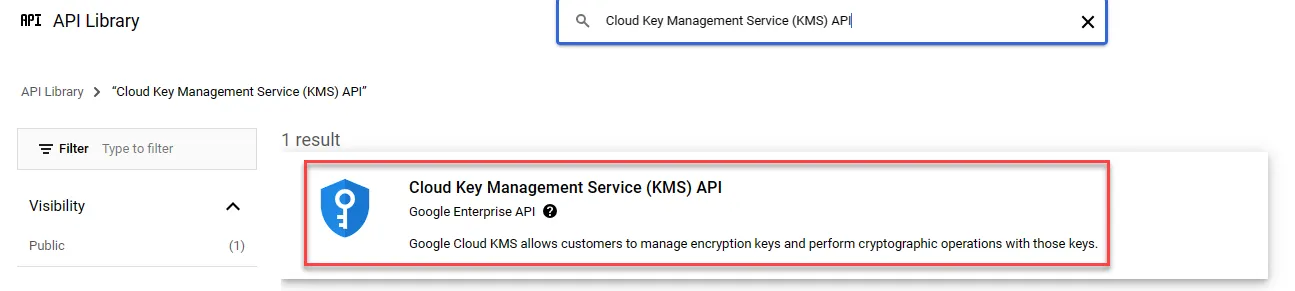
Enter in the search bar
Cloud Key Management Service (KMS) API
Click to enter
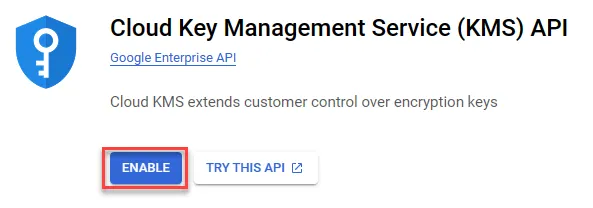
Enable
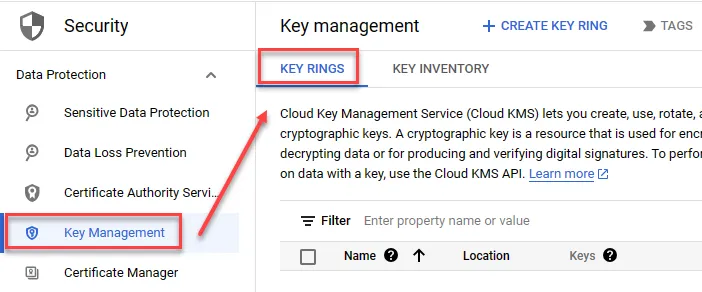
Create Key
Create Key Rings
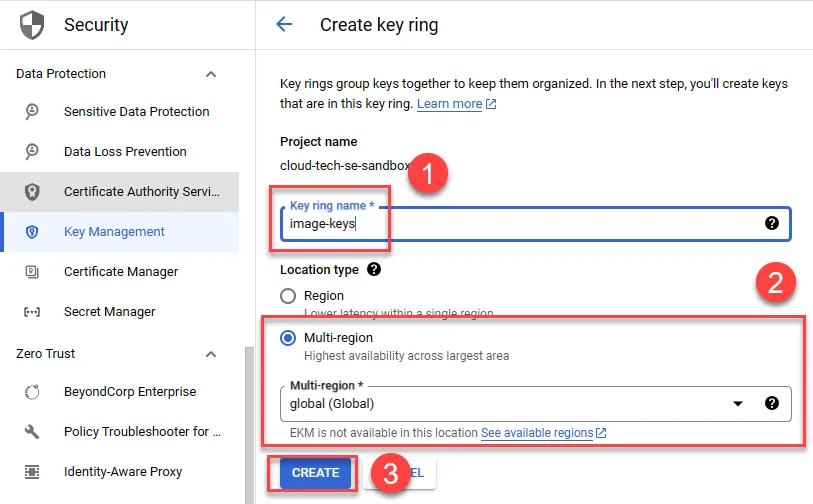
Perform the following actions as needed
- Name
- Region
- Create
After completion, create Key, enter name, select software for protection level, choose Asymmetric sign for purpose, and select Elliptic Curve P-256 - SHA256 Digest for algorithm
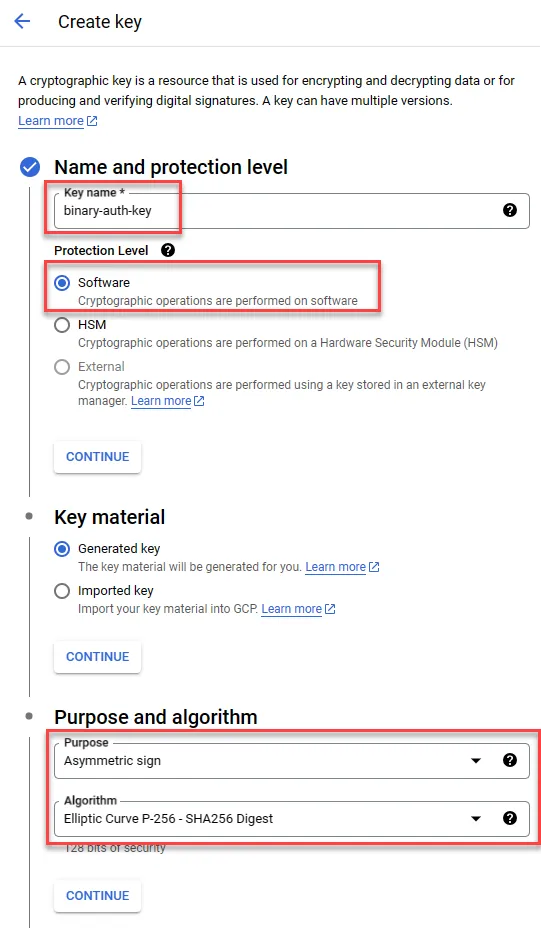
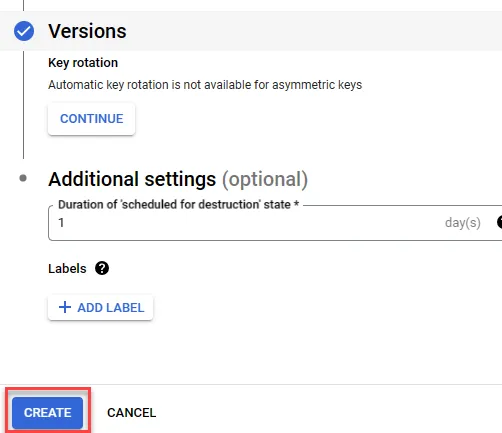
After completion, click create
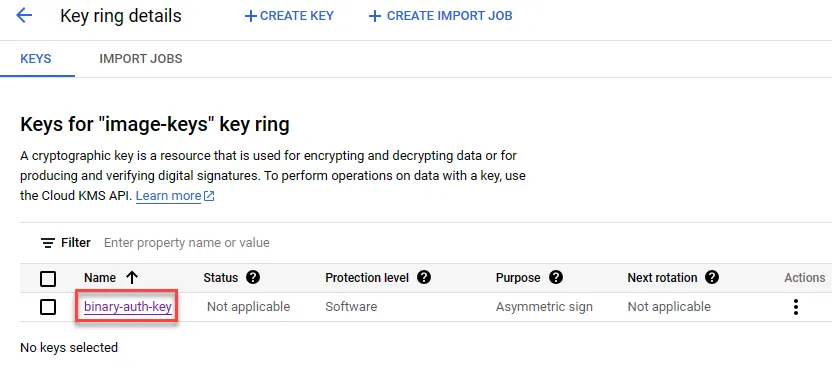
After creation, click to enter
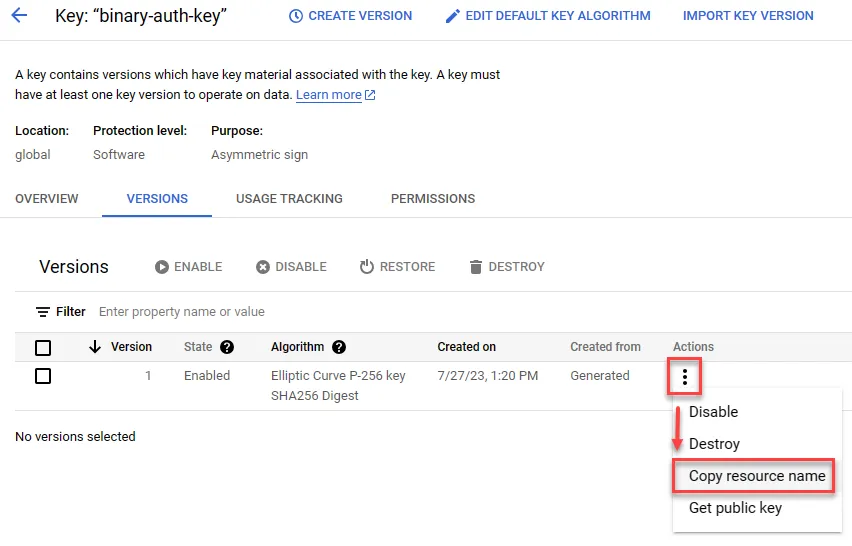
Copy the Key resource name for later use
Set up Attestor
Enable Attestor API
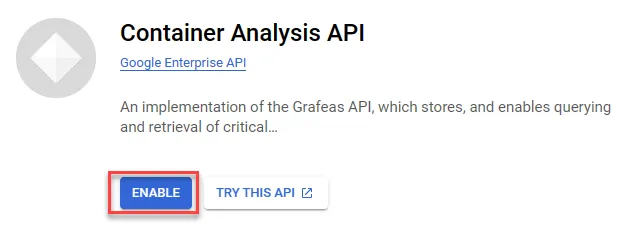
As with the steps to enable the KMS API, search for containeranalysis.googleapis.com and enable the API
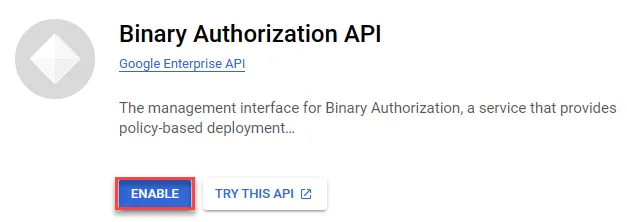
Enable binaryauthorization.googleapis.com API
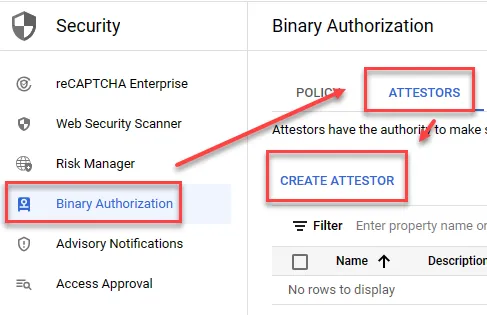
Add Attestor
- Create name
- Expand
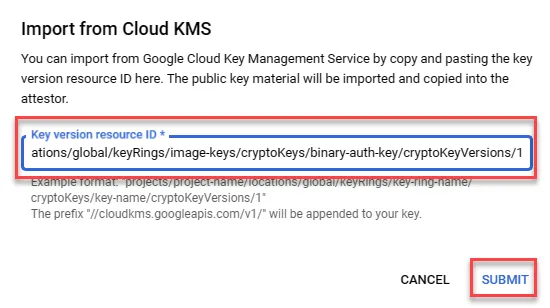
- Paste the Key resource name copied earlier
- Complete
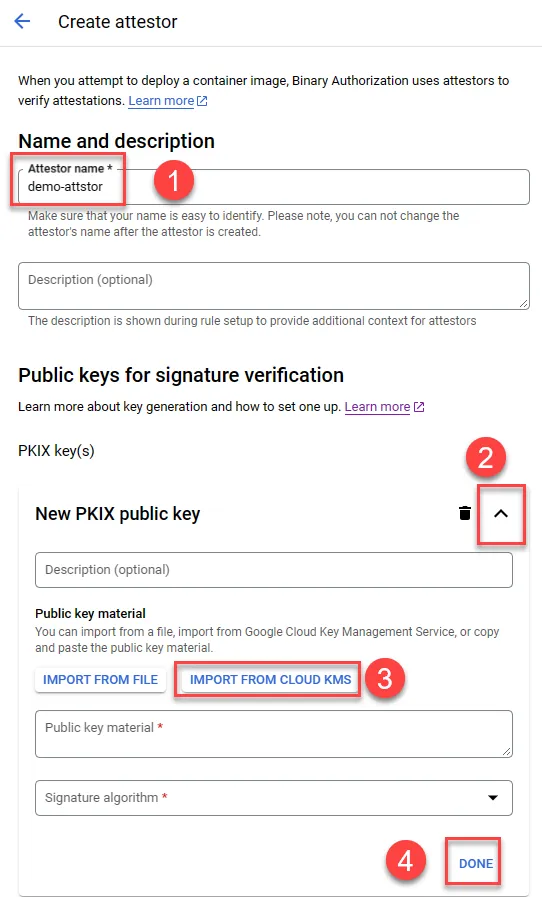
After pasting, SUBMIT
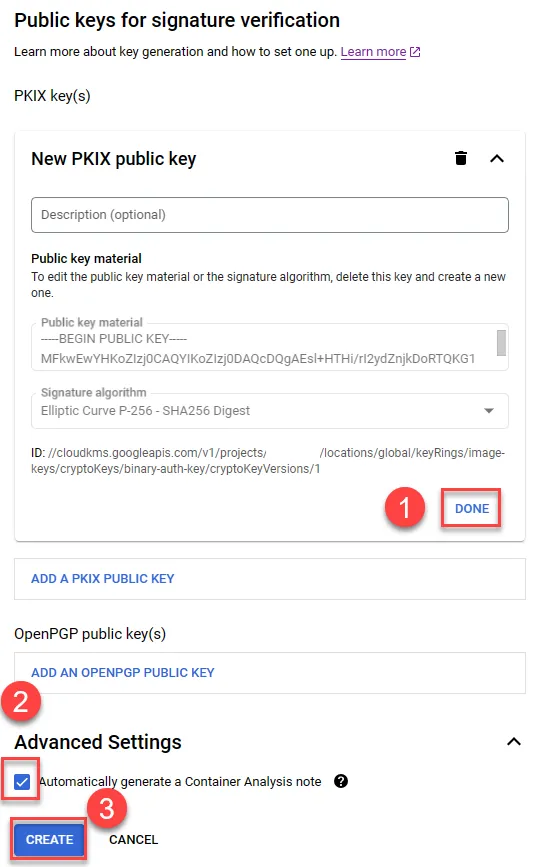
- Click DONE
- Confirm that Automatically generate a Container Analysis note is checked
- Click CREATE
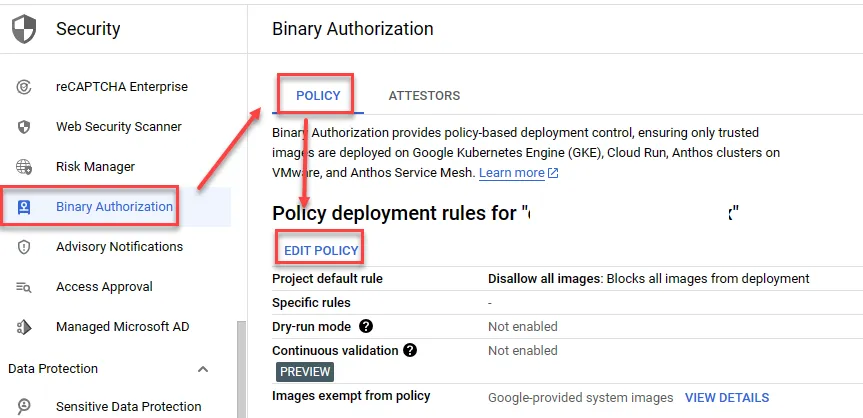
Set Binary Authorization Policy
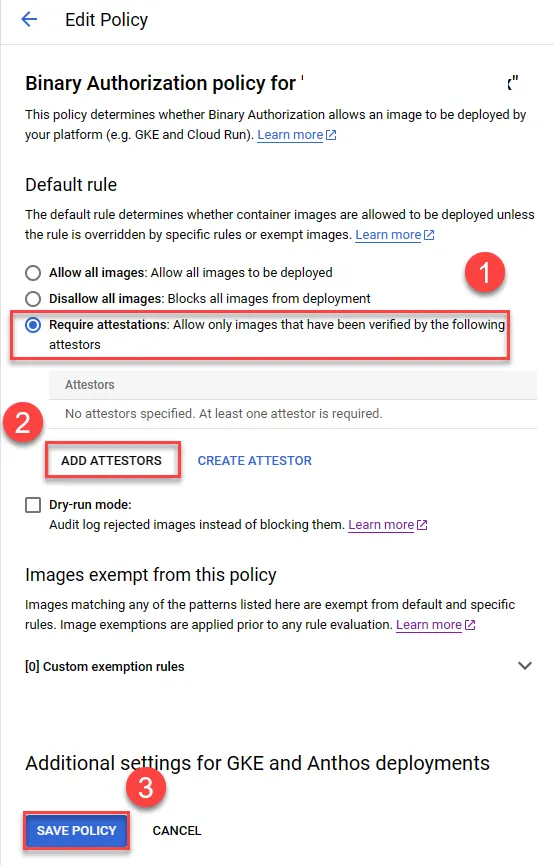
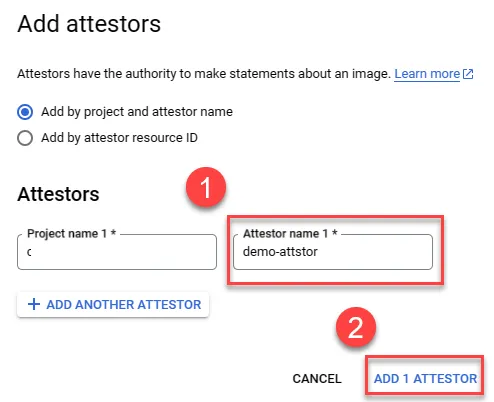
Add the recently created Attestor
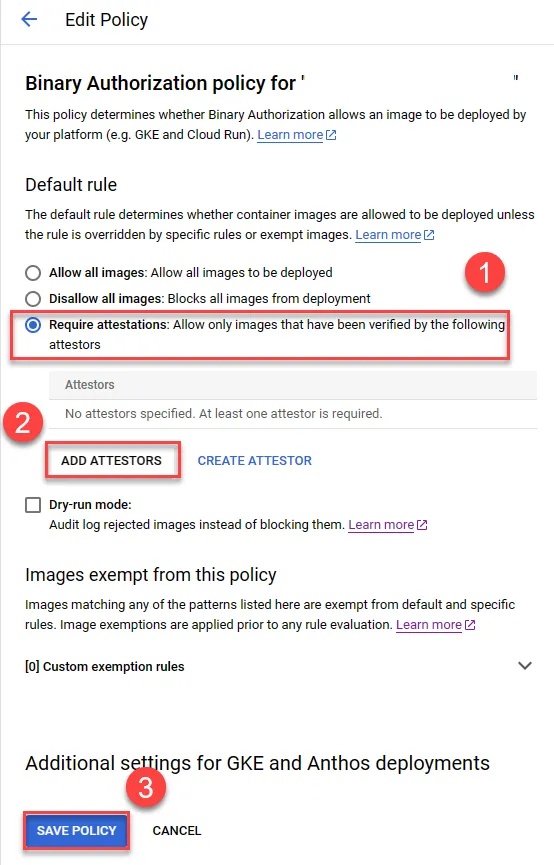
- Choose Require attestations
- Add attestor
- Save settings
Add attestors
- Select name
- Add
Using Attestation
Attest image
Currently, only gcloud commands are supported for implementation
Set the following environment variables and execute
1ATTESTOR_PROJECT_ID="YOUR_PROJECT_ID"2ATTESTATION_PROJECT_ID="YOUR_PROJECT_ID"3ATTESTOR_NAME="demo-attstor"4IMAGE_PATH="asia-east1-docker.pkg.dev/YOUR_PROJECT_ID/allow-repo/nginx"5IMAGE_DIGEST="sha256:YOUR_IMG_DIGEST"6IMAGE_TO_ATTEST="${IMAGE_PATH}@${IMAGE_DIGEST}"7KMS_KEY_PROJECT_ID="YOUR_PROJECT_ID"8KMS_KEY_LOCATION="global"9KMS_KEYRING_NAME="image-keys"10KMS_KEY_NAME="binary-auth-key"11KMS_KEY_VERSION=112
13gcloud beta container binauthz attestations sign-and-create \14    --project="${ATTESTATION_PROJECT_ID}" \15    --artifact-url="${IMAGE_TO_ATTEST}" \16    --attestor="${ATTESTOR_NAME}" \17    --attestor-project="${ATTESTOR_PROJECT_ID}" \18    --keyversion-project="${KMS_KEY_PROJECT_ID}" \19    --keyversion-location="${KMS_KEY_LOCATION}" \20    --keyversion-keyring="${KMS_KEYRING_NAME}" \21    --keyversion-key="${KMS_KEY_NAME}" \22    --keyversion="${KMS_KEY_VERSION}"
Confirm if the execution was successful, list existing Attestations
1gcloud container binauthz attestations list \2 --attestor-project=${ATTESTOR_PROJECT_ID} \3 --attestor=${ATTESTOR_NAME}Expected result
1---2attestation:3 serializedPayload: xxxxxxxxx4 signatures:5 - publicKeyId: //cloudkms.googleapis.com/v1/projects/YOUR_PROJECT_ID/locations/global/keyRings/image-keys/cryptoKeys/binary-auth-key/cryptoKeyVersions/16 signature: MEUCIDdfSyE-2SNAXVxzh4FzfEtwgnBEFs9sY4BFAqH3fZLdAiEAmfk6Ov-TUGwyx2qWVQTIni_fYvWi-ye6ObmCVr6i4AU=7createTime: '2023-07-27T06:21:02.953969Z'8kind: ATTESTATION9name: projects/YOUR_PROJECT_ID/occurrences/32524935-0c65-4d7e-b9e6-2c7b1fceadcd10noteName: projects/YOUR_PROJECT_ID/notes/demo-attstor-note11resourceUri: asia-east1-docker.pkg.dev/YOUR_PROJECT_ID/allow-repo/nginx@sha256:YOUR_IMG_DIGEST12updateTime: '2023-07-27T06:21:02.953969Z'Test Policy
The testing method is the same as Enable Binary Authorization on new CloudRun service, but this method mainly judges the sha value of the image. After testing, if two images are in different repos but have the same sha, they can still be deployed normally.
Delete attestation
List existing Attestations
1gcloud container binauthz attestations list \2 --attestor-project=${ATTESTOR_PROJECT_ID} \3 --attestor=${ATTESTOR_NAME}Copy the id after occurrences
1---2...3kind: ATTESTATION4name: projects/YOUR_PROJECT_ID/occurrences/32524935-xxxx-xxxx-xxxx-2c7b1fceadcd5...Enter the following command to delete
1OCCURRENCE_ID="32524935-xxxx-xxxx-xxxx-2c7b1fceadcd"2curl -H "Authorization: Bearer $(gcloud auth print-access-token)" -X DELETE https://containeranalysis.googleapis.com/v1beta1/projects/${ATTESTATION_PROJECT_ID}/occurrences/${OCCURRENCE_ID}