GCP Secret Manager on Google Kubernetes Engine
Scenario
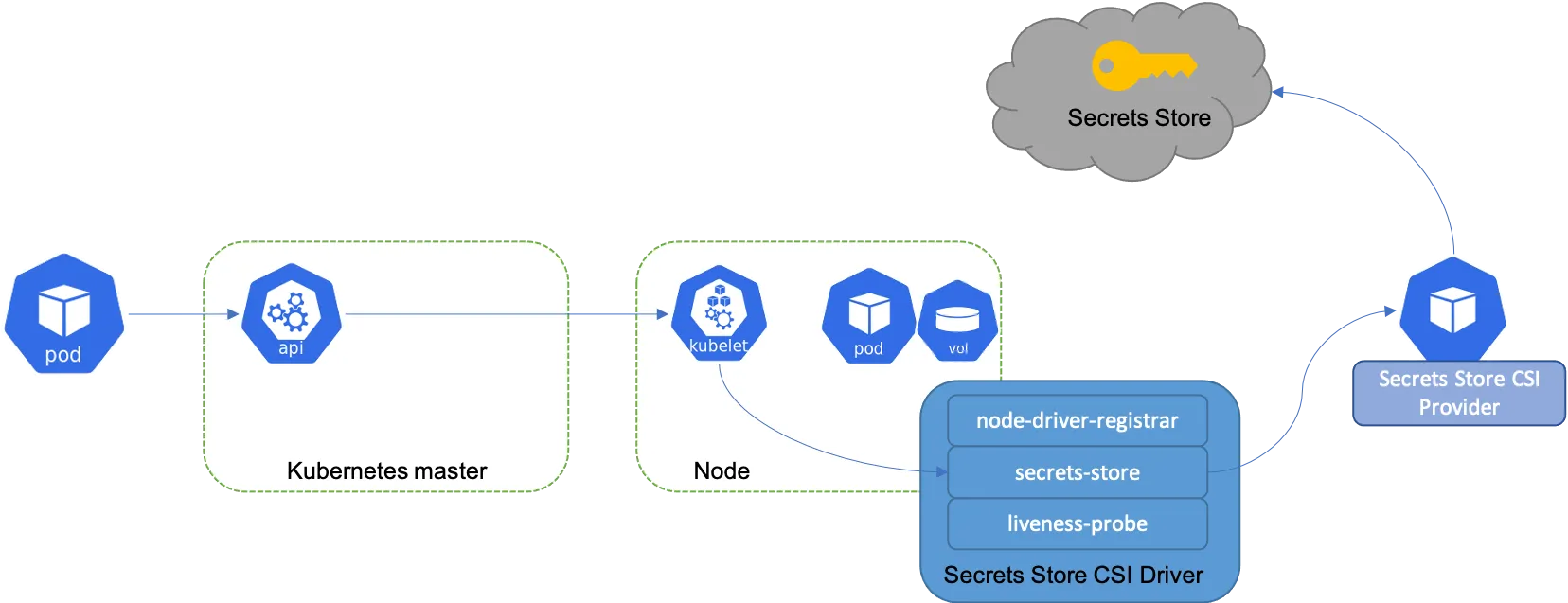
- As shown in the diagram above, the principle is to use GCP Secret Manager service to store Kubernetes secret information
- Use one of the following two Secrets Store CSI Driver binding methods for configuration
- Add permissions to specific secrets in GCP Secret Manager for Kubernetes service account
- Link Kubernetes service account to GCP IAM service account, then add permissions to specific secrets in GCP Secret Manager for the IAM service account
- Of the two methods above, the latter has lower coupling and is suitable for multi-cluster or multi-project scenarios, while the former is suitable for single-cluster or single-project scenarios
- This requires the use of Secrets Store CSI Driver, which supports providers for three cloud platforms as well as other third-party providers
Process and Description
- Create VPC network
- Create GKE cluster and enable
enable-secret-managerandworkload-poolfeatures - Create Kubernetes namespace
- Configure service account using one of the following methods
- Use Kubernetes service account
- Use IAM service account
- Configure SecretManager
- Create Secret
- Grant secretAccessor permission to Kubernetes or GCP IAM service account and bind it to the created secret
- Create SecretProviderClasses
- Test
- Resource cleanup
Execution Steps
Prerequisites
Create Environment Variables
- Can be adjusted according to needs, operations mainly use GCP CloudShell
1export NETWORK_NAME="ricky-demo-gke"2export SUBNET_NAME="subnet-us-east"3export PROJECT_ID=${DEVSHELL_PROJECT_ID}4export PROJECT_NUMBER=$(gcloud projects list --filter PROJECT_ID=${PROJECT_ID} --format="value(PROJECT_NUMBER)")5export REGION="us-east4"6export ZONE="us-east4-c"7export GKE_CLUSTER_NAME="ricky-demo-cluster"8export NODE_IP_RANGE="10.0.1.0/24"9export POD_IP_RANGE="10.1.0.0/16"10export SERVICE_IP_RANGE="10.2.0.0/24"11export SECRET_NS="demo"12export K8S_SA_NAME="ricky-demo"13export SECRET_NAME="ricky-demo-secret"Create GKE VPC
1gcloud compute networks create ${NETWORK_NAME} --subnet-mode custom2gcloud compute networks subnets create ${SUBNET_NAME} \3    --network ${NETWORK_NAME} \4    --region ${REGION} \5    --range ${NODE_IP_RANGE} \6    --secondary-range my-pods=${POD_IP_RANGE},my-services=${SERVICE_IP_RANGE} \7    --enable-private-ip-google-access8
9gcloud compute firewall-rules create allow-ssh \10    --network ${NETWORK_NAME} \11    --source-ranges 35.235.240.0/20 \12    --allow tcp:22
Create GKE Cluster
Use the previously created VPC network and Subnet to create a GKE cluster
1# machine-type at least need 8 GB memory2gcloud beta container clusters create ${GKE_CLUSTER_NAME} \3 --zone ${ZONE} \4 --cluster-version "latest" \5 --machine-type "n2-standard-2" \6 --disk-type "pd-standard" \7 --disk-size "100" \8 --scopes "https://www.googleapis.com/auth/compute","https://www.googleapis.com/auth/devstorage.read_only","https://www.googleapis.com/auth/logging.write","https://www.googleapis.com/auth/monitoring","https://www.googleapis.com/auth/servicecontrol","https://www.googleapis.com/auth/service.management.readonly","https://www.googleapis.com/auth/trace.append" \9 --num-nodes "1" \10 --enable-ip-alias \11 --network ${NETWORK_NAME} \12 --subnetwork ${SUBNET_NAME} \13 --max-nodes-per-pool "110" \14 --enable-master-authorized-networks \15 --addons HorizontalPodAutoscaling,HttpLoadBalancing \16 --enable-autoupgrade \17 --enable-autorepair \18 --cluster-secondary-range-name my-pods \19 --services-secondary-range-name my-services \20 --enable-secret-manager \21 --workload-pool=${PROJECT_ID}.svc.id.goog \22 --enable-network-policyGet GKE cluster credentials and connection information
1# connect to the GKE cluster and add create a new Kubernetes ServiceAccount2gcloud container clusters get-credentials --zone=${ZONE} ${GKE_CLUSTER_NAME}Confirm that all system services have started normally, especially the csi-secrets-store related services
1# check the kube-system running normal2kubectl get po -n kube-system3NAME READY STATUS RESTARTS AGE4calico-node-t45r4 1/1 Running 0 20m5calico-node-vertical-autoscaler-85f58fc987-x7srd 1/1 Running 0 22m6calico-typha-8d48dbbcf-zs8cb 1/1 Running 0 20m7calico-typha-horizontal-autoscaler-5cd46b4fc7-9r74b 1/1 Running 0 22m8calico-typha-vertical-autoscaler-69cdfcdcf6-j4bzw 1/1 Running 0 22m9csi-secrets-store-gke-vg5fv 3/3 Running 0 21m10csi-secrets-store-provider-gke-w5c6g 1/1 Running 0 21m11event-exporter-gke-766bc76558-lwzgd 2/2 Running 0 23m12fluentbit-gke-bm7x5 3/3 Running 0 21m13gke-metadata-server-9cgs6 1/1 Running 0 21m14gke-metrics-agent-jqhnk 3/3 Running 0 21m15ip-masq-agent-d86hv 1/1 Running 0 21m16konnectivity-agent-544c896c46-st55p 2/2 Running 0 23m17konnectivity-agent-autoscaler-67d4f7d5f-j9qfd 1/1 Running 0 23m18kube-dns-69f7bb4564-fqj6t 5/5 Running 0 23m19kube-dns-autoscaler-79b96f5cb-v8kjd 1/1 Running 0 23m20kube-proxy-gke-ricky-demo-cluster-default-pool-829d2ebc-s788 1/1 Running 0 20m21l7-default-backend-6484dd554-w48hr 1/1 Running 0 22m22metrics-server-v0.7.1-6b8d6d8c46-knkwx 2/2 Running 0 20m23netd-ml54w 2/2 Running 0 21m24pdcsi-node-jqt4n 2/2 Running 0 21mCreate Kubernetes Namespace
1kubectl create ns ${SECRET_NS}Configure Service Account
Choose either Kubernetes service account or IAM service account, one of the following two methods is sufficient
Use Kubernetes Service Account
Create Kubernetes service account
1echo "apiVersion: v12kind: ServiceAccount3metadata:4 name: ${K8S_SA_NAME}5 namespace: ${SECRET_NS}" |6tee sa.yaml | kubectl apply -f -Use IAM Service Account
Modify environment variables and create IAM service account
1export IAM_SA_NAME="ricky-demo-secretmanager"2gcloud iam service-accounts create ${IAM_SA_NAME}Expected result
1Created service account [ricky-demo-secretmanager].Configure SecretManager
Create Secret
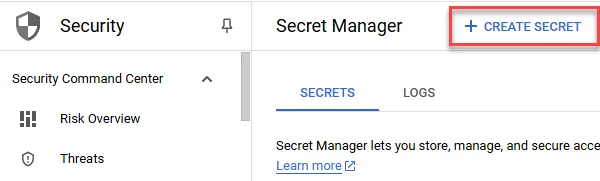
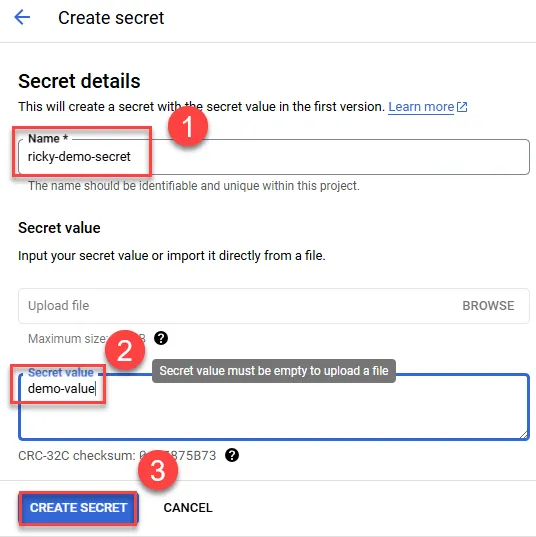
1echo "top1-secret" > mysecret.txt2gcloud secrets create ${SECRET_NAME} --replication-policy=automatic --data-file=mysecret.txtCreate Secret by GUI
Enter the secret value
Grant secretAccessor Permission
Choose one of the following based on the previous configuration: Kubernetes service account or GCP IAM service account permission binding
Bind Permissions for Kubernetes Service Account
1gcloud secrets add-iam-policy-binding ${SECRET_NAME} \2 --role=roles/secretmanager.secretAccessor \3 --member=principal://iam.googleapis.com/projects/${PROJECT_NUMBER}/locations/global/workloadIdentityPools/${PROJECT_ID}.svc.id.goog/subject/ns/${SECRET_NS}/sa/${K8S_SA_NAME}Expected result
1Updated IAM policy for secret [ricky-demo-secret].2bindings:3- members:4 - principal://iam.googleapis.com/projects/PROJECT_NUMBER/locations/global/workloadIdentityPools/PROJECT_ID.svc.id.goog/subject/ns/demo/sa/ricky-demo5 role: roles/secretmanager.secretAccessor6etag: BwYd-TXpp6I=7version: 1Bind Permissions for GCP IAM Service Account
First, bind the Kubernetes service account to the previously created GCP IAM service account
1# Allow "namespace/serviceAccount" to act as the new service account2gcloud iam service-accounts add-iam-policy-binding \3 --role roles/iam.workloadIdentityUser \4 --member "serviceAccount:${PROJECT_ID}.svc.id.goog[${SECRET_NS}/${K8S_SA_NAME}]" \5 ${IAM_SA_NAME}@${PROJECT_ID}.iam.gserviceaccount.comExpected result
1Updated IAM policy for serviceAccount [ricky-demo-secretmanager@YOUR_PROJECT_ID.iam.gserviceaccount.com].2bindings:3- members:4 - serviceAccount:YOUR_PROJECT_ID.svc.id.goog[demo/ricky-demo]5 role: roles/iam.workloadIdentityUser6etag: BwYd-WoF1eQ=7version: 1Then bind the GCP IAM service account to the secret
1# bind IAM policy to access secret manager2gcloud secrets add-iam-policy-binding ${SECRET_NAME} \3 --role=roles/secretmanager.secretAccessor \4 --member=serviceAccount:${IAM_SA_NAME}@${PROJECT_ID}.iam.gserviceaccount.comExpected result
1Updated IAM policy for secret [ricky-demo-secret].2bindings:3- members:4 - serviceAccount:ricky-demo-secretmanager@YOUR_PROJECT_ID.iam.gserviceaccount.com5 role: roles/secretmanager.secretAccessor6etag: BwYd-WrNntc=7version: 1Check permission by GUI
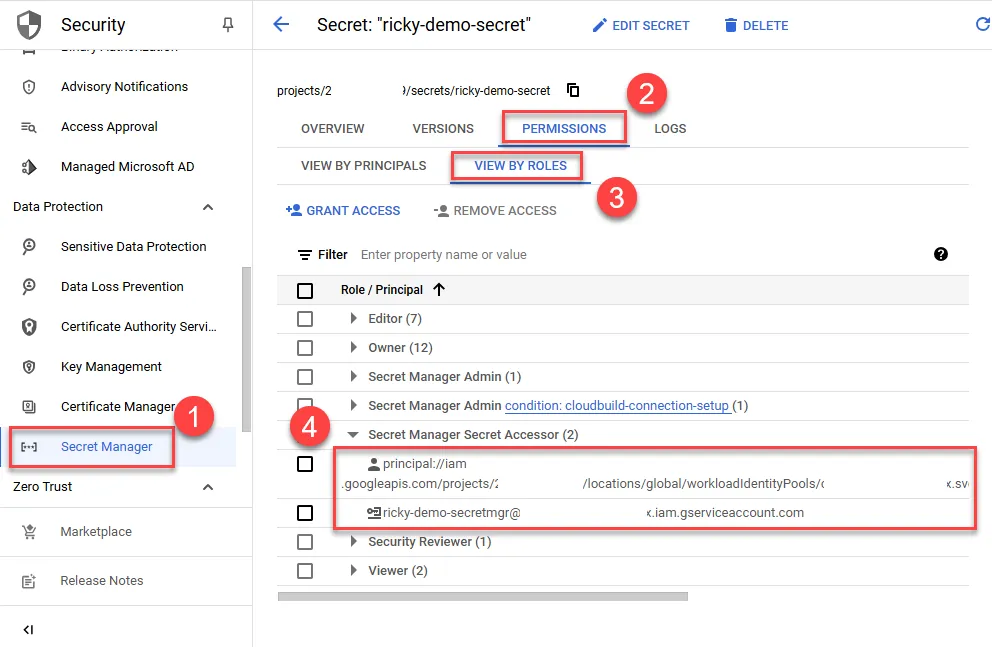
In the step 4, the Kubernetes service account binding is on the top and GCP IAM service account is on the bottom, respectively. It should appear one of them depend on the previous configuration.
Create SecretProviderClasses
1echo "apiVersion: secrets-store.csi.x-k8s.io/v12kind: SecretProviderClass3metadata:4 name: demo-spc5 namespace: ${SECRET_NS}6spec:7 provider: gke8 parameters:9 secrets: |10 - resourceName: "projects/${PROJECT_ID}/secrets/${SECRET_NAME}/versions/1"11 path: "demo-spc.txt"" |12tee app-secrets.yaml | kubectl apply -f -Expected result
1secretproviderclass.secrets-store.csi.x-k8s.io/demo-spc createdConfirm that SecretProviderClasses has been created successfully
1# check SecretProviderClasses2kubectl get SecretProviderClasses -n ${SECRET_NS}3NAME AGE4demo-spc 10sTest
Create a pod to mount the Secret for testing and confirmation
1echo "apiVersion: v12kind: Pod3metadata:4 name: demo-pod5 namespace: ${SECRET_NS}6spec:7 serviceAccountName: ${K8S_SA_NAME}8 containers:9 - image: nginx10 imagePullPolicy: IfNotPresent11 name: demo12 stdin: true13 stdinOnce: true14 terminationMessagePath: /dev/termination-log15 terminationMessagePolicy: File16 tty: true17 volumeMounts:18 - mountPath: "/var/secrets"19 name: mysecret20 volumes:21 - name: mysecret22 csi:23 driver: secrets-store-gke.csi.k8s.io24 readOnly: true25 volumeAttributes:26 secretProviderClass: demo-spc" |27tee app.yaml | kubectl apply -f -Enter the pod to confirm if the secret has the correct value
1kubectl -n ${SECRET_NS} exec -it demo-pod -- bash2cat /var/secrets/demo-spc.txtResource Cleanup
1gcloud container clusters delete --zone=${ZONE} ${GKE_CLUSTER_NAME} --quiet2gcloud secrets delete ${SECRET_NAME} --quiet3# if used iam service-accounts4gcloud iam service-accounts remove-iam-policy-binding \5 --role roles/iam.workloadIdentityUser \6 --member "serviceAccount:${PROJECT_ID}.svc.id.goog[${SECRET_NS}/${K8S_SA_NAME}]" \7 ${IAM_SA_NAME}@${PROJECT_ID}.iam.gserviceaccount.com8gcloud iam service-accounts delete ${IAM_SA_NAME}@${PROJECT_ID}.iam.gserviceaccount.com --quiet9gcloud compute networks delete ${NETWORK_NAME} --quiet10gcloud compute firewall-rules delete allow-ssh --quiet11gcloud compute networks subnets delete ${SUBNET_NAME} --region=${REGION} --quiet12gcloud compute networks delete ${NETWORK_NAME} --quietFAQ
The following are common problem situations.
SecretProviderClasses Not Created
When using kubectl -n demo describe po demo-pod to check the status, the following error appears:
1Events:2 Type Reason Age From Message3 ---- ------ ---- ---- -------4 Normal Scheduled 80s default-scheduler Successfully assigned demo/demo-pod to gke-ricky-demo-cluster-default-pool-829d2ebc-s7885 Warning FailedMount 48s (x7 over 80s) kubelet MountVolume.SetUp failed for volume "mysecret" : rpc error: code = Unknown desc = failed to get secretproviderclass demo/demo-spc, error: SecretProviderClass.secrets-store.csi.x-k8s.io "demo-spc" not found6 Normal Pulled 16s kubelet Container image "nginx" already present on machine7 Normal Created 16s kubelet Created container demo8 Normal Started 16s kubelet Started container demoK8S Service Account Lacks Access Permissions
When there’s no permission to access Secrets in GCP Secret Manager, using kubectl -n demo describe po demo-pod to check the status will show the following error:
1Events:2 Type Reason Age From Message3 ---- ------ ---- ---- -------4 Normal Scheduled 5s default-scheduler Successfully assigned demo/demo-pod to gke-ricky-demo-cluster-default-pool-829d2ebc-s7885 Warning FailedMount 3s (x3 over 5s) kubelet MountVolume.SetUp failed for volume "mysecret" : rpc error: code = Internal desc = failed to mount secrets store objects for pod demo/demo-pod, err: rpc error: code = Internal desc = rpc error: code = PermissionDenied desc = Permission 'secretmanager.versions.access' denied for resource 'projects/YOUR_PROJECT_ID/secrets/ricky-demo-secret/versions/1' (or it may not exist).Insufficient K8S Node Resources
When using kubectl -n demo describe po demo-pod to check the status, the following error appears:
1Events:2Type Reason Age From Message3---- ------ ---- ---- -------4Normal Scheduled 22s default-scheduler Successfully assigned demo/demo-pod to gke-ricky-demo-cluster-default-pool-fe62ce24-ns0z5Warning FailedMount 7s (x6 over 22s) kubelet MountVolume.SetUp failed for volume "mysecret" : kubernetes.io/csi: mounter.SetUpAt failed to get CSI client: driver name secrets-store-gke.csi.k8s.io not found in the list of registered CSI drivers- It can be observed that the csi-secrets-store service cannot start normally
1kubectl get po -n kube-system | grep secret2csi-secrets-store-gke-qzx55 0/3 Pending 0 6m31s3csi-secrets-store-provider-gke-xq9z6 0/1 Pending 0 6m38s