Google Cloud Directory Sync Automatically on Windows
Purpose
Use GCDS to automatically synchronize user accounts
Steps
Confirm AD Users Need Synchronization
For testing purposes, confirm that there are AD users that need to be synchronized to GWS via GCDS
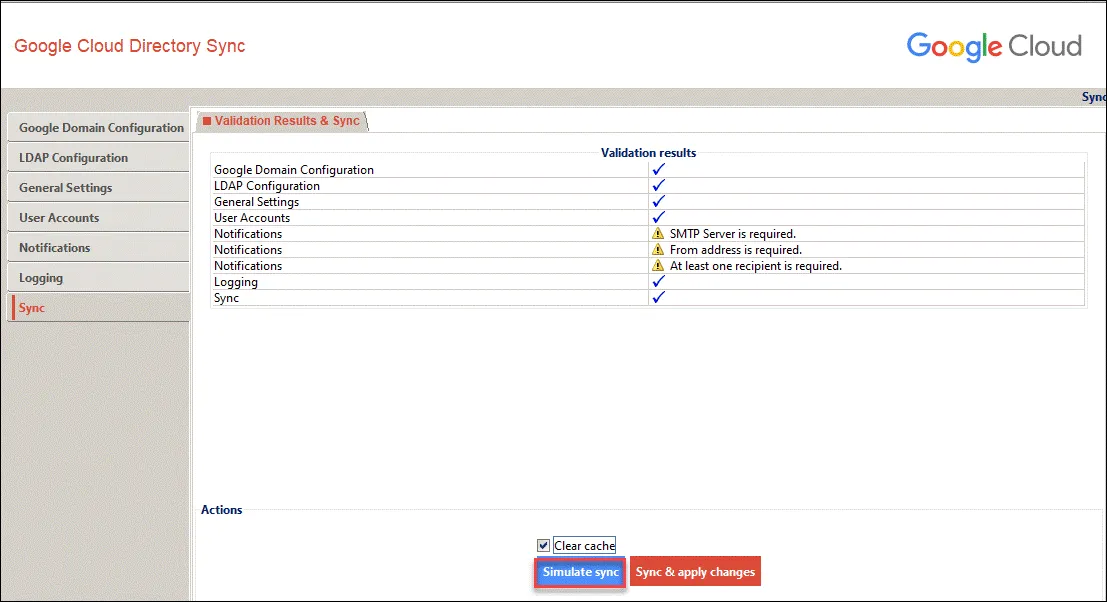
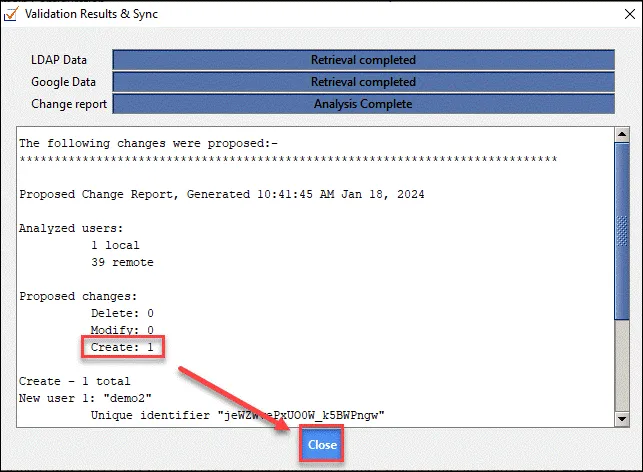
Close without actual synchronization
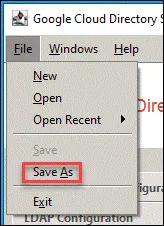
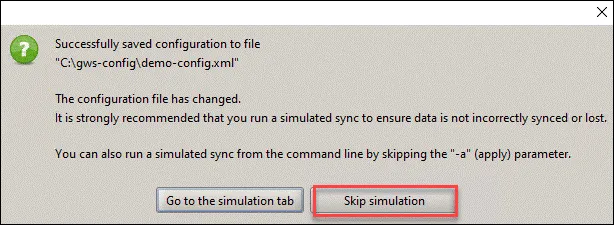
Ensure Configuration File is Properly Saved
If not saved, click Save as
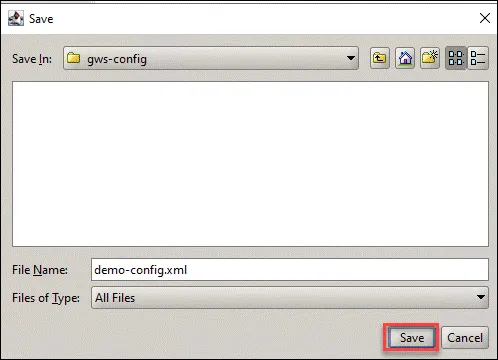
Recommend saving to a unified folder
Skip simulation step as it has been done before
Create Synchronization Script
Use the sync-cmd program to synchronize. Save the following script content as sync.bat
1cd "C:\Program Files\Google Cloud Directory Sync\"2sync-cmd.exe -a -f -c "C:\gws-config\demo-config.xml" -r "C:\gws-config\sync-log.txt"Running this will automatically synchronize GCDS
Create Synchronization Schedule
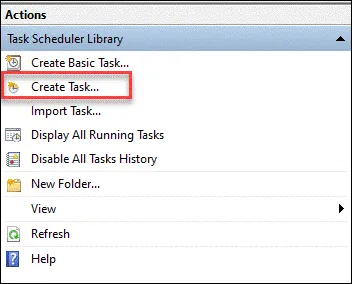
Using Windows Server as an example, open Task Scheduler and create a new task
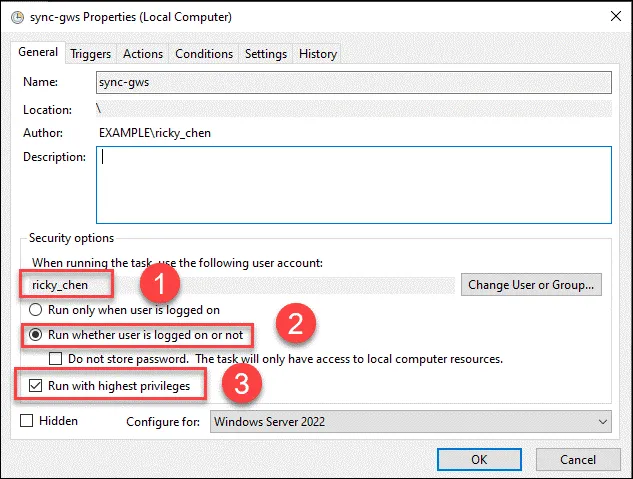
- Choose appropriate account
- Select “Run whether user is logged on or not”
- Run with highest privileges
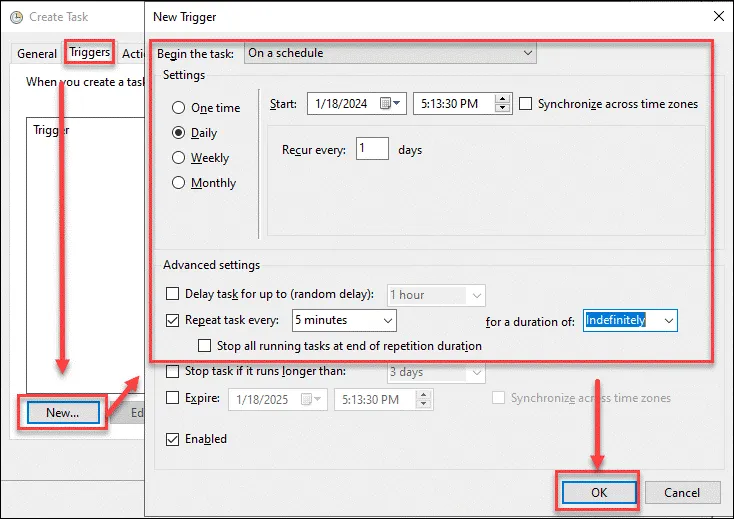
Create trigger conditions
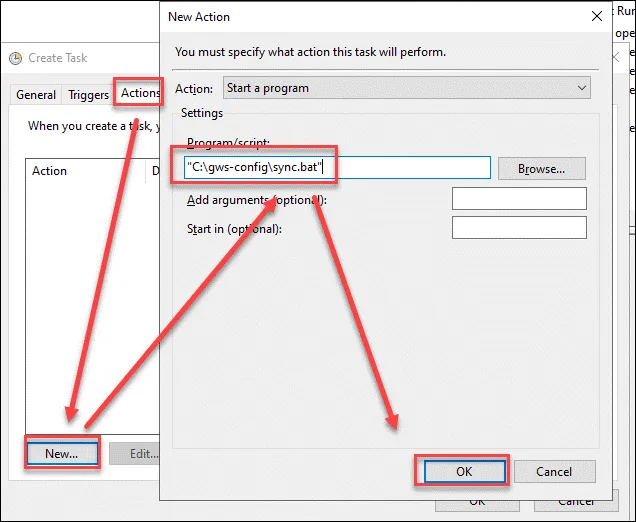
Add startup script, need to add ” double quotes
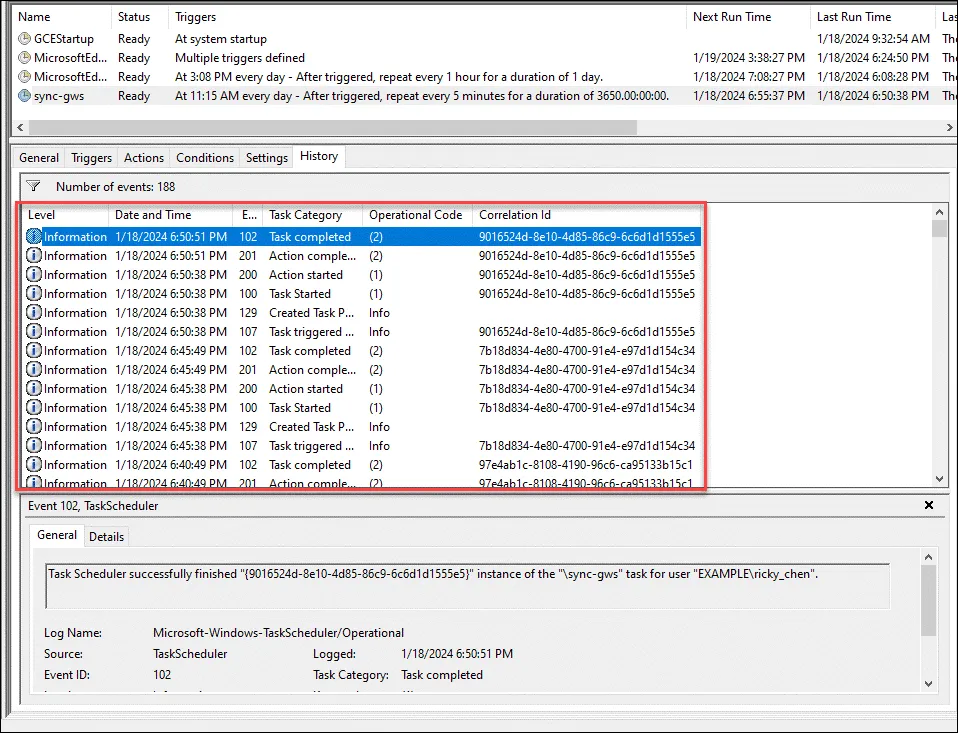
After creation, wait for the trigger to see the synchronization status
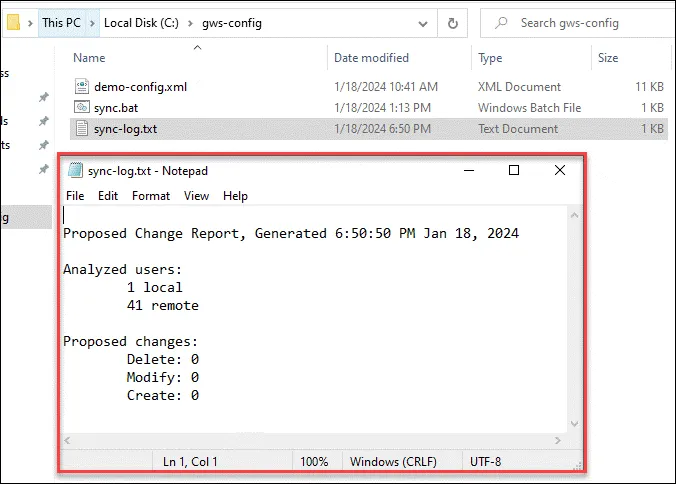
You can also view the log simultaneously
FAQ
Schedule Launch Failure
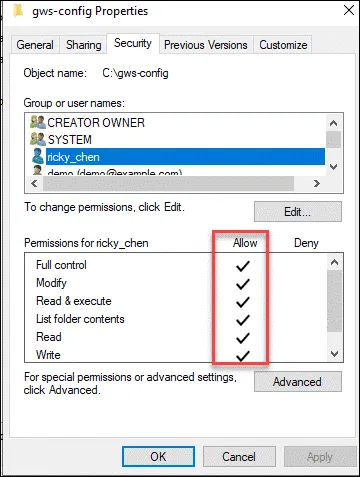
Check if permissions are sufficient, including execution folder and user permissions
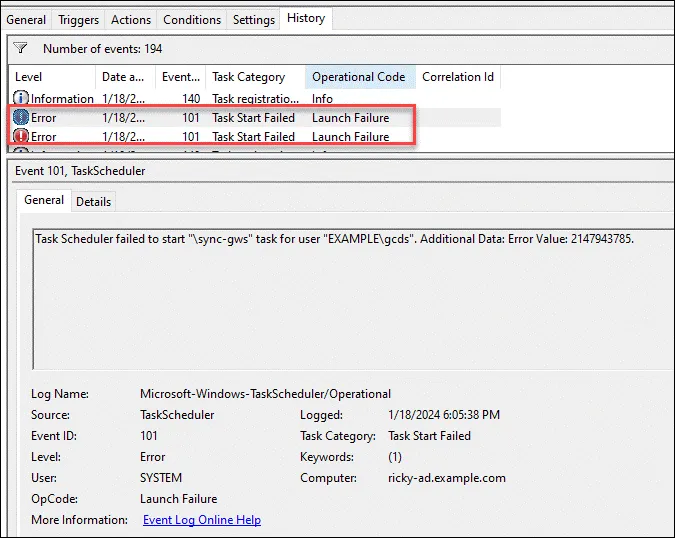
User account needs Full Control permissions in the folder
Schedule Execution Has No Effect
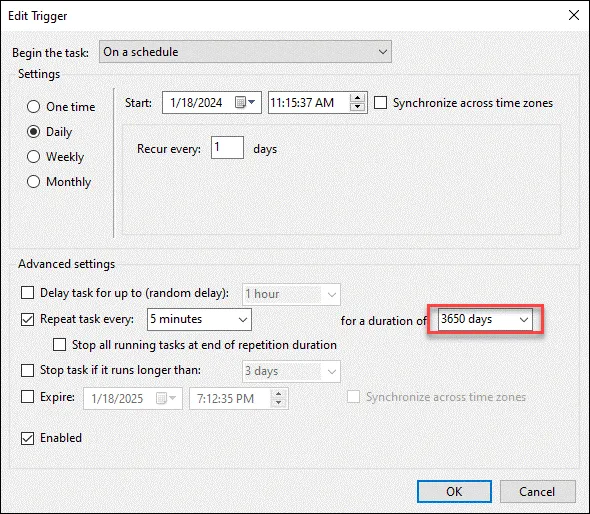
Trigger Settings
Cannot be set to infinite, but can be set to ten years
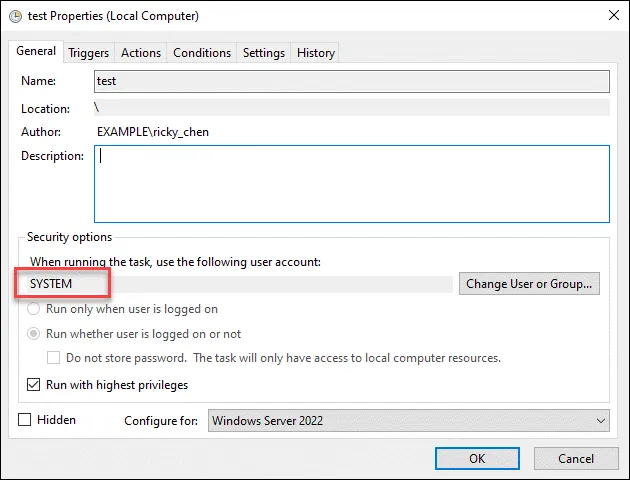
Execution Identity and Permissions
In GCE, automatic execution using SYSTEM / Administrator identity fails, but testing with your own user account succeeds
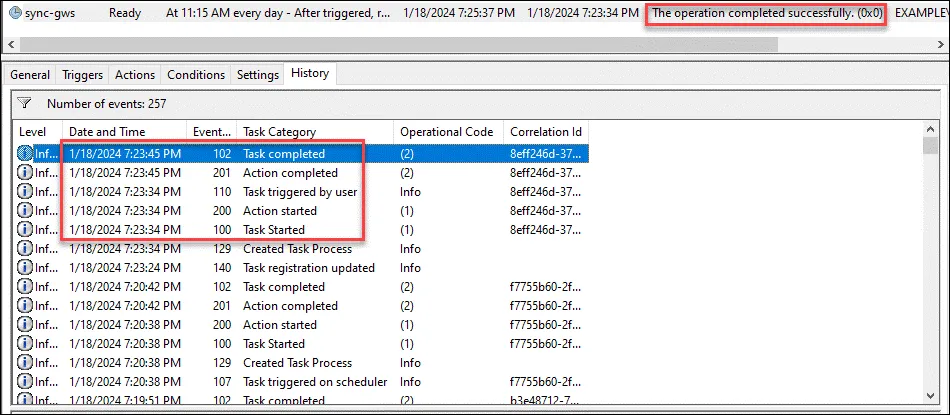
Failed result is 0xFF, and execution time is extremely short, about 2-3 seconds
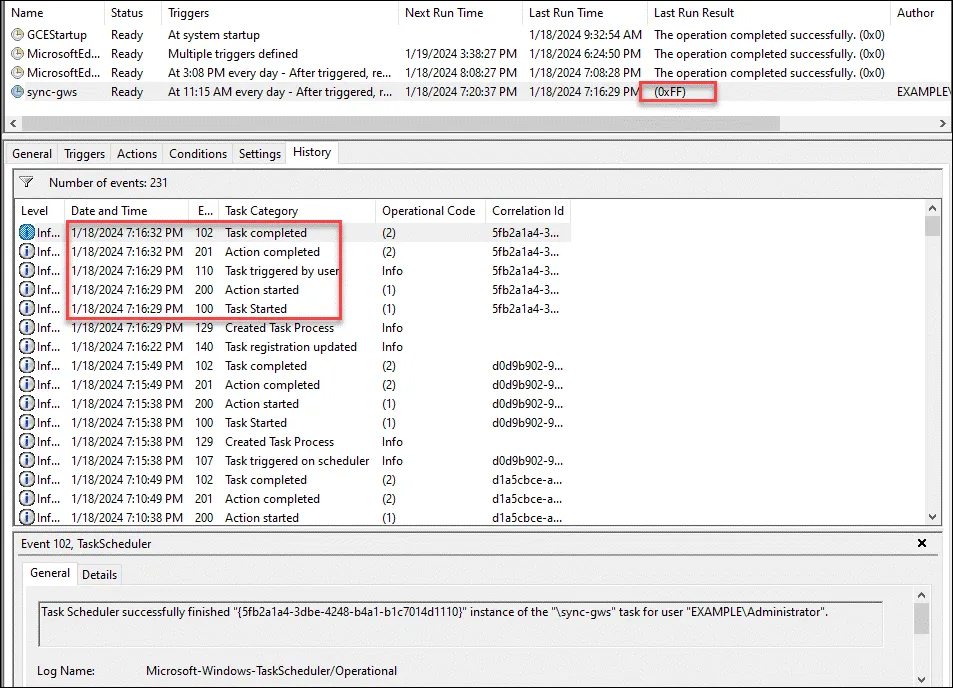
Successful execution completion will indicate full completion, and execution time is about 10 seconds
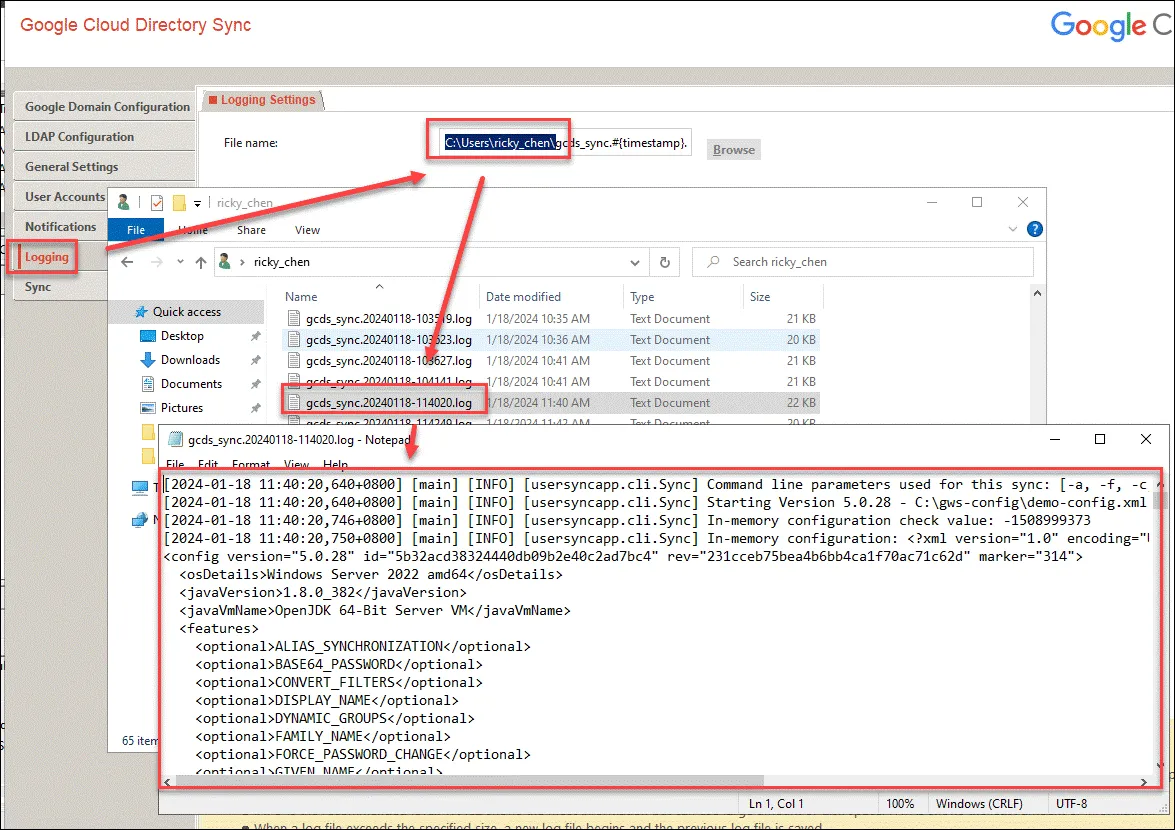
Synchronization Log Storage Location
Can be set in GCDS
REF
Active Directory user account provisioning | Cloud Architecture Center | Google Cloud
G Suite tutorials - Google Cloud Directory Sync (GCDS) (youtube.com)