GKE Private Cluster Connect to CloudSQL by Internal IP
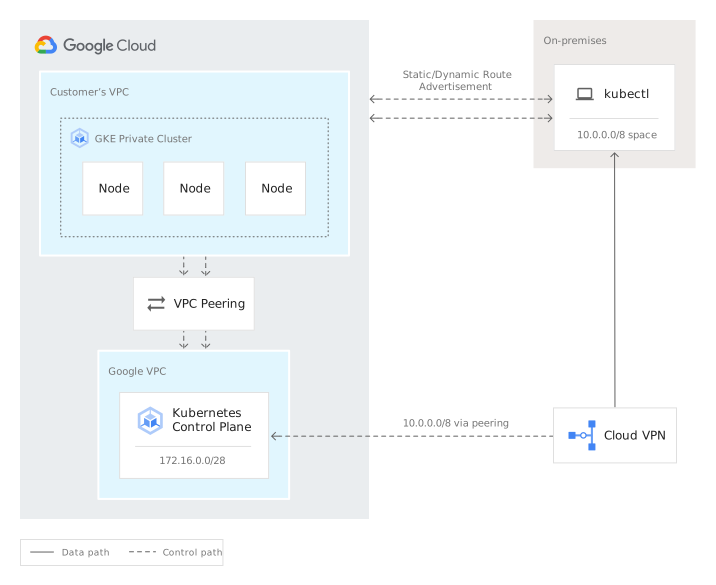
When using GKE and CloudSQL in an all-private manner, it’s important to pay attention to whether the GKE Control Plane and the kubectl user connection endpoint are peering.
Scenario
The following network segments need to be planned and carefully considered to avoid overlap, which could cause connection issues.
- GKE
- Control Plane
- Node
- Pod
- Service
- CloudSQL
Implementation Method
- The private cluster uses a completely closed approach, requiring an internal network jump box VM for connection
- When connecting to the jump box VM, environment variables need to be re-pasted to obtain the cluster credential
- Create a pod with mysqlclient for connection testing
Create GKE private cluster and network
- Use command-line instructions to create a VPC network and GKE private cluster
- Remember to adjust the following environment variables
1export NETWORK_NAME="ricky-private-gke"2export SUBNET_NAME="subnet-us-east"3export PROJECT_ID="YOUR_PROJECT_ID"4export REGION="us-east4"5export ZONE="us-east4-c"6export GKE_CLUSTER_NAME="ricky-nat-test-cluster"7export BASTION_VM_NAME="ricky-bastion"8export ROUTER_NAME="ricky-nat-router"9export DB_NAME="ricky-mysql"10export DB_IP_RANGE="10.0.101.0"11export DB_IP_PREFIX="24"12export CP_IP_RANGE="10.0.100.0/28"13export NODE_IP_RANGE="10.0.1.0/24"14export POD_IP_RANGE="10.1.0.0/16"15export SERVICE_IP_RANGE="10.2.0.0/24"16
17# create network18gcloud compute networks create ${NETWORK_NAME} --subnet-mode custom19gcloud compute networks subnets create ${SUBNET_NAME} \20    --network ${NETWORK_NAME} \21    --region ${REGION} \22    --range ${NODE_IP_RANGE} \23    --secondary-range my-pods=${POD_IP_RANGE},my-services=${SERVICE_IP_RANGE} \24    --enable-private-ip-google-access25
26gcloud compute firewall-rules create allow-ssh \27    --network ${NETWORK_NAME} \28    --source-ranges 35.235.240.0/20 \29    --allow tcp:2230
31
32gcloud compute addresses create google-managed-services-${NETWORK_NAME} \33--global \34--purpose=VPC_PEERING \35--addresses=${DB_IP_RANGE} \36--prefix-length=${DB_IP_PREFIX} \37--network=projects/${PROJECT_ID}/global/networks/${NETWORK_NAME}38
39gcloud services vpc-peerings connect \40--service=servicenetworking.googleapis.com \41--ranges=google-managed-services-${NETWORK_NAME} \42--network=${NETWORK_NAME} \43--project=${PROJECT_ID}44
45
46# create private cluster47gcloud container clusters create ${GKE_CLUSTER_NAME} \48    --zone ${ZONE} \49    --cluster-version "latest" \50    --machine-type "n2-standard-2" \51    --disk-type "pd-standard" \52    --disk-size "100" \53    --scopes "https://www.googleapis.com/auth/compute","https://www.googleapis.com/auth/devstorage.read_only","https://www.googleapis.com/auth/logging.write","https://www.googleapis.com/auth/monitoring","https://www.googleapis.com/auth/servicecontrol","https://www.googleapis.com/auth/service.management.readonly","https://www.googleapis.com/auth/trace.append" \54    --num-nodes "1" \55    --enable-private-nodes \56    --enable-private-endpoint \57    --master-ipv4-cidr ${CP_IP_RANGE} \58    --enable-ip-alias \59    --network ${NETWORK_NAME} \60    --subnetwork ${SUBNET_NAME} \61    --max-nodes-per-pool "110" \62    --enable-master-authorized-networks \63    --addons HorizontalPodAutoscaling,HttpLoadBalancing \64    --enable-autoupgrade \65    --enable-autorepair \66    --cluster-secondary-range-name my-pods \67    --services-secondary-range-name my-services \68    --enable-network-policy69
70# create bastion71gcloud compute instances create ${BASTION_VM_NAME} \72    --project=${PROJECT_ID} \73    --zone=${ZONE} \74    --machine-type=e2-micro \75    --network-interface=network-tier=PREMIUM,stack-type=IPV4_ONLY,subnet=${SUBNET_NAME} \76    --maintenance-policy=MIGRATE \77    --provisioning-model=STANDARD \78    --create-disk=auto-delete=yes,boot=yes,device-name=ricky-bastion,image=projects/ubuntu-os-cloud/global/images/ubuntu-2204-jammy-v20230616,mode=rw,size=10,type=projects/${PROJECT_ID}/zones/${ZONE}/diskTypes/pd-balanced \79    --no-shielded-secure-boot \80    --shielded-vtpm \81    --shielded-integrity-monitoring \82    --labels=goog-ec-src=vm_add-gcloud \83    --reservation-affinity=any84
85
86# add bastion ip to GKE control plane allowlist (for external ip only)87export BASTION_IP=$(gcloud compute instances describe ${BASTION_VM_NAME} --zone ${ZONE} --format='get(networkInterfaces[0].networkIP)')88
89gcloud container clusters update ${GKE_CLUSTER_NAME} --zone=${ZONE} \90    --enable-master-authorized-networks \91    --master-authorized-networks ${BASTION_IP}/32
Configure the jump box
Install necessary packages, which will take about 5 minutes
1gcloud compute ssh ${BASTION_VM_NAME} --zone ${ZONE} --tunnel-through-iap -- "sudo snap remove google-cloud-cli && \2sudo apt-get update && \3sudo apt-get install apt-transport-https ca-certificates gnupg curl -y && \4curl https://packages.cloud.google.com/apt/doc/apt-key.gpg | sudo gpg --dearmor -o /usr/share/keyrings/cloud.google.gpg && \5echo "deb [signed-by=/usr/share/keyrings/cloud.google.gpg] https://packages.cloud.google.com/apt cloud-sdk main" | sudo tee -a /etc/apt/sources.list.d/google-cloud-sdk.list && \6sudo apt-get update && sudo apt-get install google-cloud-cli kubectl google-cloud-cli-gke-gcloud-auth-plugin -y"Log in to the gcloud account on the jump box
1gcloud compute ssh ${BASTION_VM_NAME} --zone ${ZONE} --tunnel-through-iap -- "gcloud auth login"Create CloudSQL
Use the following command to create CloudSQL, adjust the password as needed
1gcloud beta sql instances create ${DB_NAME} \2--database-version=MYSQL_8_0 \3--tier db-f1-micro \4--region=${REGION} \5--network ${NETWORK_NAME} \6--no-assign-ip \7--allocated-ip-range-name google-managed-services-${NETWORK_NAME} \8--storage-size 109
10gcloud sql users set-password root \11--host=% \12--instance ${DB_NAME} \13--password 1qaz2wsx
Connection test
Use mysql-client for connection testing
1gcloud compute ssh ${BASTION_VM_NAME} --zone ${ZONE} --tunnel-through-iap2kubectl run mysqlclient --image imega/mysql-client -- sleep 864003DB_IP=$(gcloud sql instances describe ricky-mysql --format='value(ipAddresses[0].ipAddress)')4kubectl exec mysqlclient -- mysql --host=${DB_IP} --user=root --password=1qaz2wsx --execute='show databases;'5# Remove the pod6kubectl delete po mysqlclientExpected result, showing all current databases
1Database2information_schema3mysql4performance_schema5sys