CloudBuild GKE Autopilot Private Cluster on Original VPC
This method implements using the existing GKE cluster VPC shared with Cloud Build Private Pool on the same VPC, which means the two red boxes in the diagram below use the same VPC.
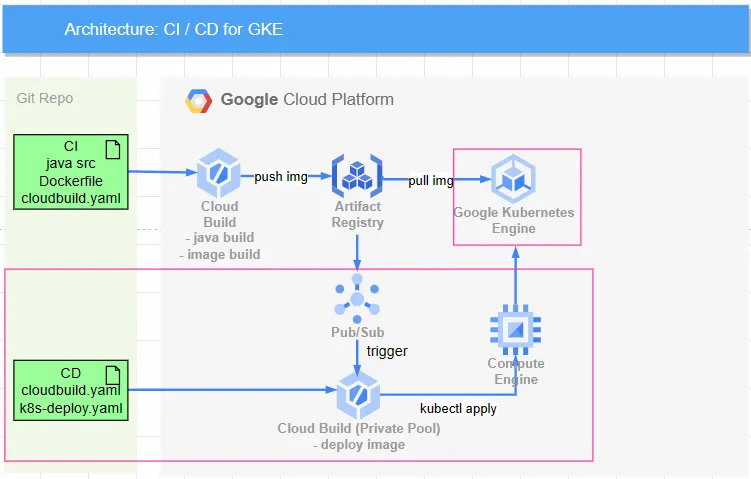
Scenario
- The implementation part is the same as CloudBuild GKE Autopilot Private Cluster on New VPC until the latter part of creating CloudBuild Private Pool, where differences will occur.
Process and Description
- Create a VPC network and enable Subnet PGA and NAT Gateway. The external network for pods in GKE will also connect through the NAT Gateway.
- Create a GKE autopilot Private Cluster
- (Optional) Use GCE as a jump server. The service account needs Kubernetes Engine Developer permissions to obtain GKE credentials.
- Create an Artifact Registry to allow GKE Private Cluster to connect directly through PGA.
- Create a dedicated VPC network for CloudBuild (red box in the above diagram) and required routes
- Create Cloud Build and use Private Pool to ensure data flow within private network and fixed IP. Therefore, a separate VM needs to be created as a jump server for CloudBuild -> GKE.
- The process will become
CloudBuild connects to internal IP->VM (static internal IP & static public IP)->GKE(public IP) - When creating a private pool for CloudBuild, do not check the external IP option to ensure traffic stays within the VPC. However, this means it cannot connect to external networks. Therefore, if there are package installation related operations, it is recommended to execute them in separate private pools.
- The process will become
- Reserve the following two network segments not to be used by any services
- CloudBuild reserves
192.168.10.0/24 - Docker bridge reserves
172.17.0.0/16(GCP must avoid using this segment)
Execution Steps
Creating GKE VPC, creating Artifact Registry, creating GKE autopilot Private Cluster, and (Optional) creating jump server VM are the same as CloudBuild GKE Autopilot Private Cluster on New VPC
Create CloudBuild
Configure Cloud Build Network Environment
Click here to enable necessary APIs. This content refers to this document for implementation.
Create PSA
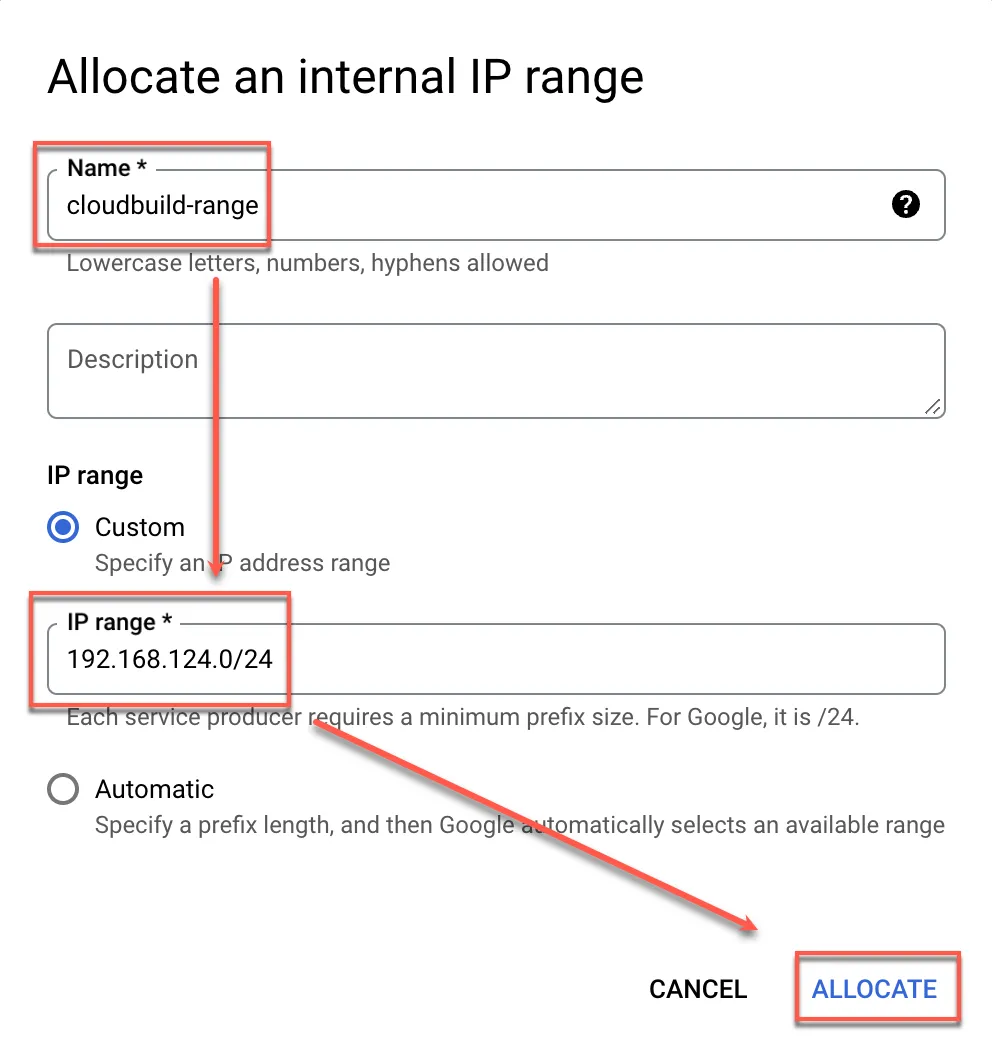
Here we use the original VPC without creating a new one, but PSA still needs to be created. Open VPC to create IP RANGE
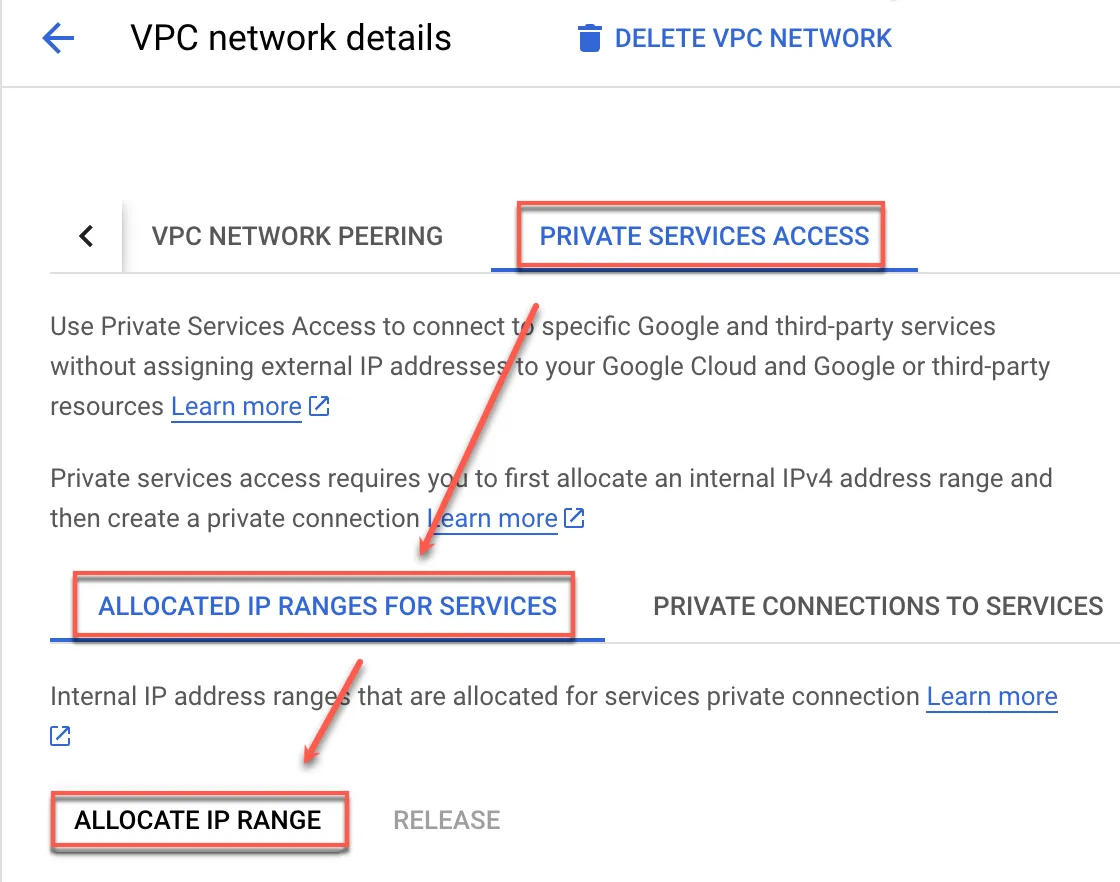
Allocate IP range
After creation, please note that the firewall should not block this network segment
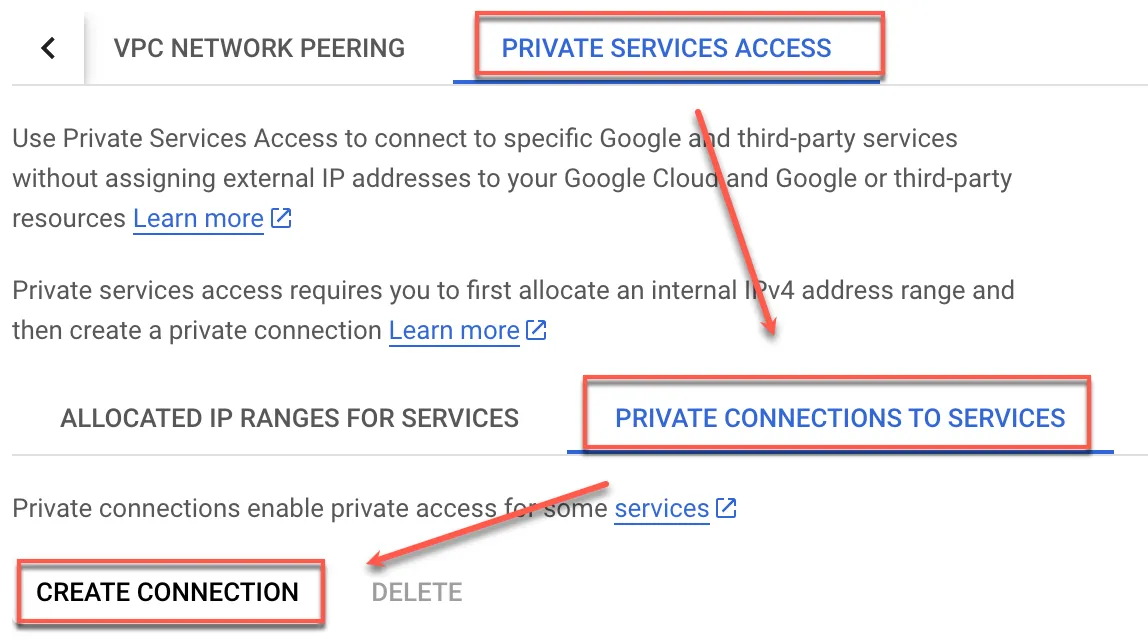
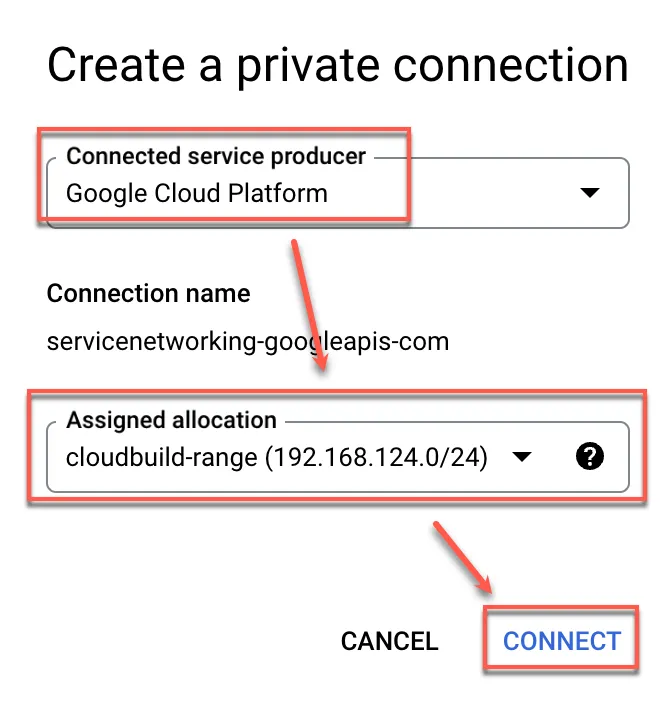
Create Private connections to services
Click Create connection
Select Google Cloud Platform, then check the network segment just created
Create Private Pool
Refer to this document for creation. Before creating, click here to enable the API
Create worker pool
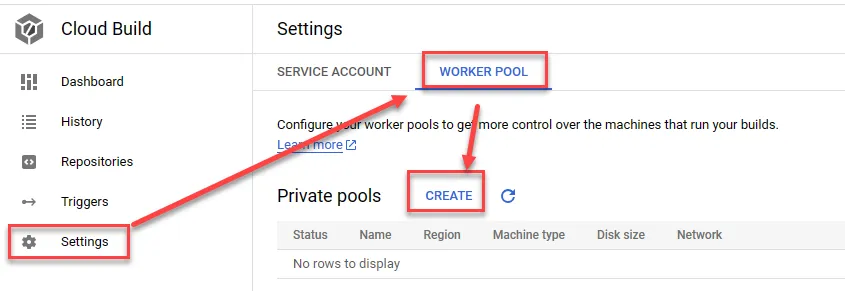
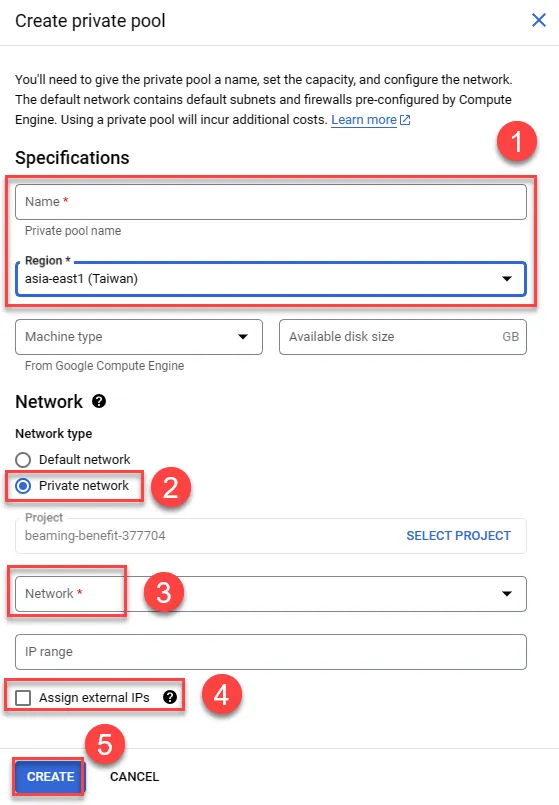
- Enter name and select region
- Choose Private network
- Select the previously created VPC network and provide IP range
- Do not check allocate external IP to ensure all connections go through private VPC, but this means unable to download related packages if needed
- Create, using e2-medium by default and providing 100GB disk space
Create Bridge VM
This content refers to this document for implementation. The purpose is to use a fixed IP when CloudBuild connects to GKE
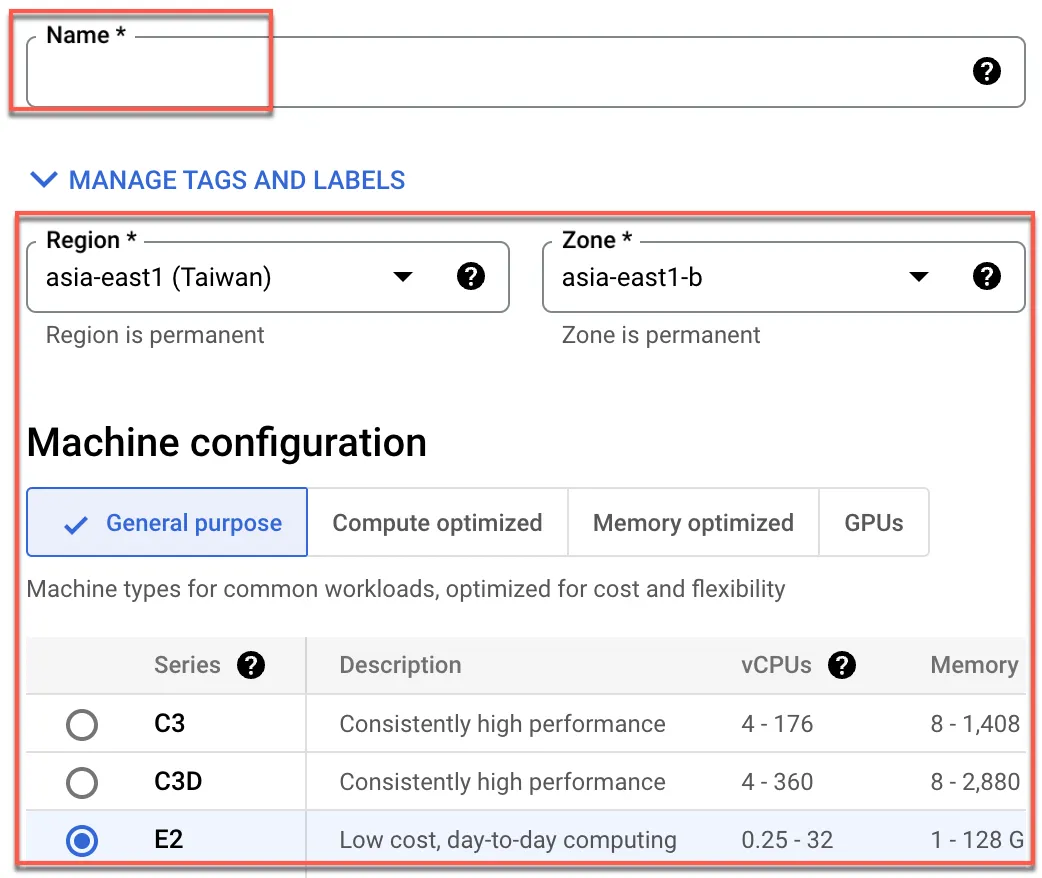
Create VM, enter name, select region and appropriate size. Here we choose the smallest e2-micro, and select Ubuntu 22.04 LTS for the boot disk
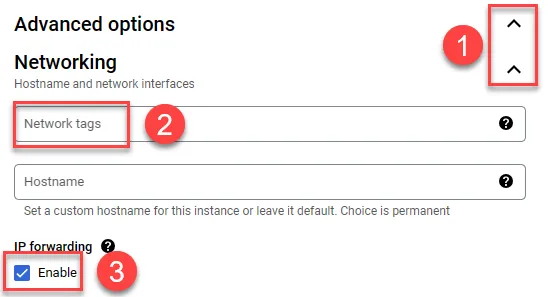
- Expand advanced settings to configure network
- Enter network tag
nat-gw, which will be used later when creating routes - Enable IP forwarding
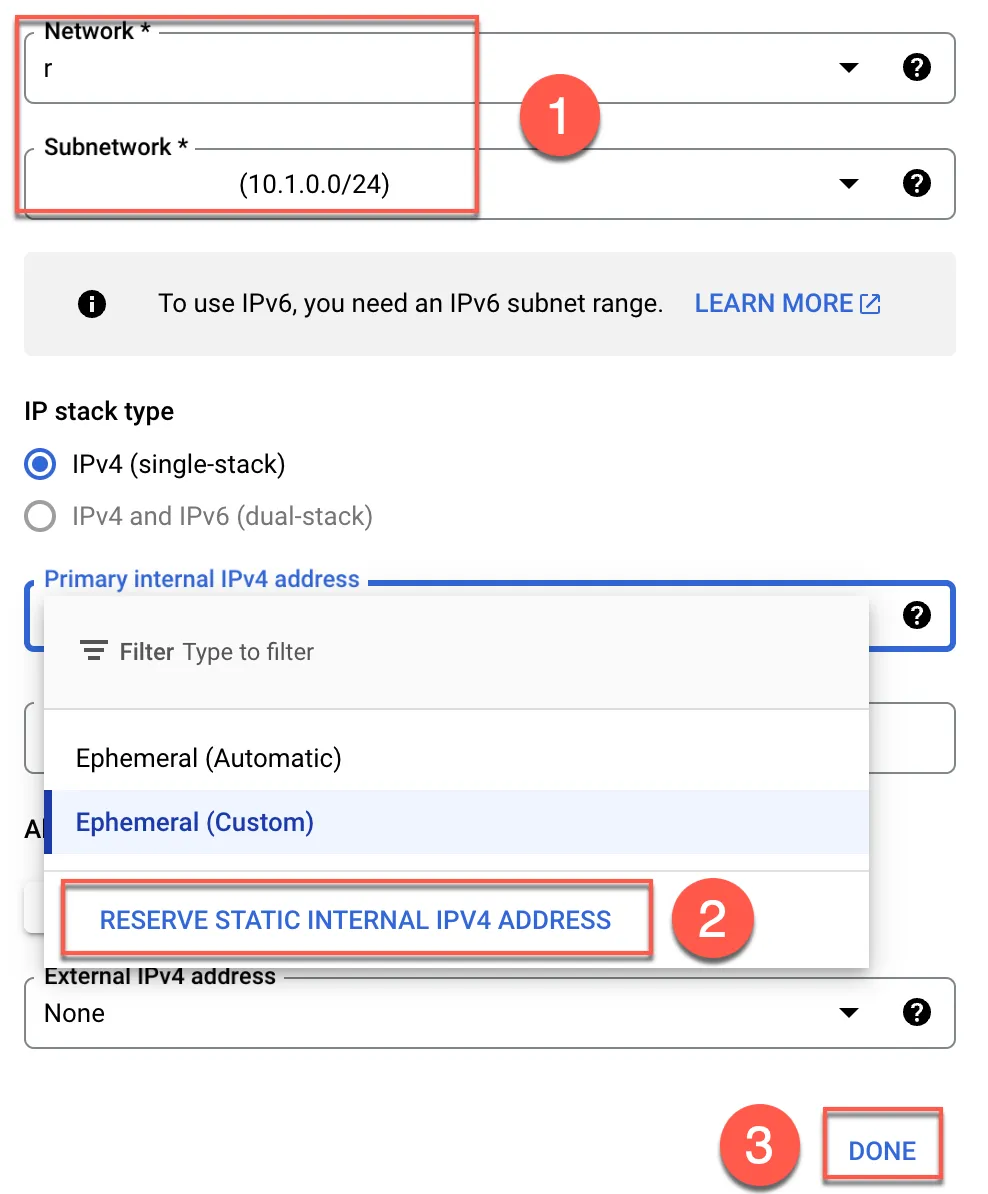
- Select the created VPC network (build-network) and its subnetwork
- Reserve fixed IP
- Complete
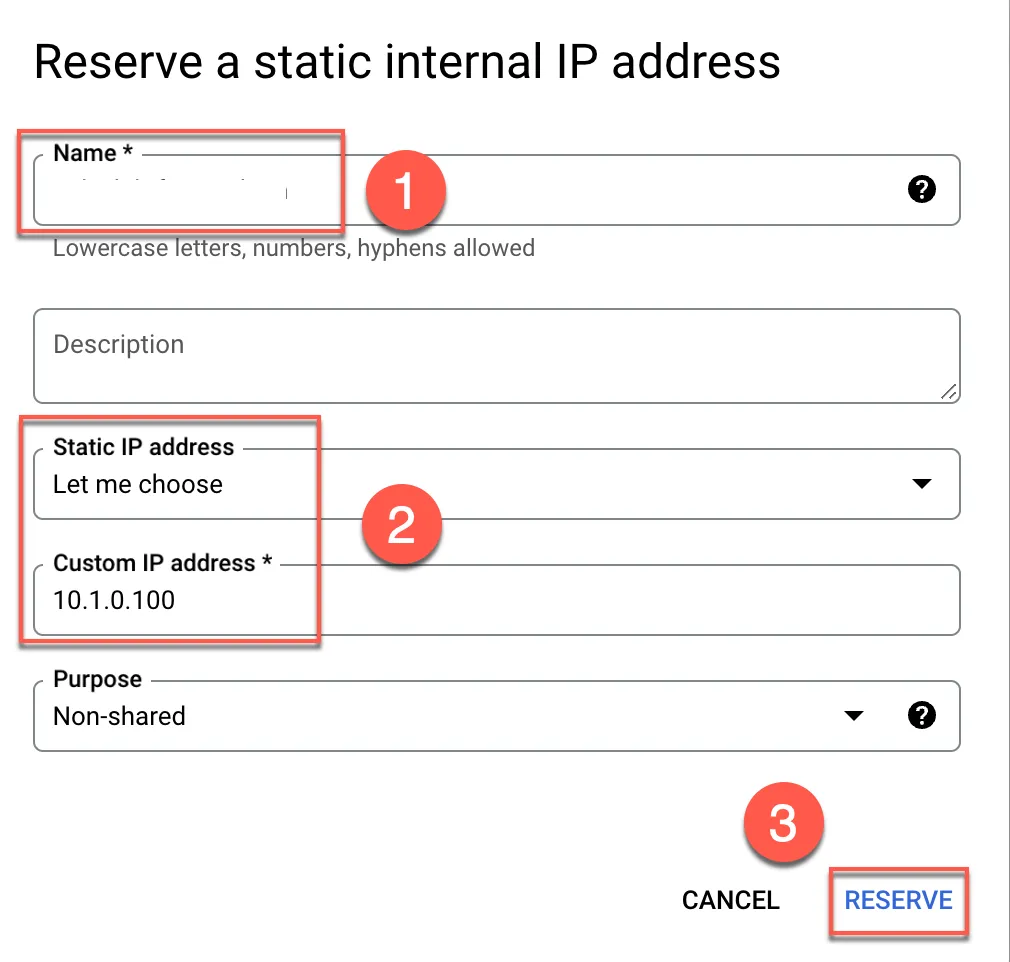
- Enter reserved IP name
- Can customize IP or auto-assign
- Reserve
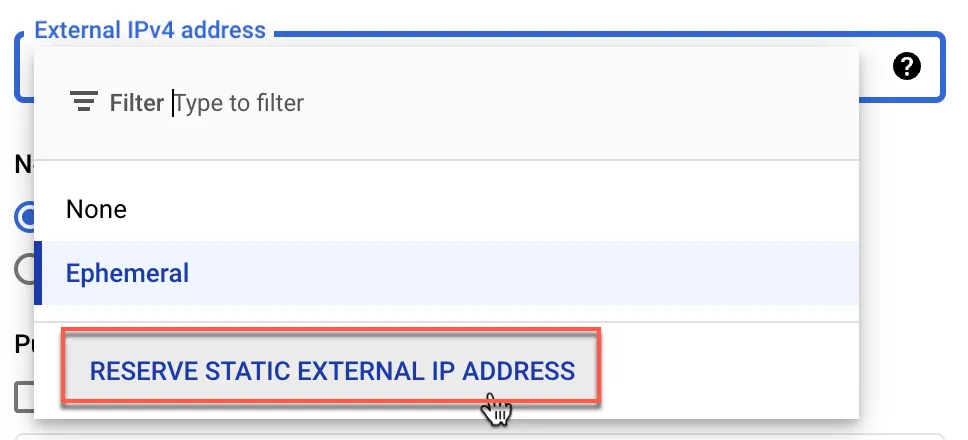
Similarly, reserve an external IP
Paste the following startup script into the startup script section
1#! /bin/bash2set -e3
4sysctl -w net.ipv4.ip_forward=15IFACE=$(ip -brief link | tail -1 | awk  {'print $1'})6iptables -t nat -A POSTROUTING -o "$IFACE" -j MASQUERADE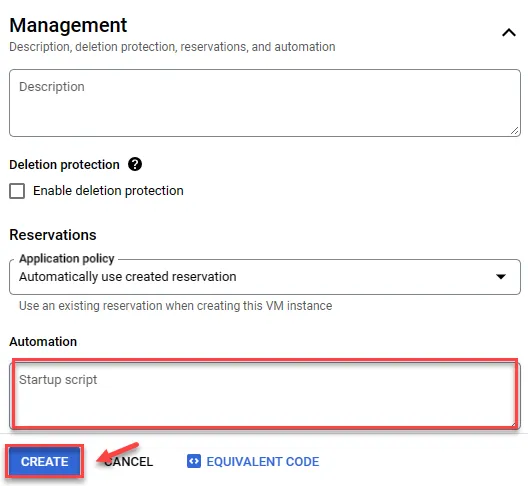
Create VPC Routes
To allow all connections to GKE public IP to use a fixed IP, two additional routes need to be created
- CloudBuild private pool -> Bridge GKE VM
- Bridge GKE VM -> default-internet-gateway
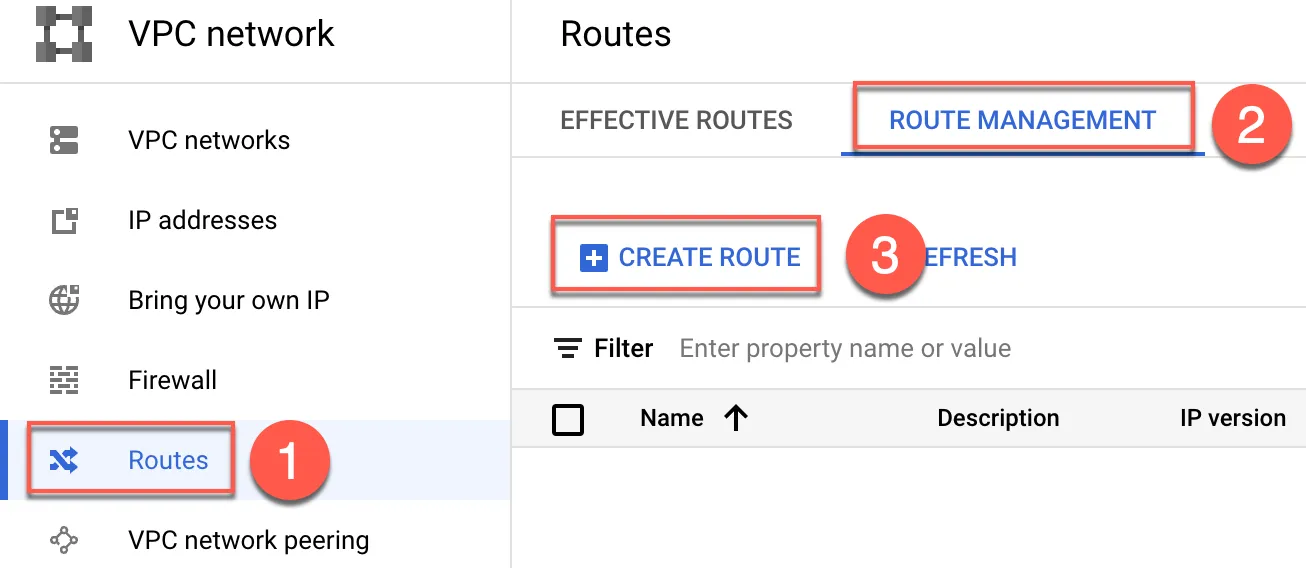
Open VPC Route and create
- Select Routes
- Click ROUTE MANAGEMENT
- Create ROUTE
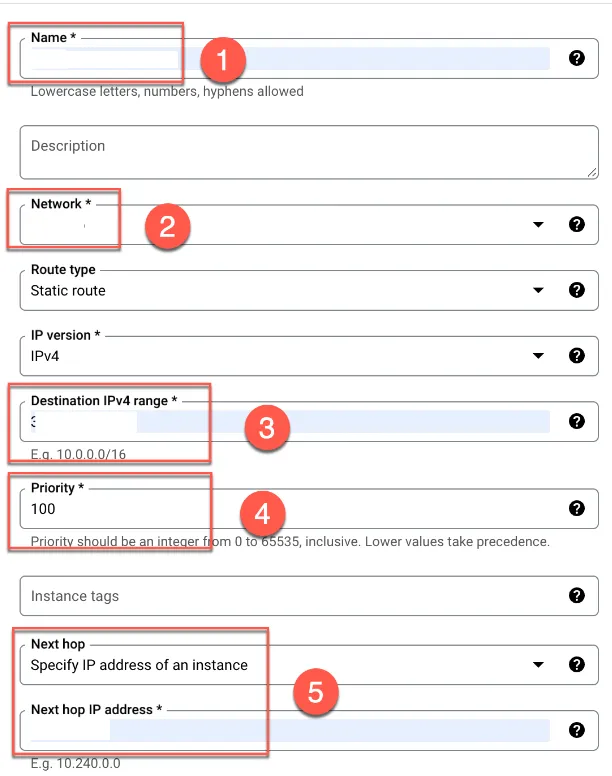
Create the first route, from Cloudbuild to VM
- Enter a name, such as:
cloudbuild-to-vm - Select the same VPC as GKE
- Enter GKE public IP
- Set priority, here set to
100 - Specify how the next hop to GKE public IP should go, enter the internal static IP of the previously created VM
Finally, scroll down and click create
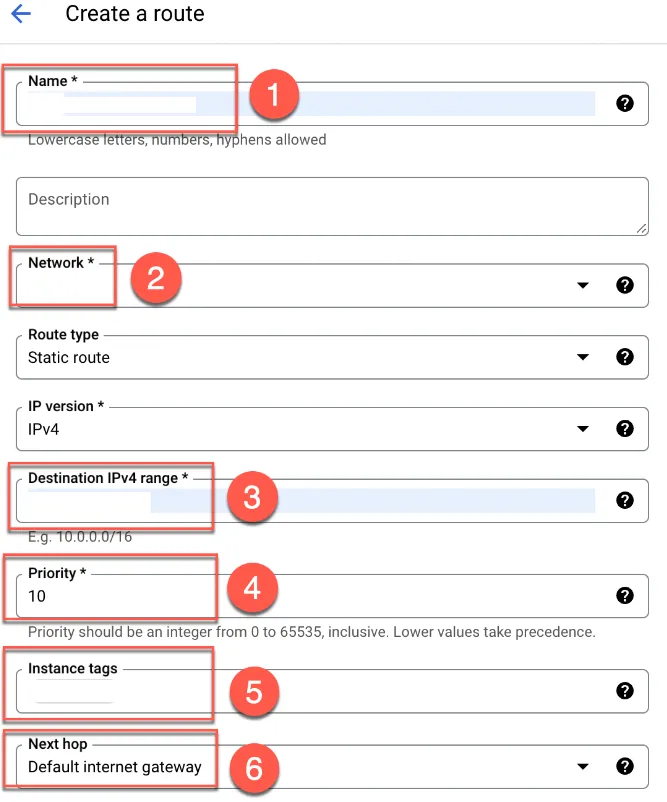
Create the second route, connecting to GKE public IP through VM IP
- Enter a name such as:
vm-to-internet-gw - Select the same VPC as GKE
- Enter GKE public IP
- Set priority, the value should be lower than the first route, here set to
10 - Enter the tag input for the previous VM:
nat-gw - Next hop is Default internet gateway Finally, click create
Configure GKE Authorized Network
Configure to allow the previously created bridge VM to connect, click on the created GKE Cluster
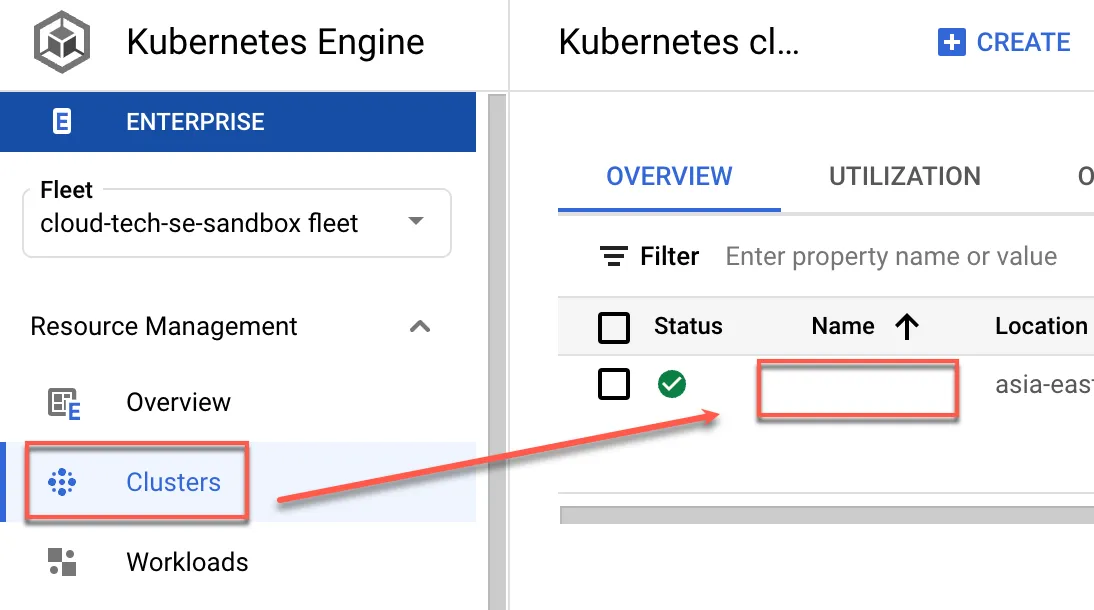
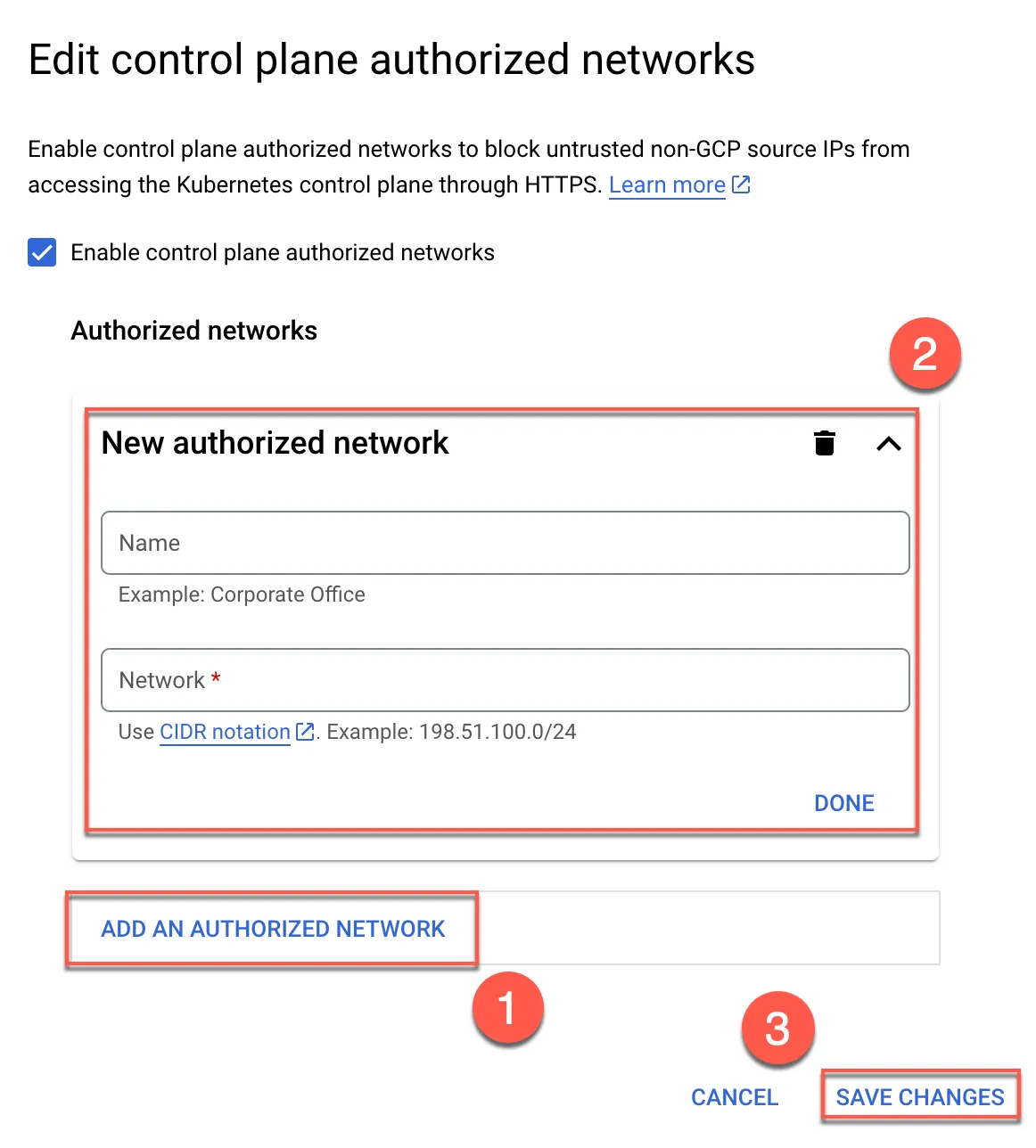
Click to edit Control plane authorized networks

- Add
- Enter name and bridge VM public static IP
- Save
For subsequent parts, refer to CloudBuild GKE Autopilot Private Cluster on New VPC