GKE Workload Identity
Scenario
Using a pod in GKE can connect to GCS without importing any token information. Similarly, other pods wanting to use service account authorization for any resources on GCP can do so without importing key information into secrets through Workload Identity.
Implementation Method
- Create separate GKE and Workload Identity custom service accounts
- Use the aforementioned service accounts to create GKE
- Create K8S service account and bind it to GKE service account
- Use K8S service account in Pod
Create service account
Following the principle of least privilege, the service account used by nodes on GKE only provides the following permissions:
- logging.logWriter
- monitoring.metricWriter
- monitoring.viewer
- stackdriver.resourceMetadata.writer
1export PROJECT_ID="${DEVSHELL_PROJECT_ID}"2export SA_NAME="gke-sa"3gcloud iam service-accounts create ${SA_NAME} \4 --description="GKE Cluster sa" \5 --display-name="${SA_NAME}"6gcloud projects add-iam-policy-binding ${PROJECT_ID} \7 --member="serviceAccount:${SA_NAME}@${PROJECT_ID}.iam.gserviceaccount.com" \8 --role="roles/logging.logWriter" \9 --role="roles/monitoring.metricWriter" \10 --role="roles/monitoring.viewer" \11 --role="roles/stackdriver.resourceMetadata.writer"Create GKE
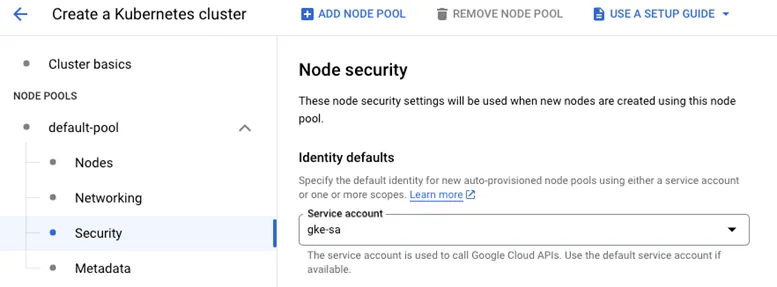
Remember to select the GKE-specific service account when creating GKE
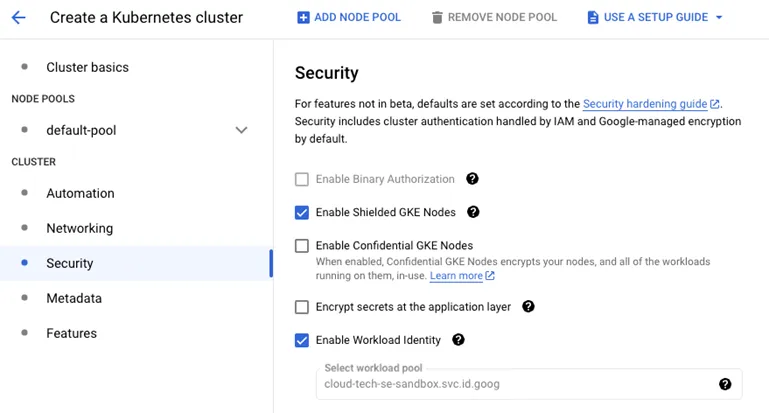
Also, enable Workload Identity
Bind GKE internal and GCP service accounts
- Create a GCP service account named workload for use with workload identity
1# First, get GKE connection information2gcloud container clusters get-credentials ricky-lab --zone us-central1-c --project ${PROJECT_ID}3# Create workload GCP service account and bind it with GKE internal service account4export WK_SA_NAME="workload"5gcloud iam service-accounts create ${WK_SA_NAME} \6 --description="workload sa" \7 --display-name="${WK_SA_NAME}"8gcloud iam service-accounts add-iam-policy-binding \9--role="roles/iam.workloadIdentityUser" \10--member="serviceAccount:${PROJECT_ID}.svc.id.goog[demo/demosa]" \11${WK_SA_NAME}@${PROJECT_ID}.iam.gserviceaccount.com12# Create namespace and service account within GKE13kubectl create ns demo14kubectl -n demo create serviceaccount demosa15kubectl -n demo annotate serviceaccount demosa iam.gke.io/gcp-service-account=${WK_SA_NAME}@${PROJECT_ID}.iam.gserviceaccount.comVerification Method
Use cloudsdk image to create a test
1echo 'apiVersion: v12kind: Pod3metadata:4  labels:5    run: gcloud6  name: gcloud7  namespace: demo8spec:9  containers:10  - name: gcloud11    image: gcr.io/google.com/cloudsdktool/cloud-sdk:latest12    command:13      - sleep14      - "86400"15  serviceAccountName: demosa' > gcloud.yaml16kubectl apply -f gcloud.yaml17kubectl -n demo exec -it gcloud -- bash18
19# Check if the service account identity is obtained, if successful, the workload service account will appear20curl -H "Metadata-Flavor: Google" http://169.254.169.254/computeMetadata/v1/instance/service-accounts/21# Using the gsutil command in the pod will not be able to list files normally, add viewer permission in the GCP service account to see files in the specified bucket22gsutil ls
Troubleshooting
- When using workload identity, if workload identity was not initially enabled and is enabled later:
- Using the default GCP service account will result in service account switching issues. In this case, simply create a new node pool and use another service account.
- If using a custom GCP service account, you still need to recreate the node pool and migrate the workload to the new node pool for it to take effect. Otherwise, it will still use the service account on the GCE node.