Google Cloud Directory Sync Setup
Purpose
Using GCDS for AD account migration tasks
AD environment for this test:
- OS: Windows Server 2008R2 x64
- CPU: 2 vCPU
- RAM: 4 GB
- HDD: 60 GB
Steps
Install GCDS
You can refer to this tutorial for migration:
Download and install GCDS - Google Workspace Admin Help
For GCDS download, please click the following link:
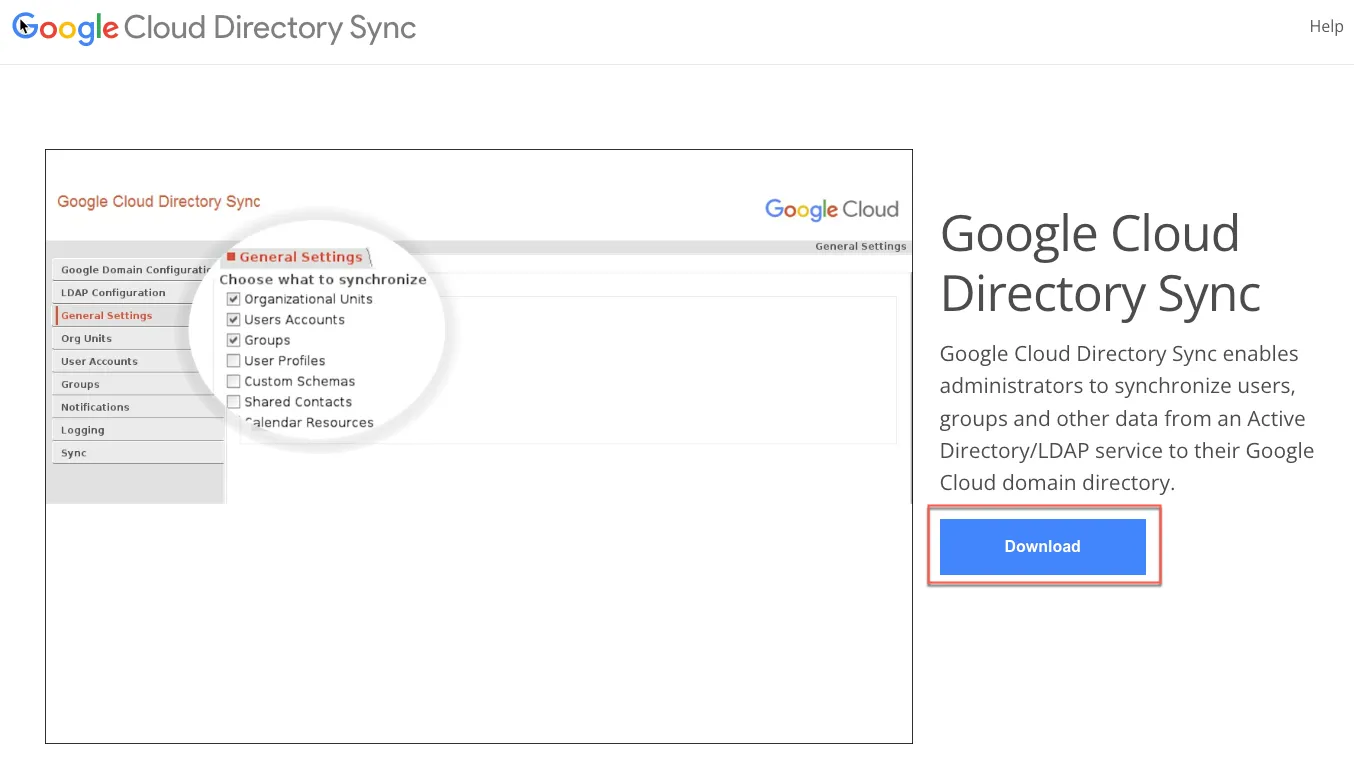
If you can’t download, please use this direct link:
Downloading Google Cloud Directory Sync
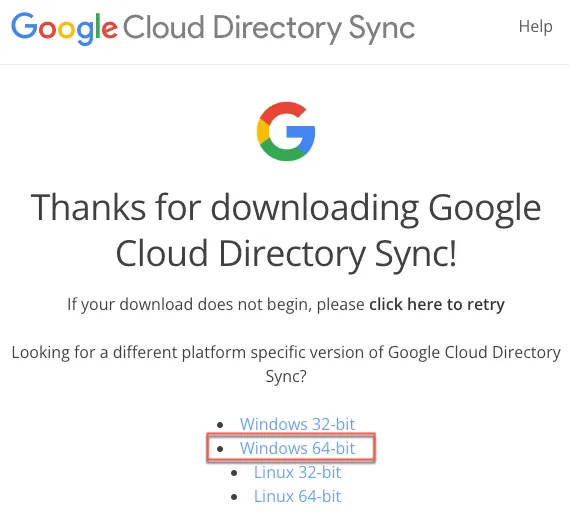
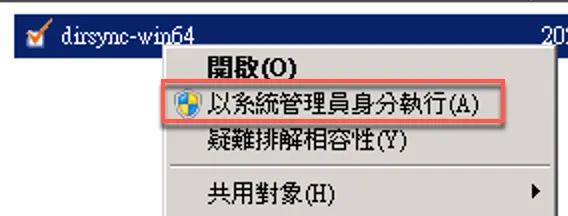
Open the downloaded GCDS installation file and run as administrator
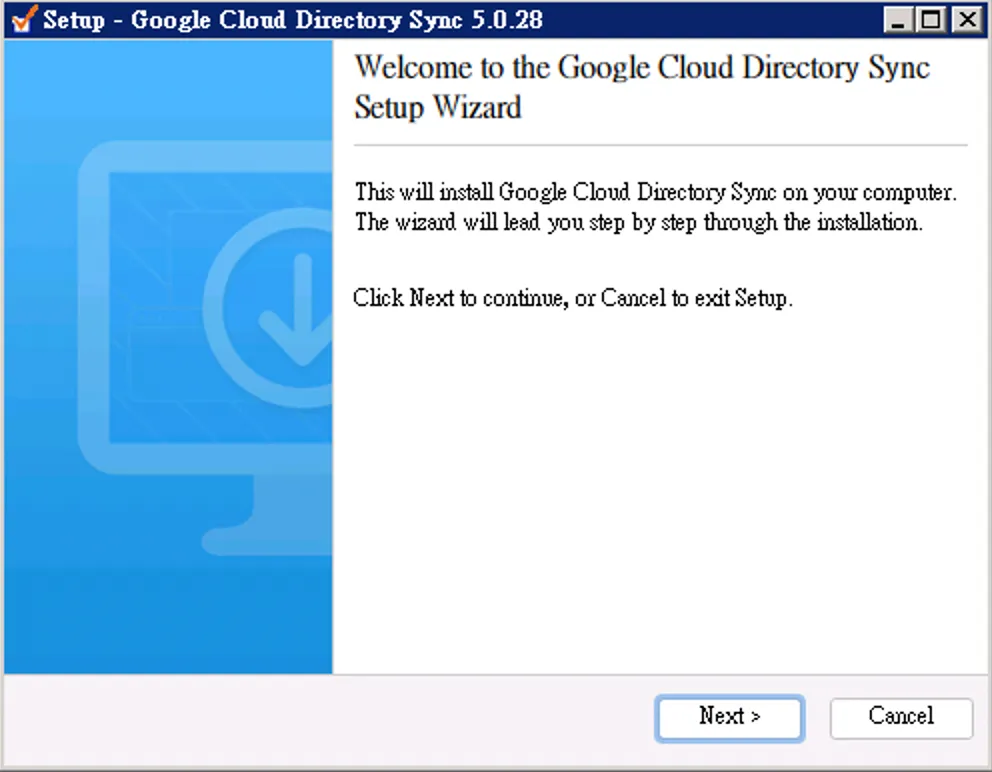
Click Next
Accept and continue
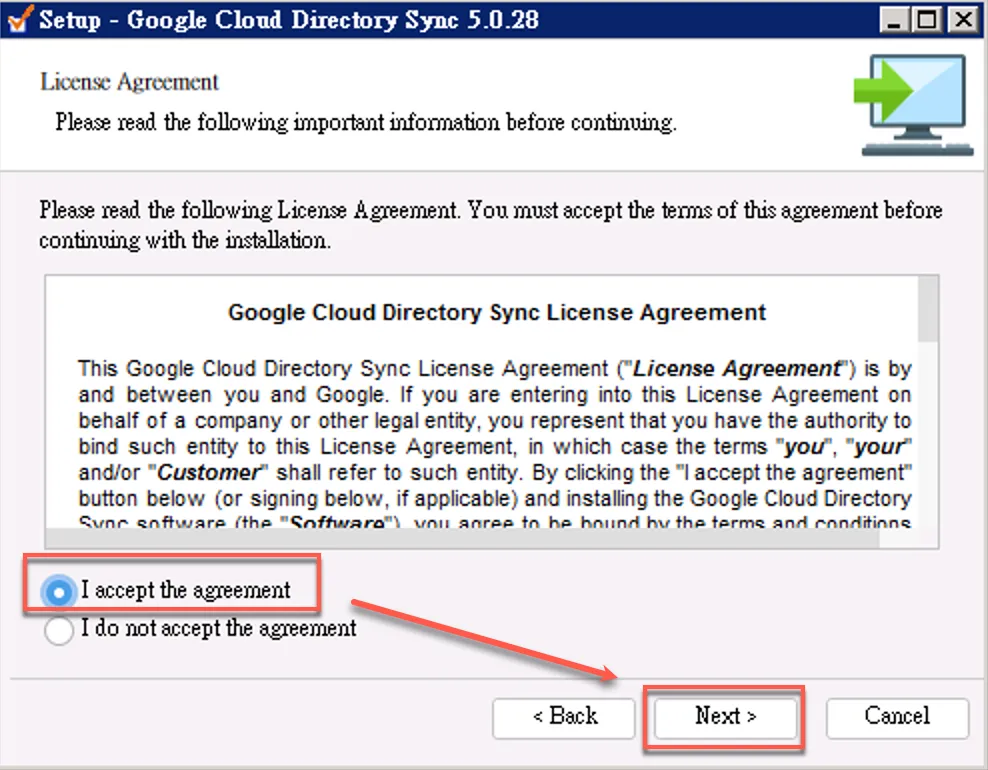
Click Next
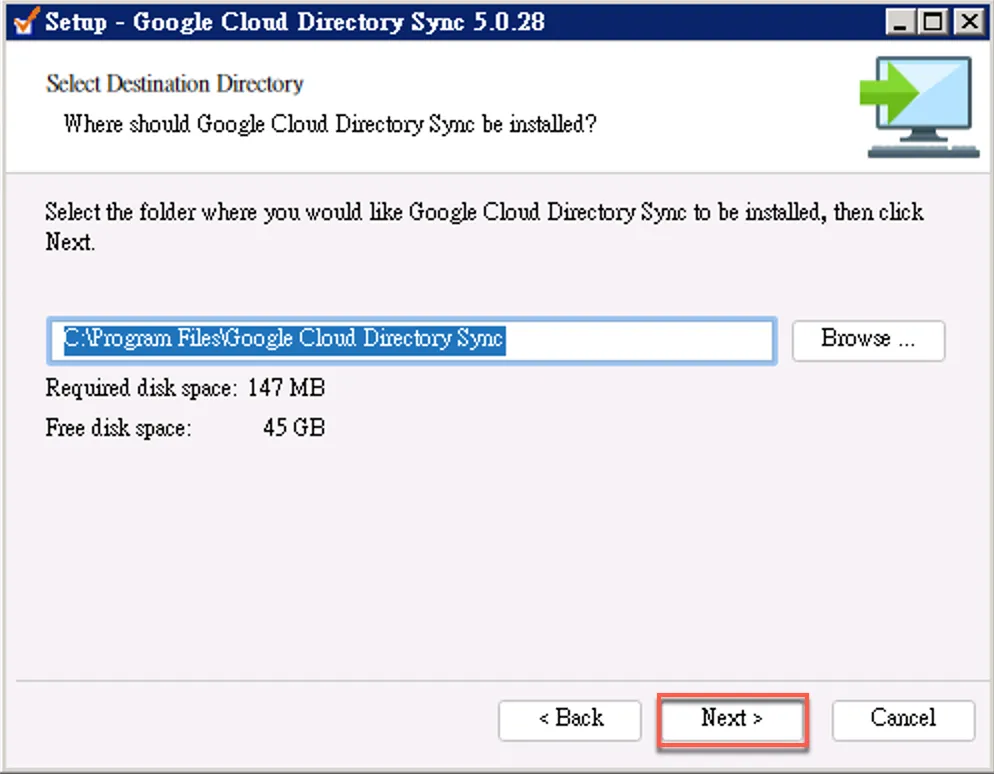
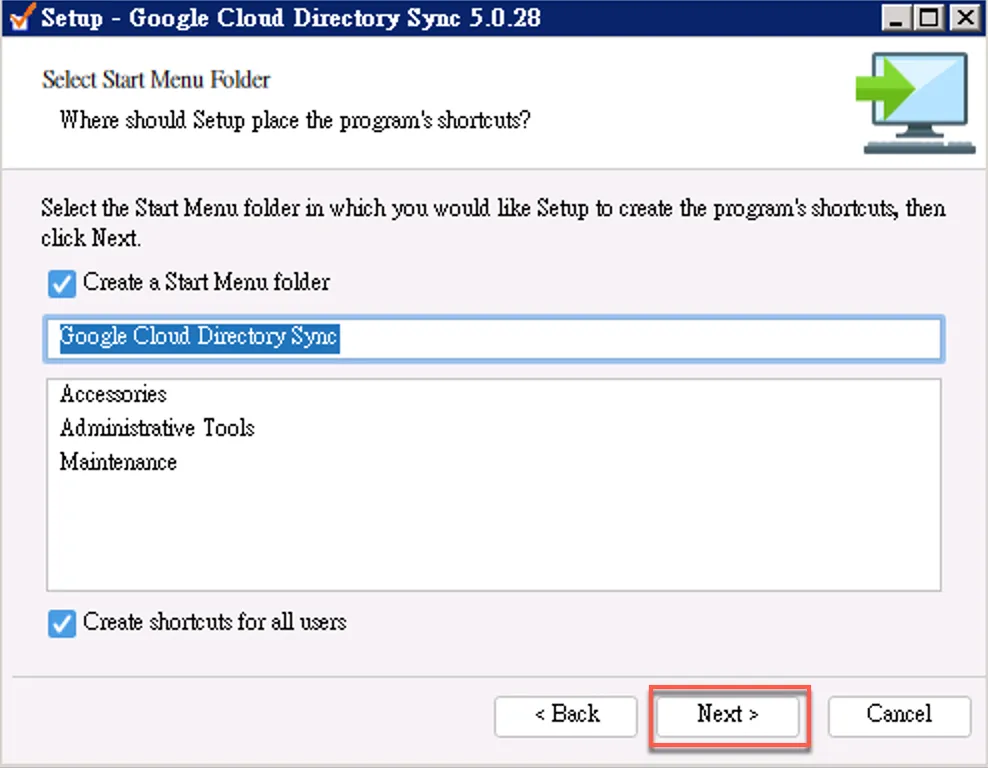
Click Next to start installation
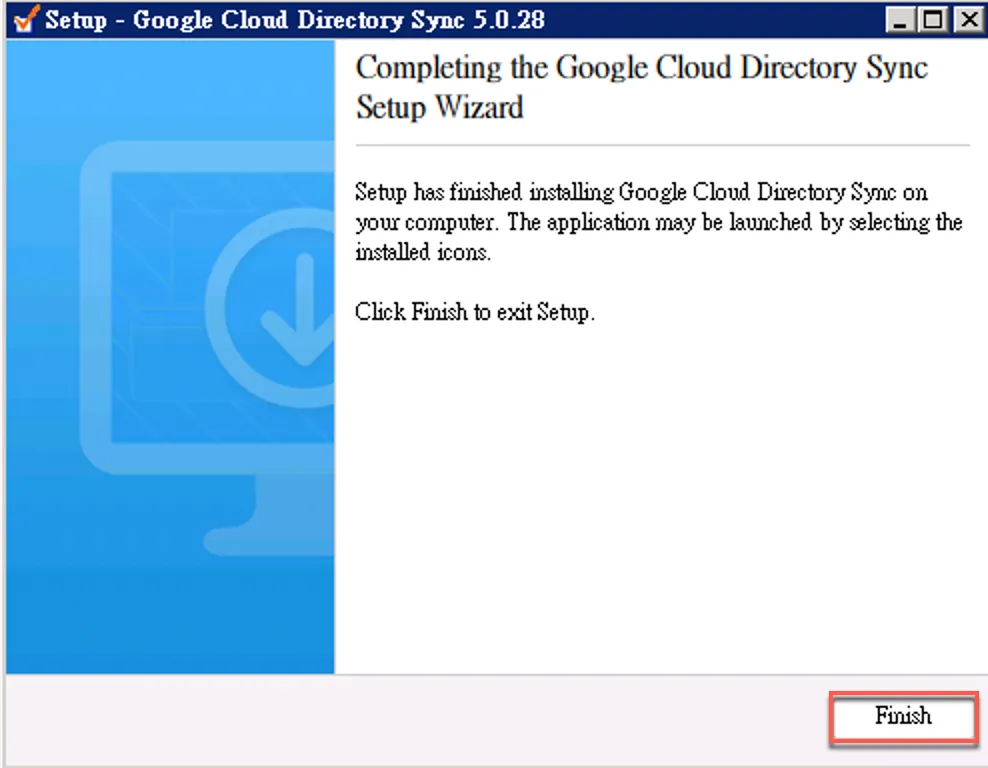
Installation complete
Use GCDS to Sync AD Accounts
Configure Google Domain Configuration
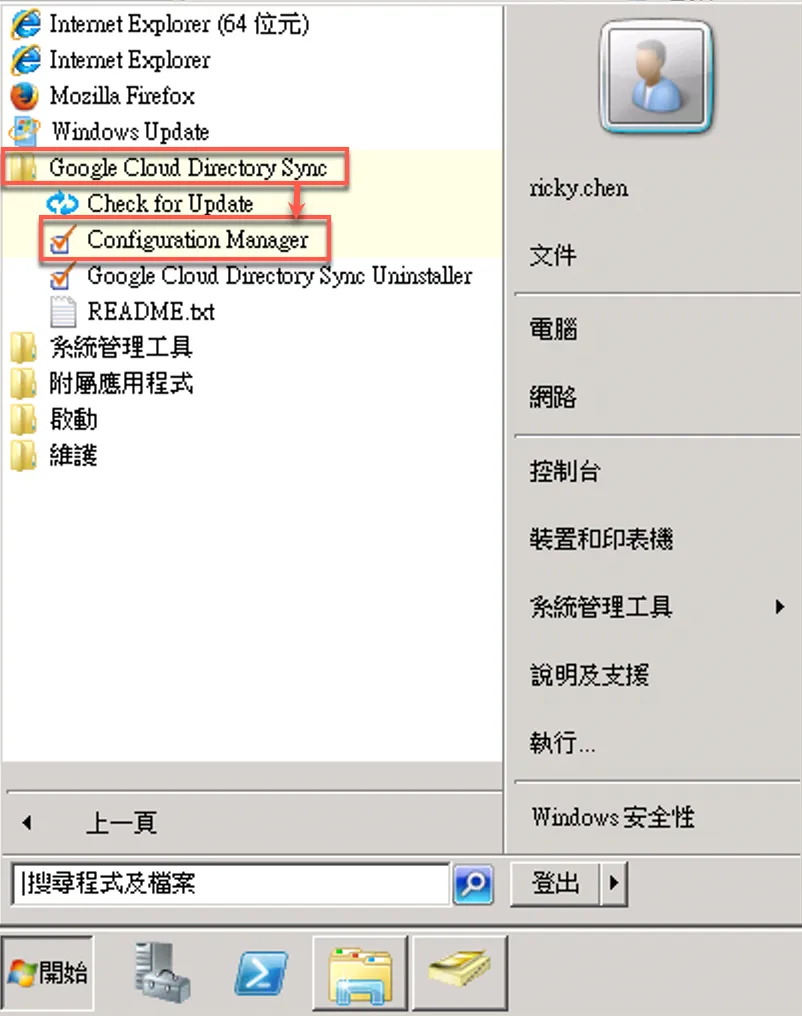
Open GCDS Configuration Manager
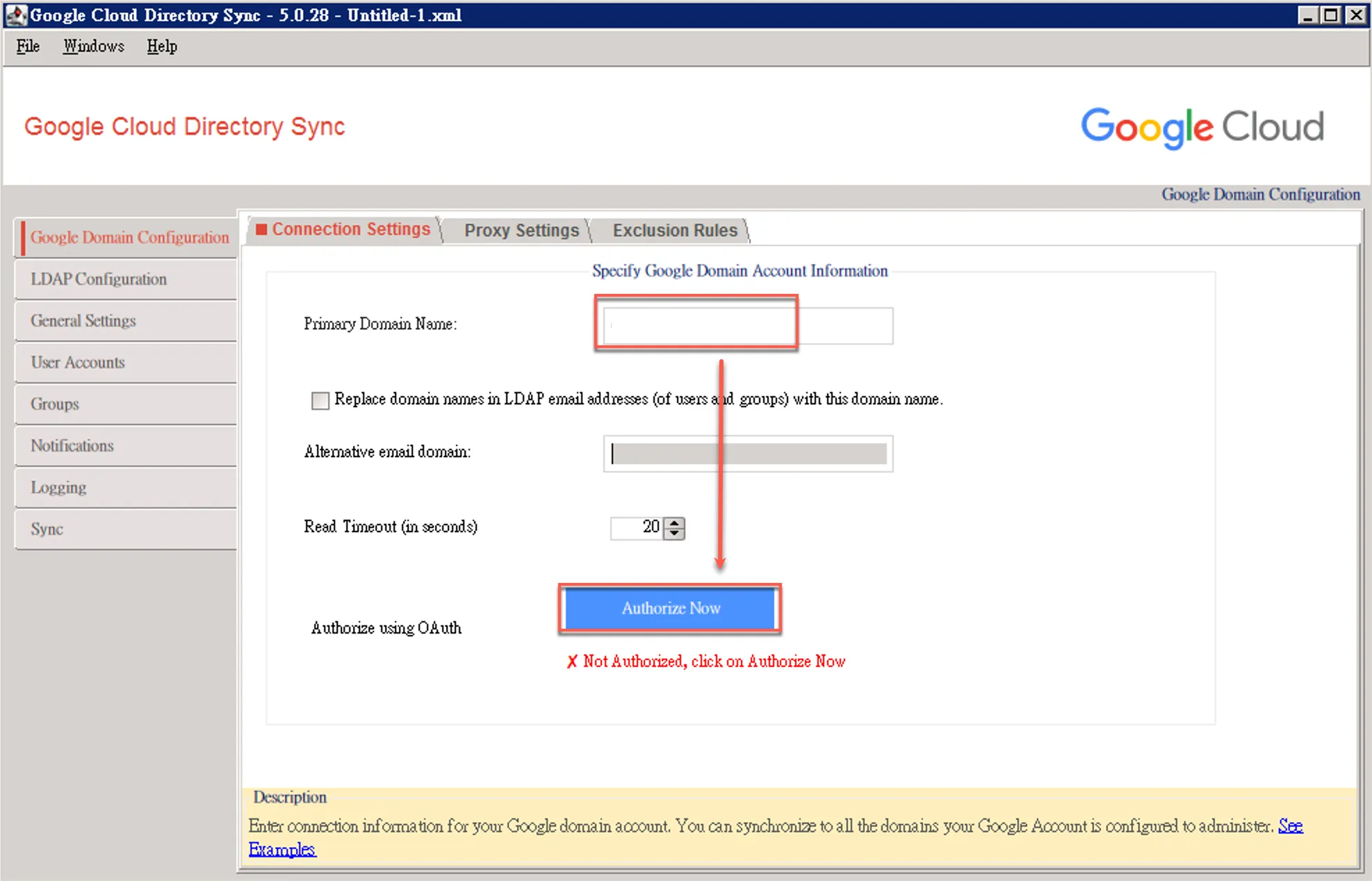
Enter GWS domain account and login to verify
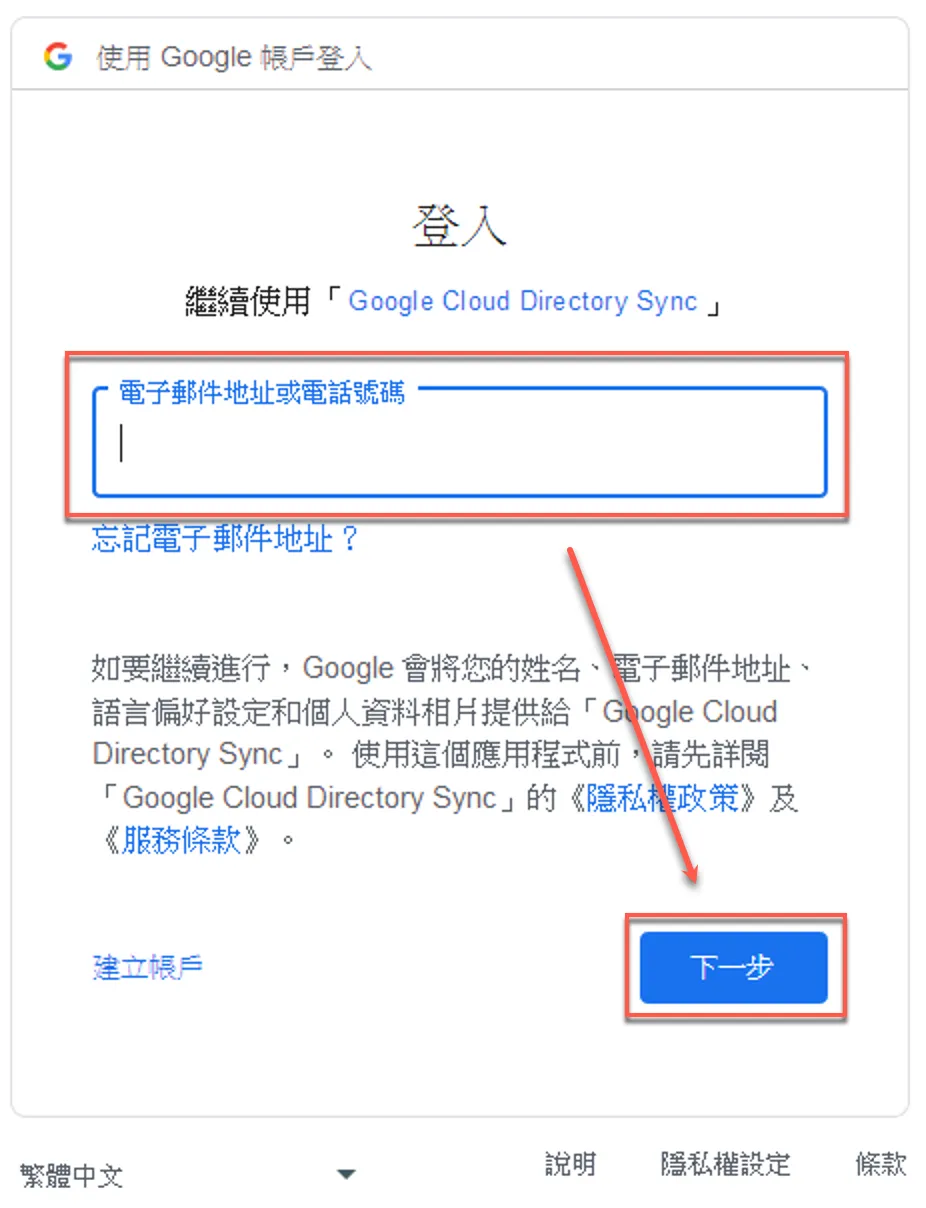
Enter GWS super admin account
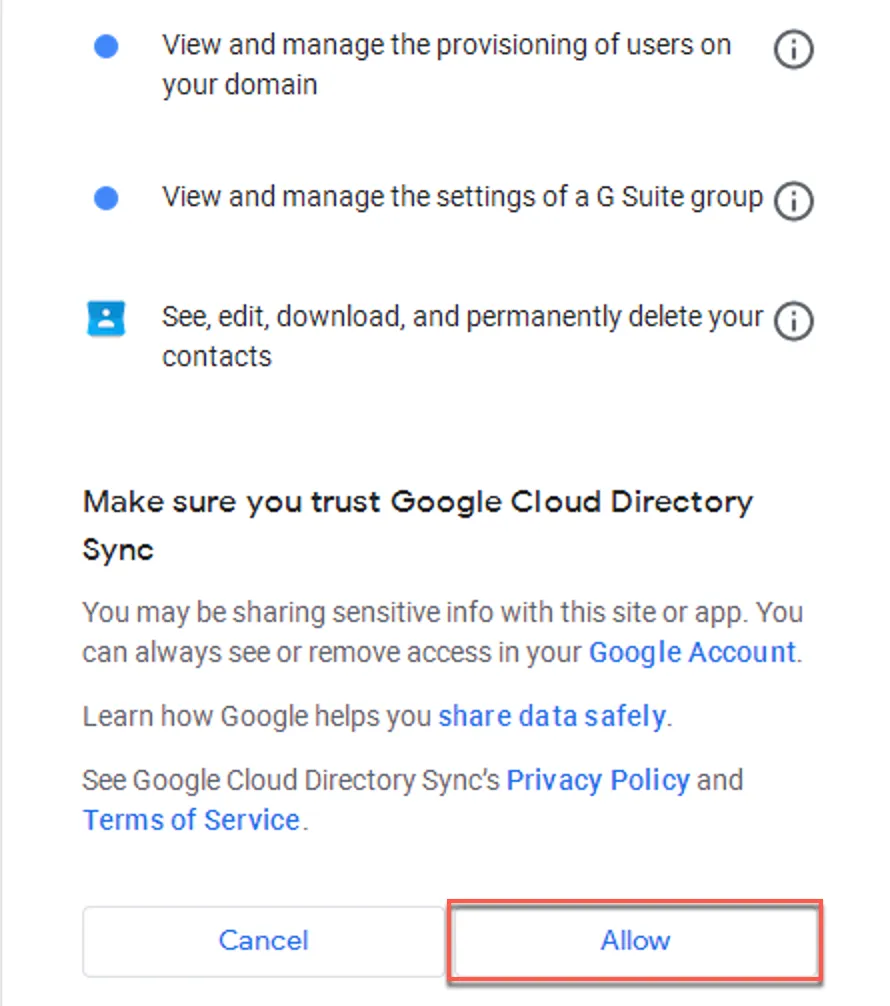
Allow relevant permissions
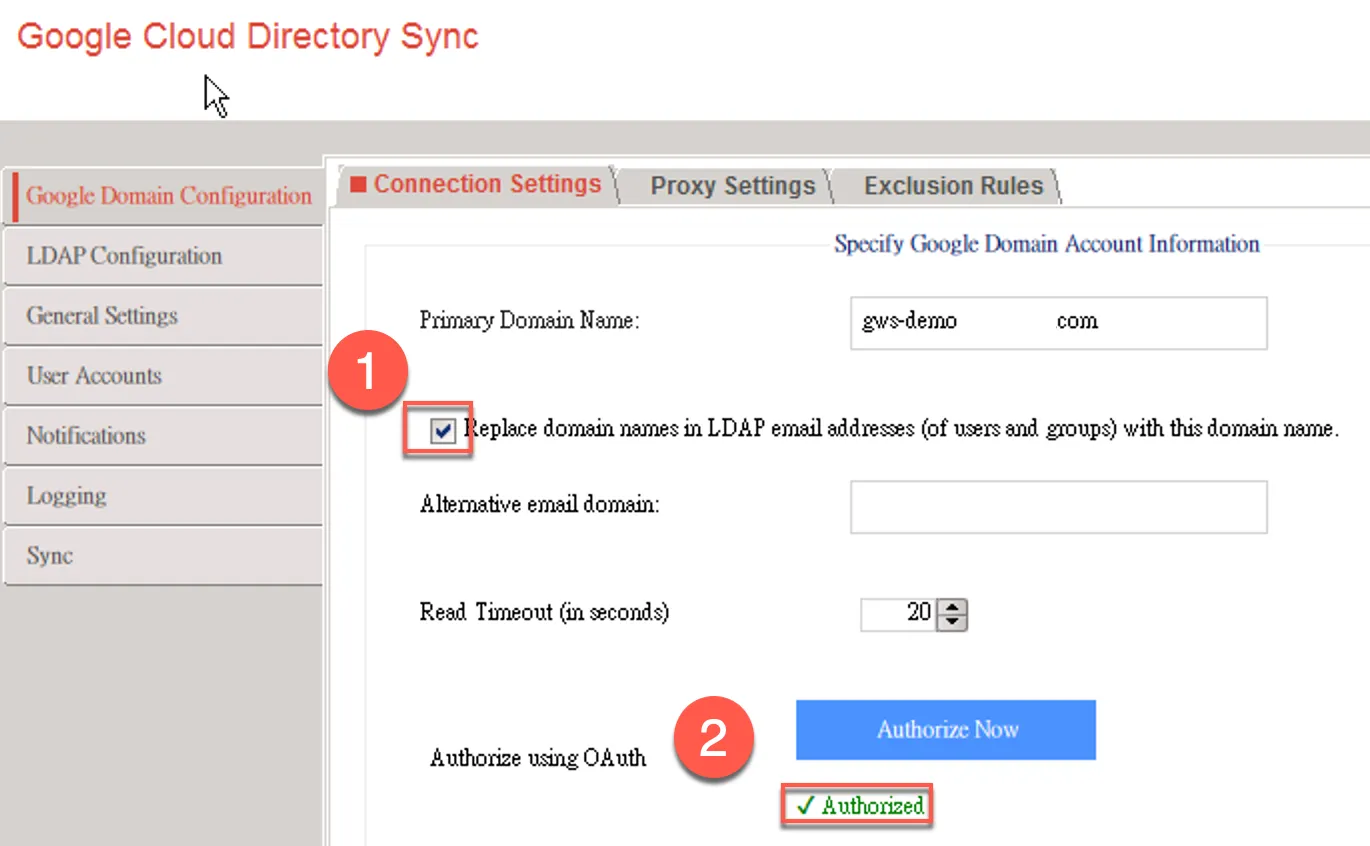
- Check to use Primary Domains Name as main when syncing, to avoid AD domain name syncing to GWS
- After successful verification, you’ll see the following screen
Set Excluded Accounts
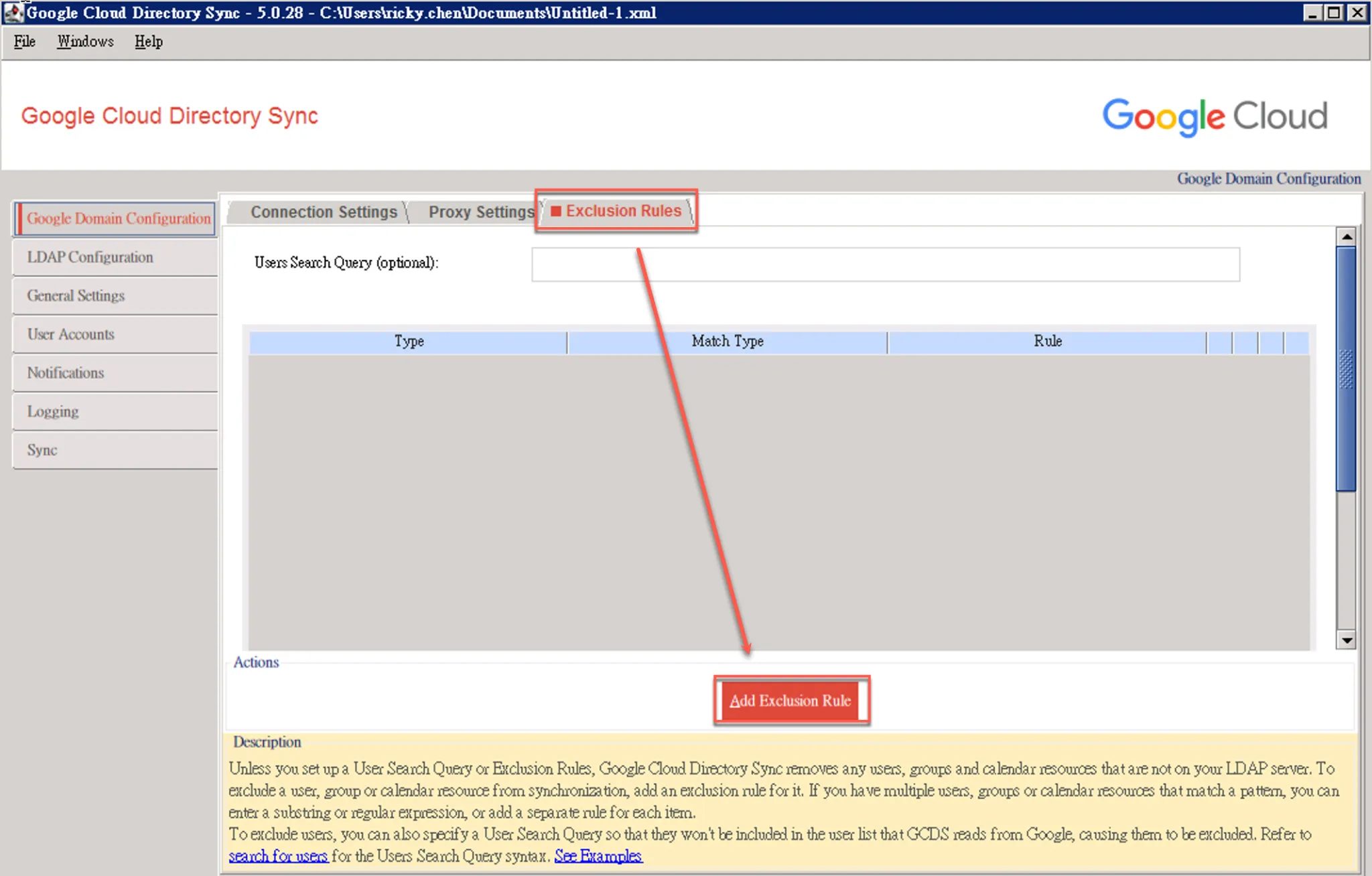
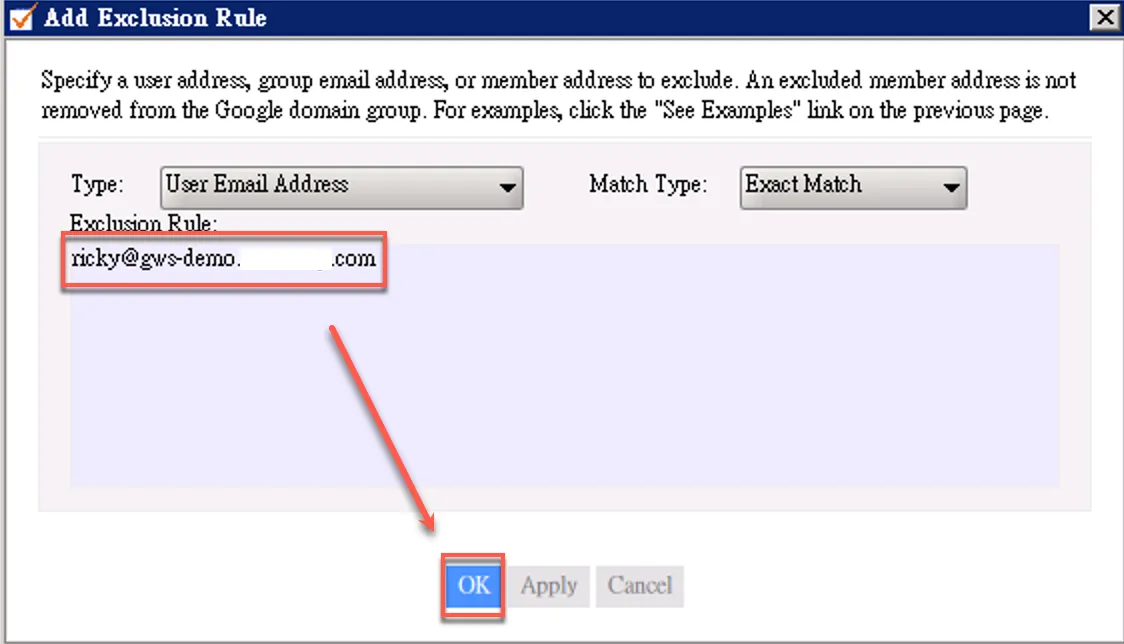
Add account exclusions, usually adding the superadmin account to avoid deactivation during sync
Add to exclusion list to prevent account closure during sync
Configure LDAP Configuration
Click LDAP Configuration
- Choose Standard LDAP
- Enter
127.0.0.1to use local AD - Choose simple
- Enter AD account password
- Enter LDAP DN, e.g., for example.com, enter
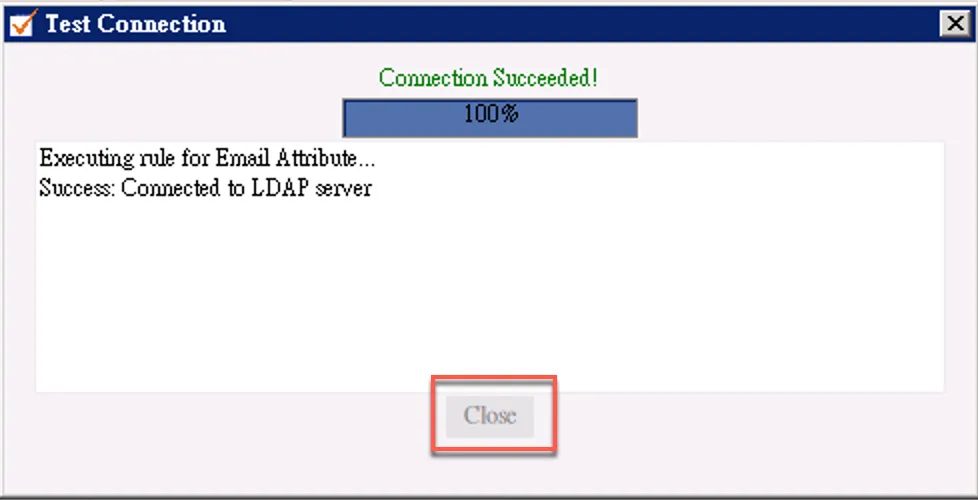
DC=example,DC=com - Test connection
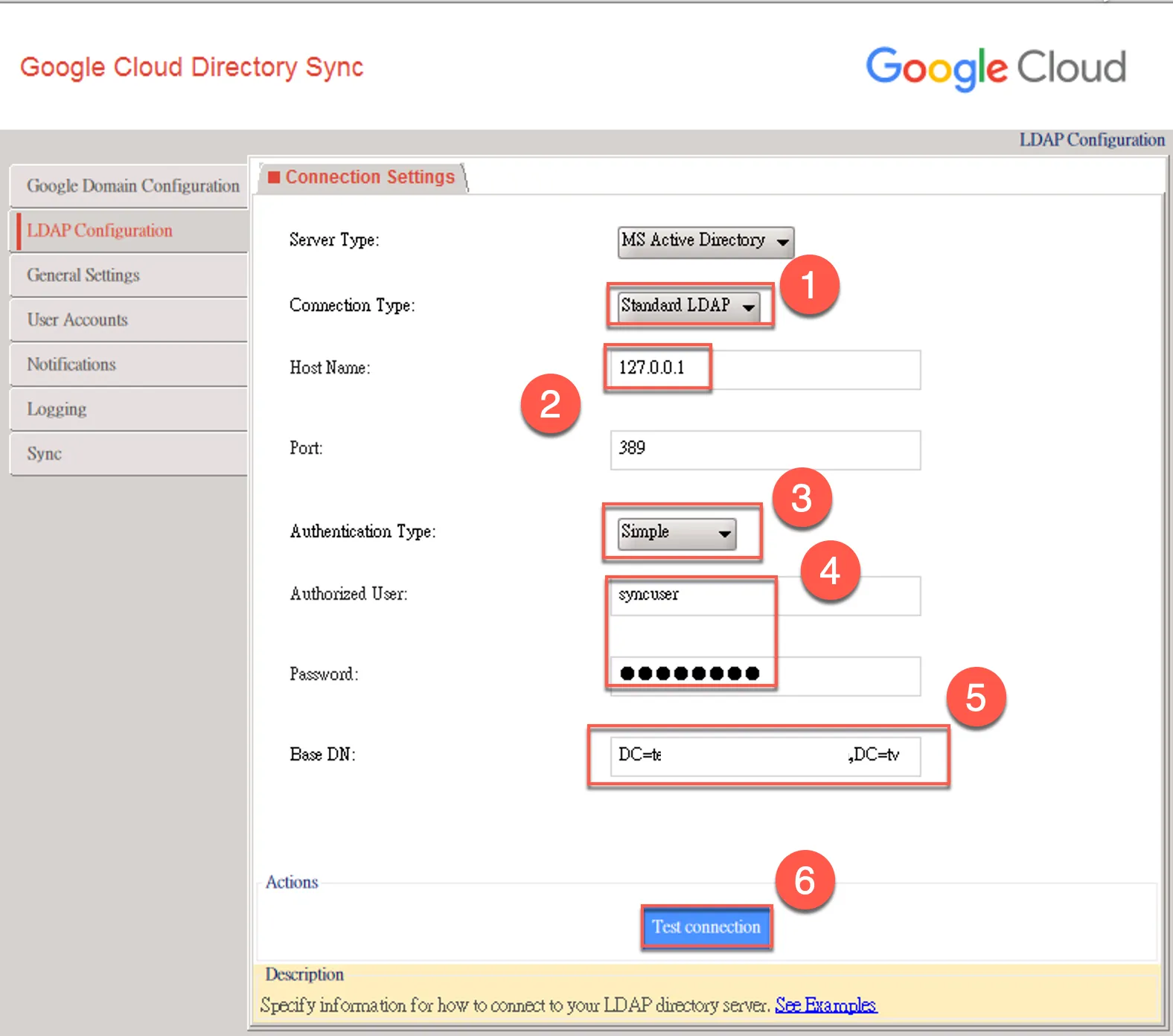
After successful test, you’ll see this screen
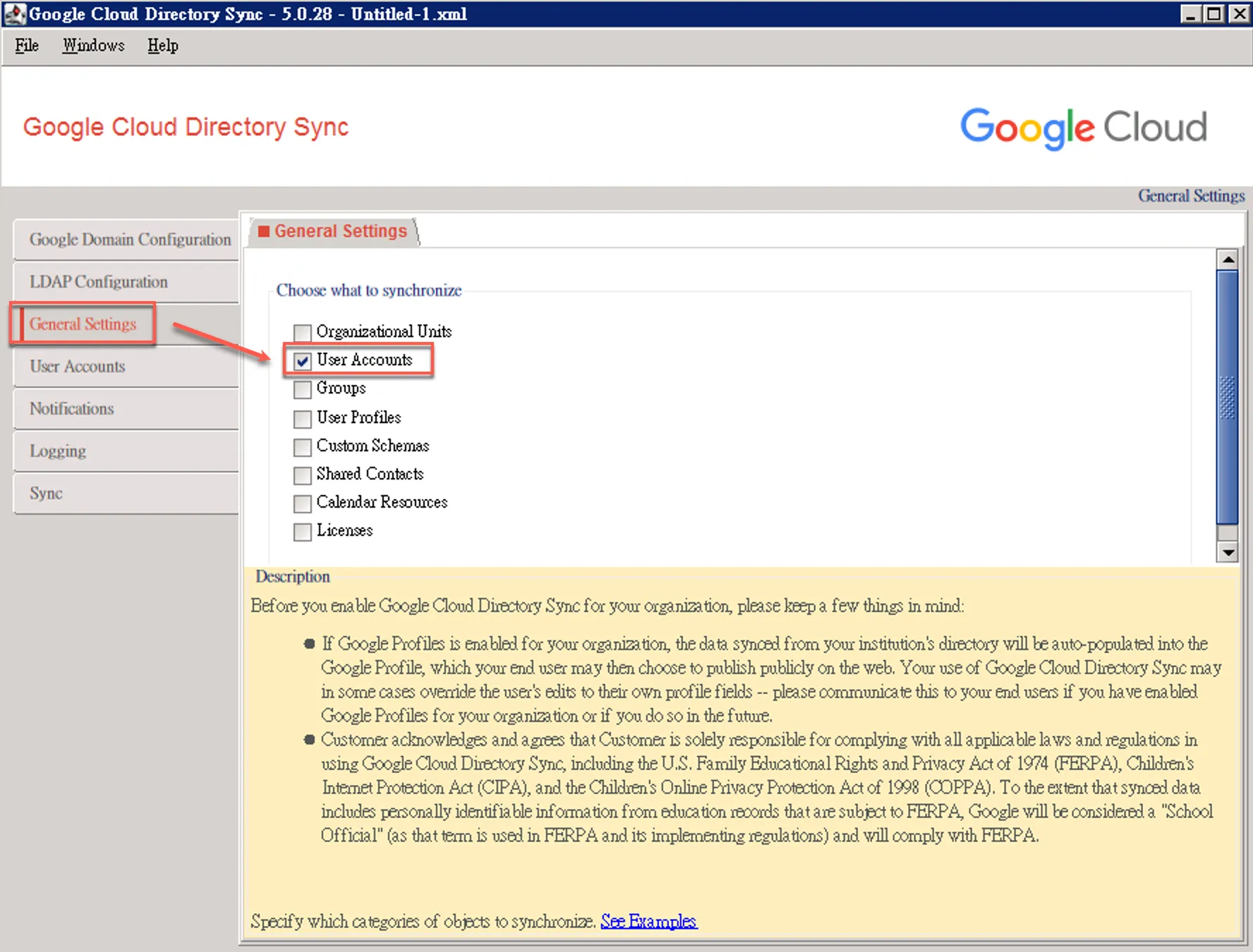
Configure General Settings
First, check User Accounts
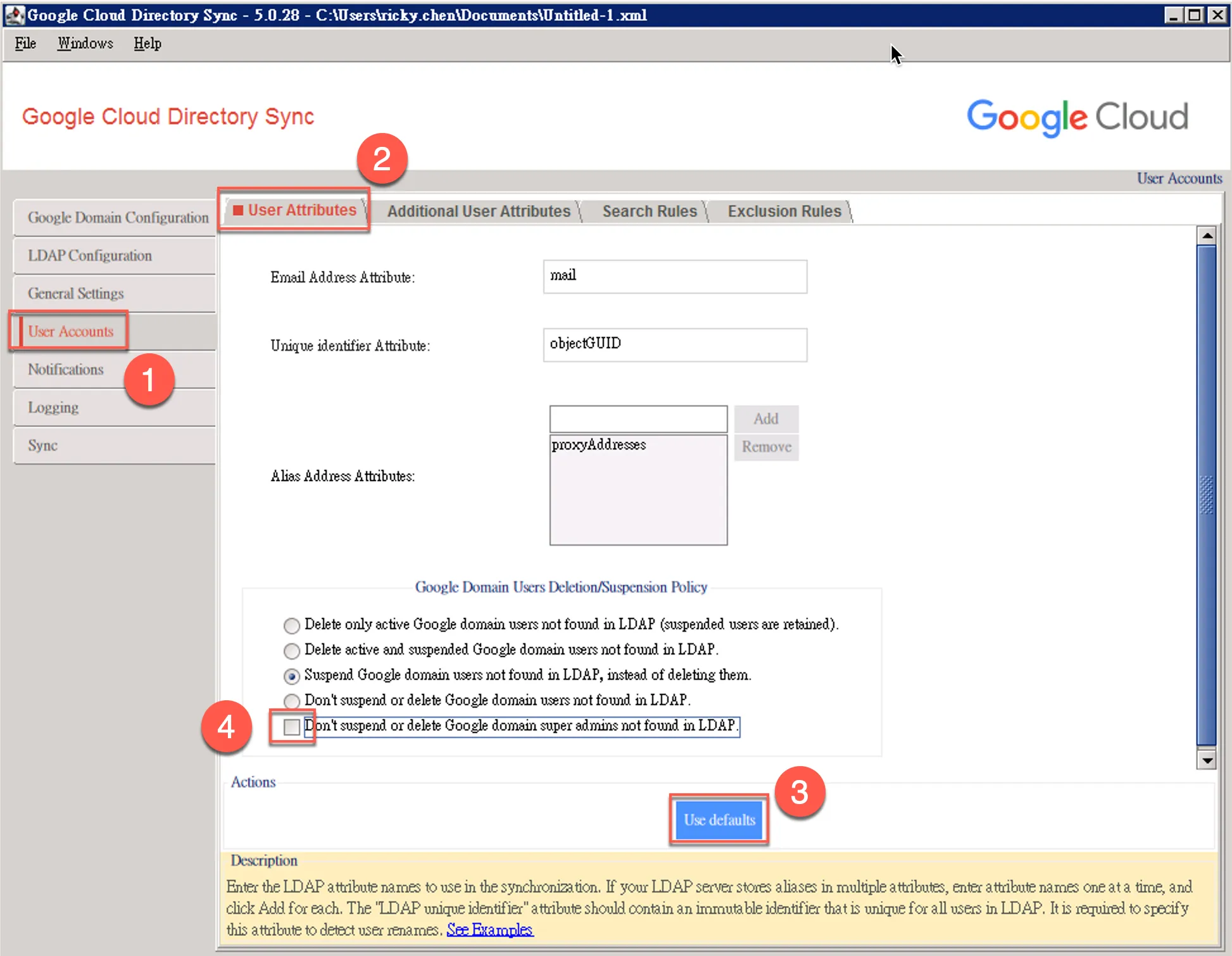
Configure User Accounts
User Attributes
- Click User Accounts
- Click User Attributes
- Click Use defaults
- Uncheck this item to disable GWS accounts if they don’t exist during AD sync
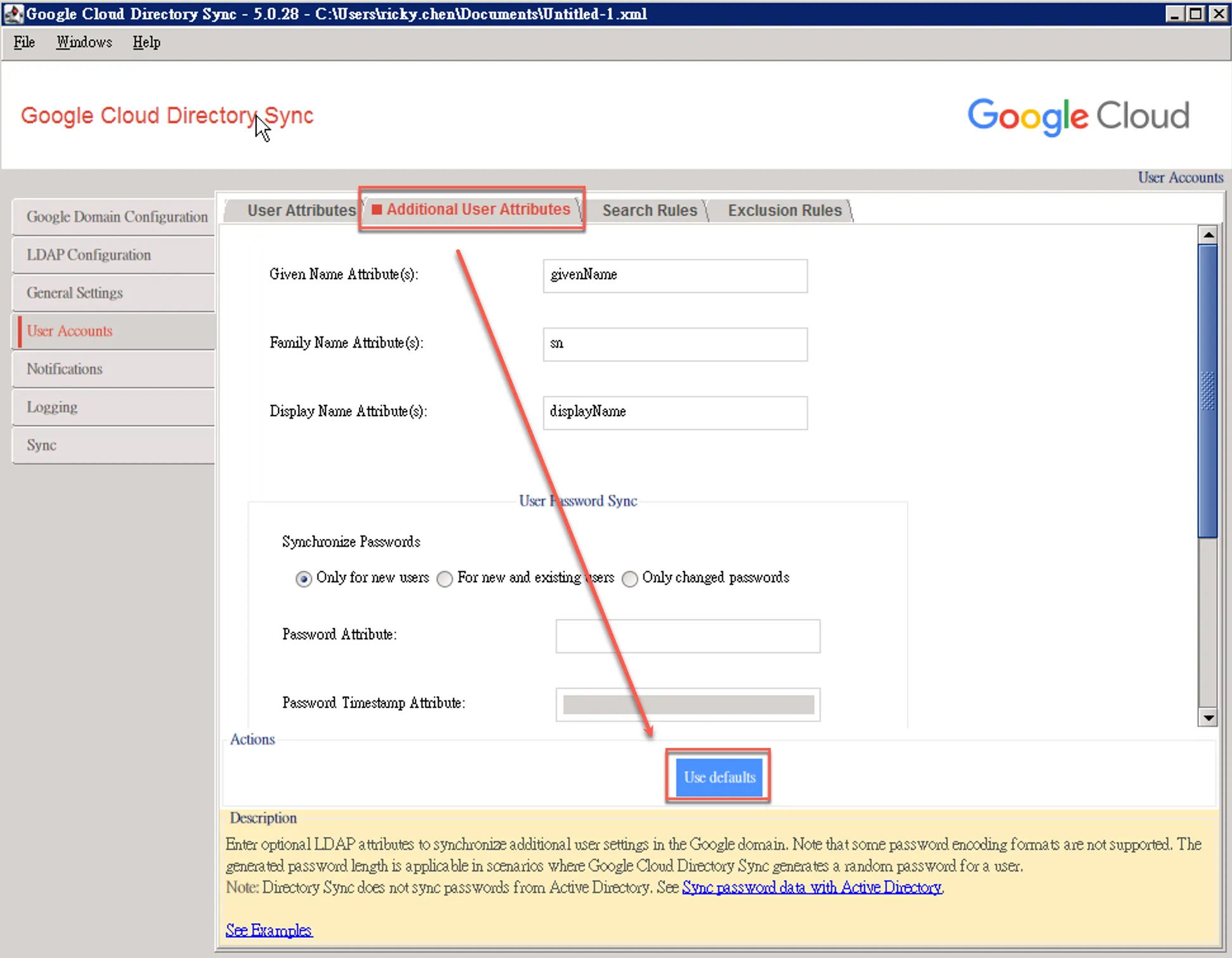
Additional User Attributes
Simply click Use defaults
Search Rules
- Click Search Rules
- Add condition
- Enter condition
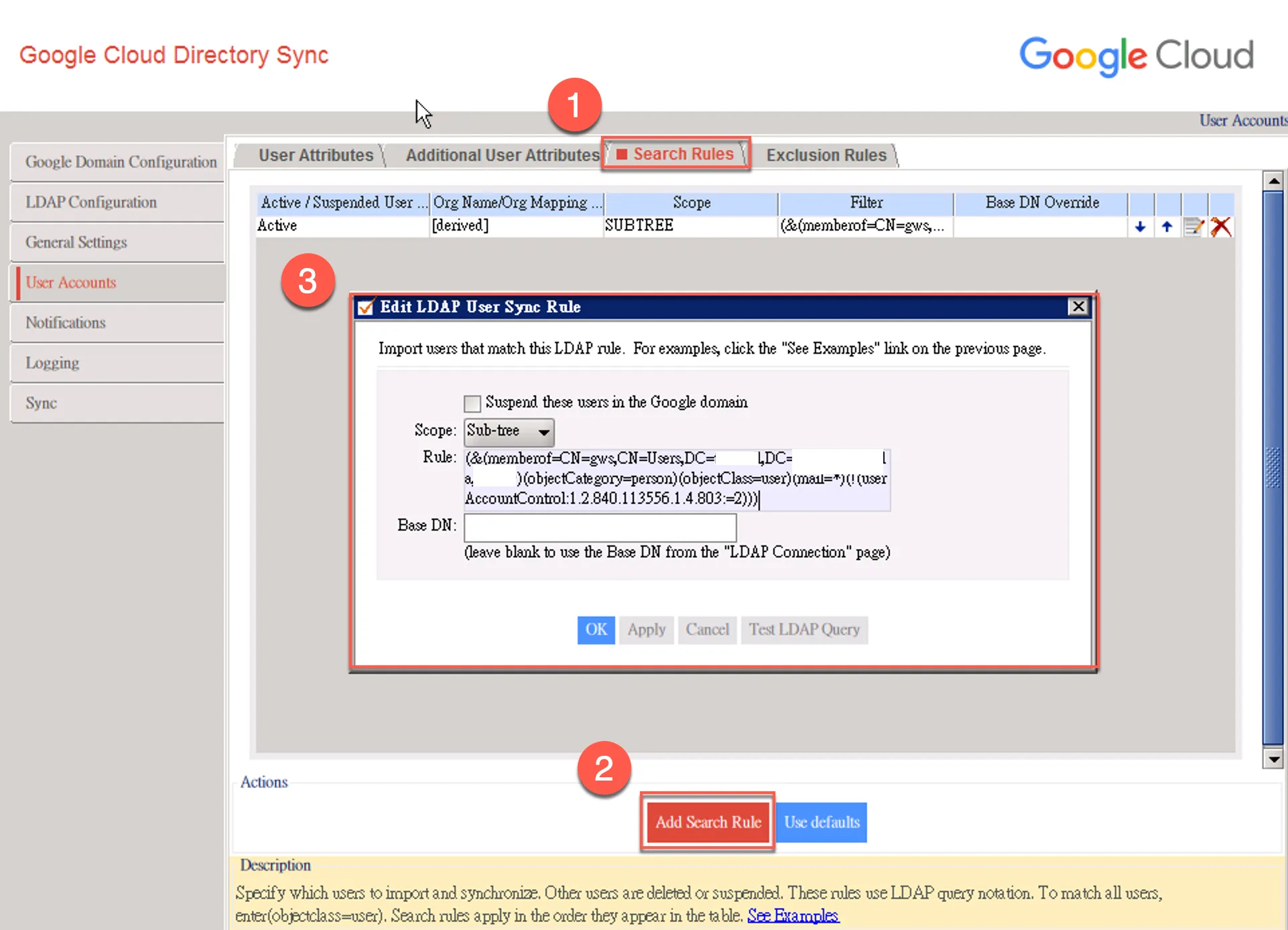
Sync Specific Groups
-
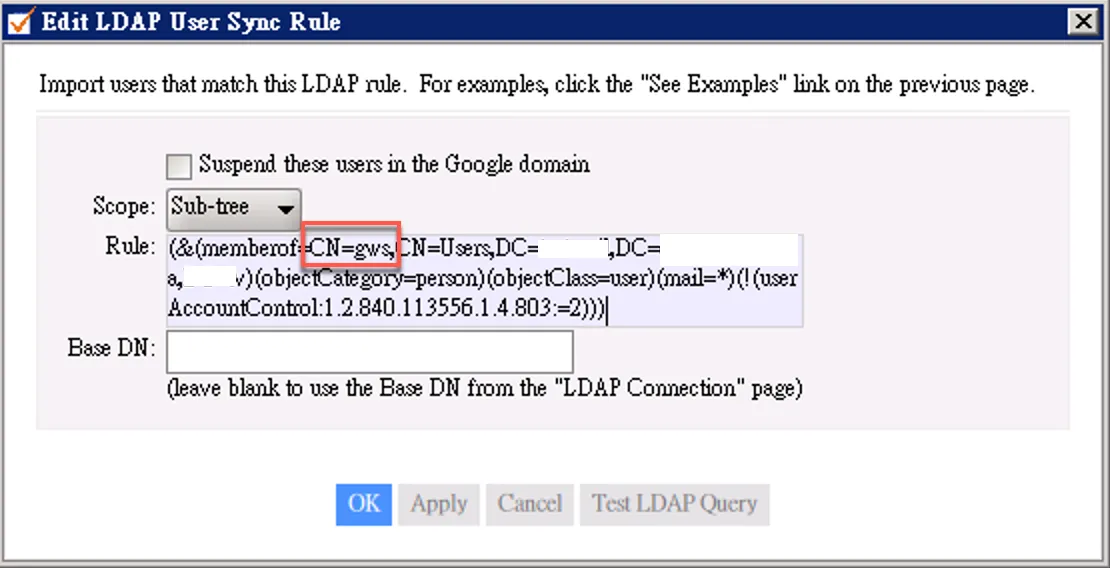
Can sync specific AD groups or users in specific OUs, this example syncs gws group users
-
Ensure the gws group exists in the AD Users folder and contains users
(&(memberof=CN=gws,CN=Users,DC=sub-domain,DC=domain,DC=ooo)(objectCategory=person)(objectClass=user)(mail=.)(!(userAccountControl:1.2.840.113556.1.4.803:=2)))
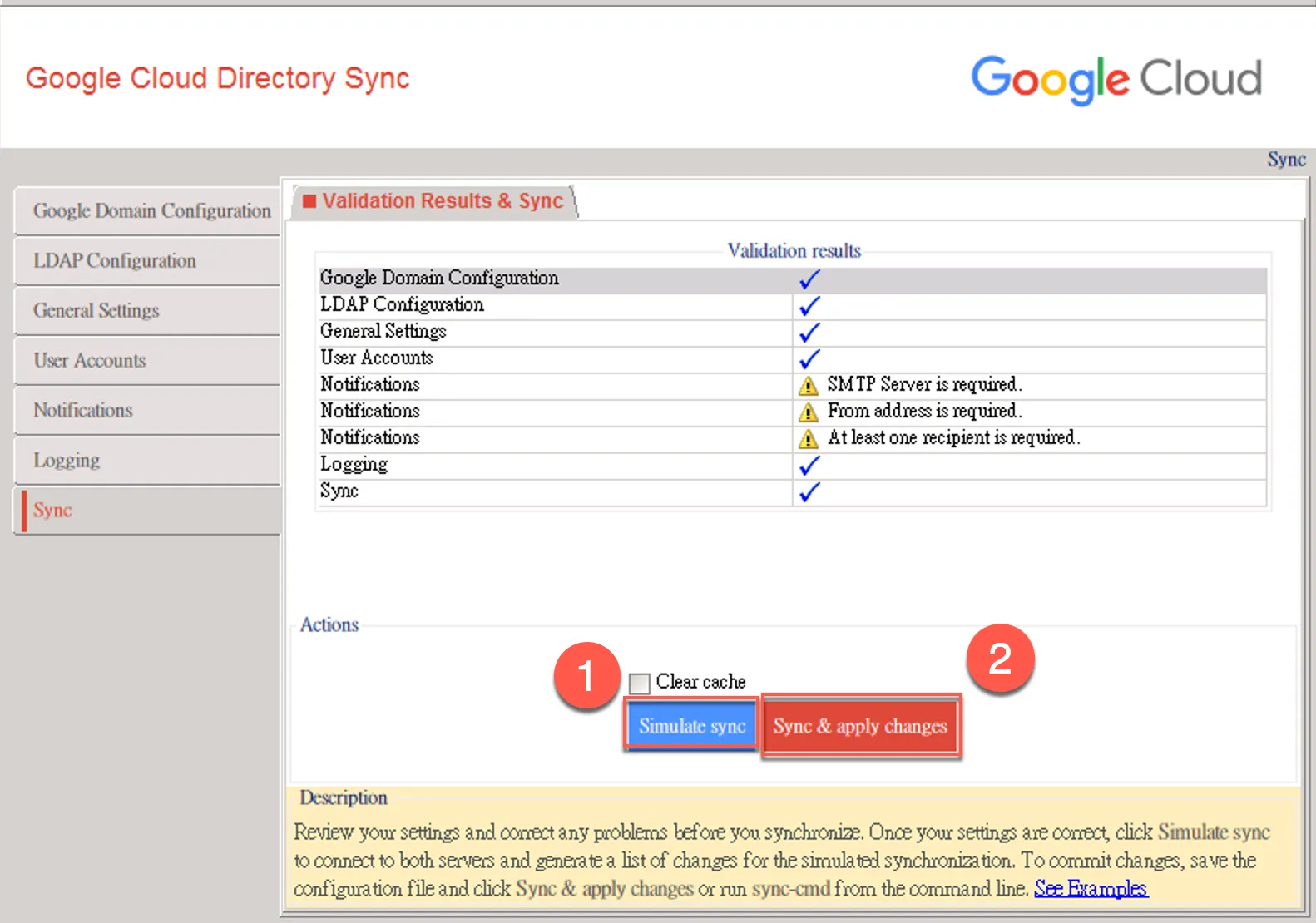
Configure Sync
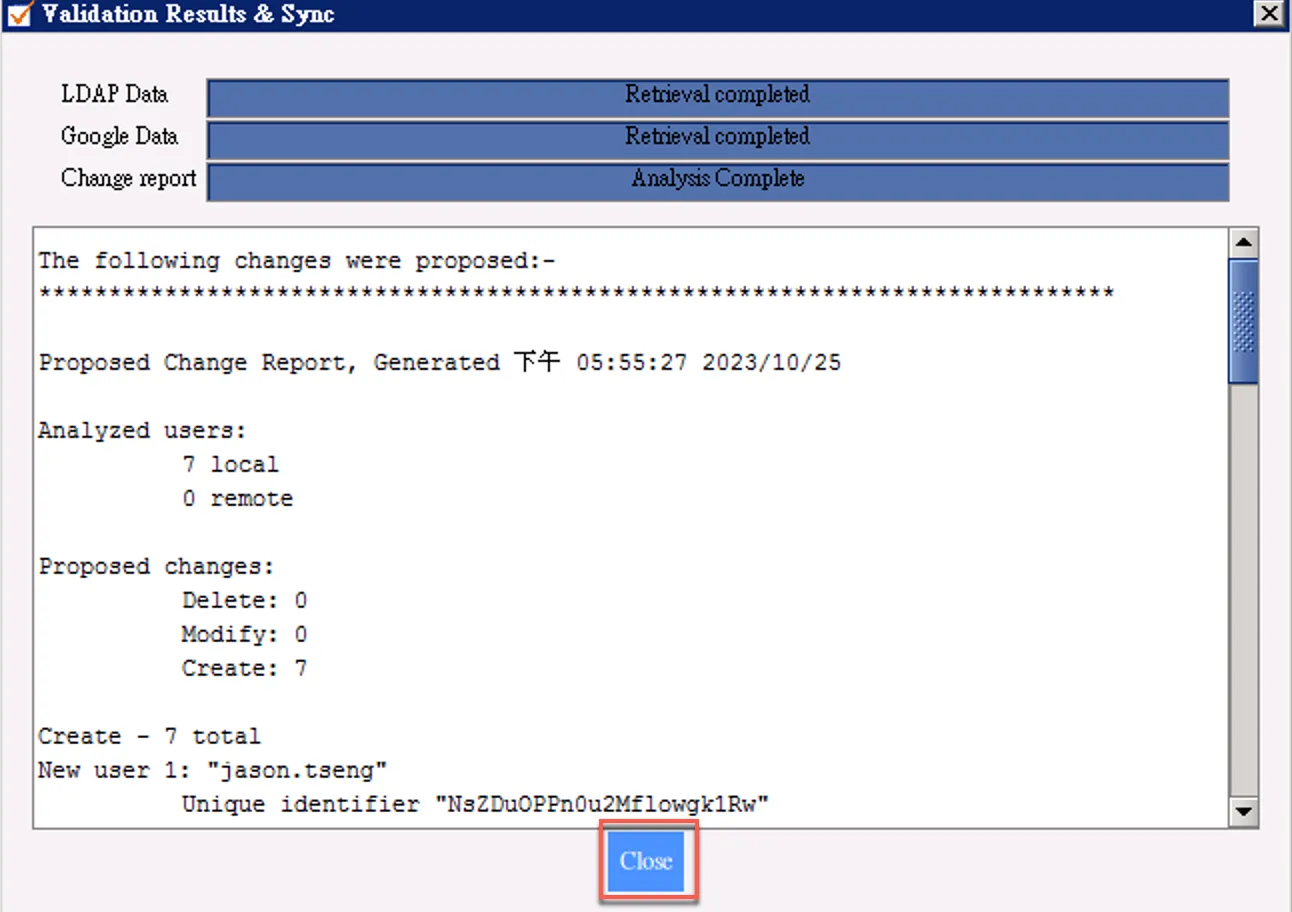
- You can first perform a simulation sync
- After confirming no issues, proceed with the actual sync
If the simulation looks good, you can close this window
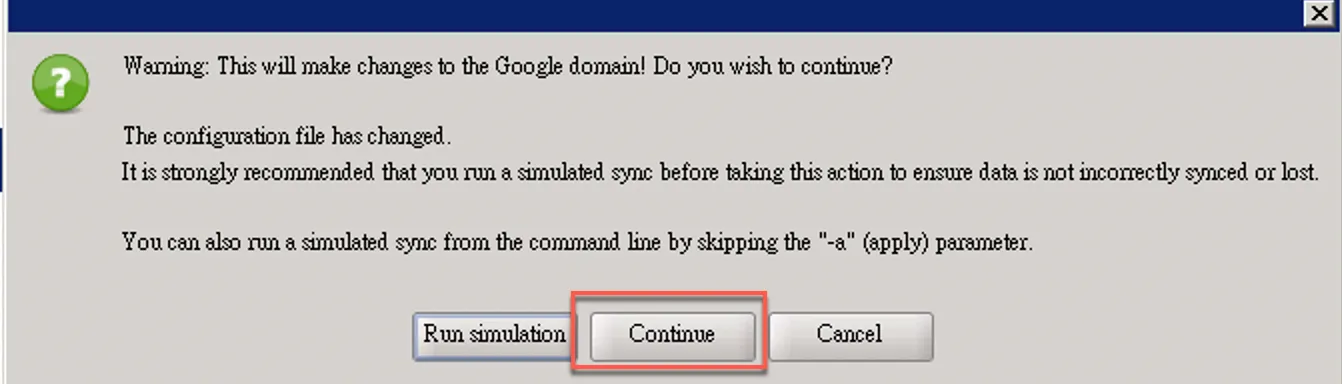
Click to start the actual sync, you’ll be asked to confirm, click continue
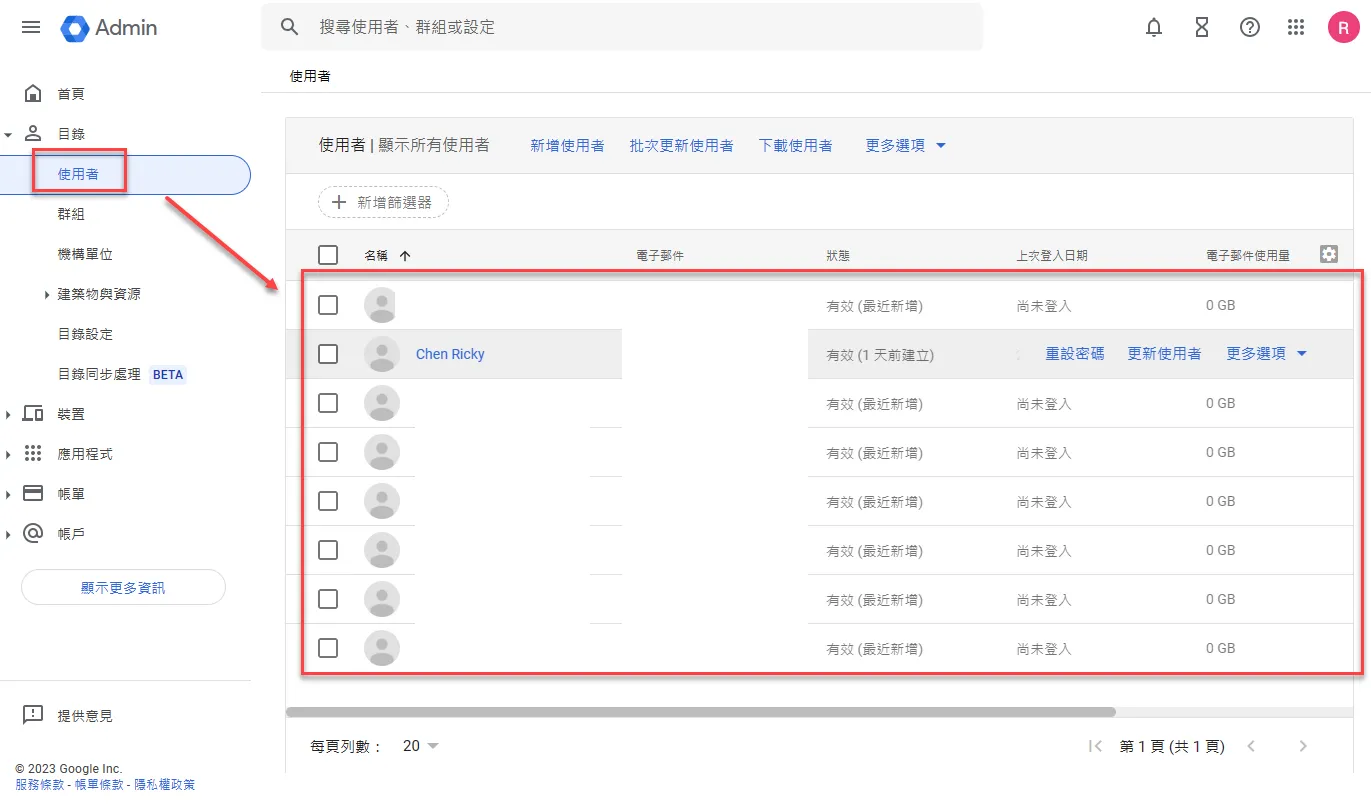
After completion, you’ll see GWS users synced
FAQ
Group Recursion
- Can you add other groups to an AD group to sync to GWS?
- No, it won’t retrieve users from subgroups, GCDS FAQ - Google Workspace Admin Help
Query AD Objects
You can open cmd and use the dsquery . command to query
LDAP Server & User Details | Greenview Data
Regular Sync
Run sync from the command line - Google Workspace Admin Help