Enable Private Google Access and CloudDNS
Purpose
Hosts or services within the internal network can directly connect to GCP services, such as GCS, without going through the public internet.
Scenario
- Create a VPC and enable Private Google Access (PGA)
- Create a
googleapis.comPrivate DNS Zone
Steps
Create VPC Network
Open CloudShell to perform the creation process
Set Environment Variables
1export NETWORK_NAME="wp-network"2export SUBNET_NAME="wp-network-asia-east1"3export PROJECT_ID="$DEVSHELL_PROJECT_ID"4export REGION="asia-east1"Create Custom VPC and Its Subnet
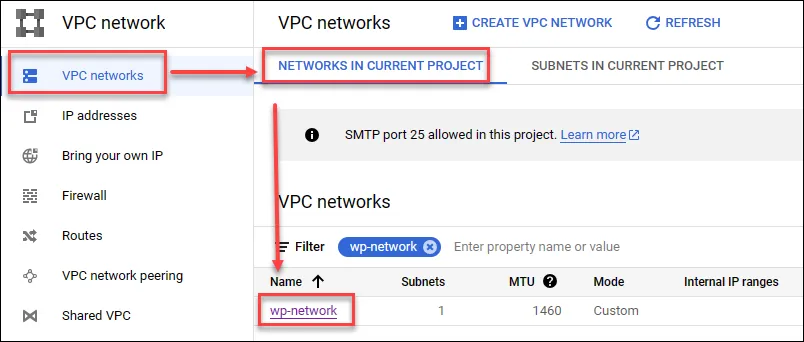
1# create network and allow-iap2gcloud compute networks create ${NETWORK_NAME} --subnet-mode custom3gcloud compute networks subnets create ${SUBNET_NAME} --network ${NETWORK_NAME} \4--region ${REGION} \5--range 10.1.0.0/166gcloud compute firewall-rules create allow-ssh \7--network ${NETWORK_NAME} \8--source-ranges 35.235.240.0/20 \9--allow tcp:22After creation, you can see the newly created VPC in VPC Network
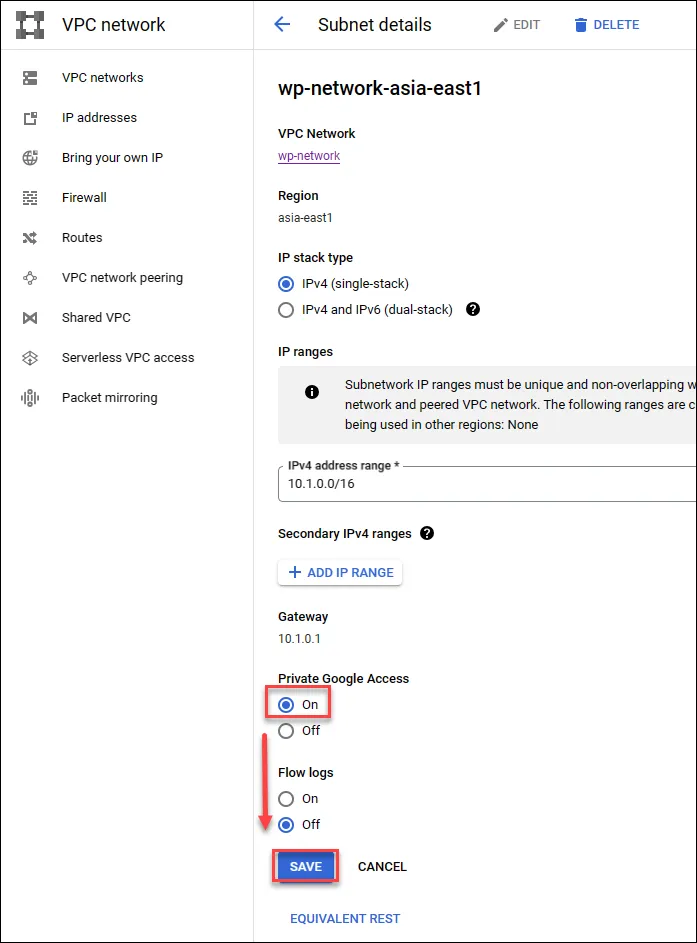
Enable PGA
Enabling PGA allows direct connection from the VPC internal network to GCP internal services, such as GCS, without going through the public internet
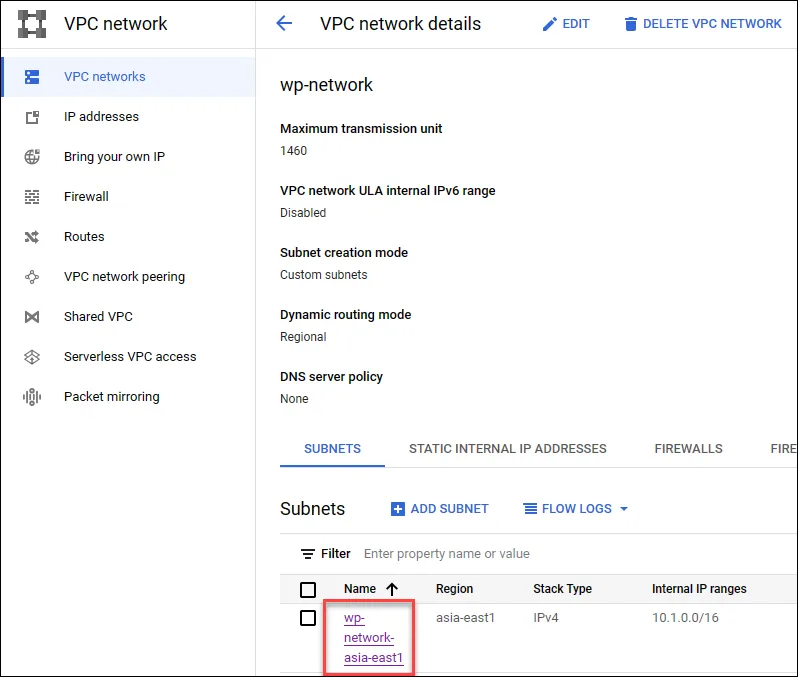
Click on the created subnet
Click Edit
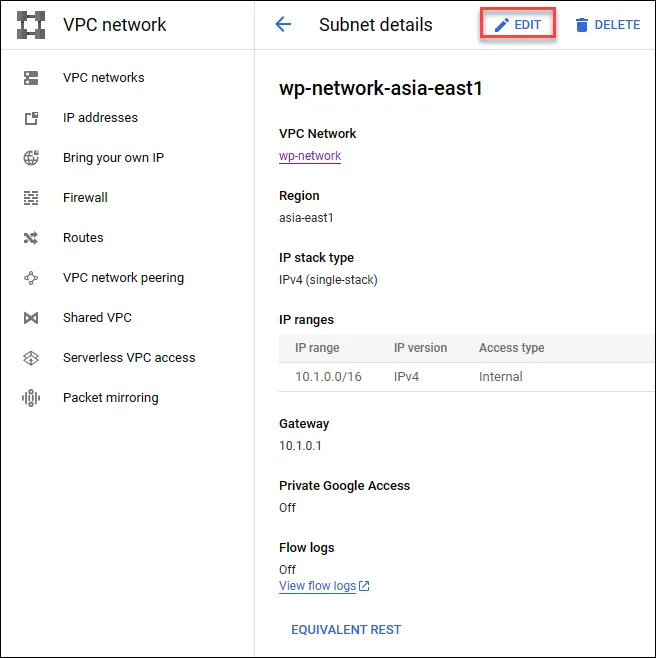
Enable PGA feature and save
Configure Private Cloud DNS
To ensure all traffic stays within the GCP internal network, in addition to enabling PGA, we’ll also add CloudDNS settings to route all GCP-related API traffic through GCP’s internal network, rather than using public IPs for connection.
Create a Private Zone in CloudDNS
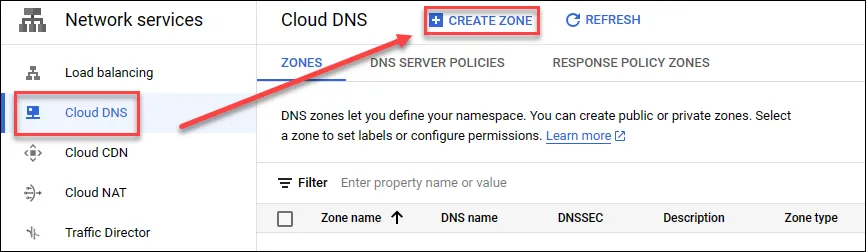
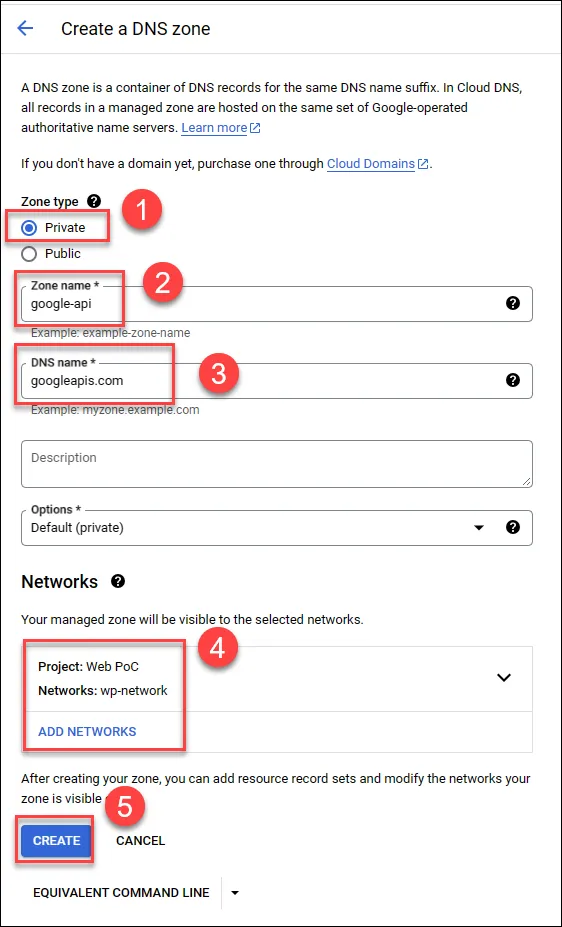
- Choose Private
- Enter a name
- Enter
googleapis.com - Select target VPC
- Create
Create records
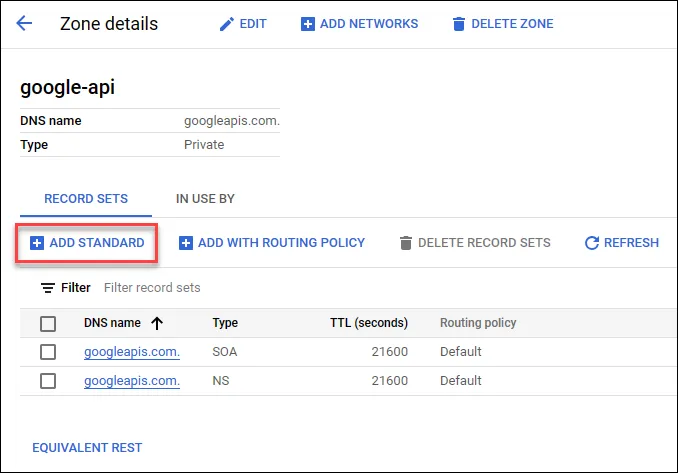
- Create private A record
- Enter IPs
199.36.153.8, 199.36.153.9, 199.36.153.10, 199.36.153.11 - Create
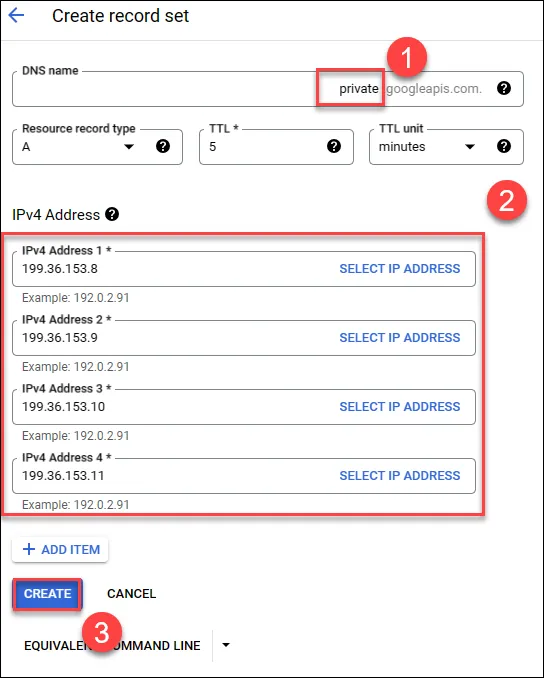
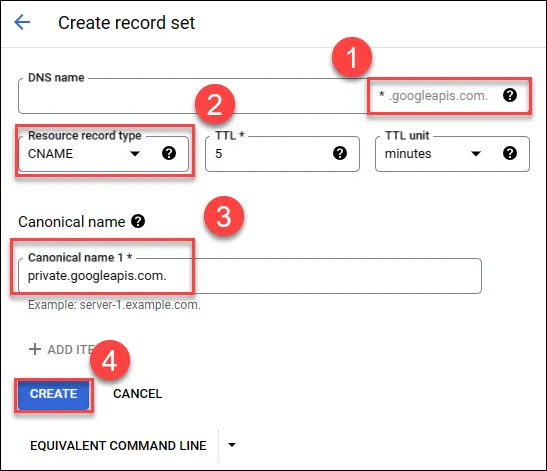
- Create
*record - Choose CNAME
- Point CNAME to
private.googleapis.com. - Create to complete