GCE Application Consistency Snapshot
Purpose
Using GCE Application consistency snapshot allows executing related scripts before and after creating snapshots.
Notes
- If no settings are configured, an error will occur. Therefore, it cannot be mixed with VMs that do not use the Application consistency feature.

- In the command
gcloud compute disks snapshot disk name --guest-flush, the--guest-flushoption is equivalent to checking theApplication consistencybox.
Operation Steps
- First, check if the operating system is supported, and install or update the agent. Then add the following configuration to /etc/default/instance_configs.cfg:
1[Snapshots]2enabled = true3timeout_in_seconds = 60 # 0-300 sec- Create configuration files
The filenames /etc/google/snapshots/pre.sh and /etc/google/snapshots/post.sh cannot be changed. They represent the commands and tasks to be executed before and after the snapshot, respectively. Generally, you can use commands like sync to synchronize disk writes.
1mkdir -p /etc/google/snapshots/2echo '#!/bin/bash3DATE=`date`4echo "${DATE} start"' >> /tmp/snapshot.log' > /etc/google/snapshots/pre.sh5
6echo '#!/bin/bash7DATE=`date`8echo "${DATE} finish"' >> /tmp/snapshot.log' > /etc/google/snapshots/post.sh- Set execution permissions. Without setting permissions, snapshots will not be possible.
1chmod +x /etc/google/snapshots/pre.sh2chmod +x /etc/google/snapshots/post.shIf the script is not given execution permissions, the following error will occur:

- Restart the service
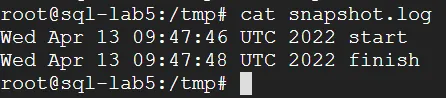
1sudo systemctl restart google-guest-agent.service- After executing the snapshot, you can see the script execution status