CloudBuild GKE Autopilot Private Cluster on Original VPC
此方法為使用既有 GKE cluster VPC 與 Cloud Build Private Pool 共用同 VPC 進行實作 ,也就是下圖兩個紅框使用同一個 VPC。
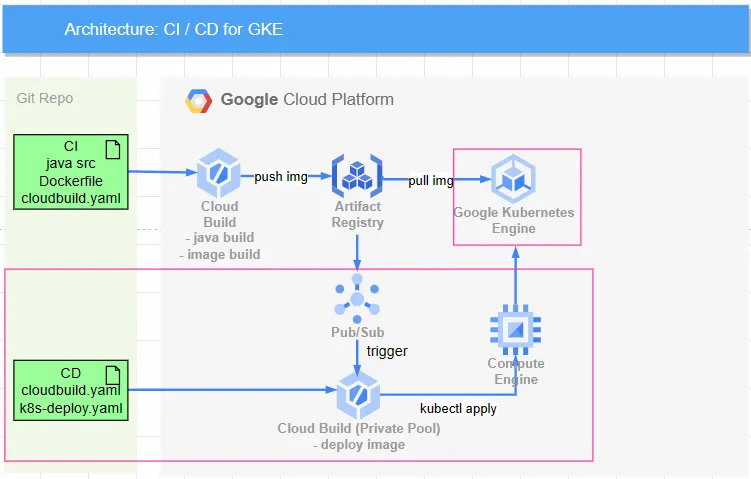
Scenario
- 實作部分,與 CloudBuild GKE Autopilot Private Cluster on New VPC 相同,直到後半建立 CloudBuild Private Pool 部分才會有所不同。
流程與說明
- 建立 VPC 網路並開啟 Subnet PGA 與 NAT Gateway,而 GKE 內的 pod 對外網路,也會透過 NAT Gateway 連外
- 建立 GKE autopilot Private Cluster
- (Optional) 使用 GCE 作為跳板,service account 需具備 Kubernetes Engine Developer 權限,才能取得 GKE credential
- 建立 Artifact Registry,讓 GKE Private Cluster 能夠透過 PGA 進行直連
- 建立 CloudBuild 專用 VPC 網路 (上圖紅框處) 與所需 route
- 建立 Cloud Build 並使用 Private Pool 確保資料流在 private network 與固定 ip 中,因此需建立一台獨立 VM 作為 CloudBuild -> GKE 之跳板
- 流程會變成
CloudBuild 連接至 internal ip->VM (static internal ip & static public ip)->GKE(public ip) - CloudBuild 建立 private pool 時不可勾選對外 ip,確保流量在 VPC 內,但相對就無法連到外網,因此如有安裝套件相關作業,建議分開 private pool 執行
- 流程會變成
- 保留以下兩個網段不被任何服務所使用
- CloudBuild 保留
192.168.10.0/24 - Docker bridge 保留
172.17.0.0/16(GCP 務必避開使用此網段)
執行步驟
建立 GKE VPC、 建立 Artifact Registry、建立 GKE autopilot Private Cluster、與 (Optional) 建立跳板 VM 與 CloudBuild GKE Autopilot Private Cluster on New VPC 相同
建立 CloudBuild
設定 Cloud Build 網路環境
建立 PSA
此處就使用原本的 VPC 不用建立新的,但仍須建立 PSA,開啟 VPC 建立 IP RANGE
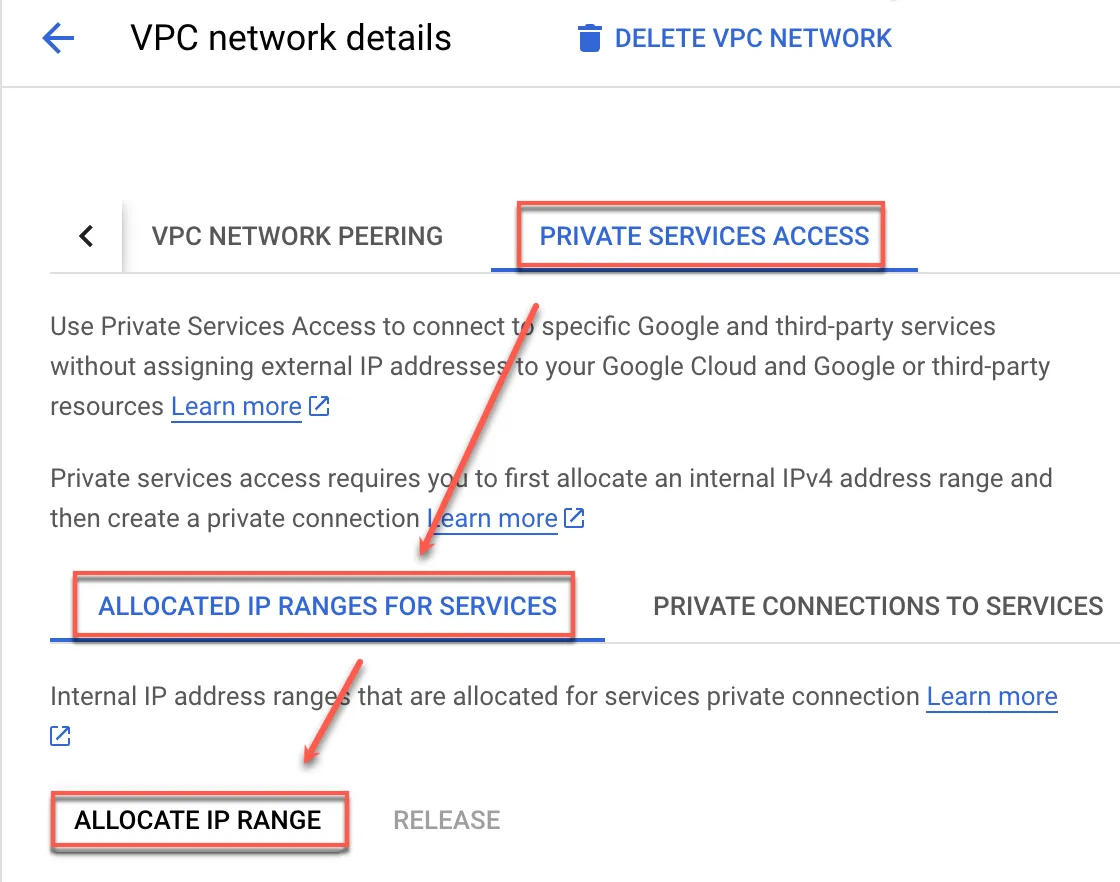
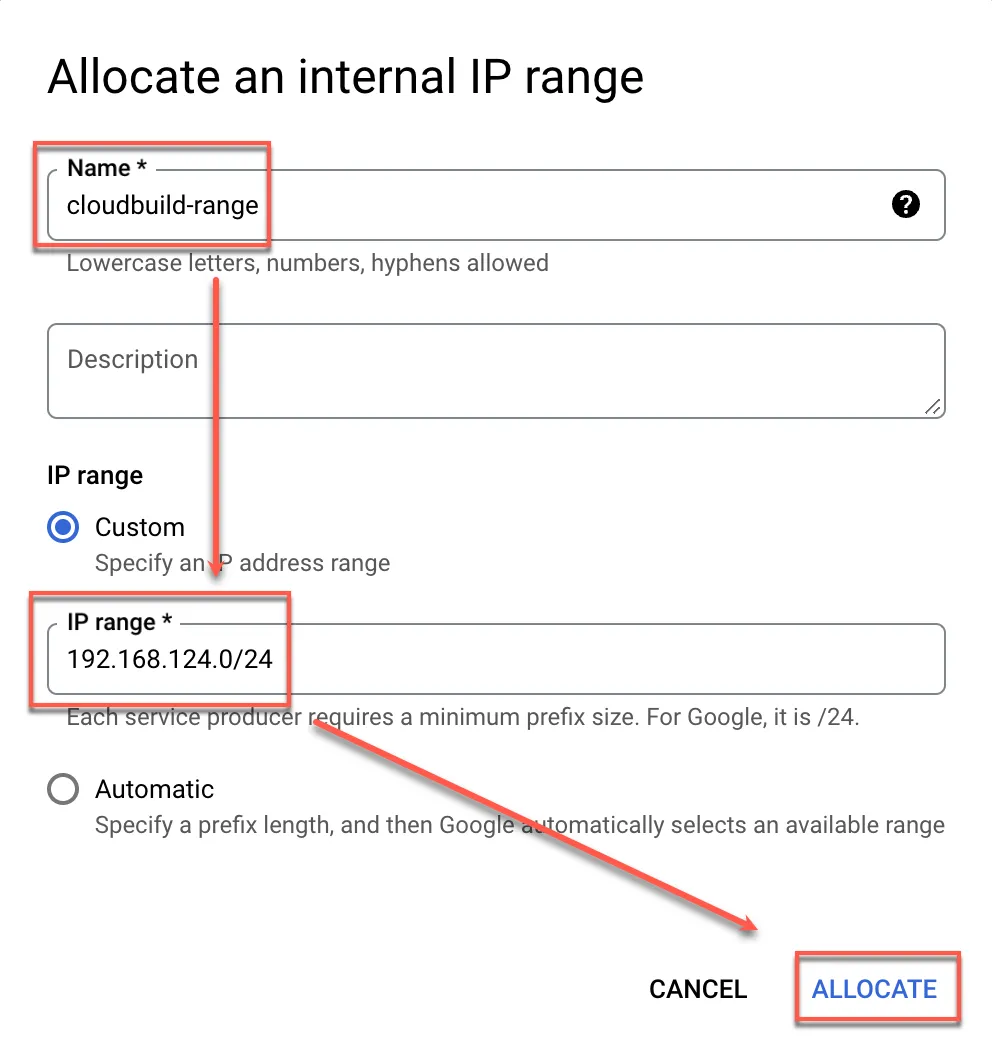
分配 ip range
建立完成後,請留意防火牆不要阻擋到此網段
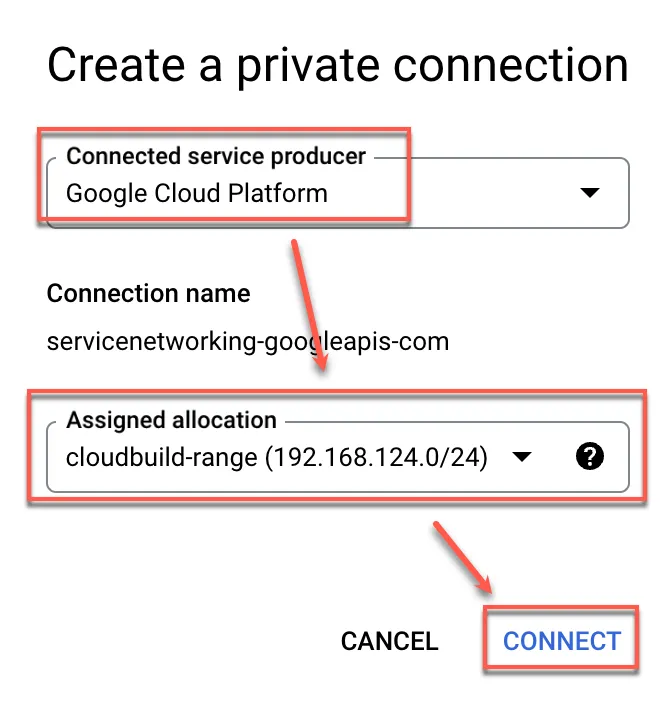
建立 Private connections to services
點選 Create connection
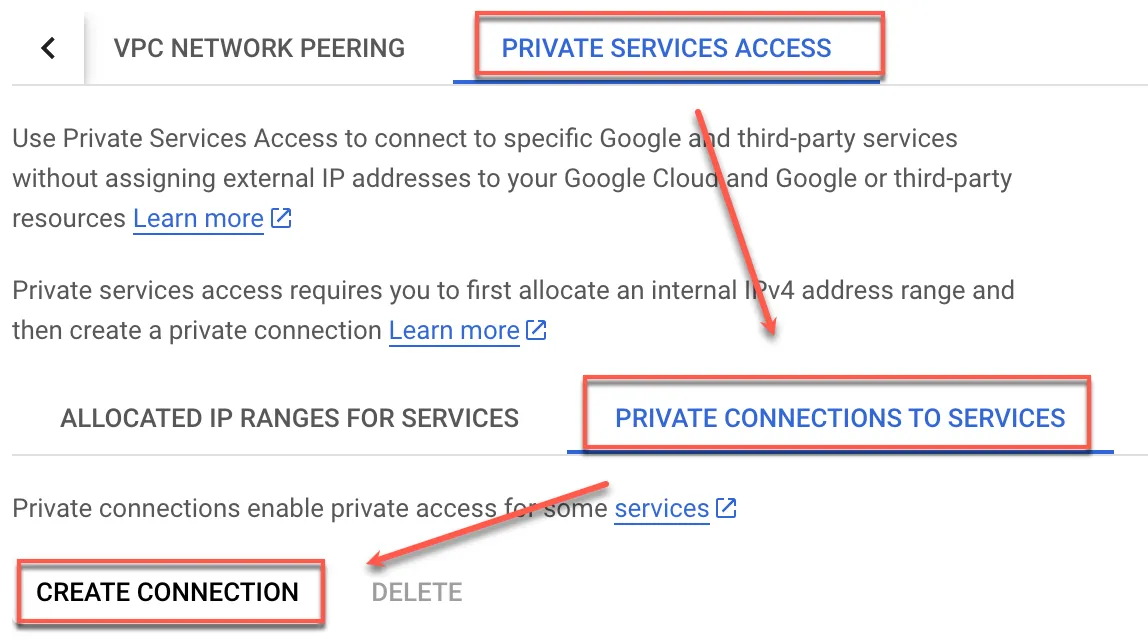
選擇 Google Cloud Platform 後,再勾選剛剛所建立的網段
建立 Private Pool
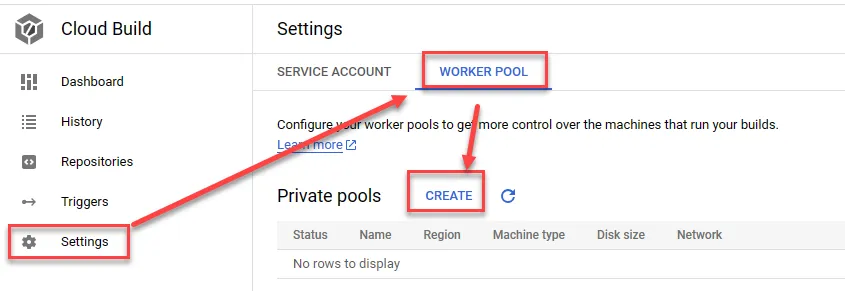
建立 worker pool
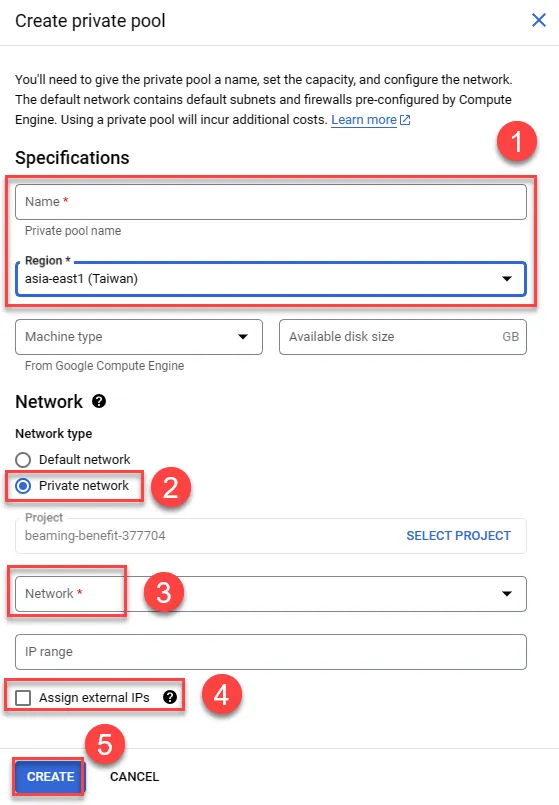
- 輸入名稱與選擇區域
- 選擇 Private network
- 選擇前面 VPC 網路與提供 ip 網段
- 不可勾選分配外部 ip,確保連線都透過私有 VPC 出去,但若需要對外下載相關套件行為,會無法下載
- 建立,預設使用 e2-medium 與提供 100GB 硬碟空間
建立橋接 VM
本內容參考此文件進行實作,目的為讓 CloudBuild 連線到 GKE 時使用固定 ip
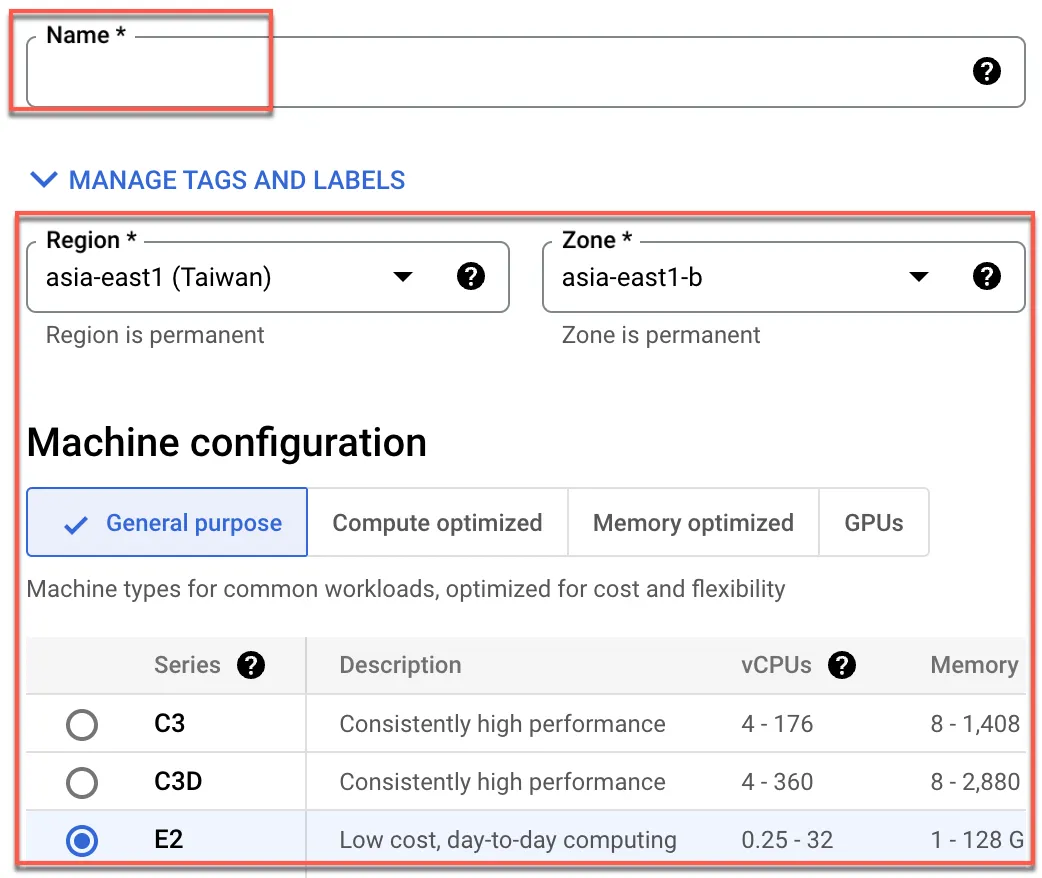
建立 VM 輸入名稱,並選擇區域與合適大小,這邊選最小的 e2-micro,開機硬碟選擇 Ubuntu 22.04 LTS
- 展開進階設定以設定網路
- 輸入網路 tag
nat-gw,後面建立 route 會用到 - 開啟 IP forwarding
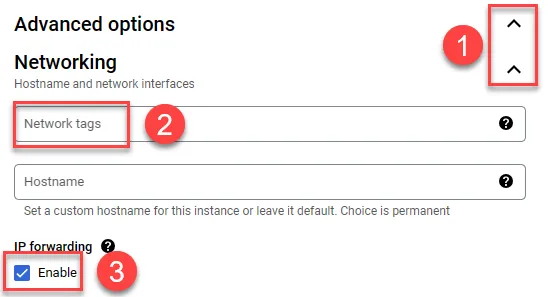
- 選擇所建立之 VPC 網路 (build-network) 與其 subnetwork
- 保留固定 ip
- 完成
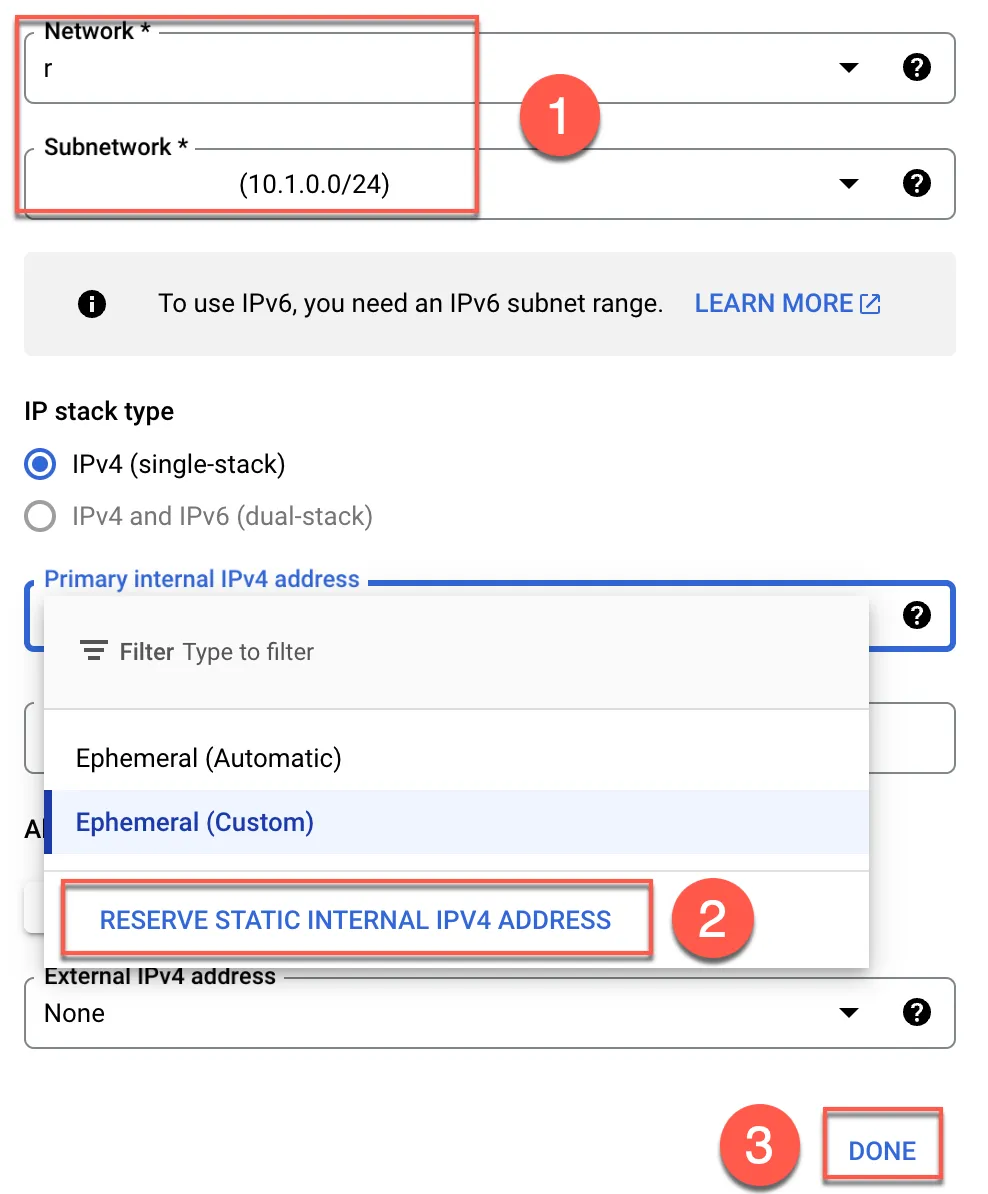
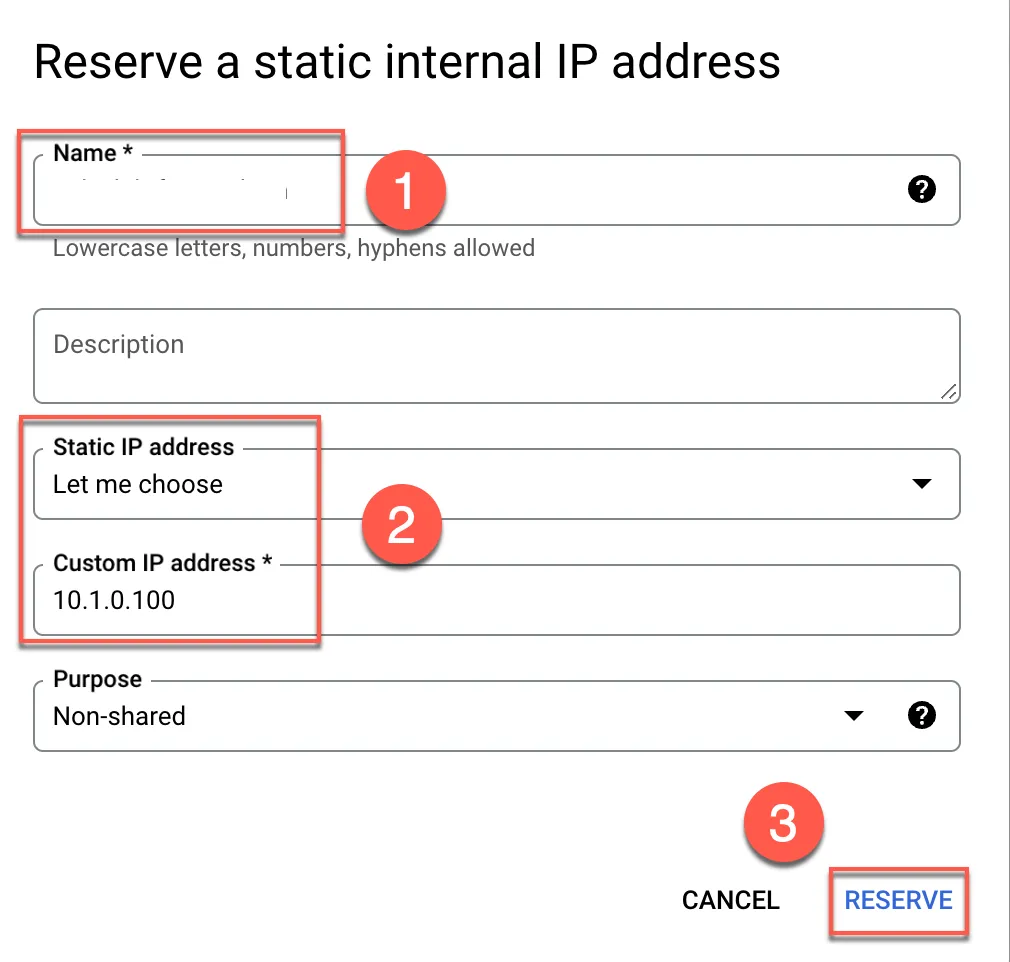
- 輸入保留 ip 名稱
- 可自訂 ip 或自動分配
- 保留
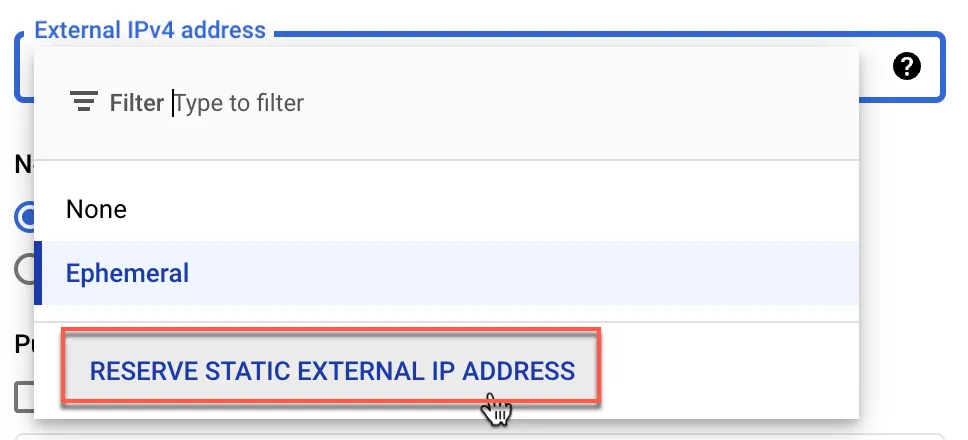
一樣保留一組對外 ip
貼上以下啟動腳本於 startup script 中
1#! /bin/bash2set -e3
4sysctl -w net.ipv4.ip_forward=15IFACE=$(ip -brief link | tail -1 | awk  {'print $1'})6iptables -t nat -A POSTROUTING -o "$IFACE" -j MASQUERADE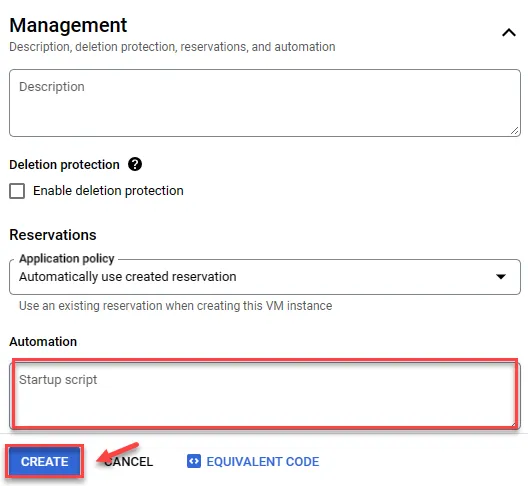
建立 VPC 路由
為能讓所有連線至 GKE public ip 都使用固定 ip 因此需額外建立 2 條路由
- CloudBuild private pool -> 橋接 GKE VM
- 橋接 GKE VM -> default-internet-gateway
開啟 VPC Route 並建立
- 選擇 Routes
- 點選 ROUTE MANAGEMENT
- 建立 ROUTE
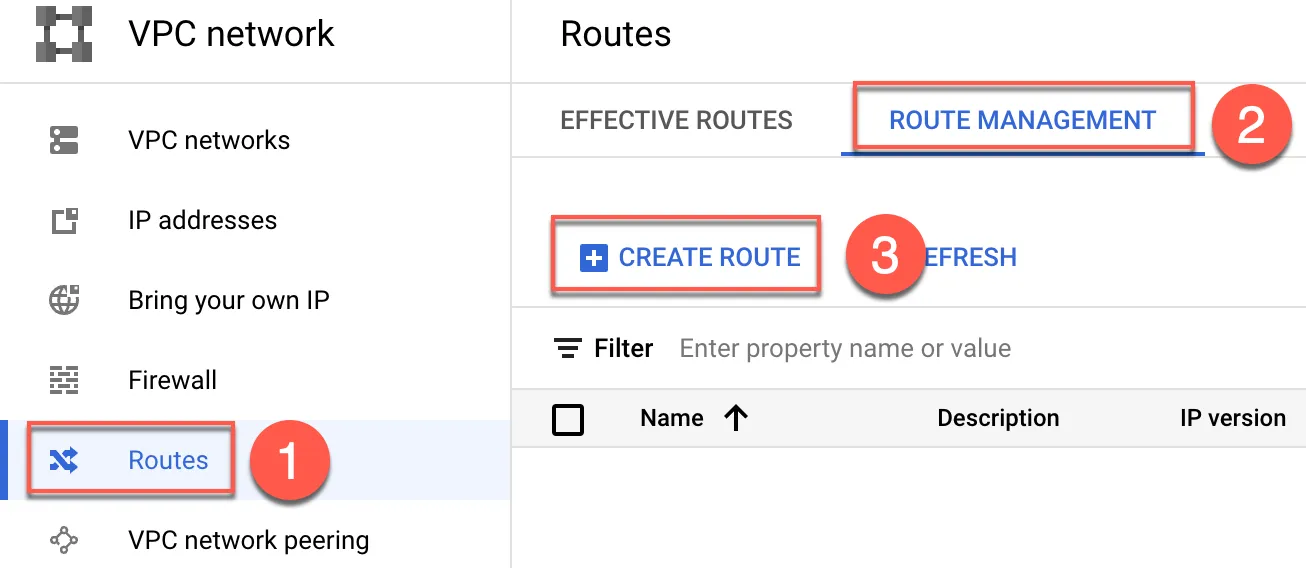
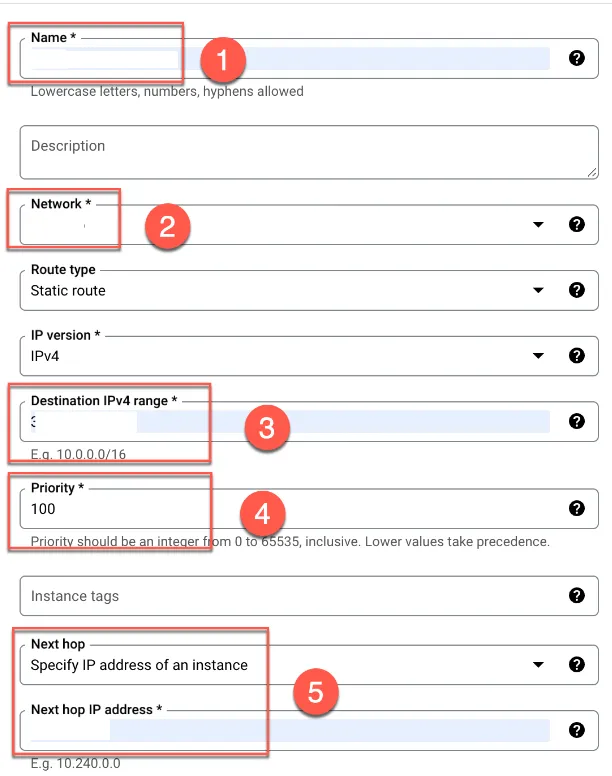
建立第一條路由,由 Cloudbuild 至 VM
- 輸入名稱,如:
cloudbuild-to-vm - 選擇與 GKE 所在之同一 VPC
- 輸入 GKE public ip
- 設定優先度,這邊設定
100 - 指定往 GKE public ip 的 next hop 要怎走,輸入前面所建立之 VM internal static ip
最後往下點選建立
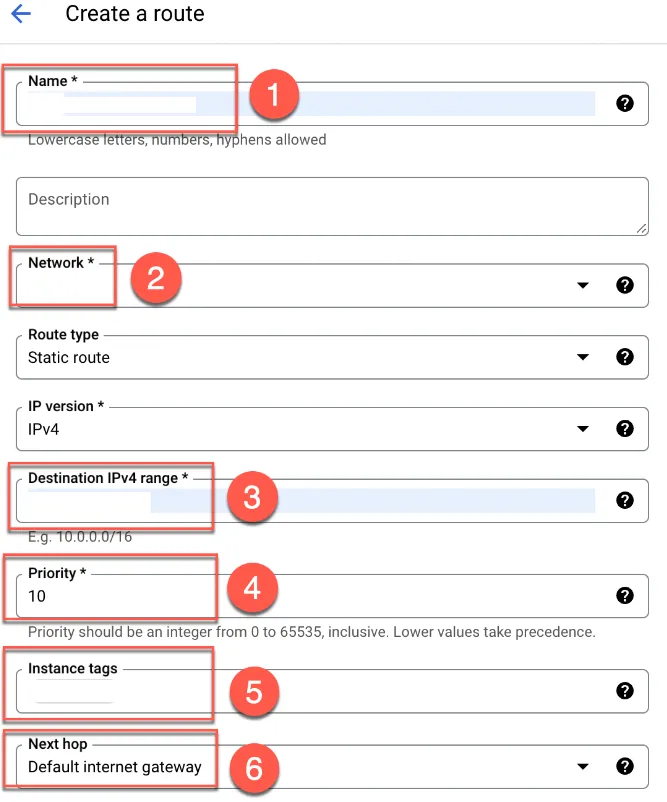
建立第二條路由,透過 VM ip 連線至 GKE public ip
- 輸入名稱如:
vm-to-internet-gw - 選擇與 GKE 所在之同一 VPC
- 輸入 GKE public ip
- 設定優先度,數值相較於第一條低即可,這邊設定
10 - 輸入前面 VM 所輸入之 tag:
nat-gw - Next hop 為 Default internet gateway 最後點選建立即可
設定 GKE Authorized Network
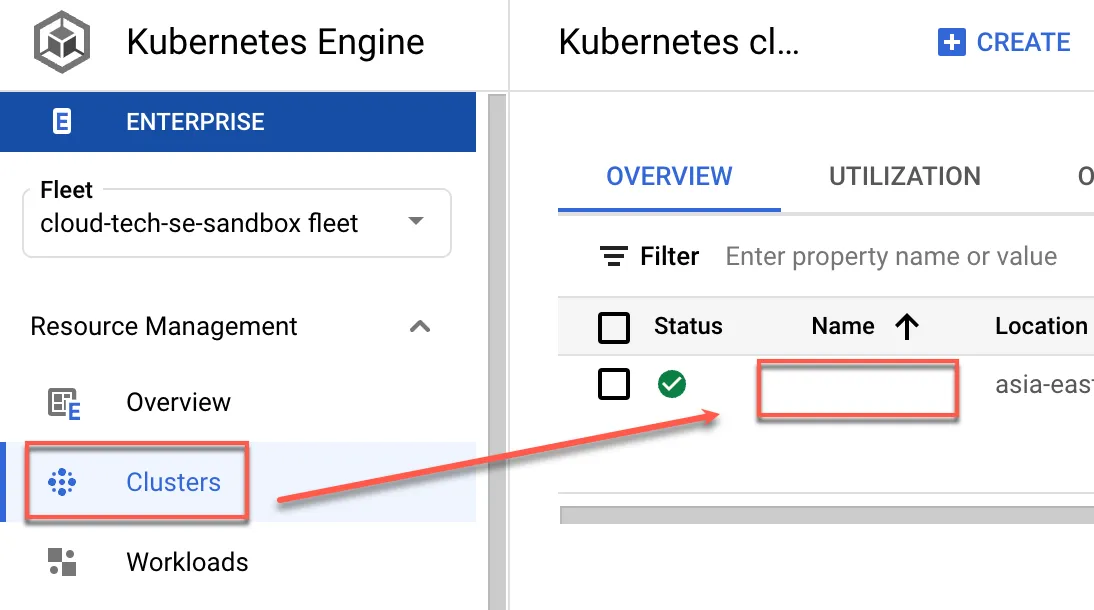
設定後使前面所建立之橋接 VM 可連線,點選所建立之 GKE Cluster
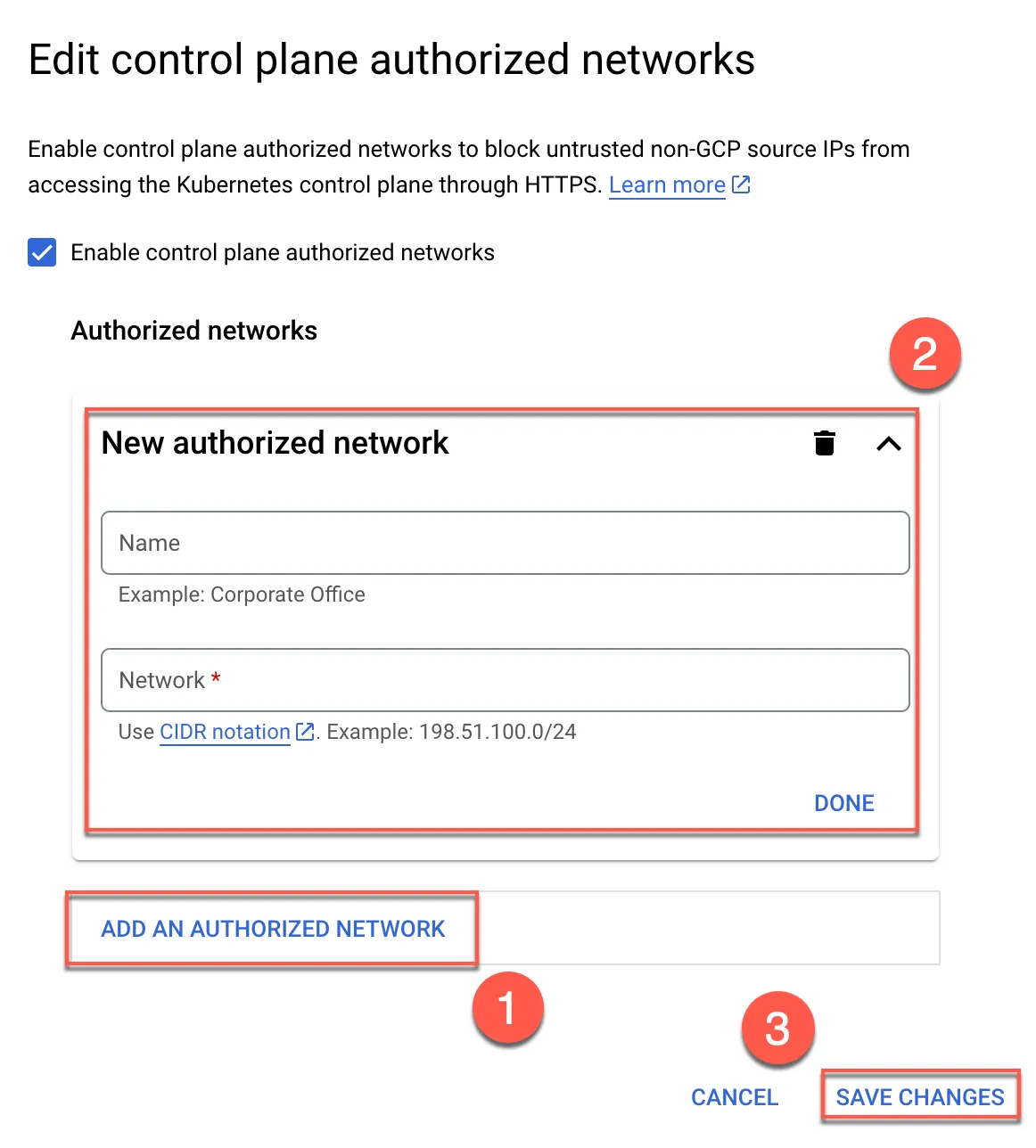
點選 Control plane authorized networks 編輯

- 新增
- 輸入名稱與橋接 VM public static ip
- 儲存
後續其他部分可參考與 CloudBuild GKE Autopilot Private Cluster on New VPC